

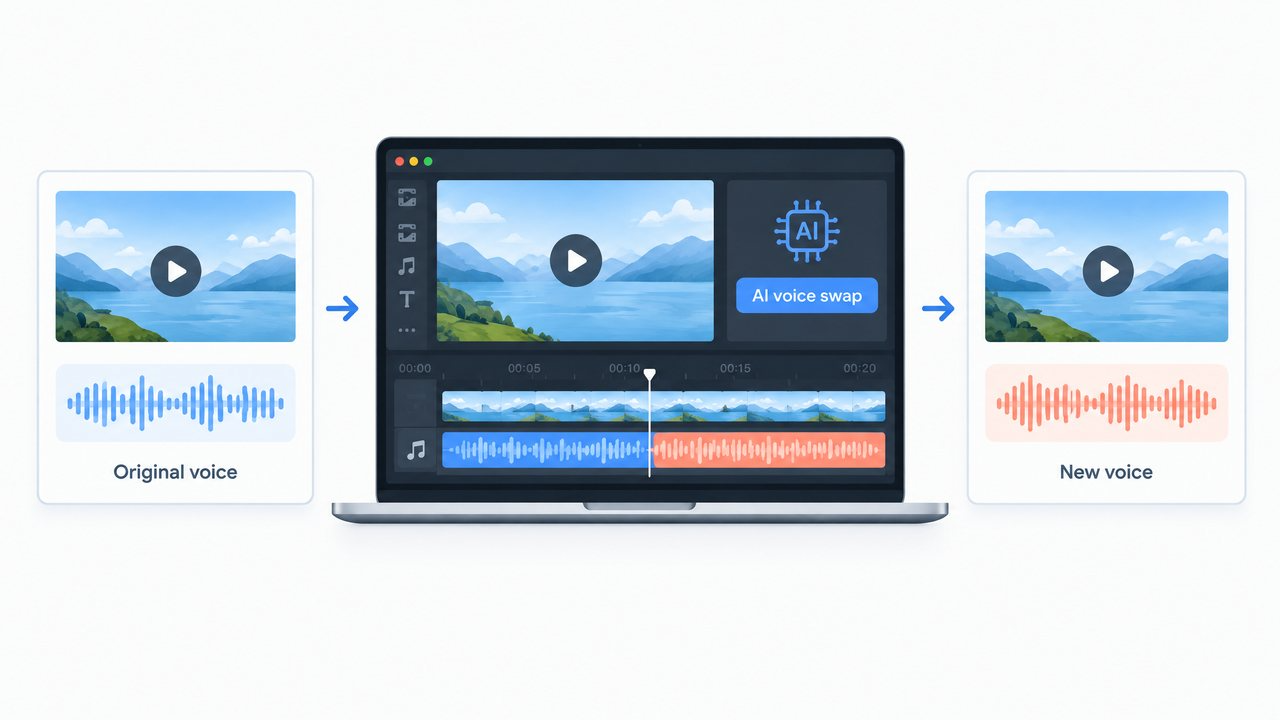
Learn how to use a voice changer video editor to replace narration in existing footage with AI, improve the audio mix, add captions, and export the finished video in WayaFrame.
Sometimes the hardest part of a video is not the footage; it is the voice.
You can finish an edit and then realise the narration sounds too flat, the recording quality is poor, or the voice no longer fits the direction of the content.
When I tried this workflow, I found that re-recording was not always the best answer.
A new recording can change the timing and create extra editing work. However, with a voice changer video editor, you can replace the existing narration while keeping the visual edit in place.
This beginner guide walks through the process I use in WayaFrame, from preparing the source video to swapping the voice, fixing the audio, generating new captions, and exporting the final version.
Table of Contents
Key Takeaways
- A voice changer video editor replaces narration in existing footage with a different AI-generated voice.
- AI voice replacement is different from voice cloning. Voice replacement changes an existing recording, while voice cloning creates a voice model for future narration.
- The quality of the source narration matters. Clear, understandable audio gives the AI a better starting point.
- After swapping the voice, review the audio, adjust the mix, and regenerate subtitles so the captions match the new narration.
- WayaFrame keeps voice swapping, audio treatment, captions, branding, and export in the same video workflow.
What Is a Voice Changer Video Editor?
A voice changer video editor lets you change the voice in an existing video without rebuilding the visual edit.
Instead of recording the narration again, AI voice replacement uses the existing voice track as the basis for timing and generates a different voice over the same content.
This is different from voice cloning. Voice cloning creates a reusable digital model of a specific person’s voice for future scripts. In contrast, a voice changer video editor is more useful when the video already exists, and the problem is the voice.
For example, imagine you finished a five-minute tutorial but decide that the narration sounds too informal for your business audience. Rather than reshooting the tutorial, you can use AI voice replacement to change the narration and keep the footage.
When to Use an AI Voice Replacement
- Refreshing older videos: If an older video is still useful but the narration no longer fits your current brand, replace the voice without rebuilding the visual edit.
- Testing narration styles: Create versions with different voice styles when you want to compare conversational and more formal delivery.
- Updating team content: If a training or explainer video was narrated by someone who is no longer available, the footage may not need to be recreated if the information is still accurate and you have the necessary rights.
- Working with difficult recordings: Try WayaFrame’s Voice Enhancer when the source audio is usable but noisy. If it is too damaged, AI voice replacement can provide a new narration track.
- Creating multilingual versions: Combine AI voice replacement with WayaFrame’s AI Video Dubbing and AI Subtitle Translation for other language audiences.
Note: changing the voice does not fix incorrect information. If the original script is wrong, the new voice will still deliver it. Severely damaged audio may also give the AI poor timing information. In those cases, a fresh script and narration may be better.
How to Use a Voice Changer Video Editor in WayaFrame
Here’s the process I use in WayaFrame when swapping Voices in Video
1. Import the Video
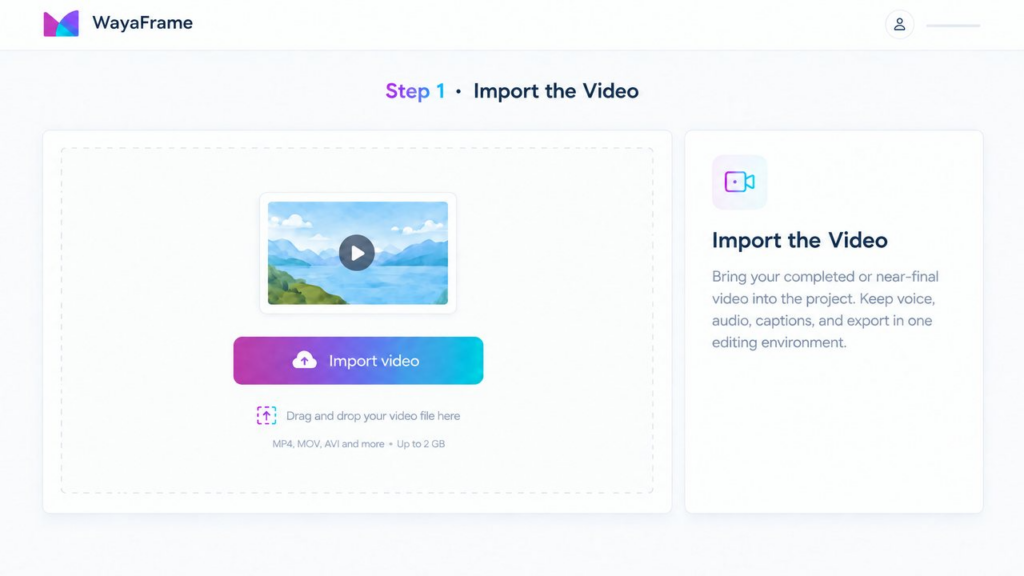
Use WayaFrame’s Media Import to bring your completed or near-final video into the project. Keeping the video in the editing environment means you can handle the voice, other audio, captions, and export without moving between separate applications.
2. Detach the Original Audio
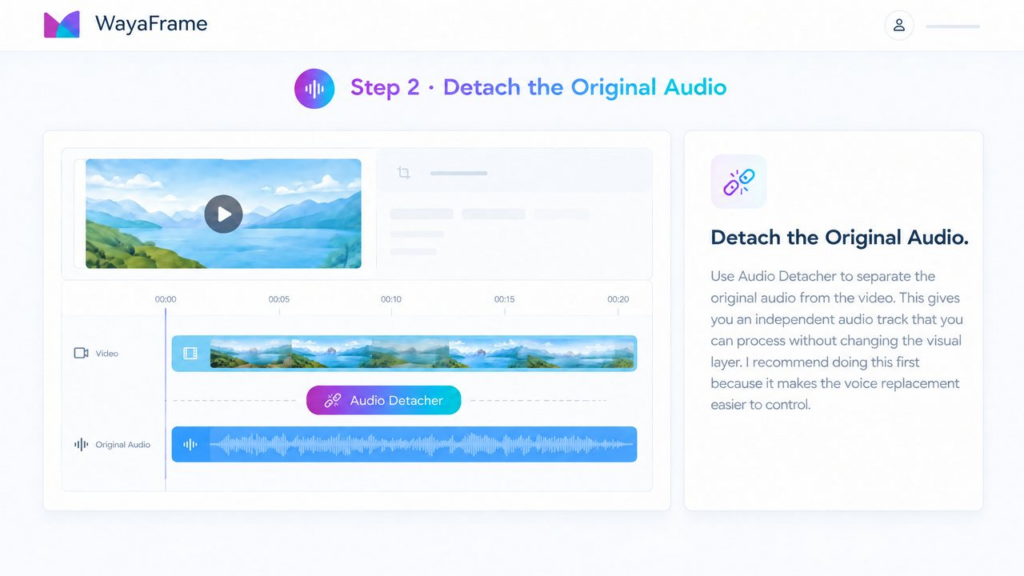
Use Audio Detacher to separate the original audio from the video. This gives you an independent audio track that you can process without changing the visual layer. I recommend doing this first because it makes the voice replacement easier to control.
3. Apply AI Voice Swapping
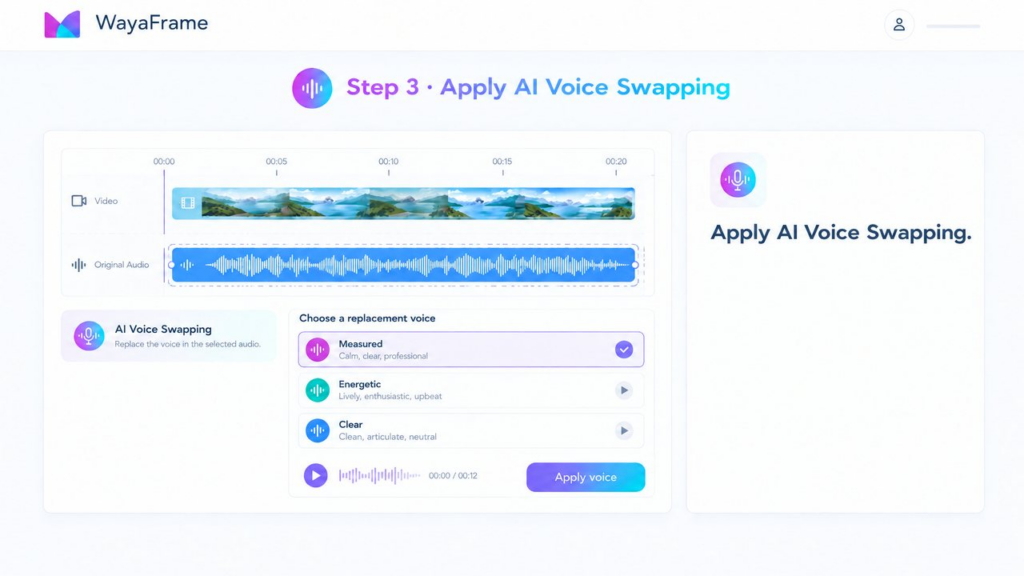
Select the detached audio track and apply WayaFrame’s AI Voice Swapping feature.
Choose a replacement voice that matches the content and audience.
The aim is not simply to make the voice different. It should fit the video. For example, I would choose a measured delivery for a software tutorial and a more energetic option for short promotional content.
4. Listen Through the Entire Result
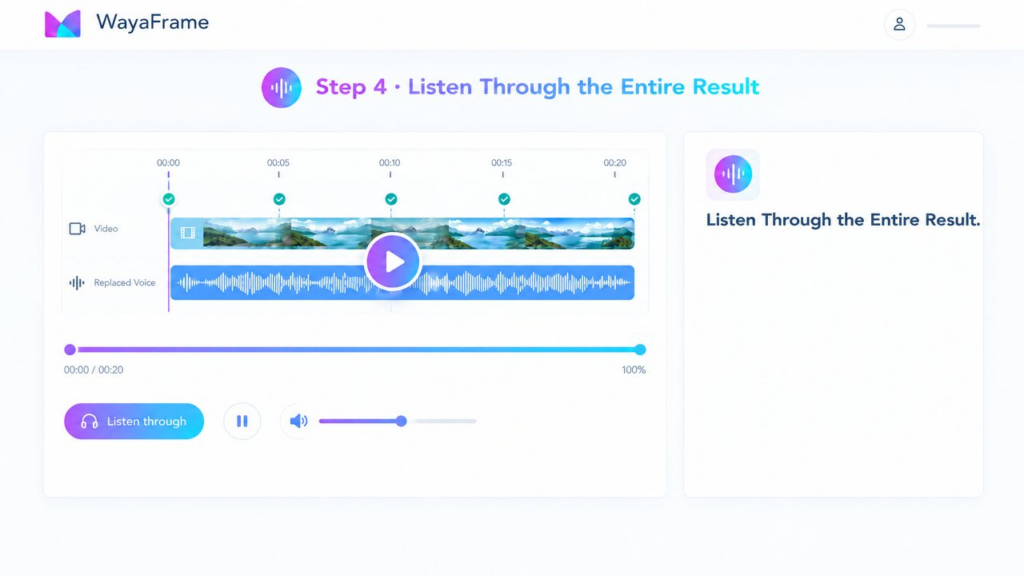
Do not export immediately. Play the full video and listen for changes in pacing, pronunciation, emphasis, or sections that sound unnatural.
If one section needs separate treatment, use Audio Splitter to divide the track and work on that section independently. A result can sound good overall while still having one or two sections that need adjustment.
5. Apply Video Voice Effects and Audio Treatment
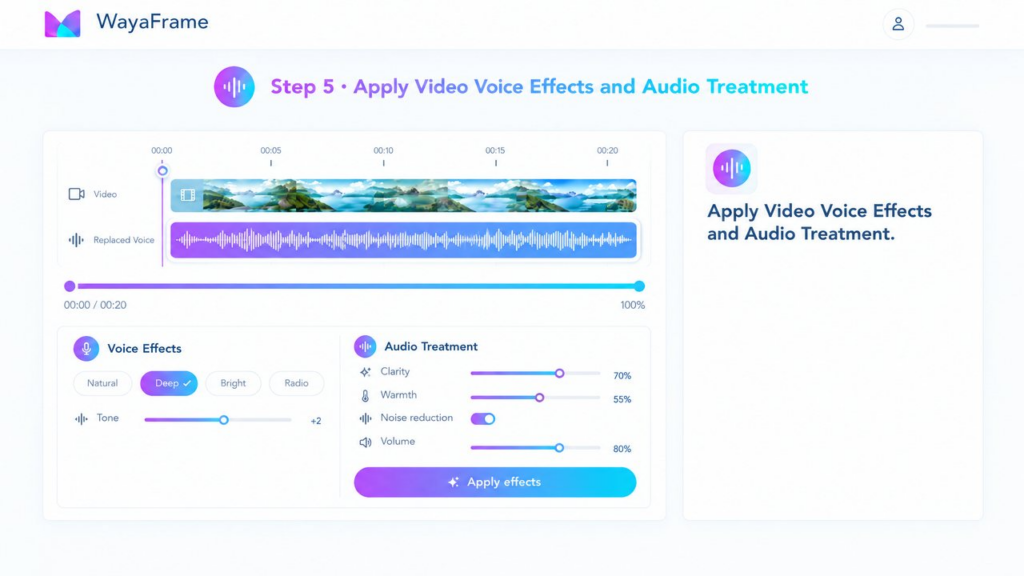
This is where video voice effects become useful. The swapped narration still needs to sit naturally inside the complete audio mix.
- Audio Transformation: Use it when the replacement voice needs additional treatment to fit the style of the video.
- Volume Fading: Add smooth fades where the narration begins, ends, or needs a natural transition.
- Audio Mixer: Balance the new narration against background music and other audio. The voice should remain easy to understand.
- Silence Removal: Tighten unnecessary gaps when pauses in the replacement narration make the pacing feel slow.
My advice for beginners is to make small changes and listen again. Heavy processing can make a voice sound less natural.
6. Generate New Subtitles
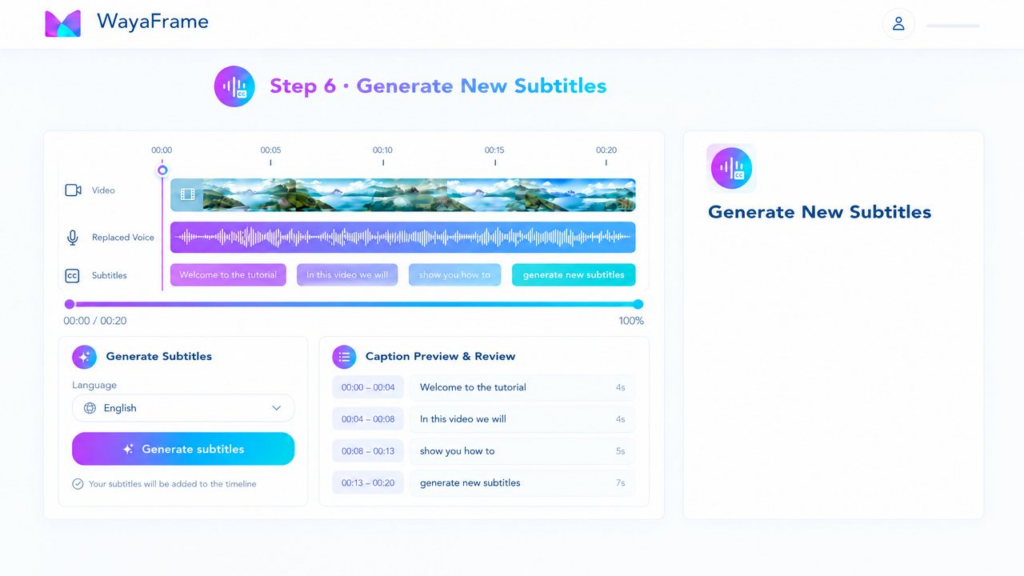
Run WayaFrame’s Automatic Video Subtitles after the voice replacement is complete. This ensures the captions are generated from the new narration rather than the original voice track.
Then review names, numbers, technical terms, punctuation, and timing. If you generated subtitles before changing the voice, regenerate them after the swap.
For multilingual content, AI Subtitle Translation can create translated subtitle versions from the updated captions.
7. Brand and Export the Video
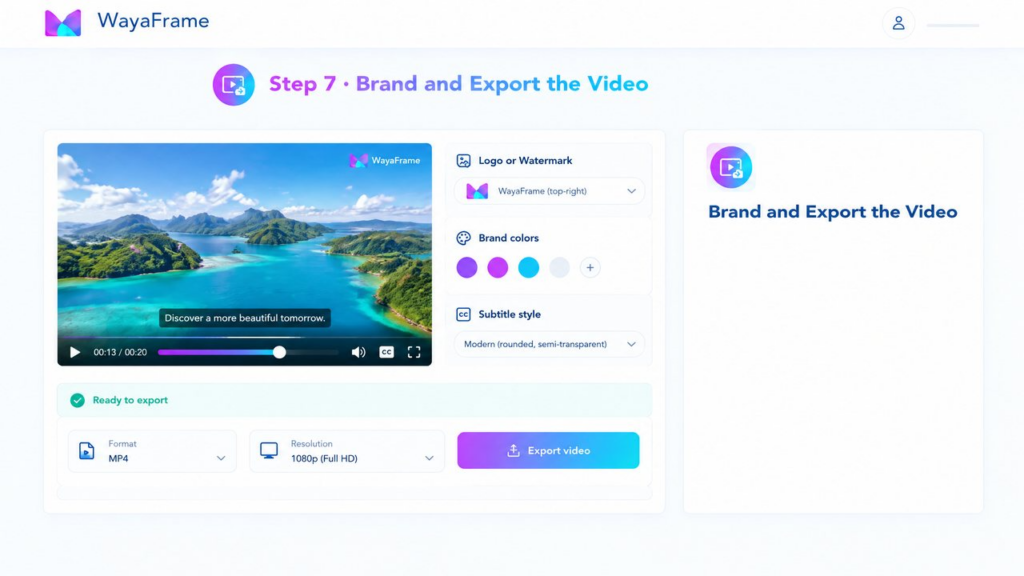
Apply your Brand Kit so the video’s logo, colours, and fonts remain consistent with your other content. Then use Aspect Ratio Changer for the format you need:
- 16:9 for standard YouTube videos
- 9:16 for Shorts and Reels
- 1:1 for suitable social feed placements.
Further, before exporting, run Lighthouse and watch the finished video once more. Check the voice level, music balance, captions, transitions, and opening seconds.
I had to make this final check part of the workflow because small audio or caption errors are easier to fix before export than after publishing.
Common Beginner Mistakes When Using a Voice Changer Video Editor
Mastering an advanced AI video editor can take time for a beginner. Hence, before you get to that feat, start by knowing common mistakes to avoid when using AI voice changer and how to avoid them:
- Swapping the voice before finishing the edit: Complete the visual edit first so you do not process audio for sections that will be removed.
- Skipping the full review: Always listen to the new voice from beginning to end.
- Ignoring the audio mix: A replacement voice still needs to be balanced against music and other tracks.
- Creating captions too early: Generate subtitles after the voice swap so the text follows the final narration.
- Using poor source audio and expecting perfect results: Try Voice Enhancer first on borderline audio and consider a fresh narration when the source is too damaged.
- Choosing a voice only because it sounds impressive: The best voice is the one that suits the audience, topic, and tone.
Frequently Asked Questions
It is a video editor that can replace an existing voice track with another AI-generated voice while keeping the rest of the video edit in place.
No.
AI voice replacement changes the voice in existing footage. Voice cloning creates a reusable model of a specific voice for future narration.
Not for the voice swap itself.
WayaFrame’s AI Voice Swapping works from the existing narration, so you can replace the voice without recording the whole video again.
They are audio treatments that change or refine how a voice sounds inside a video. In WayaFrame, Audio Transformation, Volume Fading, and the Audio Mixer can shape and balance the replacement voice.
It can help when the original recording is difficult but still provides usable speech and timing information. Try Voice Enhancer first for borderline audio. If the source is severely distorted or unclear, a fresh narration may be more reliable.
Final Thoughts on Voice Changer Video Editor
A voice changer video editor can save you from rebuilding an otherwise useful video just because the narration needs to change.
My recommended sequence is simple:
- Finish the visual edit
- Detach the audio
- Apply AI voice replacement
- Listen through the result
- Treat the mix
- Regenerate captions
- Apply your branding
- Check the project
- And export.
If you have an older video that is still useful but needs different narration, that is a good first project. Test the workflow on one video, review the result carefully, and then decide whether AI voice replacement belongs in your regular production process.

