

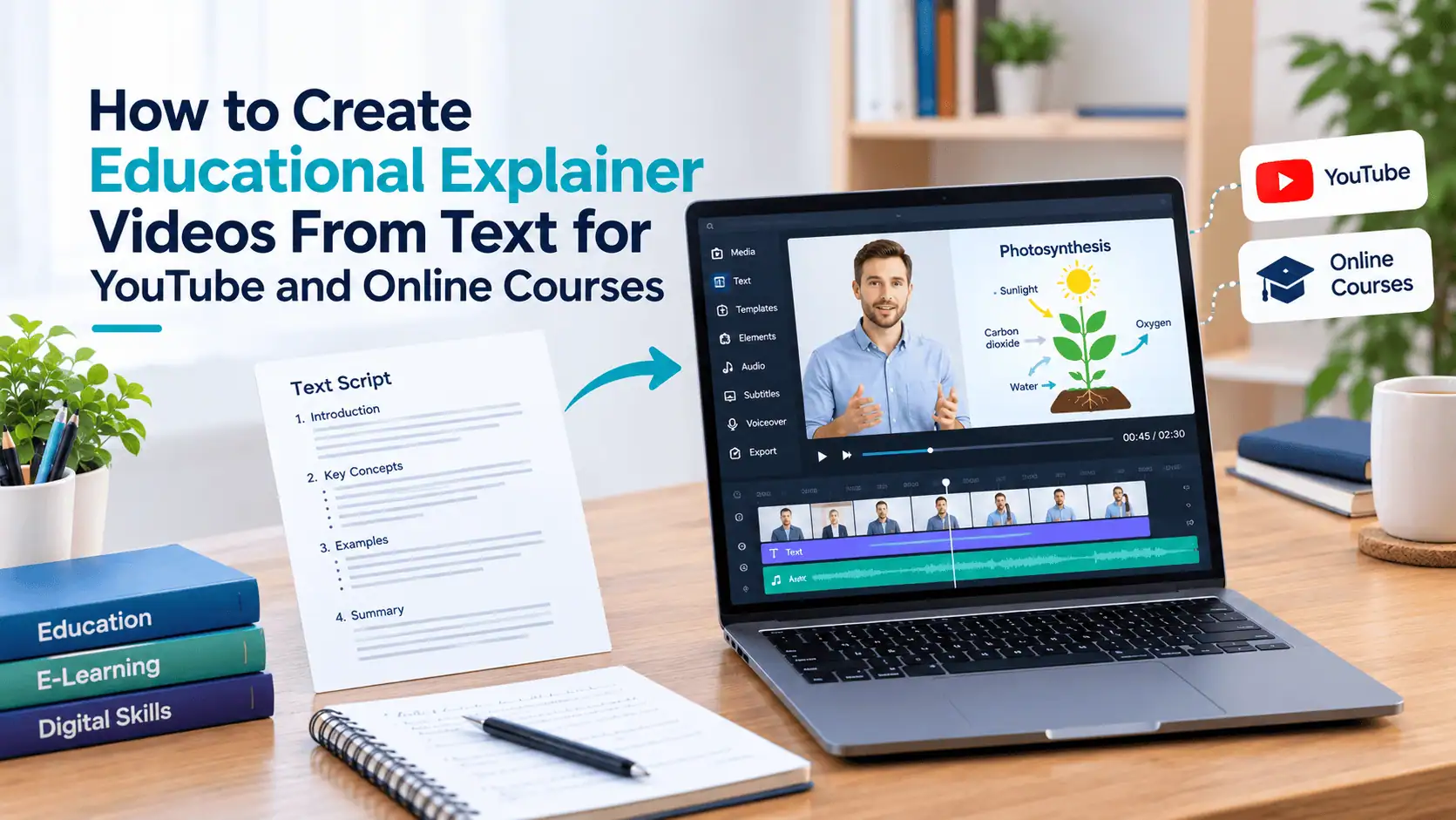
Learn how to turn lesson text into an educational explainer video, from preparing your script and reviewing scenes to editing the timeline and exporting the final video.
Reading a wall of text takes effort; most learners are not willing to read any more and prefer videos.
However, if you already have a lesson script or written material, you can use it as your starting point instead of building every element from scratch.
Creating an educational explainer video involves several stages, from preparing your script and generating narration to developing scenes, editing the timeline, and exporting the finished video.
In this guide, we’ll use a Grade 12 lesson on photosynthesis as a practical example. You’ll see how to prepare the lesson, make decisions about narration and visuals, review the generated scenes, and refine the video before publishing.
Let’s dive in.
Table of Contents
Key Takeaways
- Video-based learning has been shown to raise information retention by 60% to 75% compared to text alone.
- You can turn lesson notes, PDFs, slides, or written scripts into educational explainer videos without advanced animation skills using an AI-powered video creation tool.
- WayaFrame lets you generate or upload your script, choose an educational visual style, and structure your lesson with a hook, explanation, example, and summary.
- For educational explainer videos, a warm, conversational voice helps make lessons, tutorials, and online course content feel more engaging and easier to follow.
- You can reach learners across different language groups by translating your video’s subtitles and audio into other languages.
- Before publishing, optimise your explainer video for its target platform by choosing the appropriate aspect ratio, adding captions, and keeping each video focused on one main concept.
What Makes a Useful Educational Explainer Video?
A useful explainer video has one clear learning objective. It introduces the topic, explains the main idea in a logical order, uses examples to make abstract concepts easier to follow, and finishes by reinforcing what learners should remember.
Before opening your video editor, answer three questions:
- What should learners understand by the end?
- Which example or visual would make the concept easier to grasp?
- Where will the video be watched, and what format will suit that audience?
How to Create an Educational Explainer Video
Several tools can turn lesson notes and scripts into engaging educational videos, including Canva, Powtoon, Vyond, InVideo, and Animaker.
While these platforms offer useful video creation capabilities, WayaFrame stands above them by bringing multiple stages of video production into one AI video workspace.
Here are some of the features that make WayaFrame particularly useful for educational explainer video creation:
- AI Script Generation: Generate scripts using 20+ AI models or upload and edit existing scripts.
- AI Voice Generation: Choose from 40+ voice characters, customise emotions and styles, or upload your own audio.
- AI Scene Generation: Turn scripts into visual scenes using different styles, images, and videos.
- Timeline Video Editor: Edit videos with captions, audio, text, transitions, effects, filters, and brand kits.
- AI Music and Sound Effects: Create background music and sound effects with TuneDance.
- Subtitle Translation: Translate subtitles and audio into multiple languages.
- Video Aspect Ratio Adjustment: Resize videos into horizontal and vertical formats for different platforms.
This is how to create an explainer video even as a beginner using WayaFrame:
Step 1: Start a Project With a Clear Learning Goal
Begin by deciding what the video needs to teach, rather than choosing settings first. For the photosynthesis example, we’ll keep the scope to the process and why it matters.
A focused lesson is easier to script, visualise, and review than a video that tries to cover an entire unit.
After deciding exactly what you want the viewer to walk away knowing:
- Click on the new project icon on the top right of your WayaFrame Interface
- Choose how you want to create your explainer video: generate with AI or blank Canva. I recommend you choose “Generate with AI,” as this makes it easy to build using AI-powered script, voice, and visuals.
- Next, name your project with a name that reflects what your explainer video is about.
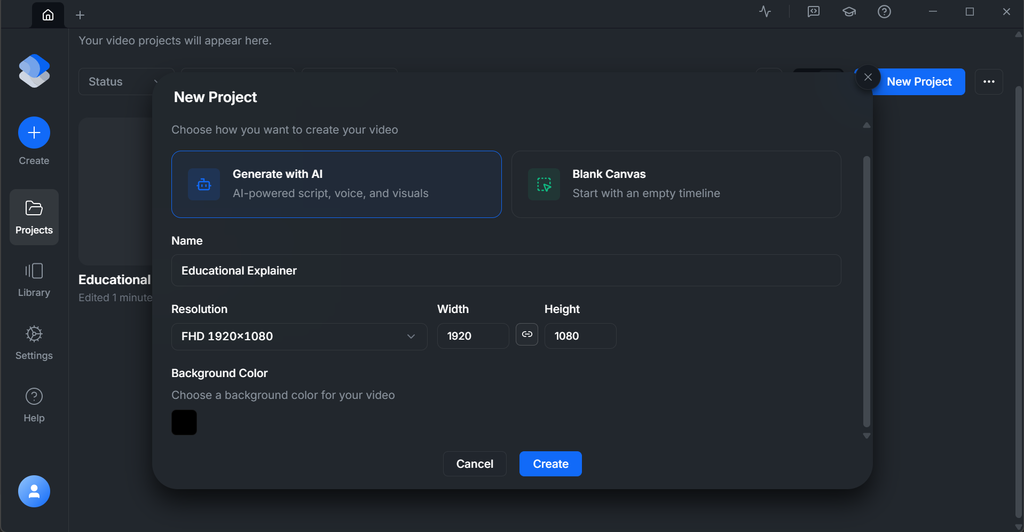
- Choose the video resolution of your choice from the drop-down menu. This ranges from SD, FHD, HD, 2K, 4K, UHD, among other 10 available options.
- For this walkthrough, I’ll use the FHD resolution. However, you can always change this even after your video is created.
- Be sure to select the video background colour for your explainer video.
- Click on “Create”
Step 2: Choose Your Video Type, Visual Style and Video Length
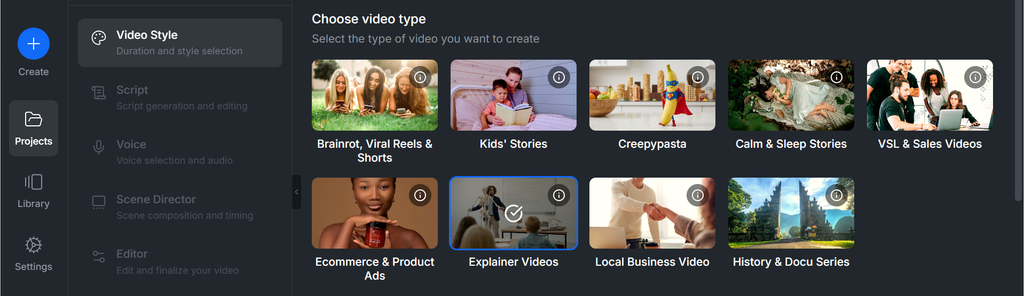
- In this interface, you are to choose the type of video you want to create from the available options. Since we’re creating an educational explainer video, kindly choose the “explainer video option.”
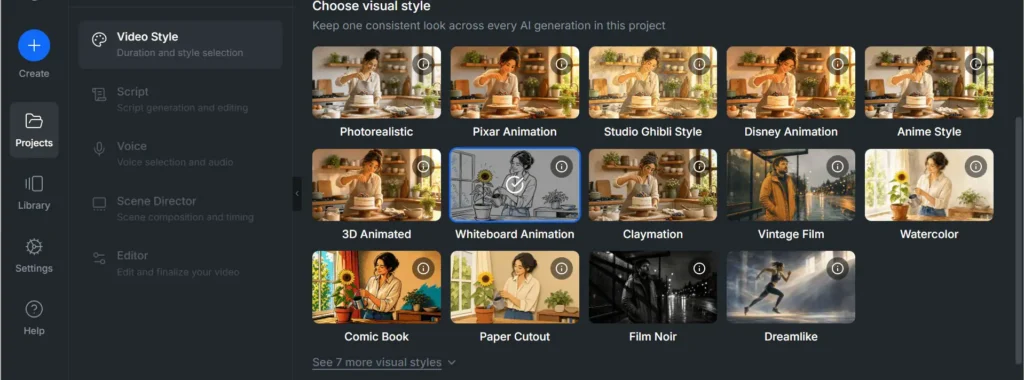
- Afterwards, select your preferred visual style. Whiteboard animations are best for educational videos.
- Next, ensure you select how long you want your explainer video to be and click on the “Continue to Script” button.

Step 3: Prepare or Generate Your Lesson Script
The script is the foundation of the video. If you already have lesson text, review it for accuracy and simplify sentences that may be difficult to follow when heard aloud.
You have two options for preparing your explainer video script: generate one with AI or upload and edit your existing script manually.
- If you already have your script ready, either in the form of typed text, a PDF file, or a DOCX script, select the “manual script.”
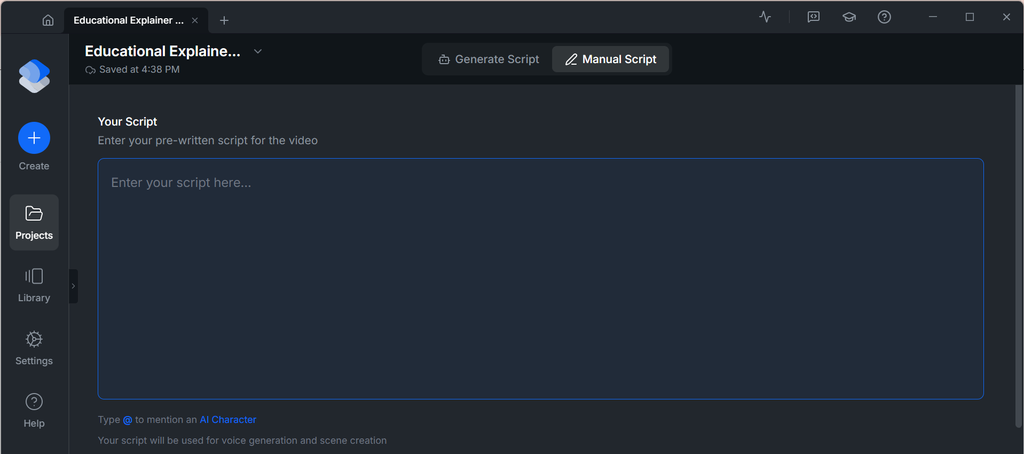
- Here you can paste your ready script or click on upload to select your preferred document from your device and click on “Generate Script.”
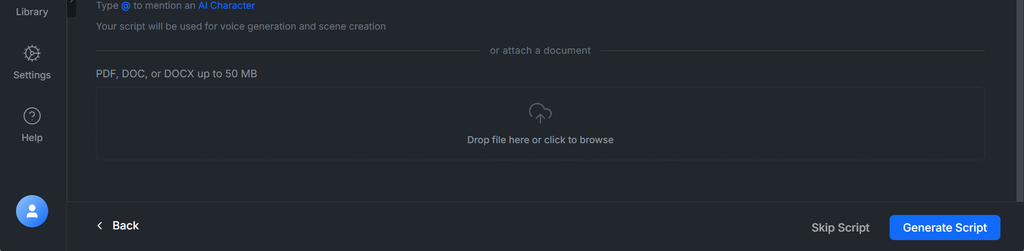
If you’re going with the manual script option, I recommend you structure your script following this method:
- Hook: introduce a question, misconception, or real-world reason to care.
- Explanation: build the core idea one step at a time.
- Example: connect the concept to a concrete situation or visual.
- Summary: reinforce the key point learners should remember.
Alternatively, you can go with the “Generate Script” option if you don’t have any raw material to begin with. Just describe your video content angle, and you’re good to go.
- We’ll use our educational explainer video topic on the process and benefits of photosynthesis for grade12 students. Hence, simply input that topic focus into the “AI Script Generator.”
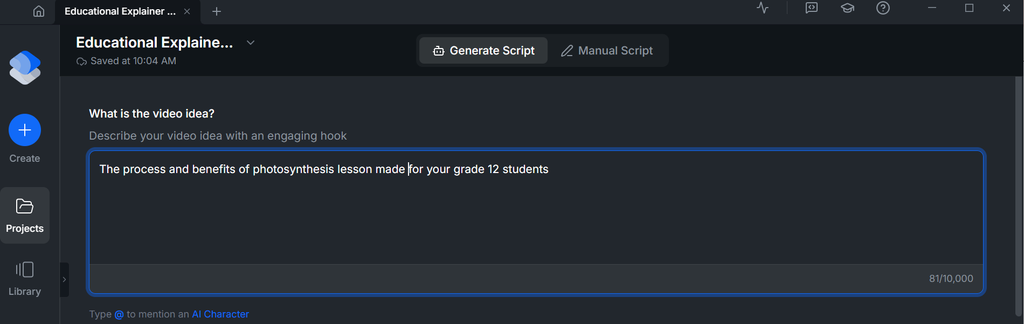
- Next, select your preferred language and AI model. The platform offers access to over 20 AI models, including GPT, Claude Opus, Claude Sonnet, and Gemini, so you can choose the one that best fits your script-generation needs.
- In addition, WayaFrame lets you add up to 5 context items to help guide your video creation. This is the time to include possible keywords you want your video to contain.
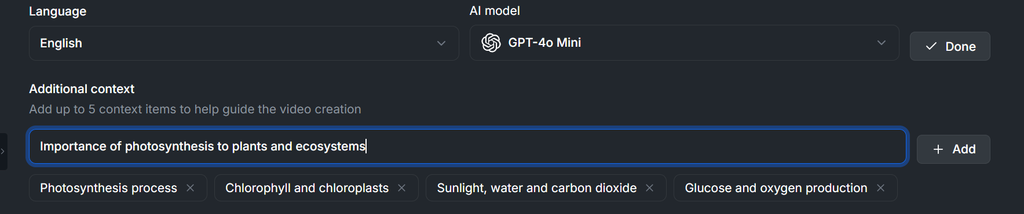
Since our topic is photosynthesis, my recommended context items are:
- Photosynthesis process
- Chlorophyll and chloroplasts
- Sunlight, water and carbon dioxide
- Glucose and oxygen production
- Light-dependent and light-independent reactions
- Importance of photosynthesis to plants and ecosystems
Afterwards, select a voice tone and emotions that match your explainer video. For a Grade 12 educational explainer video on photosynthesis, I recommend a voice that sounds like an engaging science teacher rather than a formal documentary narrator.
- WayaFrame video maker gives you more than 70+ emotions to select from. However, to ensure your explainer video is focused, you’re allowed to select a maximum of 4 emotions.
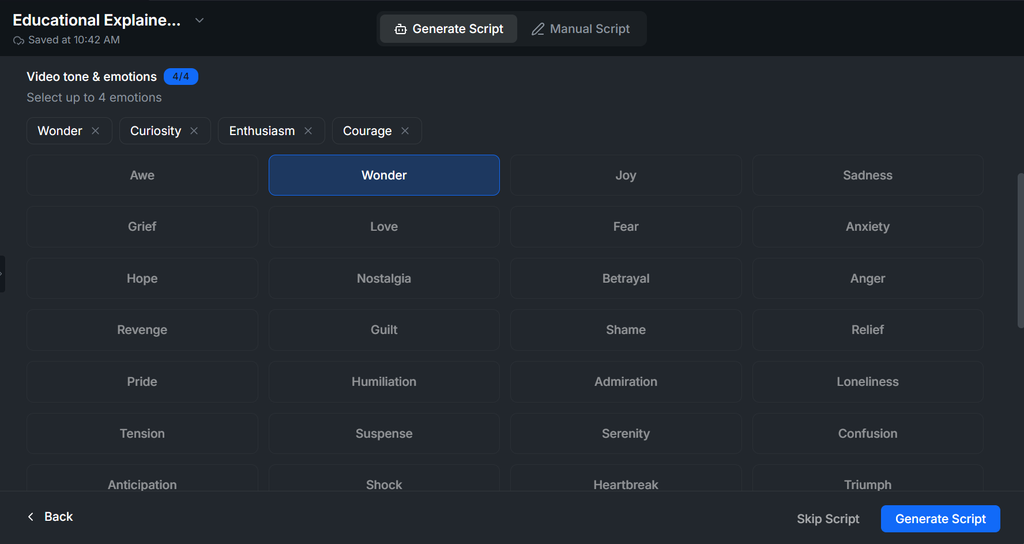
- Next, click on the “Generate Script” button and simply blink your eyes, and your script is generated.
- Scroll up to the “Generate Script” bar, and your generated script is ready for your review. Now is the time to put your creative ability to work and read through your script and see if it meets your expectations.
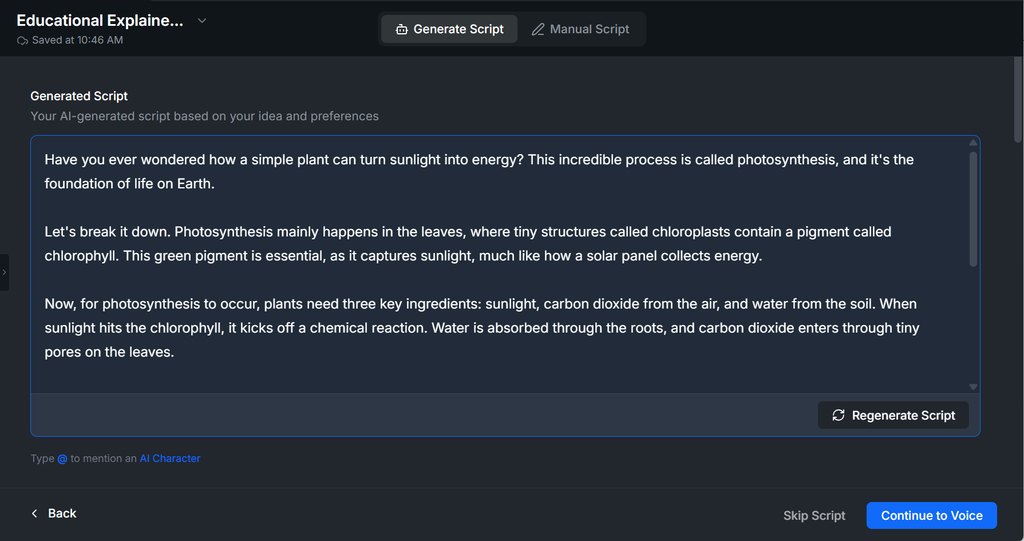
- However, if it doesn’t match your requirements, you can modify this by clicking the “Regenerate Script” button.
- Also, with WayaFrame, you can edit a specific text, sentence, or paragraph without regenerating the entire script from scratch. You simply highlight your desired sentence, and you have the options to edit, including options like character, improve, shorter, longer, rewrite, tone and custom.
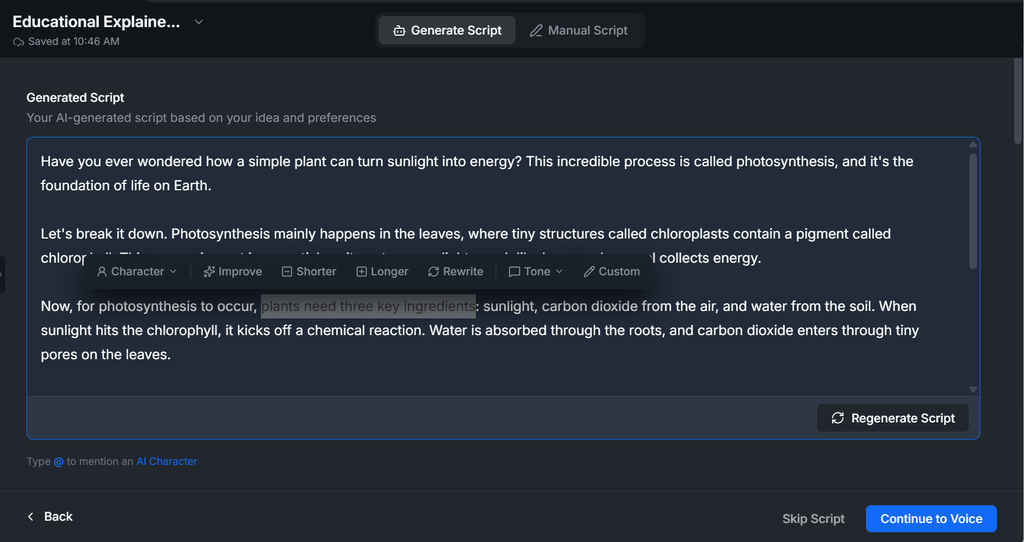
Further, if the script checks out to you, hit the “Continue to Voice” button.
Ready to turn your lesson into a video?
Start with a lesson script or idea and explore the available WayaFrame AI Video creation workflow.
Step 4: Choose Narration That Supports Learning
Voice is where a lot of educational explainer videos lose people. A flat, robotic narrator makes even great content feel like homework.
Whereas a warm and conversational voice works particularly well for lessons, tutorials, online courses, and YouTube education content.
This approach is effective for educational niche video marketing, where clear communication and student engagement are essential.
For voice generation, you have two options: Voice Designer or Upload Audio. I’ll show you how to utilise both methods in this guide.
Method 1: Voice Designer
Your sentence structure influences your voice pacing. Hence, WayaFrame provide you with 3 paste preferences as follows:
- Split Script by Paragraphs: This is recommended for e-learning modules, Audiobooks, Podcasts & other long scripts. (This is the option we will go by.)
- Split Script by Sentences: Recommended for Video scripts, Dialogues & Short scripts
- Don’t Split: You’re simply telling the AI script generator you’ll split the script yourself. Recommended for presentations.
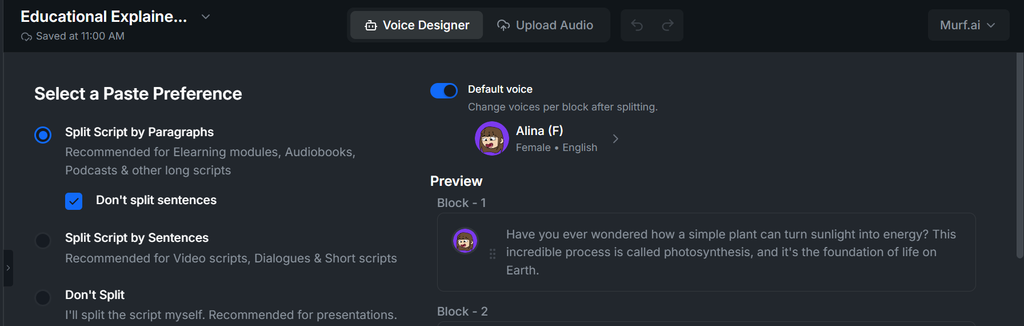
- Having set your preference, it’s time to customise your preferred voice character, including voice gender, language, and style. You have a variety of 40+ voice characters to choose from.
- Also, WayaFrame voice generator doesn’t restrict you to a single voice for an entire script; you have the option to use different voice types per script block.
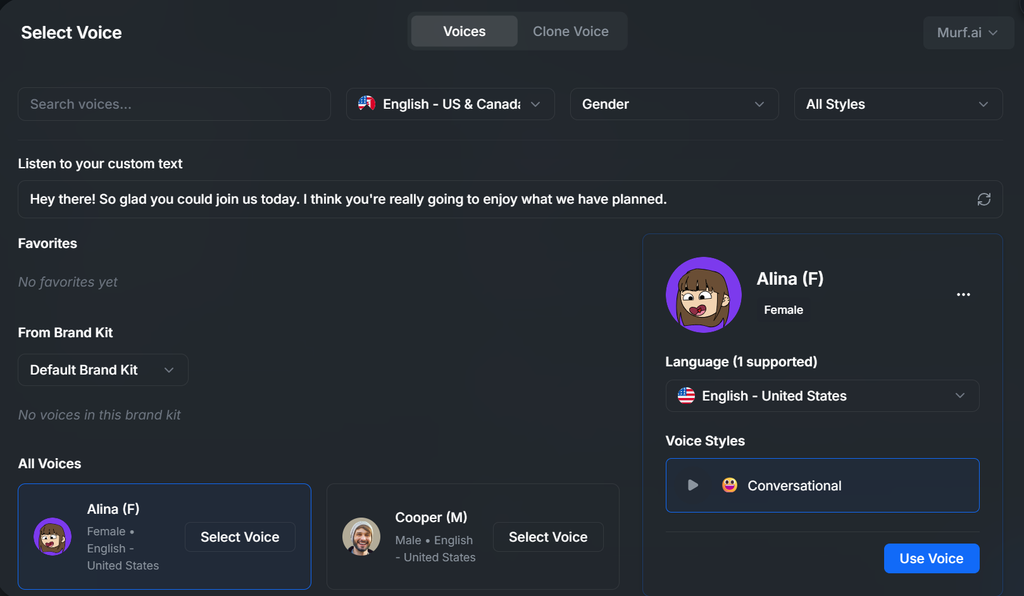
- Similarly, if you’re comfortable with the default voice, just go ahead and use it. Since we’re creating an educational explainer video for grade 12 students, a conversational tone works best. Hence, we’ll stick with the default voice option and click on the “Use Voice” option.
Method 2: Upload Audio
WayaFrame AI video workspace gives you flexibility and a variety of options to carry out a single task.
- Its “Upload Audio” method is straightforward and applies if you already have your script audio ready or if you want to record using your own voice.
- Depending on your needs, simply select the upload or record options.
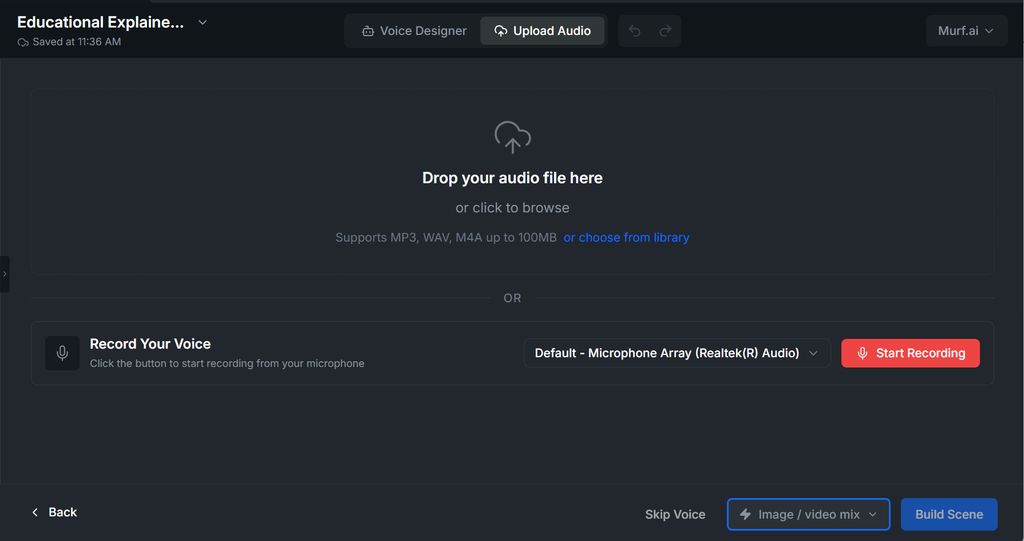
Since we’re going with the “Voice Designer” option, we simply hit the “Insert Voice” option if we’re comfortable with our preferred voice.
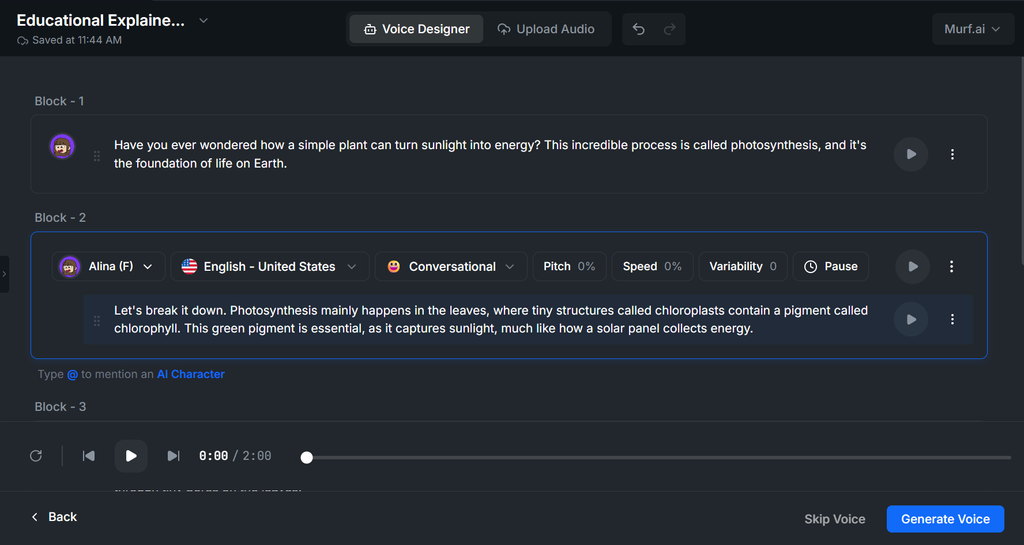
- Next, WayaFrame doesn’t just insert the voice instantly into your script or video. It gives you a preview interface to listen to the voice by blocks and also allows you to edit the voice if there’s something you need to change.
- All you need to do is click the block, and your preview options are ready, including the option to change the voice pitch, speed, variability and pause.
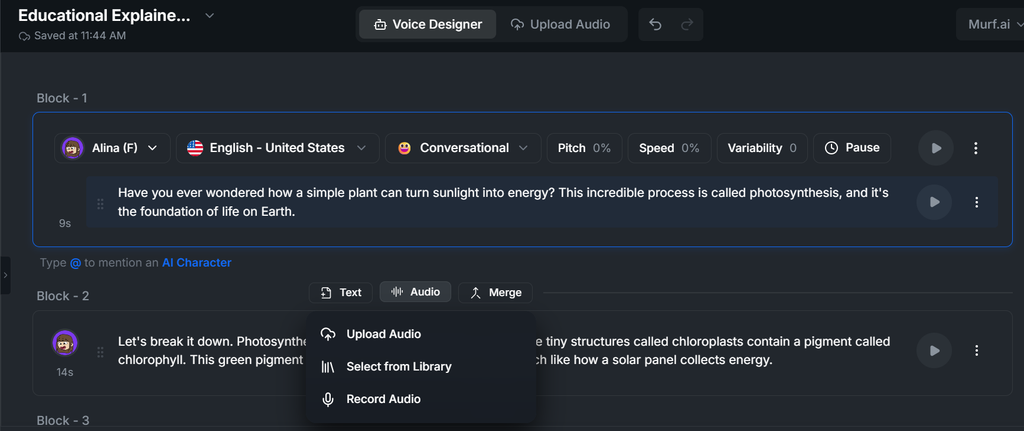
- In addition, you can customise your voice further by adding audio effects between blocks, merging blocks and adding text if needed.
- If everything is good to go with the voice, hit the “Generate Voice” option and allow it to generate the voice for your educational explainer video. This process usually takes a couple of seconds to a few minutes, depending on the length of your script.
- Once your voice is ready, kindly select your preferred scene mix, which includes pictures and video. This stage is simply telling the WayaFrame AI video generator to include more video scenes, more image scenes, or a balance of both depending on your preference.
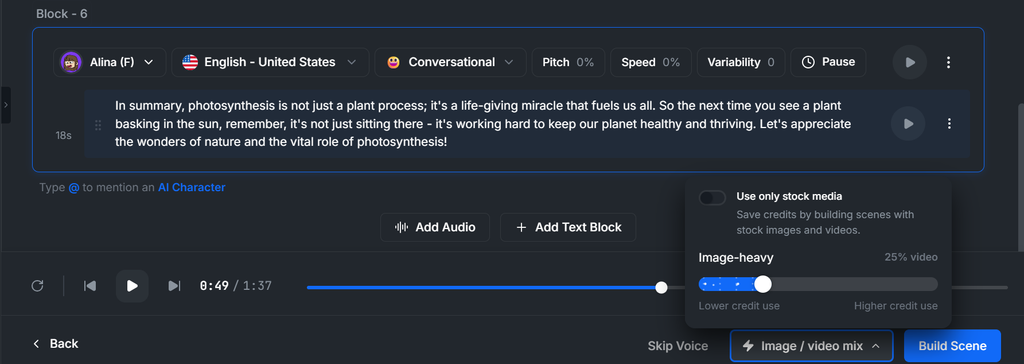
- Afterwards, click on “Build Scene”.
Step 5: Generate and Review Your Video Scene
A script can read well and still be difficult to visualise. Before accepting generated scenes, check that each scene represents the idea being explained at that point in the narration.
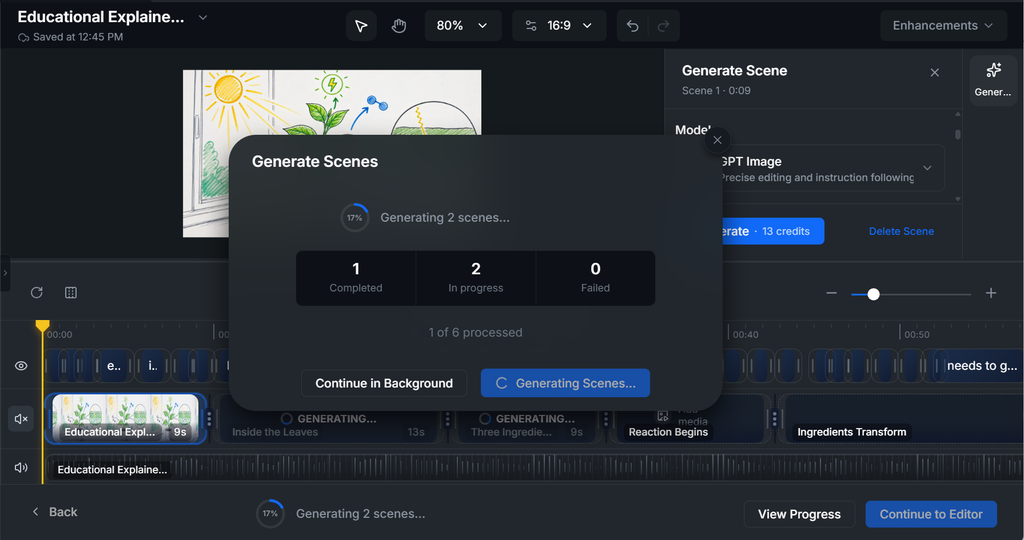
- Fortunately, WayaFrame doesn’t impose scenes on you; instead, its AI video maker allows you the option to review your script again just in case there are things you would love to include or remove.
- Keep an eye out for scientific inaccuracies. AI-generated visuals can be plausible without being correct, so review diagrams, labels, and cause-and-effect relationships before using the video with students.
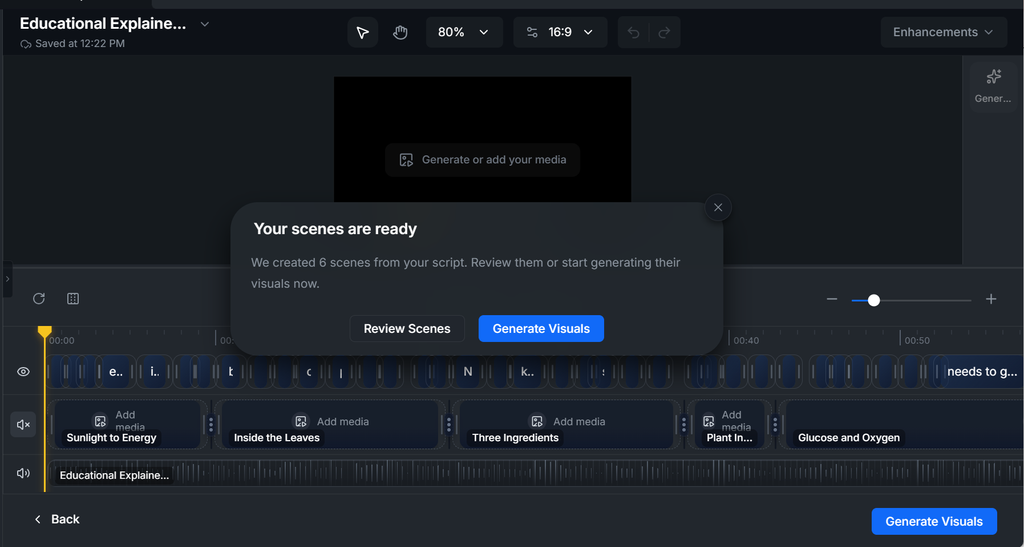
- On this interface, you can click on each scene on the timeline and edit it individually, including the media, visual style, AI model, visual prompt, among other edits.
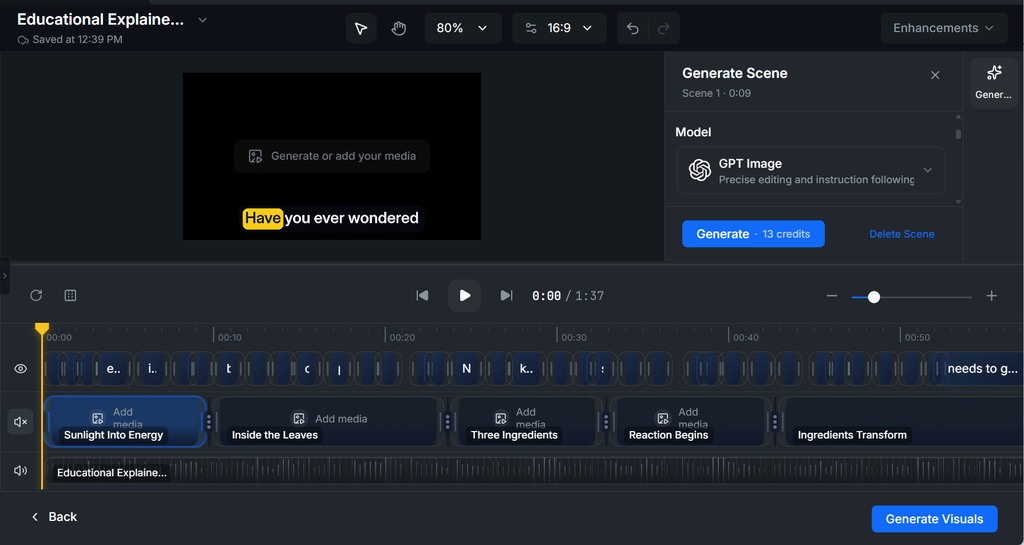
Further, you would be asked to choose your generation preference from the available 3 options:
- Only generate scenes without media: Skip scenes that already have content
- Regenerate all scenes: Replace existing media with new generations.
- Regenerate selected scenes: Choose specific scenes to regenerate
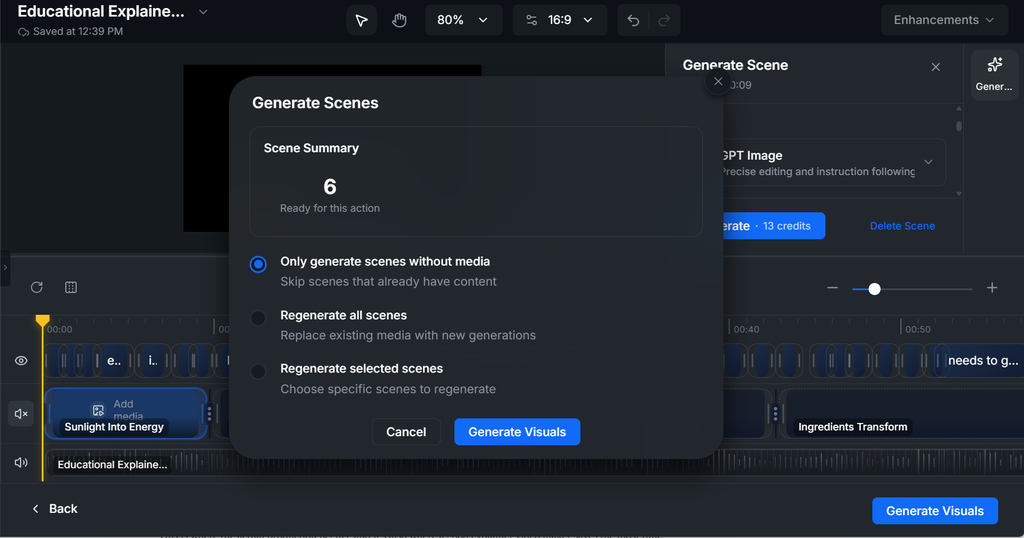
- Next, click on “Generate Visual” to have the AI video generator build your explainer video to your taste.
- Once your video is generated, preview it and ensure everything looks great, then click on the “Continue to Editor” button. This is where other add-on features are added to your educational explainer video to make it appear professional.
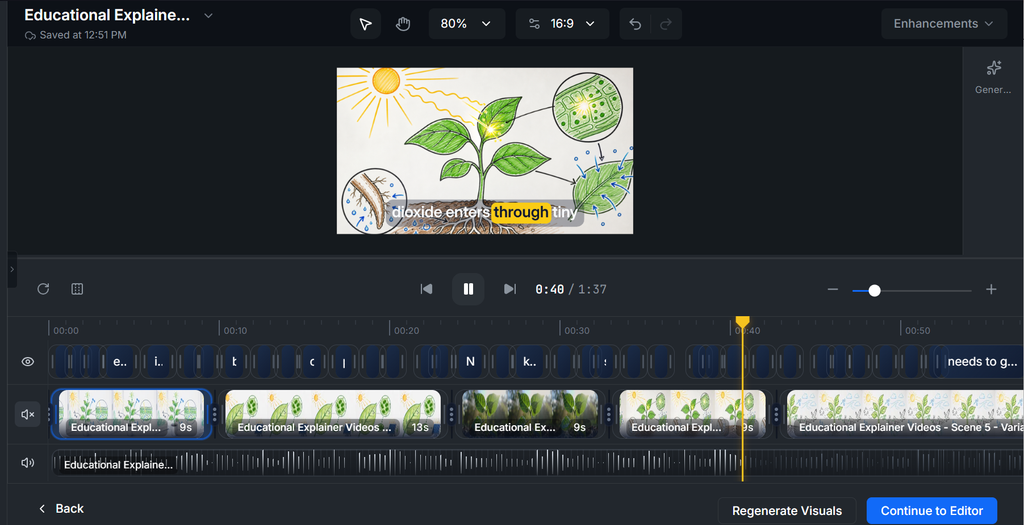
Ask these questions as you review:
- Does each visual match the sentence being narrated?
- Are key objects and ideas easy to identify?
- Do the scenes progress in the same order as the explanation?
- Is any scene confusing, repetitive, or inaccurate?
- Does the video give learners enough time to understand each point?
Step 6: Edit for Clarity Using Timeline Edit
Once the first draft is generated, the real editing work is deciding what to cut, modify, add, and restructure.
The timeline editor provides several video editing tools, including audio, text, elements, transitions, effects, filters, and brand kits. All these tools are made available to make your educational explainer video appear professional and unique to your brand instead of looking generic or generated.
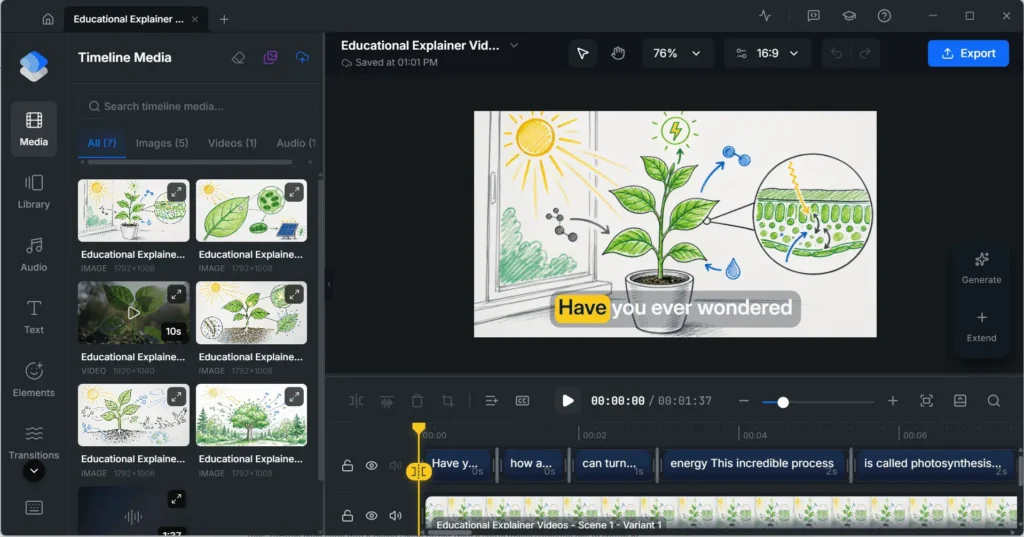
For this guide on educational explainer video creation, I’ll show you a few necessary edits to make to your video before export. However, other guides are available on WayaFrame on how to apply and use other top-notch WayaFrame tools and features as they apply to your video creation needs.
Let’s dive in:
Make captions Readable
Check caption size, contrast, placement, and timing. Keep captions away from important visual details and avoid crowding the screen with long blocks of text.
- To edit your video caption, click on the text on the timeline, and the edit option pops up on the right side of your interface. This allows you to choose caption size, colour, font, opacity, padding, among other features.
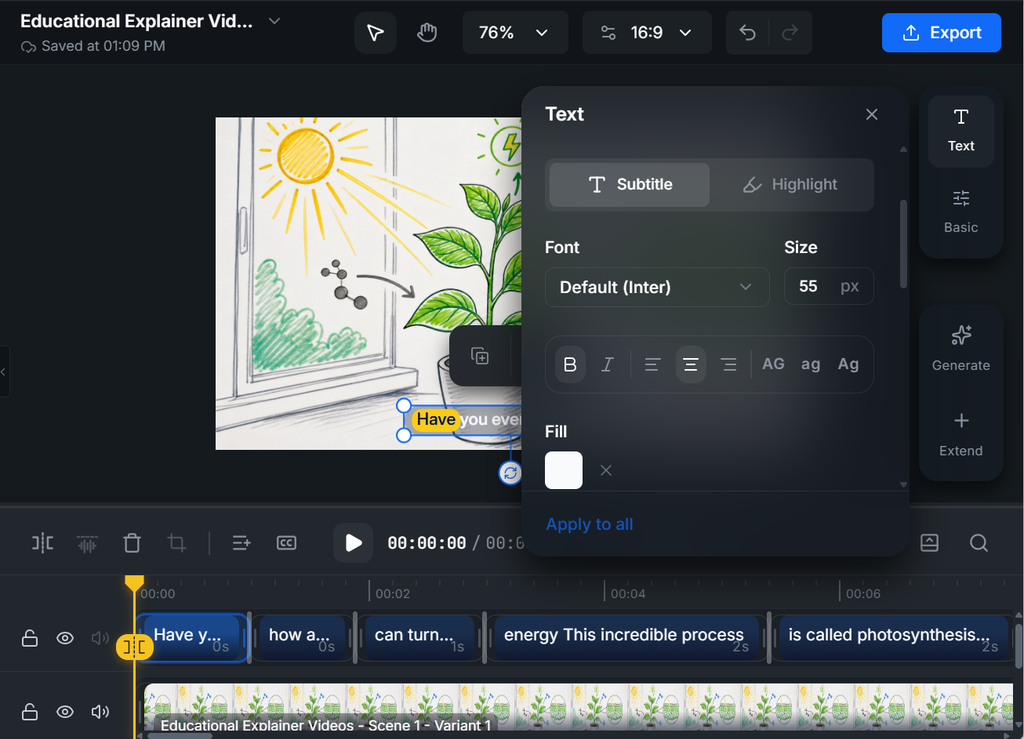
Perhaps you want the same caption format to apply to all text in your video; select “Apply to All”, and the style is applied to all blocks.
Balance Narration and Other Audio
A video without background music often feels unfinished, but the wrong music competes with the narration. Hence, the goal is to select a sound that matches your explainer video.
If you add background music or sound effects, keep them subtle enough that they do not compete with the explanation. Use sound only when it serves the lesson or helps signal a meaningful transition.
WayaFrame provides you with 3 quick ways to add sound to your generated video:
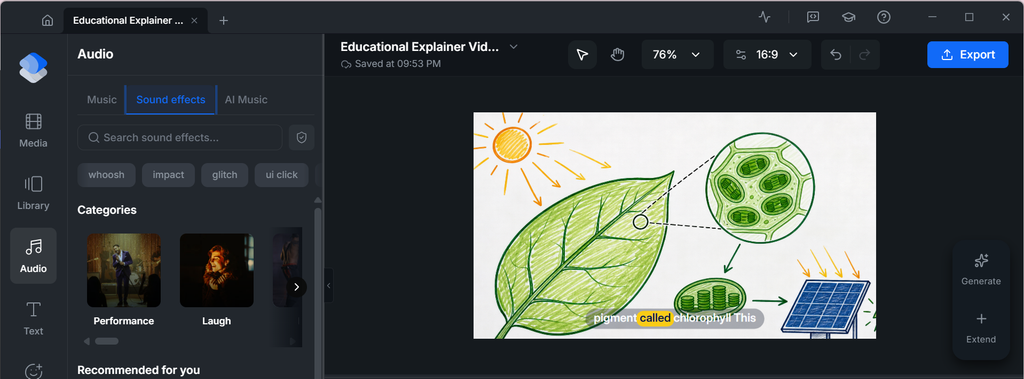
- Music: These are already available music sounds you can use for free, ranging through a variety of categories. This includes upbeat, lofi, cinematic, ambient, corporate, retro, amongst other categories.
- Sound Effect: This type of audio makes an AI-generated explainer video feel realistic and human. Available sound effects include whoosh, glitch, laugh, magic, nature, amongst other options.
- AI music: WayaFrame AI music generator is called TuneDance. This WayaFrame feature generates music and sound effects that fit the mood of your lesson without needing a separate composer or a royalty-free music search that eats up half your afternoon.
Use Transitions With Purpose
A transition in a video is used to smoothly move from one scene, clip, or section to another. It helps maintain the video’s flow, signal a change in topic or setting, and make scene changes feel more natural.
- To do this on the WayaFrame video timeline, simply drag your preferred transition style and apply it to your desired clip on the timeline.
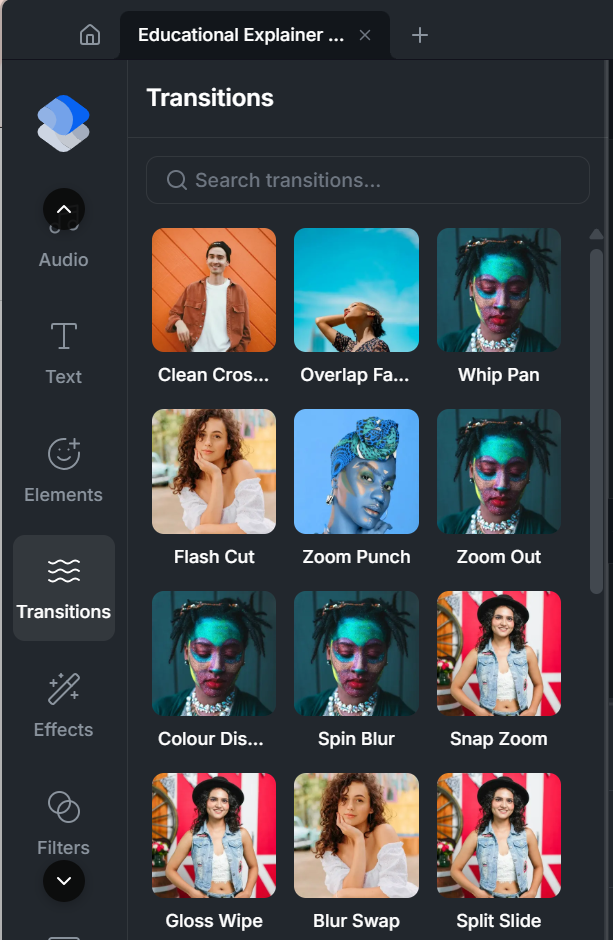
However, ensure your chosen transition isn’t distracting; it should lead to a smooth move between your educational explainer video.
Effects
Video effects are visual enhancements applied to a video to improve its appearance, highlight key moments, or create a specific mood or style.
Interestingly, all WayaFrame effects are free and can be used when you drag them to preview or timeline edit.
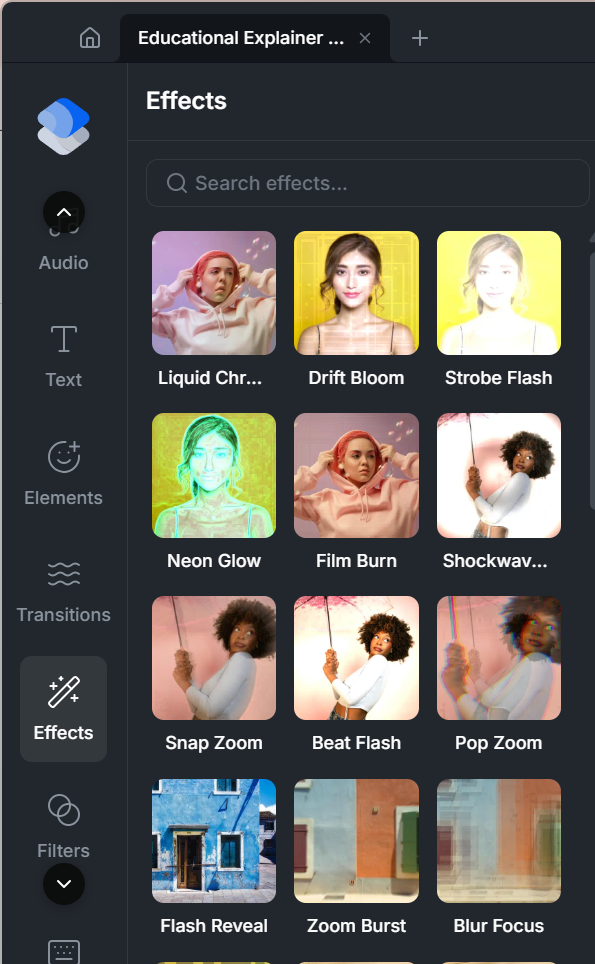
Clip Edit
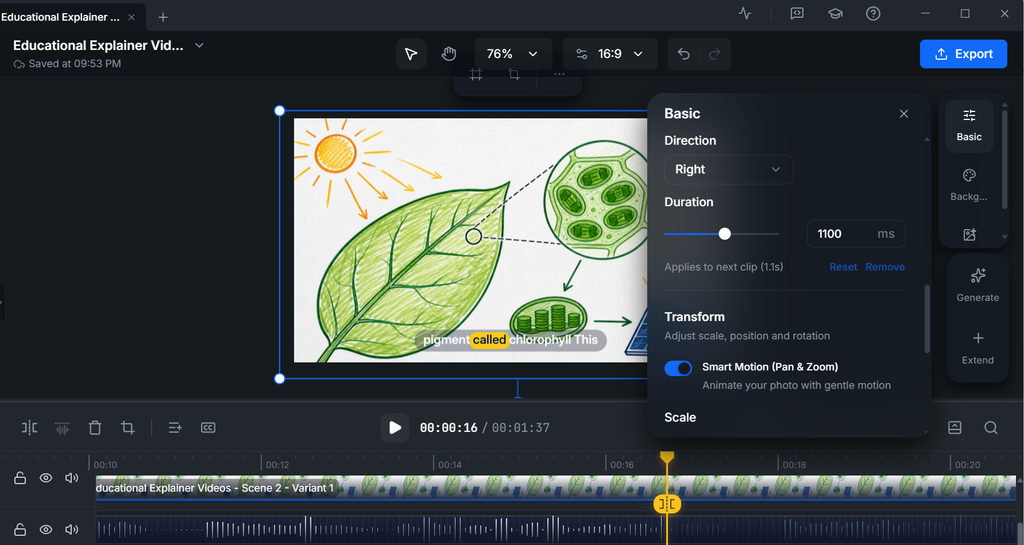
In the WayaFrame AI video workspace, you can edit your clip even after it has been generated.
Watch the video again after editing. Remove unnecessary pauses, allow enough time for important diagrams, and make sure the visuals do not move on before the narration has explained them.
To edit your clip, simply click on the clip on the timeline, select basic options on the right and modify features ranging from opacity, mode, transition, duration, pan & zoom and many more editing features.
Step 7: Translate Your Video to Other Languages
If your learners use different languages, decide whether the video needs translated captions, translated narration, or both.
Translation should preserve the meaning of the lesson, not just replace words. Also, review scientific terms, names, and phrasing in the target language before sharing the video.
WayFrame’s AI Subtitle Translation converts your captions into other languages without redoing the whole video.
- To translate, simply click on your audio on your timeline, and select the “Tool” option on the right side of your interface.
- Next, select the “Translate to other language menu from the options shown.
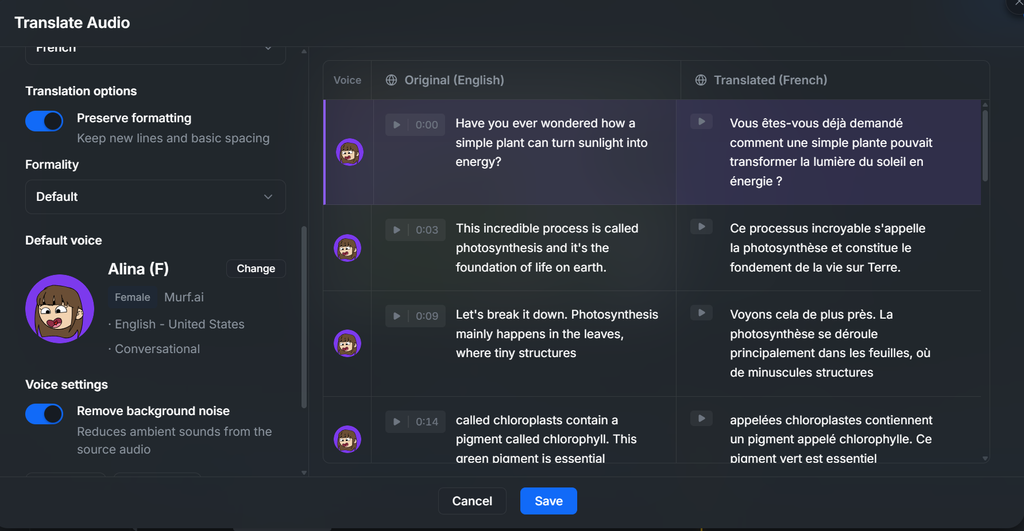
- Perhaps you have a French-speaking audience; kindly select French or any other language that applies, choose your preferred voice and click on Translate.
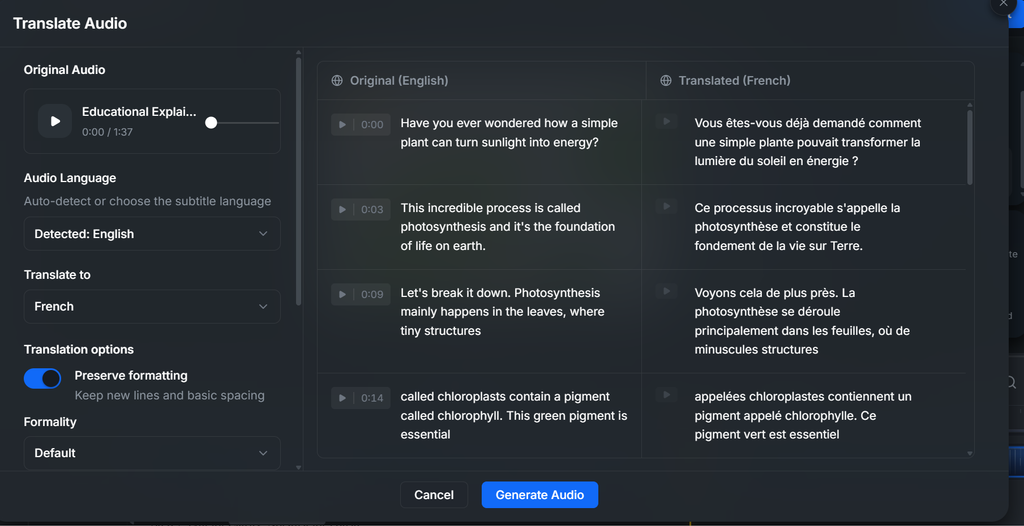
- Next, click on “Generate Audio” to get your video in your selected language and have it saved.
Step 8: Export for Your Intended Platform
A video built for YouTube and a video built for a course platform are not always the same shape.
Getting the aspect ratio wrong means your video plays with black bars on either side or gets awkwardly cropped, both of which quietly push viewers to click away.
However, WayaFrame Aspect Ratio Changer adjusts your video to the 16:9 format, which is the standard for YouTube and desktop viewing. Similarly, it supports the 9:16 vertical format, which is best suited to mobile-first platforms or short-form previews, without forcing you to rebuild the video from scratch for each destination.
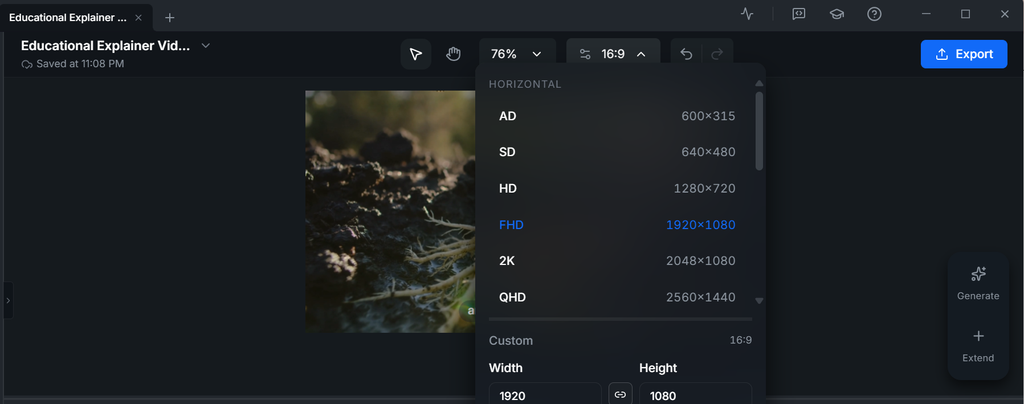
If everything is perfect with your explainer video, click on the export button, and your video is ready to share with your student on your learning platform.
Best practices for educational explainer videos
The tool matters less than how you use it. A few habits separate explainer videos that teach from others that just look nice.
In a 2024 TechSmith survey, 83% of respondents expressed that they prefer watching videos to consume instructional or informational content over audio or text. Further, 75% of them watch at least one instructional video every single week.
Here are best practices to get started with:
- Teach one main idea at a time. Split a broad topic into a sequence of focused lessons when that makes the explanation clearer.
- Use visuals to explain, not decorate. Every diagram, clip, or animation should help learners understand a concept or follow the process.
- Do not duplicate every spoken word on screen. Use concise labels and captions while allowing the narration to add explanation and context.
- Leave time for difficult ideas. Pause or hold on a diagram when learners need time to connect the parts.
- Check accuracy before polishing. Review factual details and generated visuals before spending time on effects or styling.
- Preview the video as a learner would. Watch it on the likely device and at the intended size, and ask someone unfamiliar with the topic to flag confusing moments.
Frequently Asked Questions
An educational explainer video uses narration, visuals, and a structured explanation to help an audience understand a topic, process, or idea.
Yes.
You can use an explainer video maker to transform a written script or lesson material into a video with narration, visuals, subtitles, transitions, and other editing elements.
There is no single ideal length.
Keep the video long enough to explain the learning objective clearly, but remove details that do not support that objective. Let the complexity of the topic and the needs of the learners guide the length.
Choose a voice that suits the learners and subject. A conversational tone works well for many lessons, while formal or specialist topics may call for a different tone. Always preview pronunciation, pacing, and clarity.
Yes.
Captions can support accessibility and help viewers who cannot or prefer not to use audio. Check that captions are accurate, readable, correctly timed, and positioned so they do not cover important visuals.
Yes.
WayaFrame’s AI Subtitle Translation can translate captions and generate audio in another language, allowing educators to adapt their videos for learners who speak different languages.
For YouTube and desktop viewing, 16:9 is generally suitable. A 9:16 vertical format is better for mobile-first platforms and short-form video content.
Final Thought on Explainer Video Maker
Creating an educational explainer video starts with a clear learning objective, but the work does not end when the script is written or the visuals are generated.
You still need to review the scenes, make sure the narration supports the lesson, refine the editing, and prepare the video for its intended audience.
WayaFrame brings the essential stages of video creation together, allowing you to move from script preparation and scene generation to timeline editing and final export within one platform.
Hence, start with one lesson, review every part of the result, and make the changes your learners need before publishing.
Create your first educational explainer video with WayaFrame.

