

Learn how to write cinematic AI video prompts, guide camera movement and lighting, arrange shots, and refine generated footage into a finished video.
Text-to-cinematic video generation has made video creation faster and smoother.
You simply describe the light falling on a face at a particular hour of the day, name the camera angle, the movement through a physical space, and the quality of the atmosphere.
In return, the AI produces footage that matches the description, with camera work, depth of field, and visual mood derived from the text itself.
In this guide, I’ll walk you through how to write more specific cinematic prompts, create scenes that work together, and refine the footage into a finished video. I’ll also share practical prompt examples you can adapt to your own projects.
Table of Contents
Key Takeaways
- Text-to-cinematic video turns a written visual description into original footage with elements such as camera movement, lighting, depth of field, and atmosphere.
- Prompt detail matters because cinematic tools need visual direction, not just broad instructions such as “make it dramatic.”
- Generation is only one part of production, so plan to edit, colour-grade, arrange scenes, and refine audio before publishing.
- You need to think about how each shot supports the story, how the footage fits together, and what needs to happen before the video is ready to publish.
- The goal is not to fill a prompt with impressive filmmaking terms. It is to give the AI clearer visual direction, then make deliberate decisions about the footage it produces.
What Is Text-to-Cinematic Video?
Text-to-cinematic video is the process of generating video footage from a written description of a scene.
Rather than starting with footage that already exists, you describe what should appear on screen and how the scene should look or move. Depending on the tool, your prompt may describe the subject, setting, camera position, movement, lighting, atmosphere, and visual style.
For example, a basic prompt might be:
A woman walking through a city at sunset.
That gives the generator a subject, an action, and a setting. However, it leaves many visual decisions open to interpretation.
A more directed prompt could be:
A slow tracking shot follows a woman walking through a narrow city street at sunset. Warm backlight outlines her silhouette, long shadows stretch across the pavement, and distant traffic falls softly out of focus. The camera moves steadily behind her, creating a quiet, reflective mood.
The second prompt gives more information about the composition, light, camera movement, background, and mood. It does not guarantee a particular result, but it gives the generator more specific instructions to interpret.
How is cinematic video different from avatar-based video?
Avatar-based video typically centres on a digital presenter delivering a script. Cinematic video focuses on the visual scene itself.
That makes cinematic generation worth exploring for projects such as:
- Product films and visual demonstrations
- Brand stories and atmospheric sequences
- Social media videos that rely on visual storytelling
- Creative concepts and mood pieces
- Early visualisation of an idea before committing to a physical production
However, if your video depends on documentary evidence, exact real-world details, or complex interactions that must happen precisely as planned, generated footage may need substantial review or may not be suitable at all.
How to Write a Cinematic Video Prompt
A useful cinematic prompt, describes what the viewer should see, how the camera should capture it, and what gives the scene its visual characterss the scene its visual character.
I recommend building the prompt from five elements rather than trying to make it sound sophisticated.
1. Define the subject and action
Start with the most important thing in the frame. It could be a person, a product, an object, a building, or a landscape.
Then describe what it is doing.
Instead of:
A beautiful sports car on a road.
Try:
A dark sports car drives along a winding mountain road, passing through a patch of morning mist.
The revised version gives the generator an action and a setting. If the subject needs to remain prominent, say so directly.
2. Specify the camera angle and movement
Camera language helps communicate how the scene should be viewed.
Here are some useful directions:
- Wide establishing shot: shows the environment and establishes where the scene takes place.
- Close-up: draws attention to a face, product detail, or small action.
- Low angle: views the subject from below and can make it feel imposing.
- Overhead shot: shows the scene from above.
- Slow dolly push-in: gradually moves the camera towards the subject.
- Tracking shot: follows a moving subject.
- Static shot: keeps the camera still while the action unfolds.
- Handheld movement: suggests a more immediate, documentary-like feel.
Avoid combining several conflicting camera movements in a single short prompt. If you want a slow push-in, for example, make that the main movement rather than asking for a push-in, a crane shot, a fast orbit, and a handheld finish all at once.
3. Describe the lighting
Lighting is one of the clearest ways to establish the mood of a scene.
Instead of relying on words such as “beautiful” or “dramatic,” describe the light itself.
| Lighting direction | What it can help communicate |
|---|---|
| Warm golden-hour light | Warmth, nostalgia, or an inviting atmosphere |
| Cool blue light | Night-time mood, distance, or a cooler visual tone |
| Soft, diffused daylight | A gentle look with less pronounced shadows |
| Hard side lighting | Strong texture, contrast, and shape |
| Backlighting | A bright outline around a subject |
| Practical lights in a dark room | A grounded scene built around visible light sources |
These are creative starting points, not guaranteed outcomes. A generator may interpret lighting instructions differently, so review the output rather than assuming the prompt was followed exactly.
4. Give the atmosphere a visual description
Mood words can help, but they become more useful when you translate them into things the viewer can actually see.
For example:
- Instead of “sad,” try “a solitary figure beside a rain-streaked window, with muted colours and soft, overcast light.”
- Instead of “luxurious,” try “a close-up of a polished ceramic bottle on a dark stone surface, with controlled highlights and a softly blurred background.”
- Instead of “mysterious,” try “a narrow corridor disappearing into shadow, with a thin strip of light cutting across the floor.”
This gives the prompt visual details that can communicate the intended feeling.
5. Keep the visual direction consistent
A prompt can contain many good ideas that do not work well together. A bright, cheerful setting, harsh horror lighting, frantic handheld movement, and a slow romantic mood may pull the scene in different directions.
Before generating, ask yourself:
- What should the viewer notice first?
- What should the scene feel like?
- What is the camera doing?
- Which lighting choices support the mood?
- Are any instructions contradicting one another?
You do not need to specify every possible detail. Focus on the few decisions that matter most to the scene.
How to Turn a Prompt Into a Finished Cinematic Video.
A strong prompt is a useful starting point. The next challenge is turning the generated footage into a sequence that feels intentional.
For this walkthrough, imagine creating a short cinematic film for a product. The same workflow can be adapted to a brand story, a concept piece, or a social video.
Step 1: Plan the shots before generating them
Before opening a generation tool, decide what the viewer should see from beginning to end.
For a short product film, a simple shot plan could be:
- Establish the setting: show the environment in which the product exists.
- Introduce the subject: bring the product into clear view.
- Show a detail: focus on its texture, shape, or another important feature.
- Create a moment of movement: use a deliberate camera move or an action that adds interest.
- End with a clear final shot: give the video a visual conclusion or a place for a title.
You may not need all five shots. The point is to decide what each clip contributes before generating several unrelated scenes.
A shot list also helps you spot repetition. If every shot is a close-up from the same angle, the finished video may feel static even when the individual clips look attractive.
Step 2: Generate the first scene and review it
Once you have a shot plan, write a prompt for the opening scene. Keep the prompt focused on that one shot rather than describing the entire film in a single block of text.
For the product-film example, you might begin with:
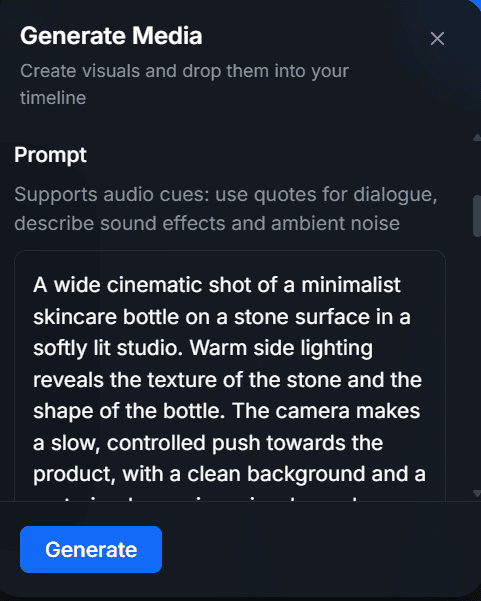
A wide cinematic shot of a minimalist skincare bottle on a stone surface in a softly lit studio. Warm side lighting reveals the texture of the stone and the shape of the bottle. The camera makes a slow, controlled push towards the product, with a clean background and a restrained, premium visual mood.
After generation, review the clip before moving on.
Check whether:
- The main subject is easy to identify.
- The camera movement feels appropriate.
- The lighting supports the intended mood.
- Important details remain recognisable.
- The clip contains visual distortions or unwanted movement.
- The shot gives you something useful for the planned sequence.
If the result misses the point, revise the prompt or try another variation if the tool allows it. Avoid building the rest of the video around a clip that does not serve the idea.
Here is the point where you utilise your preferred text-to-cinematic video generator. This could be Google Veo, Runway, Kling AI or Seedance.
For me, it’s WayaFrame. Its text-to-cinematic video generator is one of several features in its broader AI video workspace and includes all the AI models mentioned above. This means I can create and manage my entire video, from generating scenes to editing and final adjustments, without constantly switching between different tools.
Using a single workspace offers you three key benefits:
- Saves time: Avoid switching between multiple platforms to complete different production tasks.
- Better organisation: Keep your scripts, generated clips, assets, and edits in one place.
- Simplifies production: Move from video generation to editing and final delivery within the same workspace.
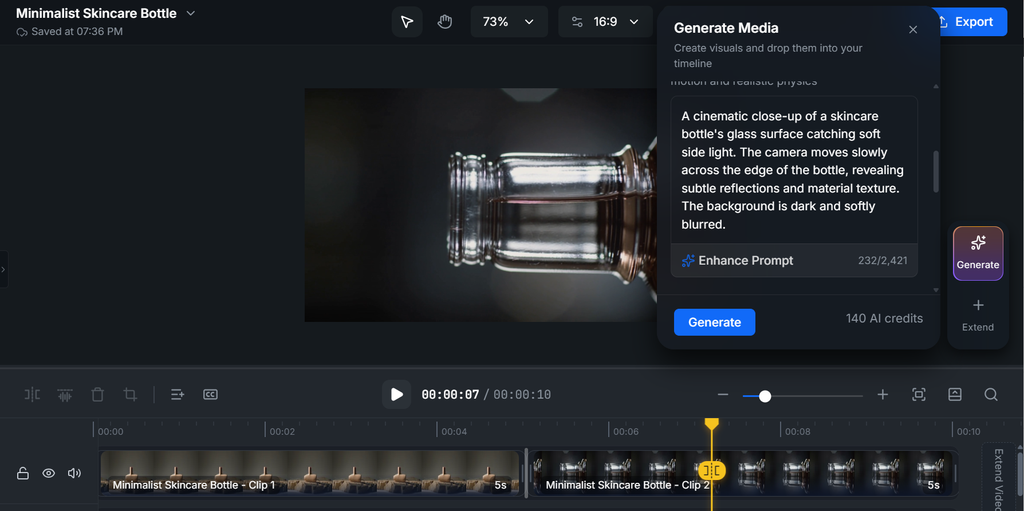
To get started, I click on my “AI Generate” from my library and select “Generate Video Clip”
For this clip, we already have a prompt ready to be input. So it’s time to prompt your generator from your editing timeline.
- Select your visual style.
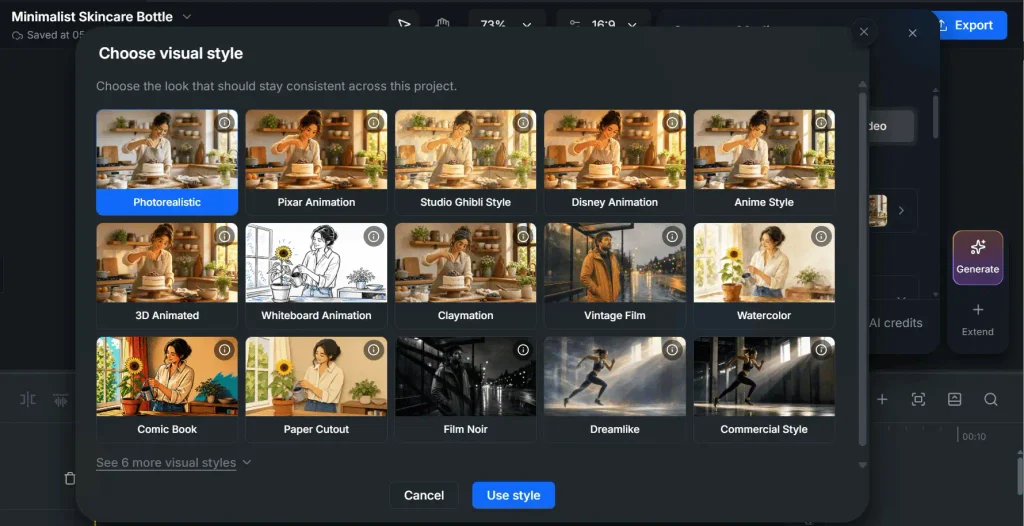
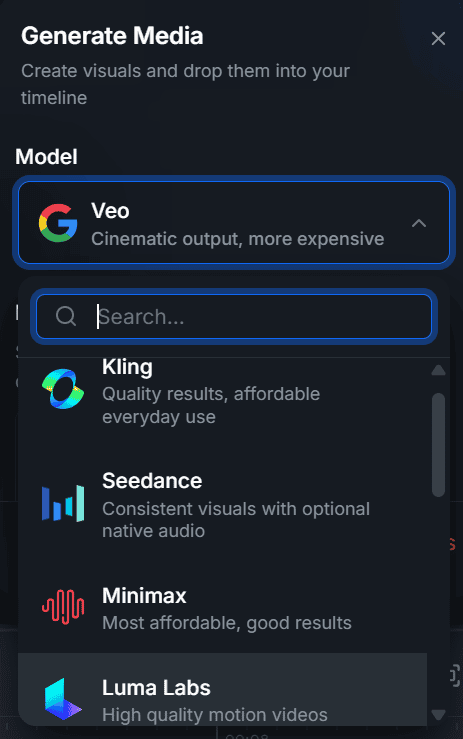
- Select your Prefered AI model. WayaFrame offers you 10+ generative AI models, including Kling, Seedance, Luma Labs, Sora, Grok, amongst others. I choose Google Veo as it’s best suited for cinematic output.
- Input your prompt. You also have the option to enhance your prompt if something needs adjustment.
- Choose your preferred model.
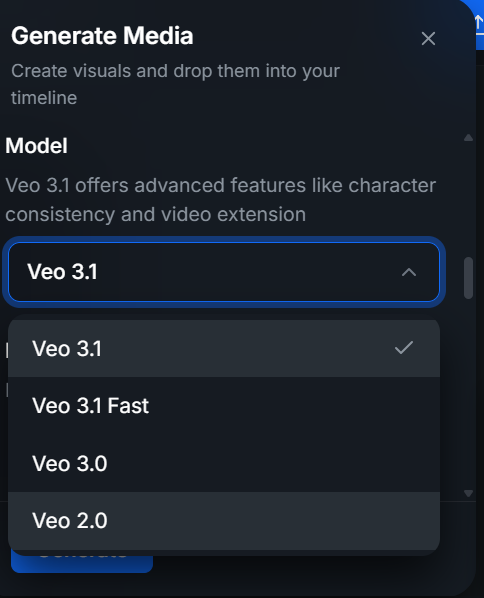
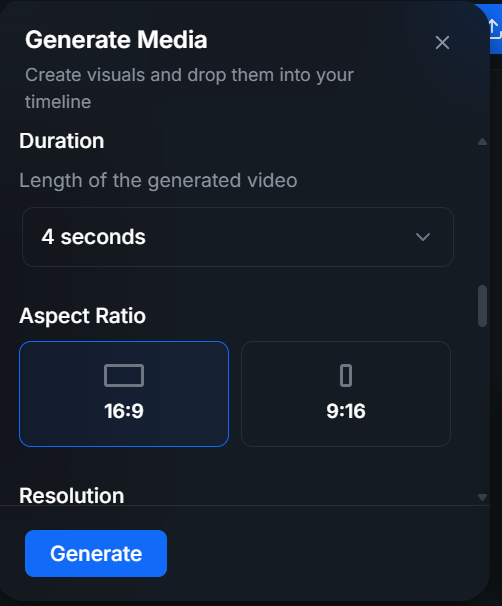
- Select your clip length, aspect ratio, resolution, and input mode.
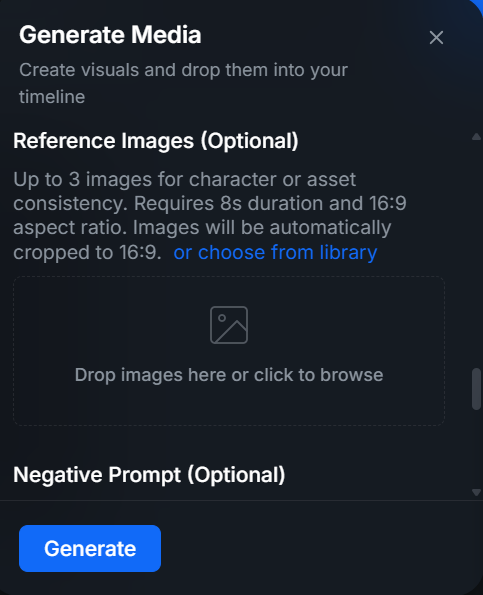
- Input your reference image and negative prompt to guide your output result.
- Afterwards, click on “Generate”. Once your video clip is ready, it appears on your editing timeline for further editing.
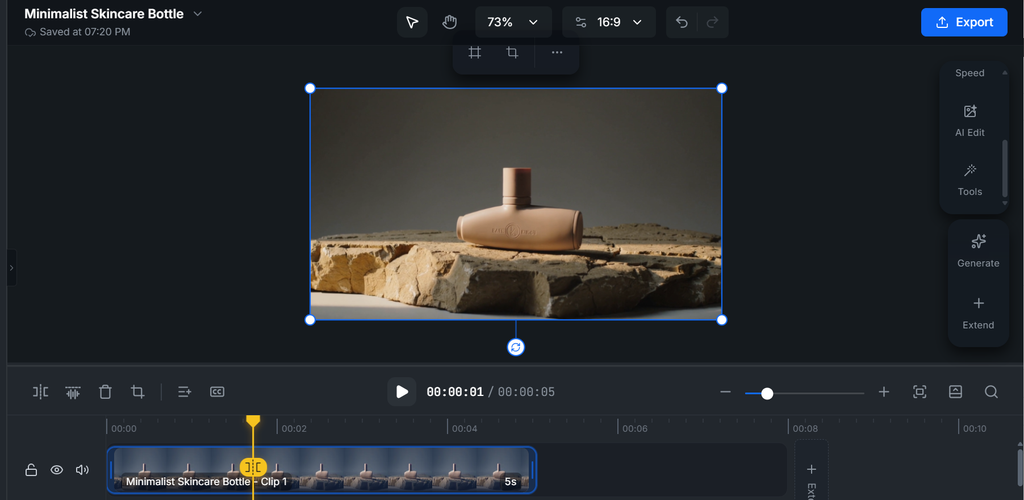
Note: The prompt guidance varies based on your chosen AI model.
Step 3: Generate supporting shots
The next shots should add information or change the viewer’s perspective.
For the same product film, you could generate:
A detail shot
A cinematic close-up of a skincare bottle’s glass surface catching soft side light. The camera moves slowly across the edge of the bottle, revealing subtle reflections and material texture. The background is dark and softly blurred.
A wider environmental shot
A minimalist skincare bottle placed on a natural stone surface beside a softly lit window. The camera holds a wide composition while gentle daylight falls across the scene. The surroundings feel quiet and uncluttered.
A final hero shot
A clean, centred shot of a skincare bottle against a muted neutral background. Soft directional lighting defines the silhouette, with a slow, subtle camera push towards the product. Leave uncluttered negative space around the subject for a possible title.
These prompts are intended to create different types of shots, not necessarily identical scenes. Review the results for consistency in the product’s appearance, lighting, colours, and composition.
If the product changes shape or details between generations, do not assume the audience will overlook it. Decide whether the clip is usable, whether it needs another attempt, or whether a different shot would communicate the idea more clearly.
Hence, simply follow the previous text-to-cinematic prompt guide and generate another clip.
Step 4: Arrange the shots into a sequence
Once you have usable clips, put them in an order that makes sense.
A simple product film might move from the wider setting to a closer product view, then to a detail shot, and finally to the hero shot.
When reviewing the sequence, ask:
- Does each shot add something new?
- Is the subject introduced clearly?
- Do the cuts feel intentional?
- Does the pacing suit the mood?
- Are any clips repeating the same information?
- Does the ending feel complete?
If you need to join separate generated clips, use a video assembly or stitching feature available in your chosen editor. The important part is to review the actual transition between clips, not just the clips individually.
Step 5: Refine the edit instead of adding effects everywhere
The first assembled version is a draft. Review it from beginning to end and identify what is actually wrong before changing anything.
Common issues include:
- A clip that lasts longer than the idea it communicates.
- A sudden change in visual tone between shots.
- A cut that interrupts the action.
- Camera movement that feels too busy.
- A transition that attracts more attention than the subject.
Make the smallest useful adjustment first. Trimming a clip or changing its position may solve a pacing problem more effectively than adding an effect.
If the shots look noticeably different, consider whether their colour and contrast need a more consistent treatment. Colour grading can help create a unified look, but it cannot automatically fix every mismatch between generated scenes.
Further, slow motion or speed changes may be useful when the action benefits from a different pace. Use them selectively. A cinematic look does not require every clip to move slowly.
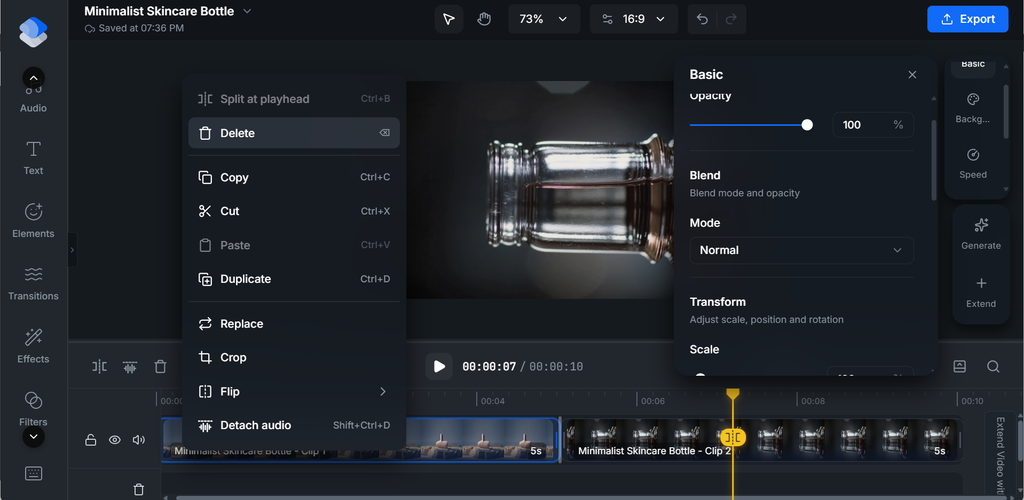
The best text-to-cinematic video generators are those that allow you to make edits to your clip on the same timeline without switching tools.
This is what the WayaFrame editing timeline gives you: flexible editing.
- To the left of your editor, you have options for text, elements, transitions, and effects tools to modify your clips to your taste. In addition, you can highlight the specific clip you want to edit from your timeline, and more editing options get displayed on the right side of your timeline.
Step 6: Decide whether the video needs sound
Sound can change how a scene feels, but it should support the visual story rather than compete with it.
For the product film, you might use subtle room ambience, a restrained musical bed, or a few carefully placed sound effects. A voiceover is only necessary if the video needs to explain something that the images cannot communicate clearly.
Before finalising the audio, check:
- Does the music suit the pace and mood?
- Is the volume comfortable?
- Does the audio begin and end cleanly?
- Can viewers hear the narration clearly if there is any?
- Are sound effects adding useful detail or just filling silence?
Do not add narration simply because the video feels empty. Sometimes a short visual sequence works better without it.
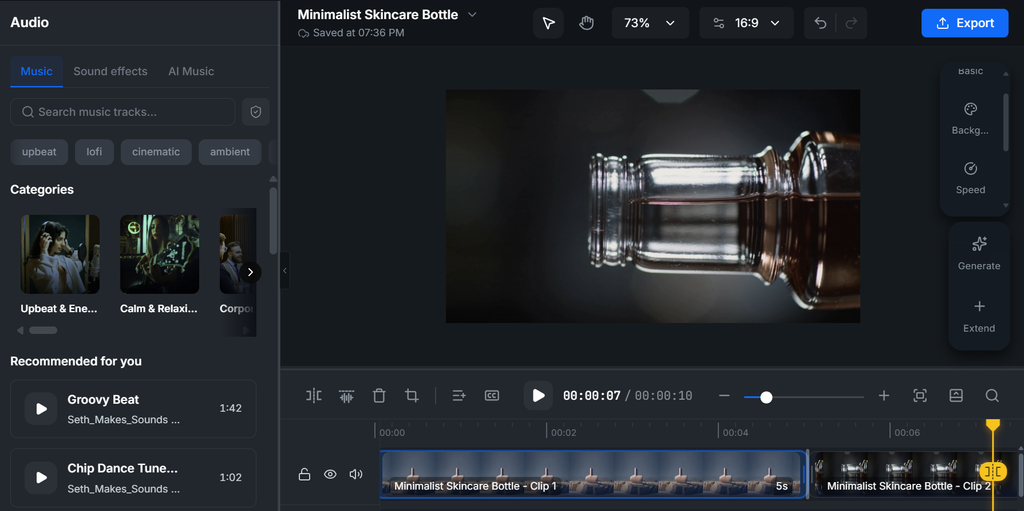
WayaFrame provides you with 3 quick ways to add sound to your generated video:
- Music: These are already available music sounds you can use for free, ranging through a variety of categories. This includes upbeat, lofi, cinematic, ambient, corporate, retro, amongst other categories.
- Sound Effect: This type of audio makes an AI-generated explainer video feel realistic and human. Available sound effects include whoosh, glitch, laugh, magic, nature, amongst other options.
- AI music: WayaFrame AI music generator is called TuneDance. This WayaFrame feature generates music and sound effects that fit the mood of your lesson without needing a separate composer or a royalty-free music search that eats up half your afternoon.
To utilise any of the available audio options, click on the “Audio” option on the right side of your editing interface.
Next, select your preferred choice, preview it and apply it to your video.
Step 7: Prepare the video for its destination
The version that works on a widescreen page may not work as a vertical social clip. The framing, text placement, pacing, and length should suit the intended destination.
Before export, check:
- Framing: Is the main subject visible in the intended aspect ratio?
- Text placement: If there are titles or captions, will they remain readable?
- Pacing: Does the video work at its intended length?
- Visual consistency: Are there obvious mismatches or generation artefacts?
- Audio: Are levels and endings clean?
- Final frame: Does the video end deliberately rather than cutting off unexpectedly?
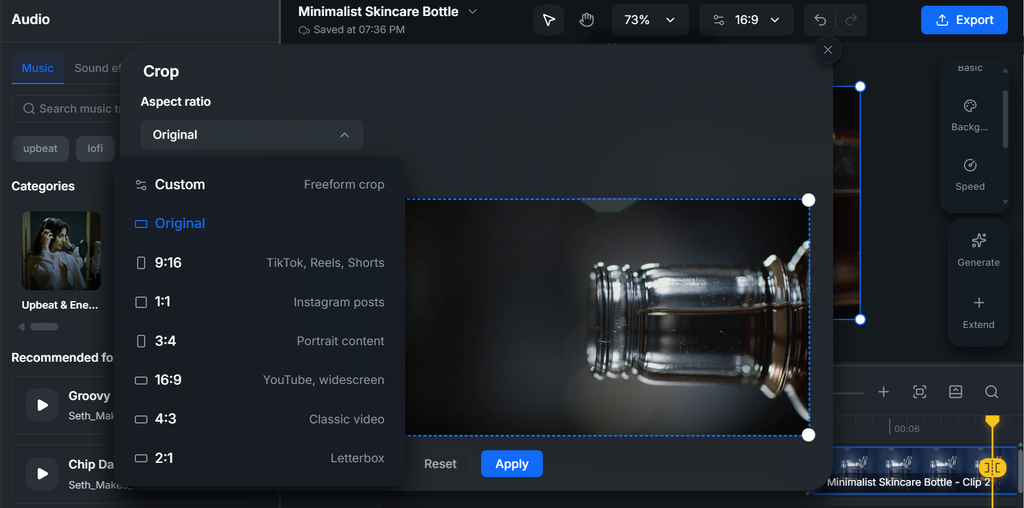
If you need a different aspect ratio, check how the frame changes before publishing. A vertical crop can remove important parts of a widescreen composition, so it may need more than a simple resize.
All types of aspect ratios can be exported from the same original edit on WayaFrame, so you’re reshaping one finished video for each platform instead of building it over again from scratch.
- On your editing timeline, click on the “Aspect Ratio” option on the selected image beside the 3 dots and choose or customise for your preferred option.
- Once you make your choice, it immediately reflects on your video for your review.
Cinematic Prompt Examples You Can Adapt
The examples below are starting points. Replace the subjects, settings, and visual details to suit your project, then adjust the prompts based on what the generated footage actually shows.
1. Brand film establishing shot
Use this when: You need an opening shot that establishes a place, setting, or atmosphere.
A slow crane descent towards a small farmhouse in a fog-filled valley at dawn. Warm light glows through the windows while cool blue-grey morning light fills the surrounding landscape. Thin mist moves gently above the ground. The camera gradually reveals more of the building and its surroundings, creating a quiet, cinematic atmosphere. Wide composition with natural contrast and restrained colour.
What to review: Does the shot establish the location clearly? Does the camera movement feel natural? Is the building visible enough to serve as an opening shot?
2. Urban cinematic sequence
Use this when: You want to create a city scene with a strong sense of time and place.
A wide, static shot of a busy city square in the late afternoon. Pedestrians cross the frame while warm sunlight reflects from nearby buildings. Traffic moves in the background, and long shadows stretch across the pavement. The composition feels observational, with natural movement and a subtle shift towards the warmer tones of early evening.
What to review: Does the scene feel coherent? Are people and vehicles moving naturally? If you need a time-lapse effect, test that direction separately rather than assuming a normal city scene will produce it.
3. Intimate character moment
Use this when: You need a quiet, detail-focused shot.
A close-up of a person’s hands carefully turning a small handmade ceramic object beside a window. Soft natural light enters from the left, creating gentle shadows and subtle highlights across the surface. The background is out of focus, drawing attention to the hands and the object’s texture. The movement is slow and deliberate, with a calm, intimate mood.
What to review: Are the hands and object convincing? Does the motion remain consistent throughout the clip? If the hands or object change unexpectedly, consider regenerating the shot or simplifying the action.
4. Abstract atmospheric brand visual
Use this when: You want a visual interlude or background sequence that communicates mood rather than a literal story.
Macro footage of water droplets forming on a dark metal surface. A single light source near the edge of the frame creates small, warm highlights on the droplets while the surrounding surface remains cool and dark. The camera drifts almost imperceptibly, revealing the texture of the metal and the changing reflections. Minimal composition, controlled movement, and a quiet, atmospheric mood.
What to review: Is the texture visible? Does the movement add interest without distracting from the composition? If you plan to place text over the footage, leave enough uncluttered space for it.
Cinematic Prompt Vocabulary Worth Trying
Specific visual terms can help communicate the look you want. They are not magic words, and their effect will vary by model and tool. Test them individually so you can tell which changes are useful.
| Prompt phrase | Intended direction |
|---|---|
| Shallow depth of field | Keep the subject prominent while softening the background |
| Background bokeh | Create soft, out-of-focus points of light |
| Anamorphic-style lens flare | Suggest a widescreen, film-inspired visual treatment |
| Golden-hour lighting | Aim for warm light and longer shadows near sunrise or sunset |
| Subtle handheld movement | Suggest an organic, less mechanically smooth camera |
| Slow dolly push-in | Move gradually towards the subject |
| Rack focus | Shift focus from one depth or subject to another |
| Diffused overcast light | Aim for softer light with less pronounced shadows |
| Low-angle composition | View the subject from below |
| Negative space | Keep an area of the frame relatively uncluttered |
Use the terms that serve the scene. Adding every phrase to one prompt can make the direction confusing and make it harder to understand why a generation succeeded or failed.
Frequently Asked Questions
It is a tool that generates video footage from a written description. The prompt may describe the subject, setting, camera movement, lighting, atmosphere, and visual style. The output depends on the tool, the prompt, and the generated result.
Start with a clear subject and action, then describe the camera, lighting, setting, and intended mood. Review the generated footage and refine the prompt where necessary. To create a finished video, also pay attention to shot selection, sequence, pacing, visual consistency, and sound.
Prompt detail can give a video generator more specific visual direction, but it does not guarantee that every instruction will appear in the output. Review the generated clip and adjust the prompt based on what needs to change.
Not for every project.
Generated video can be useful for concept visuals, creative experiments, certain marketing assets, and other projects where the generated result meets the brief. Projects that require precise real-world evidence, controlled performances, exact product details, or complex physical interactions may need traditional filming or a hybrid approach.
The decision should depend on the project’s requirements and the footage you can actually produce, not on a blanket claim that one method replaces the other.
No.
Use audio to support the purpose of the video. Music can help establish a mood, sound effects can add detail, and narration can explain information that is not clear from the images alone. Some visual sequences work better without narration.
Final Thoughts on Text-to-Cinematic Video Tools
Creating a text-to-cinematic video involves more than finding the right prompt. You need to give the generator clear visual direction, review the footage it produces, and decide how each shot contributes to the finished sequence.
Start with one scene and keep the prompt focused. Once you have a usable clip, build the supporting shots, review them together, and make deliberate decisions about pacing, visual consistency, sound, and framing.
The key question to keep asking is simple: Does this shot help make the video clearer, more coherent, or more effective? If it does, keep refining it. If it does not, another effect or a more elaborate prompt may not be the answer.

