

Learn how to create real estate listing videos from photos. Also, learn how to plan a clear room-by-room sequence, add narration and captions, and prepare videos for different platforms.
Property photos give buyers a first look at a home, but they do not always show how the rooms connect or how the space feels as a whole.
A listing video can bring those photos together into a more coherent walkthrough.
You can start with images you already have, arrange them in a logical order, add narration or on-screen details, and prepare a version for your listing page or social channels.
This guide walks through the process, from organising your photos to editing, branding, and preparing the finished video for publication.
Table of Contents
Key Takeaways
- Start with clear, accurate listing photos and decide which property details matter most to your audience.
- Arrange images in a logical sequence so viewers can follow the layout.
- Use concise narration, captions, or both to communicate essential information.
- Keep movement, transitions, and music subtle enough that the property remains the focus.
- Adapt the video’s length and format to where you plan to publish it.
- Review every detail for accuracy before sharing the video with prospective buyers or tenants.
Why use video for a property listing?
Photos remain essential to a property listing, but a sequence of images can be difficult to interpret when rooms have an unusual layout, multiple levels, or an open-plan design.
A video can help connect those images into a more understandable presentation. Viewers can see the living areas in sequence, notice how different spaces relate to one another, and get a clearer overview before arranging a viewing.
Video can also give agents and property managers another way to present information. A short social clip might highlight a renovated kitchen, while a longer walkthrough can cover the property in greater detail.
The important distinction is that a video should help people evaluate the property, not simply add movement to a set of photos.
Show how the property fits together
A collection of individual photos may show a kitchen, bedroom, bathroom, and garden without making their relationship clear. A thoughtfully ordered video creates a more natural progression between those spaces.
For example, you could introduce the exterior, move into the main living area, show the kitchen and bedrooms, and finish with the garden or another defining feature.
The best sequence depends on the actual layout. The aim is to make the presentation easy to follow without implying a connection between rooms that does not exist.
Give remote viewers useful context
Someone considering a move from another city may use listing materials to decide whether a property is worth exploring further. A video can add context to the photos, particularly when it shows several spaces in a consistent sequence.
It should not replace accurate measurements, floor plans, written descriptions, or an in-person viewing where one is needed. Instead, use it as another way to communicate what the listing offers.
Make the presentation consistent
For agents handling multiple properties, a repeatable video process can make it easier to prepare listings with a consistent structure and visual style.
That does not mean every property should look identical. Keep the presentation recognisable, but give each home enough room to show its own layout, features, and character.
How to turn property photos into a listing video
You can create a useful listing video by following nine steps. The same principles apply whether you use a dedicated video editor, an AI-assisted workflow, or a combination of editing tools.
Here’s how I use WayaFrame AI video workspace tools to sell and lease properties faster.
Step 1: Choose and organise your listing photos
Start with the photos you already have, then select the images that best explain the property.
Look for a useful mix of:
- Exterior and entrance views
- Main living spaces
- Kitchen and dining areas
- Bedrooms and bathrooms
- Outdoor spaces or notable amenities
- Distinctive features that matter to the intended audience
You do not need to include every available photo. Too many similar images can make the video feel repetitive, while leaving out an important room can make the presentation incomplete.
Before editing, check that the photos are clear, current, and representative of the property. Avoid images that conceal important limitations or make the space appear materially different from reality.
Step 2: Write a short, accurate property script
A script helps you decide what the video should communicate and keeps the narration from sounding like a list of disconnected features.
Start with the details a prospective buyer or tenant is most likely to need, such as:
- Property type and location, where appropriate
- Verified bedroom and bathroom counts
- A notable feature or recent improvement
- Outdoor space, parking, or relevant amenities
- A clear next step, such as viewing the full listing or contacting the agent
Keep the wording direct. Rather than describing every object in a room, explain what makes the space relevant to the viewer.
Perhaps you’re struggling with generating your real estate video script; WayaFrame’s AI Video Script Writer can help you generate a short script or talking points from a simple prompt.
- From your WayaFrame library interface, click on “AI Generate” and click on “Script”
- Input your prompt into the script generator interface. Something like “forty-second tour script for a three-bedroom family home with a renovated kitchen.”
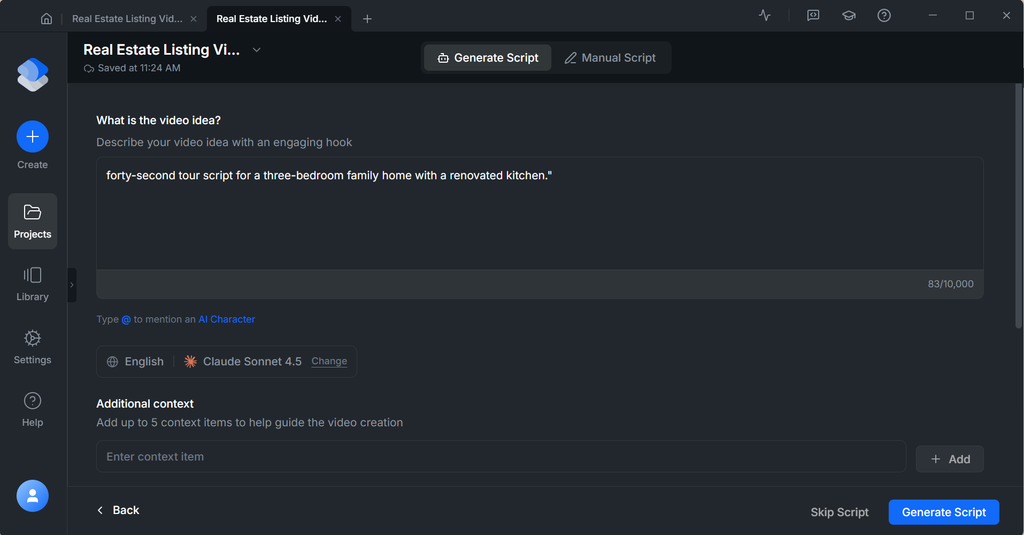
Before you click the “Generate Script” button, fill out the options below that give your hook direction:
- Your hook language
- AI generation model
- Additional context
- Video tone & emotions
Scroll back up to view your generated hook for your product video.
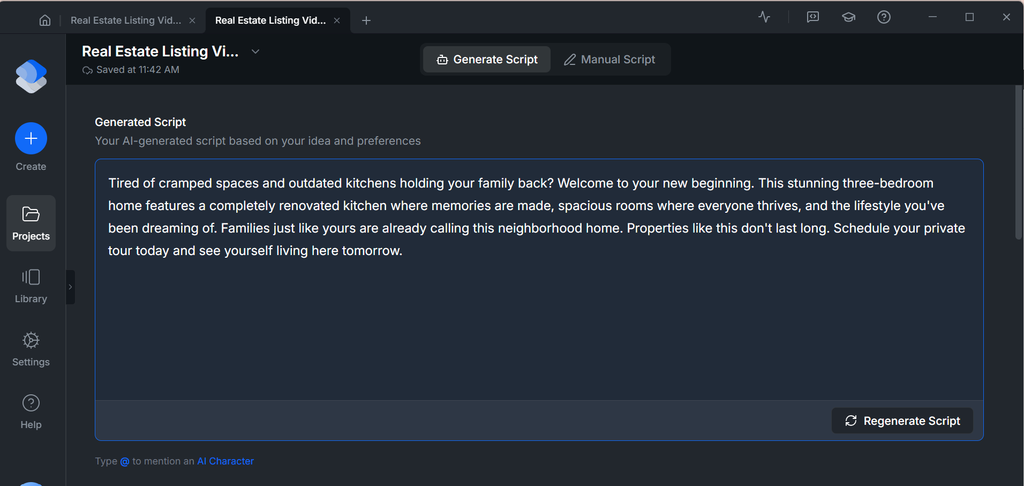
If you like the script, kindly save it for later use, and if you don’t, click on regenerate or highlight specific text or a paragraph to edit.
Step 3: Generate narration or on-screen text
Narration can guide viewers through the property and explain details that are not immediately obvious from the images. On-screen text is useful for short facts that people may want to understand at a glance.
You have three main options:
- Voiceover: Useful for a guided walkthrough or a more detailed presentation.
- On-screen text: Useful for key facts, feature highlights, and short social videos.
- Both: Useful when narration provides context and text reinforces essential details.
If you prefer an on-screen text narration format, you can add this when you begin your full video editing on the timeline.
- However, if you need a voiceover, on your WayaFrame Library interface, click on “AI Generate” and choose the option of “Generate Voiceover”
- Next, select your preferred voice and preview the voice to ensure it sounds like what you want.
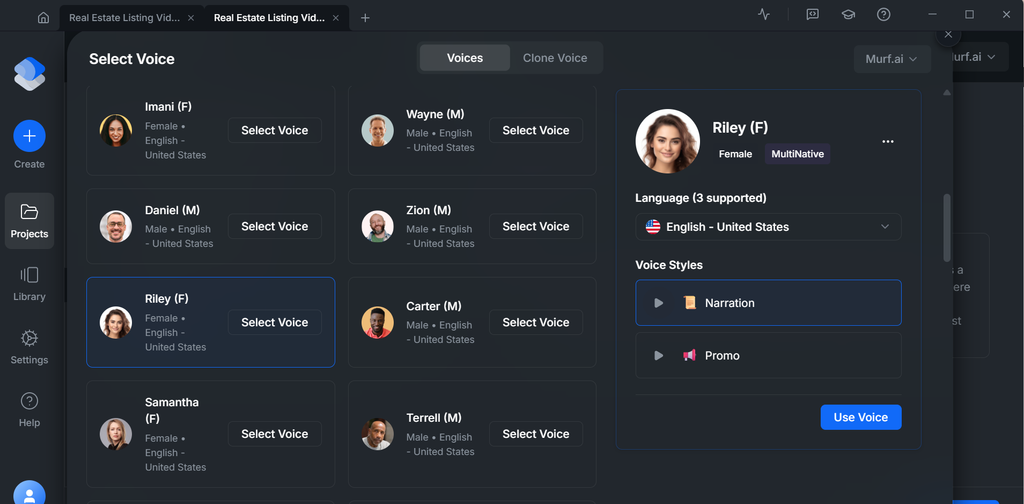
- Insert your already generated script for the voice to narrate and select a paste preference.
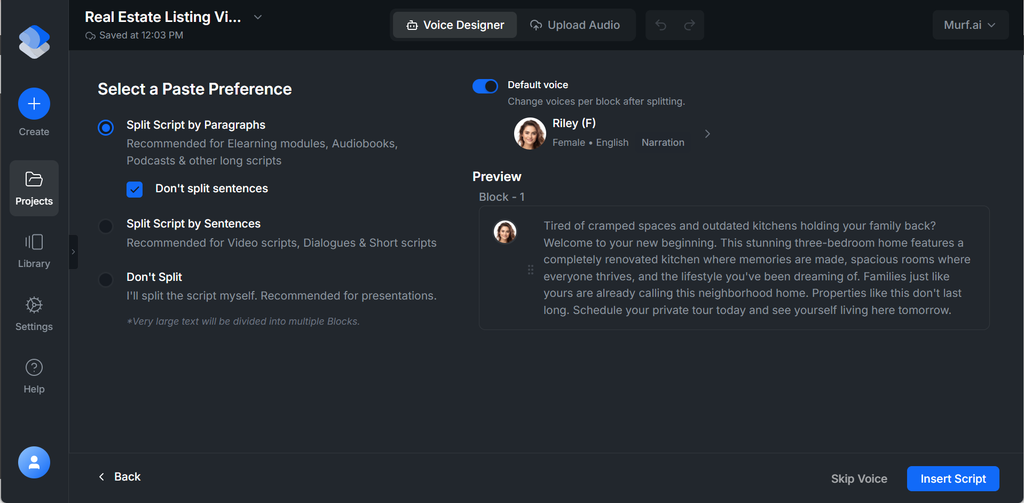
- Click on “Generate Voice” and wait for your result.
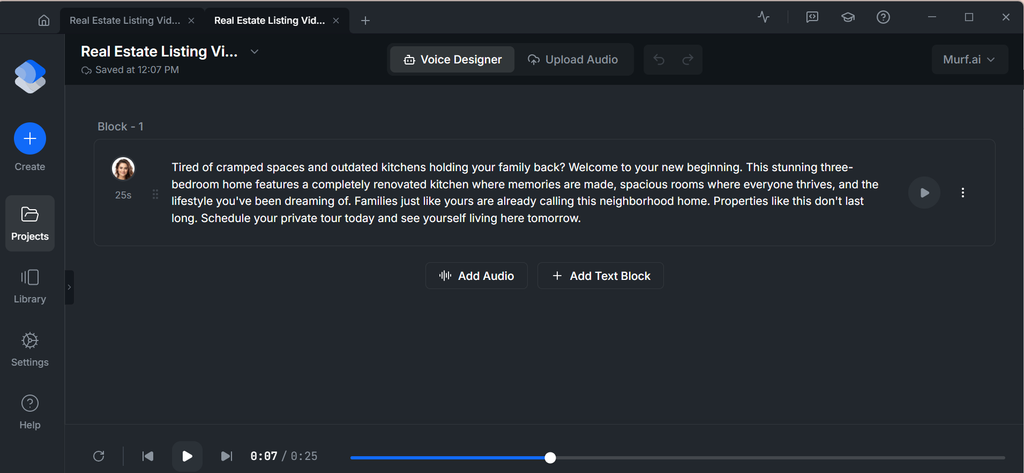
Interestingly, you have complete editing control over your voice generator in the WayaFrame interface. This means you can make edits to the voice pace, pauses, and edit any errors in the narration.
Further, listen to the complete voiceover before publishing. Check the pronunciation of street names, local place names, measurements, and other terms that may be read incorrectly.
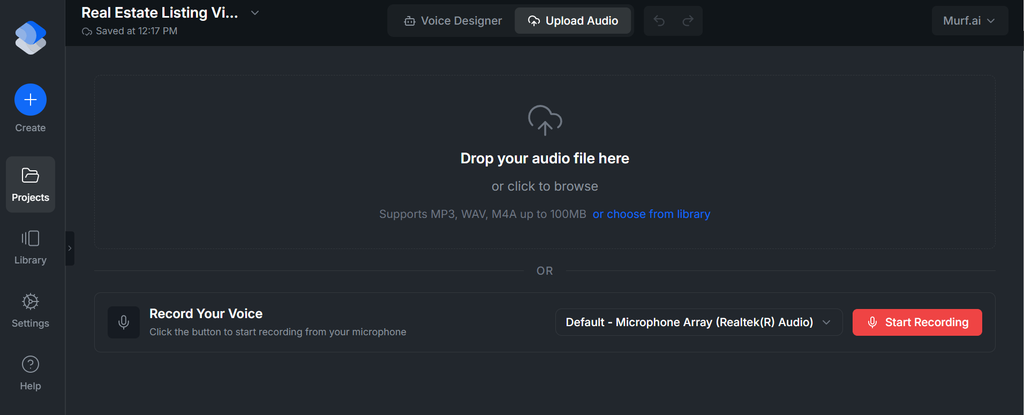
Alternatively, you can choose to narrate your generated script using your voice. This is particularly recommended if you want to maintain brand consistency.
- If that sounds like you, simply click on the “Upload Audio” option at the top of your voiceover interface.
- Next, click on “Start Recording” and have your script narrated.
Further, keep the script short enough to match the pace of the images. A voiceover that moves too quickly can make the video difficult to follow, while long pauses can make it feel unfinished.
Step 4: Arrange the rooms in a logical order
A property video tour that jumps from a bathroom to the exterior and back to the kitchen feels disorienting, and viewers notice within a few seconds.
Place the images on your editing timeline in a sequence that viewers can follow.
A possible structure is:
- Introduce the exterior or main identifying view.
- Move through the main living spaces.
- Show the kitchen and dining area.
- Present bedrooms and bathrooms.
- Highlight outdoor spaces, amenities, or distinctive features.
- End with a useful next step or a brief property summary.
However, a studio apartment, duplex, family home, and commercial space may each need a different structure.
- This step can be achieved using WayaFrame’s “Image to Video” option under its “AI Generate” menu.
- Next, click on the “Upload media” icon at the top left of your editing interface. This lets you upload your real estate listing images.
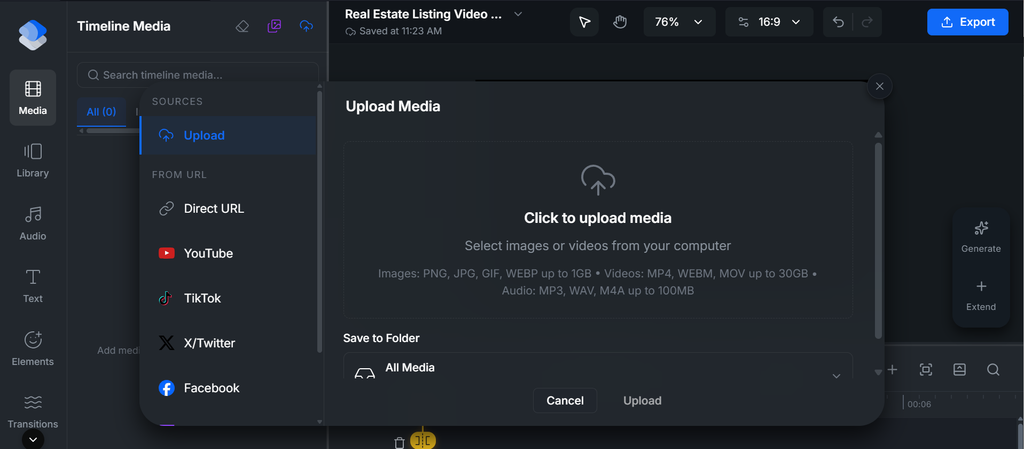
- Select your preferred images and click Upload.
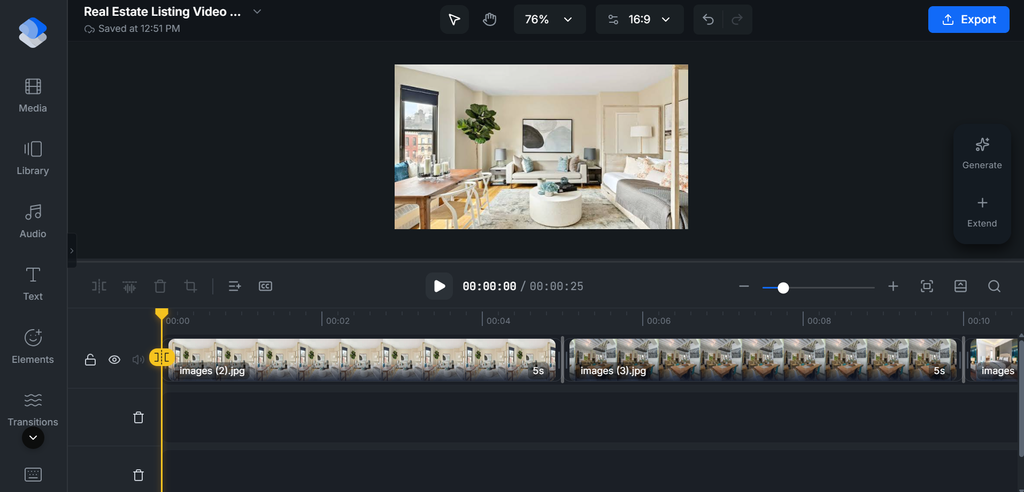
Further, WayaFrame’s Timeline Editing lets you arrange clips and photos in a logical order: exterior first, then the main living spaces, then bedrooms, then whatever feature makes the property stand out.
- To edit an image, highlight it and click the three dots.
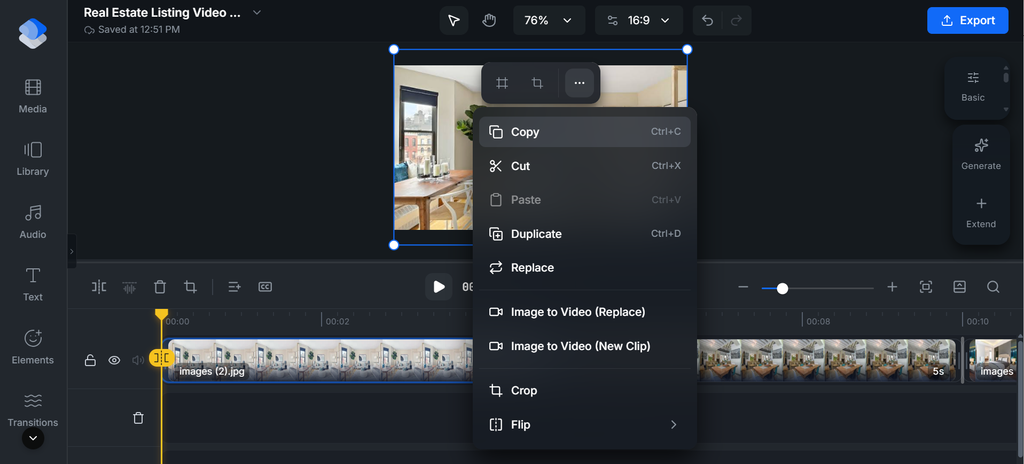
- Next, add a transition to your real estate listing video to show a smooth movement between images.
- To apply a matching transition, select “Transition” from the left-side editing tool on your editing timeline. Click on your preferred transition style and drag it to the intersection between two images and preview the results.
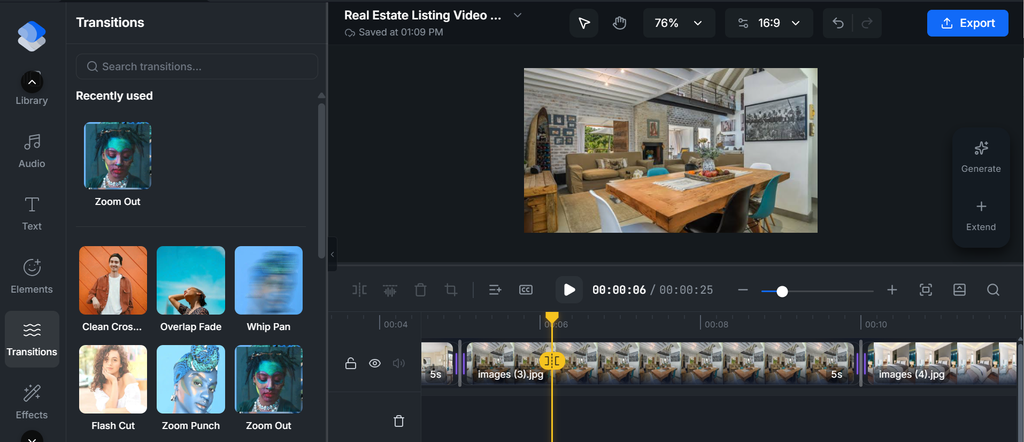
Review the transitions between images. If the video jumps repeatedly between unrelated rooms, viewers may struggle to understand the layout. You can improve the flow by grouping related spaces and avoiding unnecessary backtracking.
Also check that the sequence does not suggest a direct route between rooms when the actual layout is different.
Step 5: Add subtle movement to still photos
Movement can make a photo-based video feel more dynamic, but it should not distract from the property itself.
A slow pan across a living room or a gentle zoom towards a kitchen island can draw attention to a relevant feature. Simple transitions can help separate rooms without making the video feel overly stylised.
Use movement selectively:
- Keep the effect slow enough for viewers to examine the space.
- Avoid excessive zooming that crops out important details.
- Use consistent transitions unless a different treatment serves a clear purpose.
- Do not add effects that distort the apparent size, shape, or condition of the property.
WayaFrame’s Zoom and Pan features add gentle movement across each photo. A slow pan across a living room and a soft zoom into a kitchen island makes the video feel closer to real footage than a slideshow with a fade transition.
- To apply motion to an image, select the image on the timeline and click the “Basic” option from the right side of your timeline.
- Scroll down to the “Transform” option and toggle the “Smart Motion (Pan & Zoom) button on.
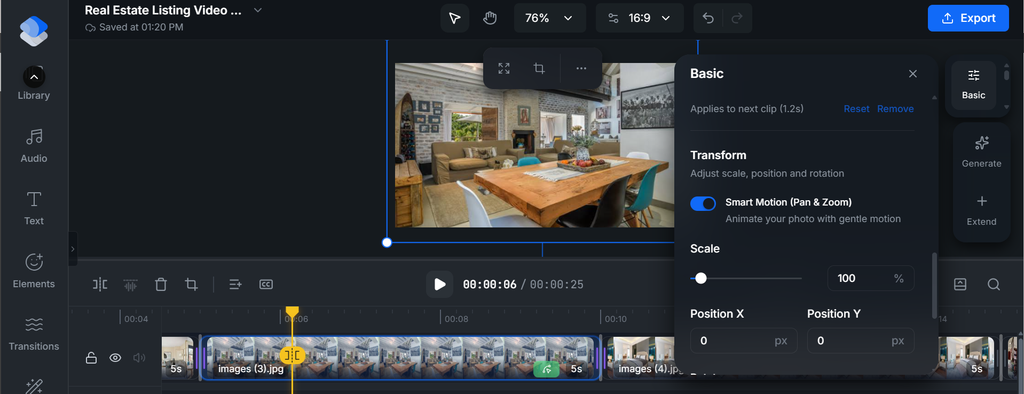
If you use zoom-and-pan controls in your editor, review each image after applying them. An effect that looks smooth on one photo may frame another poorly.
The goal is to guide attention, not make still images appear to show details that were never captured.
Step 6: Add Audio
Audio gives meaning to your real estate listing video. It tells what your entire video is all about.
That’s why earlier on, you had to generate your narration using your own voice or an AI voice generator.
This is the part where you insert your narration into your video clip.
- Click on the “Library” option on the left side of your editing timeline to insert your narration.
- Next, click on the “Upload” option to upload your audio into your timeline.
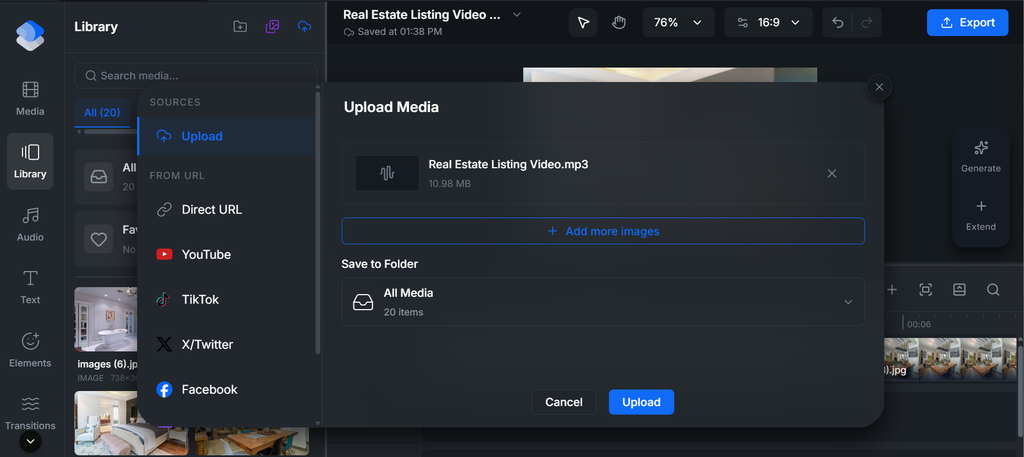
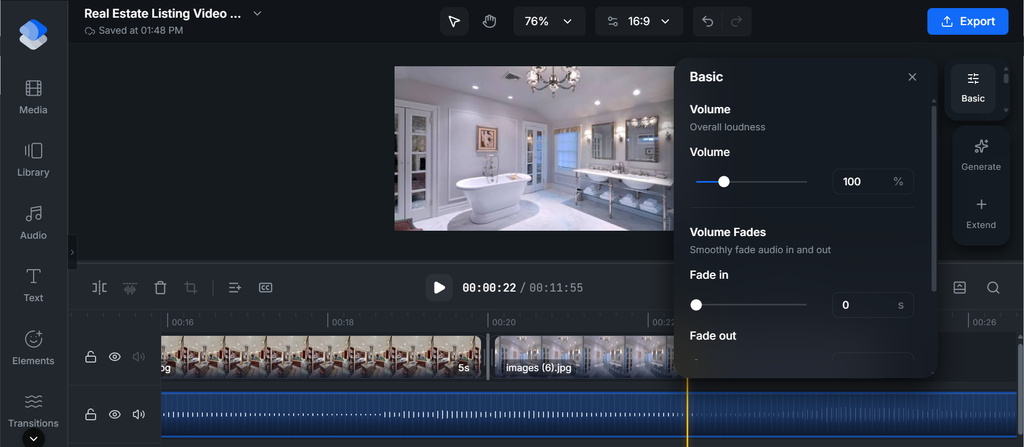
- Once it appears in your library, simply drag and apply it to your video timeline for further editing and preview.
Step 7: Make key details easy to follow
About 85% of people browsing listings on Instagram, Facebook, or TikTok are scrolling with their sound off.
This means a video with no on-screen text is losing a large share of its audience before the message ever lands.
Consider including:
- Accurate bedroom and bathroom counts
- A notable feature or amenity
- Relevant measurements, where verified
- A short location reference, where appropriate
- Contact or viewing information
Use readable text, sufficient contrast, and sensible placement. Avoid covering important parts of the room or placing text so close to the edges that mobile screens may crop it.
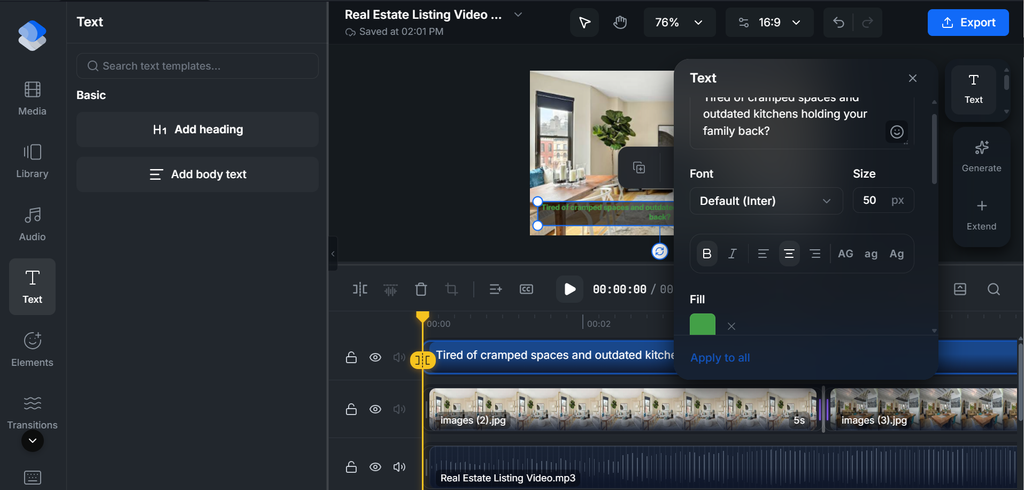
- To do this, click on the “Text” icon on the left side of your timeline and select your preferred text format: heading or body.
- Insert your text and make further edits using the video timeline, such as text size, font style, colour, padding, among others. Most importantly, check that captions match the words actually spoken.
Step 8: Apply consistent branding
Branding helps viewers identify the agent or property management company behind the listing. It can include a logo, a consistent colour palette, readable typography, and clear contact information.
However, keep branding visible without letting it compete with the property. A small logo or restrained end card may be enough for a short listing video.
Before publishing, confirm that:
- The logo and contact details are current.
- Colours and fonts follow the agency’s guidelines.
- The branding does not obscure property features.
- Any agent, photographer, or third-party assets are used with permission.
If you create videos regularly, save a repeatable style guide or template where your editing tools allow it. That can help maintain consistency across listings while leaving room to adapt the design to each property.
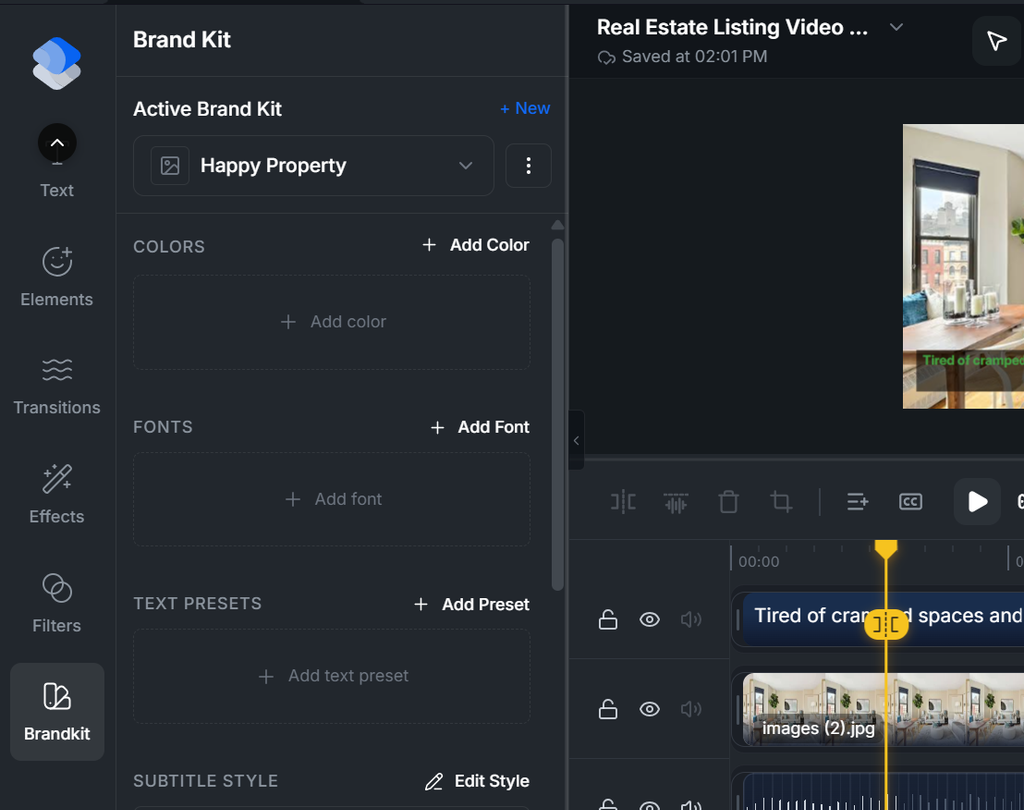
WayaFrame’s AI video workspace allows you to build a reusable brandkit. This means you only have to create your brandkit once, and it becomes available for use in every video you create with WayaFrame.
Click on the “Brandkit” option on the left side of your editing interface, name your kit and click “Create”.
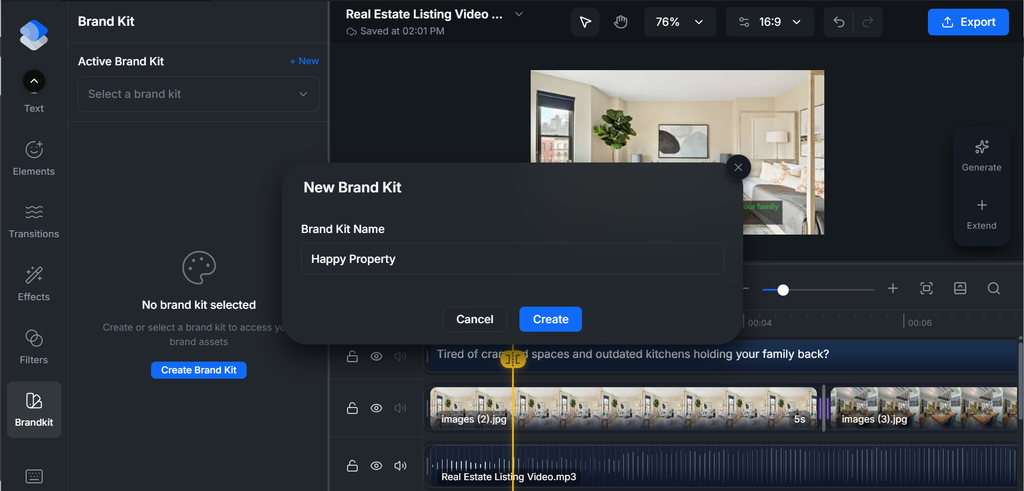
Once your brand kit is created, simply upload all your customised brand items. This includes:
- Colors
- Fonts
- Text Presets
- Subtitle Style
- Logos
- Voices
Step 9: Prepare the video for its intended platform
A video prepared for a property website may need a different shape and pace from a short clip intended for a vertical social feed.
Before exporting, decide where the video will appear and check the destination’s current requirements. These may include aspect ratio, resolution, file size, duration, captions, or supported file formats.
As a general starting point:
- Listing page or website: Prioritise a clear, complete presentation of the property.
- Vertical social video: Focus on a few strong features and keep text readable on a phone.
- Square social post: Check that important details remain visible within the crop.
- Email or direct sharing: Consider whether the file size and playback experience are convenient for the recipient.
Further, check the resulting files individually. Changing the frame shape can crop a room, reposition text, or leave space that needs adjusting.
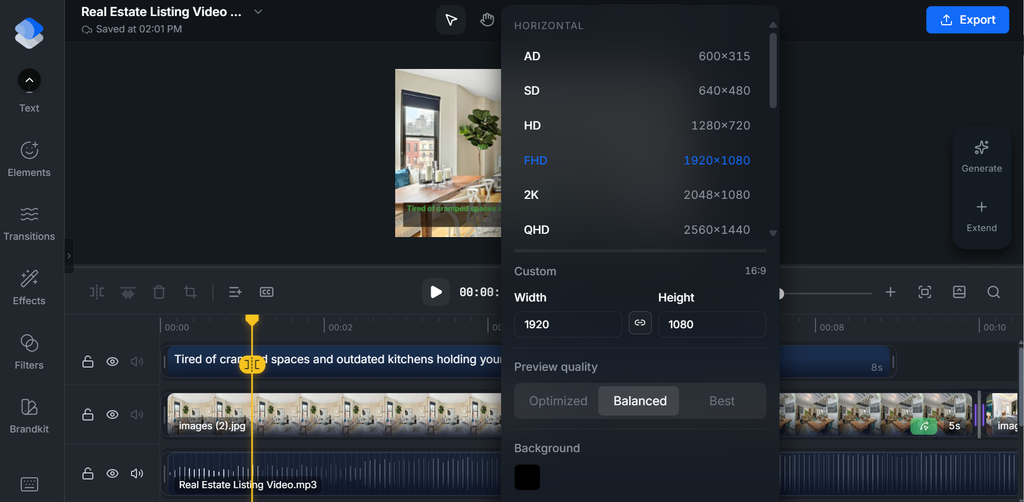
That’s where WayaFrame’s Aspect Ratio Changer comes in.
It exports the same finished video in vertical, square, and horizontal formats for MLS, Reels, Stories, Facebook, and YouTube, all without having to re-edit each version separately.
- On your editing timeline, click on the “Aspect Ratio” option on the top of your editing timeline and choose or customized for your preferred option.
- Once you make your choice, it immediately reflects on your video for your review.
However, do not assume one export will work perfectly everywhere. Preview the finished video on the platform or device where your audience is most likely to view it.
Practical tips for agents and property managers
Once you have a repeatable process, a few habits can make each video easier to plan and review.
- Lead with a useful view: Open with an exterior, main living space, or another image that quickly establishes what the property is.
- Choose the length for the purpose: A short social clip can highlight one or two features; a listing-page video may need more time to cover the property.
- Start while the listing details are fresh: Organise photos and confirm key facts early, but do not sacrifice accuracy for speed.
- Reuse a visual style, not the same story: Consistent branding can help establish a recognisable presentation, while the sequence and script should reflect each property’s actual features.
- Use captions as a complement to narration: Include the details viewers need to understand, but avoid filling the screen with text.
- Create shorter edits when they serve a clear purpose: A kitchen highlight or garden clip can work as a separate social post if it provides useful context and links back to the full listing.
- Match the pacing to the property: A detailed home tour may benefit from slower transitions, while a short feature highlight can be more concise.
- Review meaningful outcomes: In addition to views, consider whether the video generates relevant enquiries, viewing requests, or other actions that matter to your business.
Note: There is no single format that suits every listing. Use the audience, property, and publishing destination to guide your choices.
My Recommended Listing Video Ideas for Agents and Property Managers
You do not need to make every video a complete walkthrough. Different formats can answer different questions or highlight different aspects of a property.
For Agents
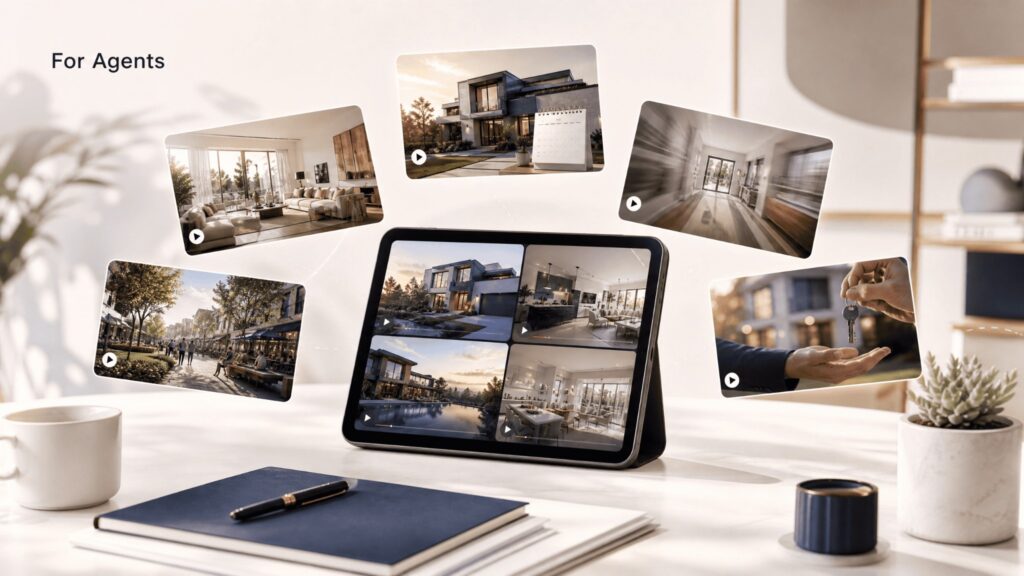
These are a few formats worth having on repeat, ready to reuse for nearly every listing:
- Full property video tour: the main walkthrough built for the MLS listing and website, giving buyers the complete room-by-room view they need before booking a showing.
- Coming soon teaser: a short clip posted a few days before the listing goes live, building early interest and getting buyers watching for the listing before it’s even searchable.
- Speed-up walkthrough clip: a faster-paced version of the full tour, formatted for Reels or Stories, designed to hold attention on platforms where longer videos lose viewers quickly.
- Just sold recap video: a short highlight reel posted after closing that reinforces the agent’s track record and keeps their name associated with results, not just listings.
- Neighbourhood highlight video: a clip covering the surrounding area, paired with a specific listing, that helps buyers evaluate the neighbourhood alongside the property itself.
For Property Managers
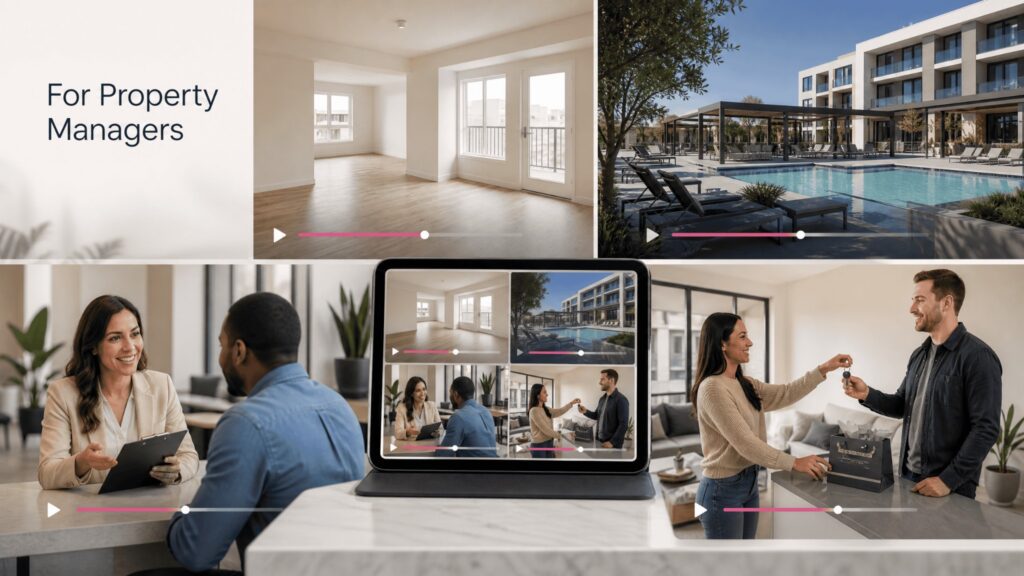
The priorities shift slightly, since the goal is filling units efficiently rather than closing a single sale:
- Unit walkthrough video: a straightforward tour designed for vacancy listings, especially useful for several similar units in the same building, where the same format can be reused with minor changes.
- Amenity highlight video: a single video covering shared spaces like the pool, gym, or common areas, filmed once and reused across every unit listing in that property instead of being remade each time.
- Pre-screening video: a short clip answering common tenant questions, pet policy, parking, and lease terms, before a tour is even booked, filtering out mismatched inquiries early.
- Move-in ready video: sent directly to approved applicants ahead of key handoff, setting expectations and easing the transition into the unit.
Frequently Asked Questions
AI simplifies the entire video creation process by automating tasks that traditionally required multiple tools and professionals.
Instead of hiring a videographer, writing a script, recording a voiceover, and editing footage manually, an AI-powered real estate video editor can transform listing photos into a professional property video tour within minutes.
Yes.
While high-quality photos remain essential, property video tours provide a better understanding of a home’s layout, flow, and overall feel. Buyers can virtually walk through the property before scheduling a viewing, making it easier to decide whether it’s worth pursuing.
They also help reduce unnecessary property showings by giving prospects a clearer picture of the space before making contact.
The best real estate video editor should do more than combine photos into a slideshow. Look for features that streamline your workflow while producing professional-quality videos.
Key features include:
- AI script generation
- Text-to-speech voiceovers
- Automatic captions
- Motion effects (zoom and pan)
- Timeline editing
- Brand templates for logos and colours
- Multiple export formats for MLS, Instagram, Facebook, TikTok, and YouTube
These features save time and ensure every listing video is polished, engaging, and optimised for different marketing channels.
Absolutely.
AI-powered real estate video editors are just as valuable for property managers as they are for real estate agents. Rental listings often require multiple videos each month, making traditional video production expensive and time-consuming. These videos help attract qualified tenants, reduce repetitive inquiries, and streamline the leasing process by answering common questions before prospective tenants schedule a tour.
Yes.
Real estate listing videos can significantly improve marketing performance because they capture attention more effectively than static images alone. Videos encourage buyers to spend more time engaging with a listing, increase social media visibility, and help properties stand out in competitive markets.
Final Thoughts on Real Estate Video Editor
What used to take a videographer, a shoot day, and an editing turnaround now takes a folder of photos already sitting on your phone.
Hence, take the next listing already sitting in your pipeline, the one you’d normally post with just photos, and give it a video instead.
A clear real estate listing video helps prospective buyers and tenants understand a property before arranging a viewing. Organise your photos, highlight verified details, and use narration, captions, and movement to make the walkthrough engaging.
Ready to turn your property photos into a video? Try WayaFrame, the AI video workspace that helps you move from idea to finished video in one editor.

