

Learn how to create AI claymation videos for marketing, write better prompts, refine scenes, and turn your ideas into engaging video content.
Claymation videos have a look that’s hard to confuse with other animation styles and stand out in a feed full of polished digital content.
Traditional claymation, however, takes time.
Creating characters, preparing a physical set, lighting it, and capturing frames one by one is not practical for every creator or marketing team.
In contrast, a claymation video maker changes that by letting you generate or transform footage with AI instead of building every scene physically.
Perhaps you want to explore different AI Claymation video styles for your business; I have you covered.
Together, we will explore how to start with an idea and generate a scene, and how to write better prompts for consistent visual style.
Table of Contents
Key Takeaways
- Start with a simple idea by focusing on one clear action or message for your AI claymation videos.
- Choose whether to generate a new claymation scene or transform existing footage based on your project needs.
- Write specific prompts that describe the subject, action, clay texture, setting, lighting, and visual style.
- Refine your scenes by reviewing each result and adjusting prompts to improve visual consistency.
- Keep editing focused by arranging your best scenes and adding only the necessary sound, captions, and transitions.
- Review the final video for visual consistency, pacing, audio, and format before exporting it for your intended marketing channel.
When Does Claymation Work for Marketing?
Claymation is a visual style, not a marketing strategy on its own. A textured character might catch someone’s attention, but the video still needs to communicate something useful or memorable.
I’d consider claymation when the style helps tell the story, rather than using it simply because it looks different.
Here are a few ideas worth exploring:
- Product reveals: Place a product in a miniature world that reflects its purpose, ingredients, or personality.
- Brand characters: Give a mascot a handmade look and use it to introduce a product or explain a simple idea.
- Short explainers: Use clay-like objects and characters to represent a process that might be difficult to show with ordinary footage.
- Seasonal campaigns: Build a small visual world around a holiday, launch, or limited-time offer.
- Social videos: Use one clear action or visual surprise to give a short video a memorable opening.
For example, a coffee brand could show a tiny clay character waking up in a miniature kitchen, reaching for a cup, and taking a first sip. A skincare brand might use a clay-inspired garden to suggest freshness or a connection to natural ingredients.
The important part is the idea behind the visual. If the viewer cannot tell what the product is, what is happening, or why it matters, the clay effect may be doing more work than the message.
A useful starting question: What is the one thing I want someone to remember after watching this video?
Write down the answer before opening any AI animation tools. It will help you decide what belongs in the scene and what can be left out.
Should You Generate a New Scene or Transform Existing Footage?
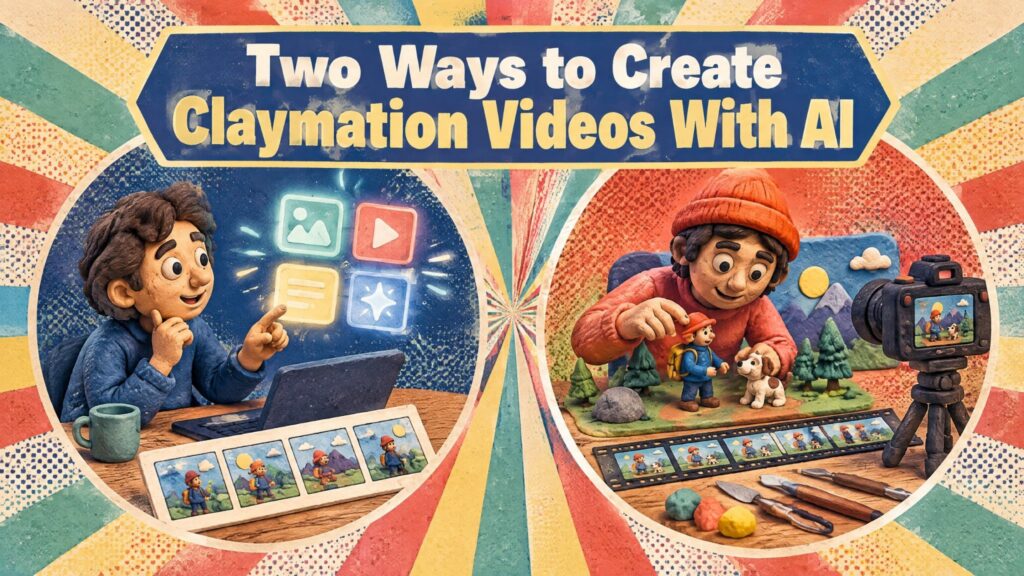
There are two approaches to consider when making claymation-style videos with AI. The right one depends on whether you already have footage that does the job.
Option 1: Generate a scene from an idea
Start here if you have a concept but no footage to work with.
You might want to create a tiny clay bakery, a character interacting with a product, or a miniature world that would be difficult to build physically. In this case, you need to describe the subject, its action, the setting, and the visual style.
This approach gives you room to explore an idea before planning a full campaign around it. It also means you need to pay close attention to what the generated scene actually shows. The result may not match every detail in your prompt.
Option 2: Transform footage you already have
If you have already filmed a product demonstration or a simple action, you may not need to start from scratch.
A video-to-video tool can be useful when the existing composition or movement is worth keeping, but you want to explore a different visual treatment. The result still needs to be checked carefully: changing the appearance of footage does not automatically guarantee that every product detail, label, or movement will remain accurate.
However, for this tutorial, I’ll focus on creating a new scene from an idea, since it provides a straightforward way to learn the visual language of claymation.
How to Make a Claymation Video Step by Step
To keep the process manageable, let’s use a simple example: a short video for a coffee brand. The concept is a tiny clay character picking up a coffee cup in a miniature café.
You can adapt the same approach to another product or campaign. The goal is to start with one clear action, create a scene around it, and refine the result before adding more complexity.
Step 1: Choose one simple action
It’s tempting to put an entire story into the first prompt. A character enters a room, finds a product, demonstrates it, reacts, and finishes with a logo reveal. That gives the AI several things to interpret at once.
I’d begin with a smaller action.
For the coffee example, the first scene could show a clay character reaching for a cup on a café counter. That gives the scene a clear subject, setting, and movement.
Before generating anything, decide on four things:
- Subject: What should the viewer notice first?
- Action: What should the subject do?
- Setting: Where does the action take place?
- Purpose: What does this scene communicate about the product or brand?
You don’t need a complicated storyboard for a short test. A few notes are enough to give the idea direction.
Step 2: Develop the visual direction
Next, decide what makes the scene look like claymation rather than ordinary animation with a clay-like filter.
Think about the material, the environment, and the lighting. Real clay has an imperfect surface. A miniature set feels physically constructed. Small irregularities can make a scene feel more handmade than a polished, perfectly smooth render.
For the coffee scene, explore details such as:
- Rounded clay features and visible surface marks.
- A miniature café counter with small props.
- Warm, directional studio lighting.
- Soft shadows that make objects feel grounded.
- Deliberate, slightly stepped movement rather than perfectly fluid motion.
These are creative directions to test, not settings that guarantee a particular result. Keep the description focused enough that the main action remains easy to understand.
Step 3: Write a prompt that describes the scene
A prompt works best when it explains what the viewer should see, not just the style you want.
“Make a claymation video” describes the general direction. It doesn’t explain the subject, what happens, where it happens, or how the scene should look.
In contrast, I’d build the prompt from five parts:
- Subject: Who or what is in the scene?
- Action: What happens during the shot?
- Environment: Where does it take place?
- Material and texture: What makes the scene look handmade?
- Lighting and movement: How should the scene feel visually?
Here’s an example prompt for the coffee concept:
A small handmade clay character reaches for a ceramic coffee cup on the counter of a miniature café. The character has rounded features, visible fingerprints and slightly uneven clay surfaces. The café contains tiny shelves, simple props and a warm wooden counter. Soft studio lighting casts short shadows across the miniature set. The character moves in deliberate stop-motion-style steps as it picks up the cup. Keep the cup clearly visible and make the action the main focus of the shot.
The prompt gives the scene a subject, an action, and a physical environment. It also describes the clay texture and movement without overloading the scene with unrelated details.
You can adapt the same structure to a product video. Replace the character and cup with your product, then describe the interaction you want the viewer to notice.
Step 4: Generate the first scene and inspect it
Now is the time to input your prompt into your AI Claymation video generator. I’ll show you how to do this using the WayaFrame Generate Video Clip feature. This can be found by clicking the “AI Generate” button in the Library interface.
Next, click on visual style to select your choice. Of course, the Claymation visual style is our choice because that’s the type of video we’re creating.
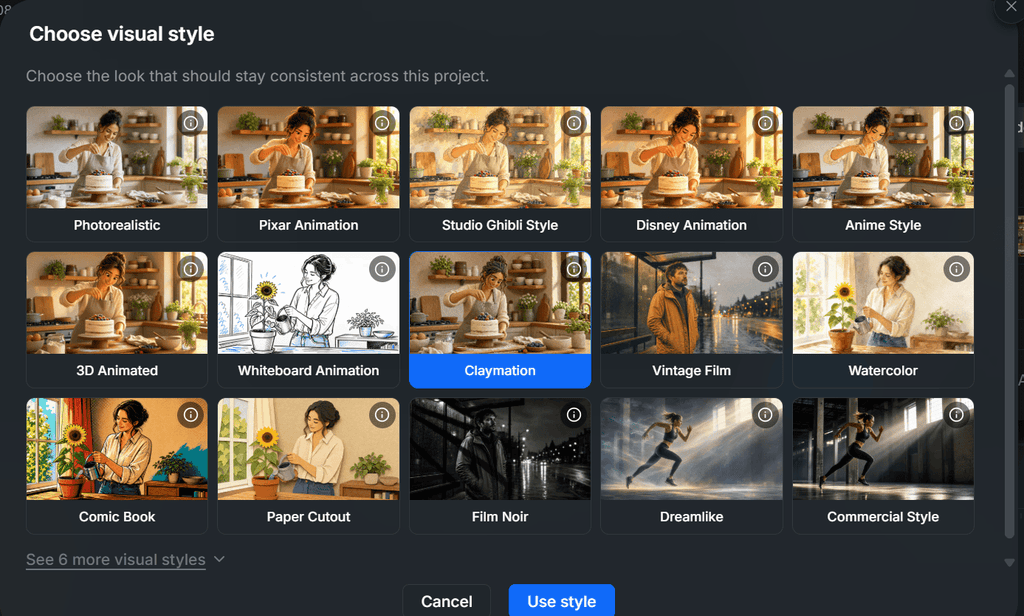
- Set your preferred AI model. WayaFrame offers you 10+ generative AI models, including Kling, Seedance, Luma Labs, Sora, Grok, among others.
- Input your video prompt.
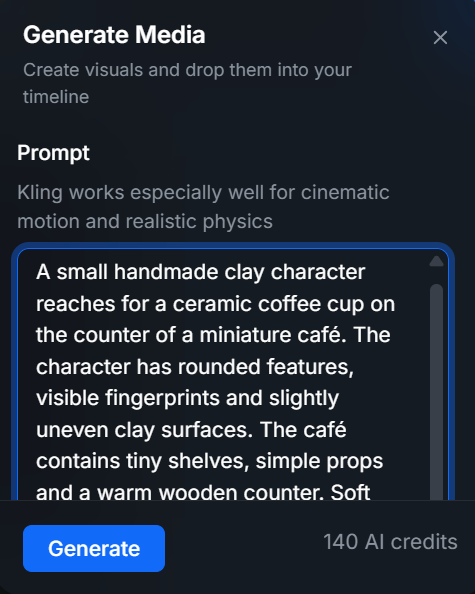
- Before you click on generate, set your video duration and aspect ratio. However, your video aspect ratio can still be changed after the video is generated.
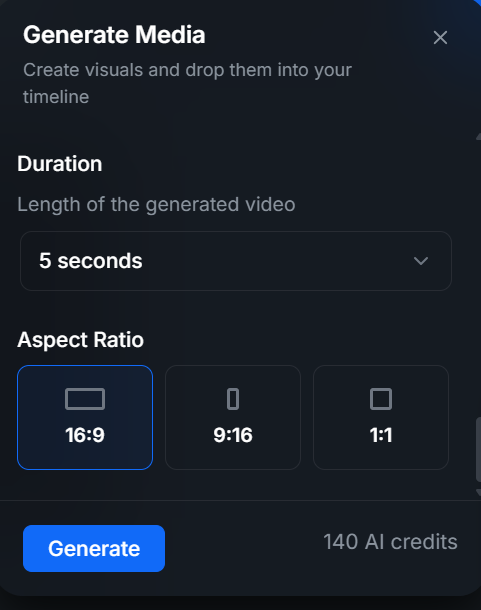
- Wait for your video to generate. Once completed, it immediately appears on your timeline for further editing.
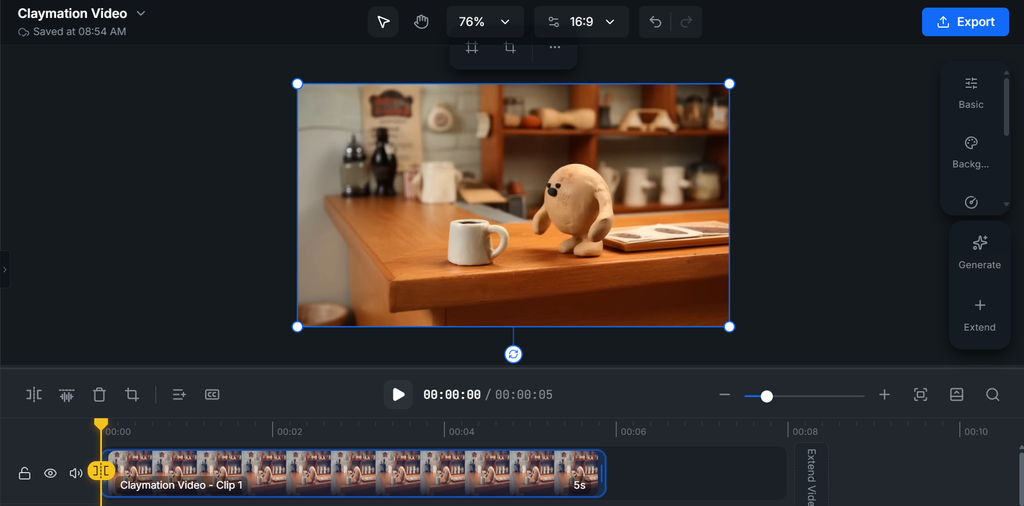
Kindly review the video result and make changes gradually by editing the prompt and regenerating.
Note: change one or two things per attempt and compare the results. That makes the process easier to evaluate than rewriting the entire prompt after every generation.
Step 5: Build the video around the best usable shots
Once you have a scene that communicates the idea, decide whether it works on its own or needs supporting shots.
For a short product video, you might use:
- An opening shot that establishes the miniature world.
- A closer shot that shows the product.
- An action shot that demonstrates the idea.
- A final shot that leaves room for a short message or call to action.
You do not need all four. A single strong shot may be enough for a simple social post. Add scenes only when they help tell the story.
However, if you generate several clips, check that they feel like parts of the same video. Look for changes in character appearance, product shape, lighting, colour, and the miniature environment. A recurring character that looks different in every shot can distract from the message.
For our case study, an additional clip will make the video complete.
Hence, input the continuation prompt below to generate the next script.
Continue with the exact same small, rounded beige clay character, preserving its oval body, tiny black eyes, short stubby arms and legs, handmade clay texture, and overall proportions. Do not introduce a new character or change its appearance. The clay character carefully pours freshly brewed coffee into the ceramic cup, releasing tiny curls of steam. It adds a small spoonful of sugar, stirs gently, then holds the cup with both hands and takes a satisfied sip. Maintain the handmade clay textures, miniature café setting, warm lighting, and consistent stop-motion movements.
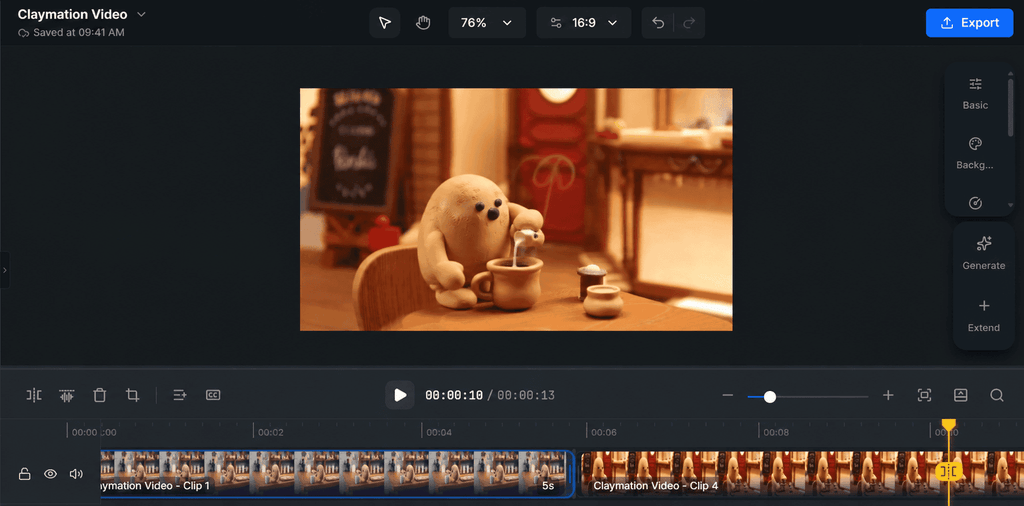
Step 7: Add only the finishing elements the video needs
A claymation video for marketing may need a voice-over, a short caption, background audio, or a final brand message. It may not need all of them.
I suggest you decide based on where the video will appear and what the viewer needs to understand.
For example:
- If the action explains the product clearly, a short on-screen message may be enough.
- If the video communicates a more detailed benefit, narration may help.
- If viewers are likely to watch without sound, captions can make spoken information easier to follow.
- If the scene already has a strong visual rhythm, background music should support it rather than compete with it.
Keep text brief and legible. Make sure it does not cover the product or the key action. Check that the audio level is comfortable and that any narration matches what the video actually shows.
Our claymation video does require sound to communicate what is shown on the screen. For this video, I would upload my recorded voiceover to maintain brand consistency.
- To do this, click on the upload option from your “Media” tool on your timeline.
- Simply click upload and have your voiceover uploaded. It will appear on your timeline for further editing once successfully uploaded.
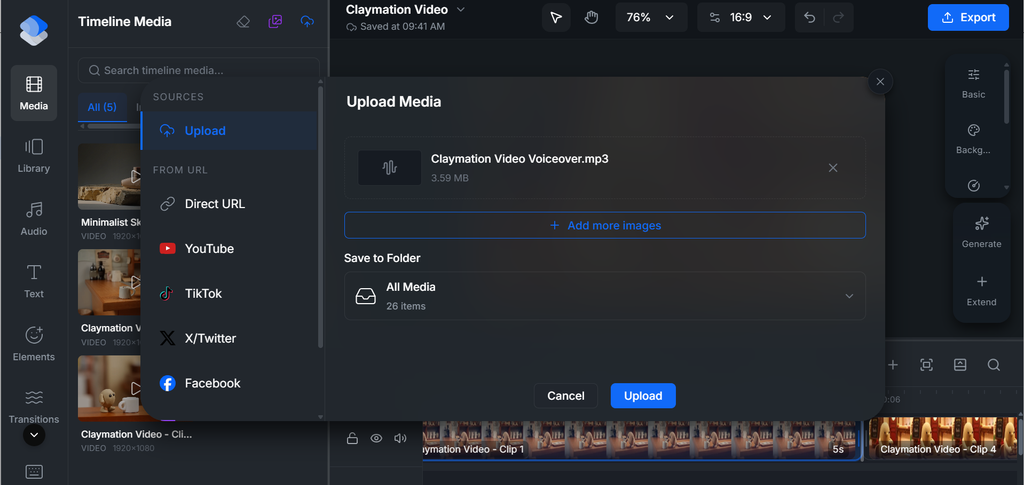
Also, for the video to achieve its marketing aim, it needs to have captions displayed on the screen. This is recommended for 2 purposes:
- Those watching with sound off can understand what the video is all about.
- Makes the Call-to-Action clear for viewers to follow through.
Click on “Text” on the left side of your timeline and input your captions.
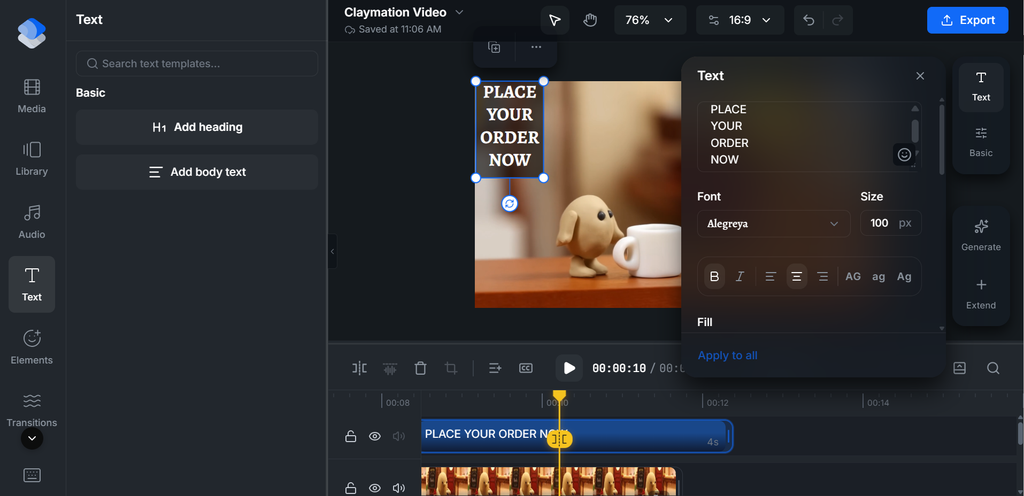
Further, you can make further edits to the caption by using the text tool from the right side of your timeline. This option lets you edit caption size, font style, colour, among other edit options.
Step 7: Check the video before exporting
Before exporting, watch the entire video from beginning to end. It’s easy to focus on the generated scene and overlook problems that become obvious once the clips, text, and audio are combined.
Use this final review:
- Is the main message clear within the available viewing time?
- Does the opening give viewers a reason to keep watching?
- Does the product look correct and remain recognisable?
- Do the clips feel consistent enough to belong in one video?
- Are captions, text, and branding readable?
- Is the audio balanced?
- Does the composition suit the intended platform?
- Are there any visible AI artefacts or awkward movements that need attention?
How to Write Better Prompts for AI Claymation Videos
A good prompt does not need to be long. It needs to give the generation process a clear visual direction.
When I’m planning a claymation prompt, I’d pay particular attention to these elements.
Describe the material, not just the style
Words such as “claymation” and “stop-motion style” establish the direction, but they may not explain the texture you want.
Try describing the surface itself: visible fingerprints, rounded shapes, uneven edges, or handmade details. Use only the details that support your concept.
Keep the action simple
A prompt that asks a character to run, jump, pick up a product, wave, and turn toward the camera gives the scene a lot to accomplish.
For a short marketing clip, one main action is often easier to evaluate. You can always develop a more complex sequence after you know the visual direction is working.
Give the scene a physical setting
A miniature bakery, a tiny kitchen, or a small workshop helps establish a world for the subject to occupy. Mention the few background details that matter, but avoid filling the prompt with props that compete with the main action.
Explain the lighting
Lighting helps communicate whether the scene should feel cosy, dramatic, playful, or clean. “Warm studio lighting with soft shadows” gives more direction than simply saying “good lighting.”
Test movement descriptions
Stop-motion animation often has a more deliberate rhythm than smooth, continuous animation. You can describe the movement as stepped, slightly irregular, or deliberately posed, then inspect whether the result matches your intention.
Specific terms are instructions to experiment with, not guaranteed controls. If the output does not follow them, revise the prompt and assess the next result rather than assuming the wording will always produce the same effect.
A reusable prompt template
Use this structure when planning another scene:
Create a [type of subject] in a [miniature setting]. The subject [one clear action]. Use a handmade clay appearance with [specific texture details]. Light the scene with [lighting direction and mood]. The movement should feel [movement description]. Keep [important product or visual element] clearly visible, and avoid distracting background details.
For example, a skincare brand could replace the coffee character with a small clay figure placing a bottle on a miniature stone shelf. The same structure applies, but the subject, action, setting, and visual details should fit the actual product campaign.
Frequently Asked Questions
A claymation video maker is a tool that generates or transforms video content in the visual style of traditional clay stop motion animation.
AI-powered claymation video makers produce the distinctive texture, frame pacing, and warm lighting of claymation without requiring physical clay sculpting, miniature sets, or frame-by-frame photography.
AI-based workflows can help you explore a claymation aesthetic without building physical characters and sets for every scene. The output still needs review, particularly when the video includes a real product, detailed branding, or actions that must be accurate.
Traditional claymation uses physical materials, sets, and frame-by-frame capture to create movement. Stop motion AI refers to AI-assisted workflows that attempt to recreate aspects of that visual style. It can reduce the need to construct a physical set for a concept, but the output may not behave exactly like traditional stop-motion footage.
Keep the visual direction consistent across your prompts. Reuse descriptions of the character, materials, setting, and lighting, then review the generated shots together. Consistent prompts can help guide the process, but they do not guarantee identical results across generations.
Start with the subject, one clear action, the setting, the clay texture, the lighting, and the intended movement. Add details that directly support the idea, and remove instructions that make the scene unnecessarily complicated.
Final Thoughts on AI Claymation Video
Making AI claymation videos starts with a clear idea, not a long prompt or a collection of effects.
Choose one action, describe the visual style, generate a first version, and look closely at what needs improvement. Then build the edit around the shots that communicate the message best.
Also, resist the temptation to create an entire campaign before testing a single scene. A small experiment can help you decide whether the style suits your product, whether the generated visuals are usable, and how much editing the final video needs.

