Skip to content

Last updated on April 25, 2026

How to Create Soundtracks

Need a beat, a score, or ambient background audio? Describe the vibe, pick your style, and Tunedance generates ready-to-use instrumental tracks in seconds.

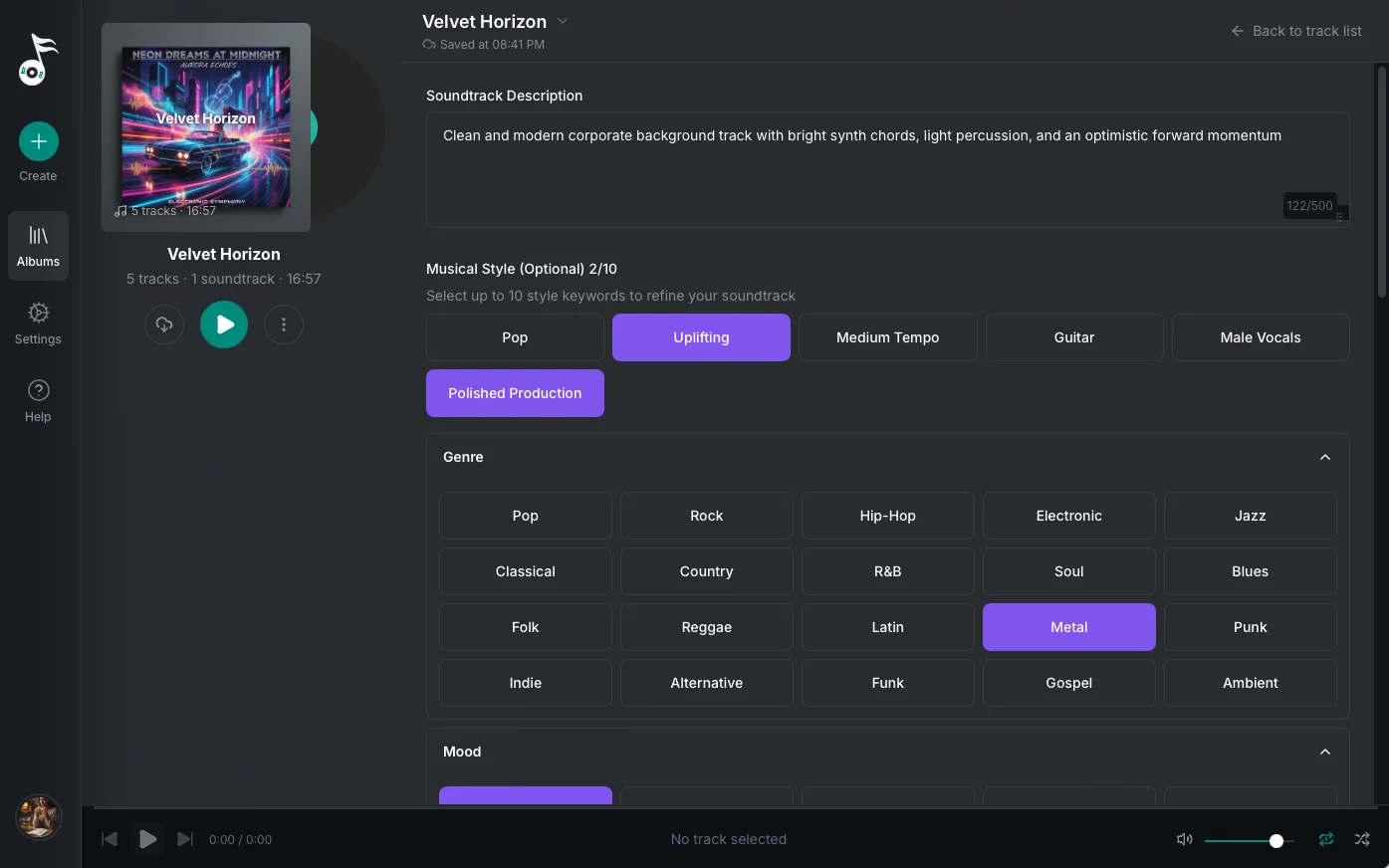
The soundtrack workspace

Describe Your Soundtrack

Open an album and click New Soundtrack. Describe the audio you want to generate, for example "Upbeat electronic music with drums and synthesizers" or "Cinematic orchestral score with rising tension".

Style Enhancements

Select up to 10 keywords across Genre, Mood, Tempo, Instruments, Vocals, and Production to shape the direction of the generated audio. The soundtrack workflow uses the same enhancement system as music creation.

Negative Prompts

Toggle Negative Prompt to describe elements you want to exclude. For example, "vocals, heavy drums, bass" keeps the result focused on the instruments and feel you actually want.

Sample Count

Choose how many variations to generate with the Number of Samples control (1 to 5). Each sample is a variation of the same prompt and style direction, from 30 seconds to 5 minutes long. Generating multiple samples multiplies the credit cost.

Generate the Soundtrack

Click Generate Soundtrack to create the audio. Tunedance generates each variation as a WAV file, creates artwork for the tracks, and starts playback automatically. The finished tracks appear in your album.

Edit an Existing Soundtrack

Click Edit on any soundtrack track to reopen the workspace with your prompt and settings pre-filled. You can modify any field and regenerate.

Wayaframe Help Center