Skip to content

Last updated on April 21, 2026

How to Generate Social Media Clips

Turn any long-form video into scroll-stopping social content in minutes. Social Clips uses AI to analyze your video, find the most engaging moments, and generate ready-to-post short-form clips with subtitles and smart reframing. Wayaframe transcribes the audio, detects speakers, scores each clip by virality potential, and lets you export directly in the right format for TikTok, Reels, Shorts, or any platform.

Social Clips overview

Opening Social Clips

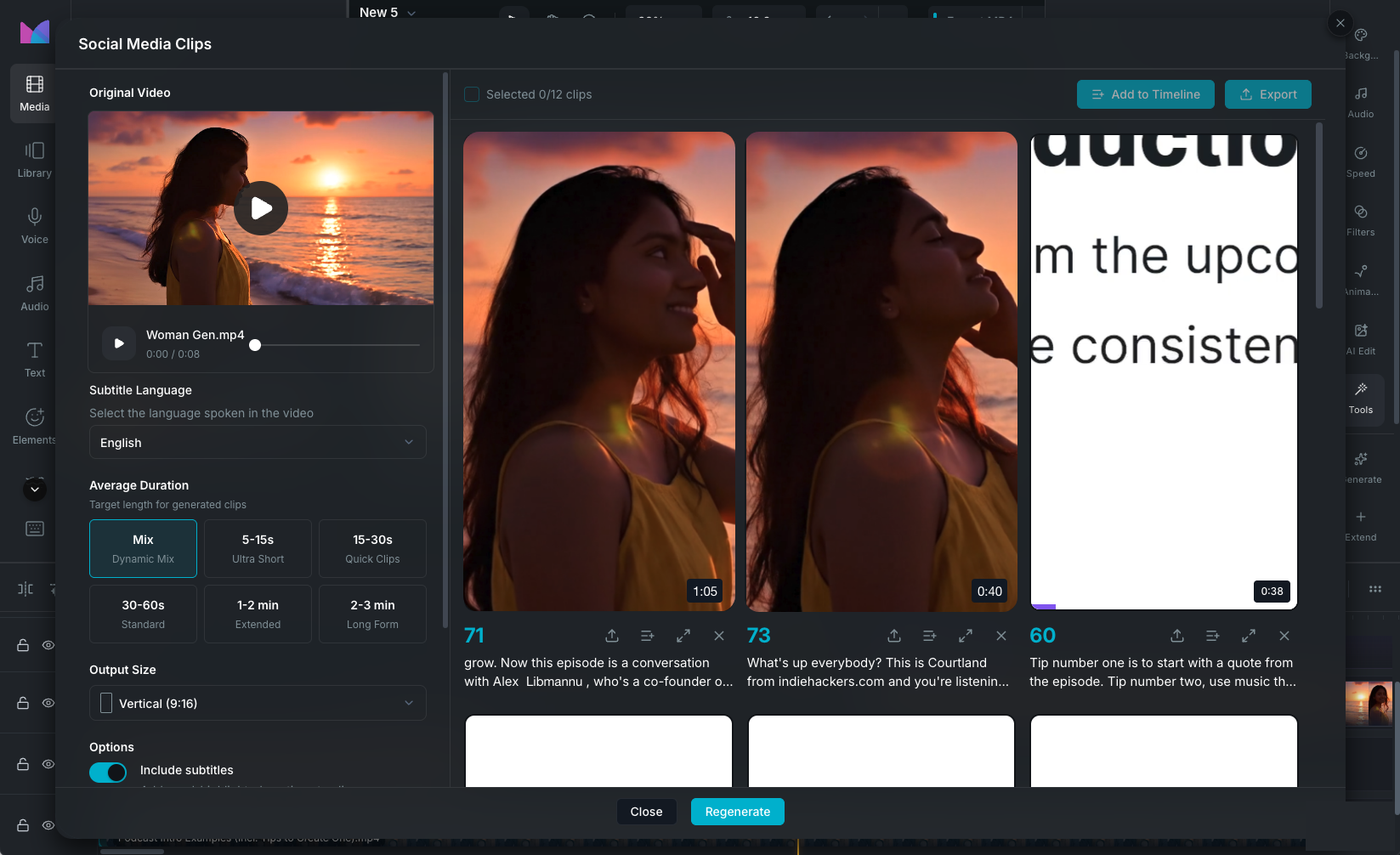
Select a video clip on the timeline, then open the Tools tab in the property panel and click Social Clips. The Social Clips modal opens with a configuration panel on the left and a preview area on the right.

The source video must have an audio track with speech, be at least 2 minutes long, and no longer than 5 hours.

Configuration

Before generating clips, configure these settings in the left panel:

Language

Select the spoken language in the video. This is used for transcription and subtitle generation. A wide range of languages are supported.

Duration mode

Choose the target length for generated clips:

  • Dynamic Mix: a variety of lengths from 8 seconds to 2.5 minutes.
  • Ultra Short (5-15s): quick hooks for maximum scroll-stopping impact.
  • Quick Clips (15-30s): short-form content for Reels, Shorts, and TikTok.
  • Standard (30-60s): balanced length for most social platforms.
  • Extended (60-120s): longer clips for YouTube and LinkedIn.
  • Long Form (120-180s): in-depth clips for detailed content.

Output size

Choose the aspect ratio for the generated clips:

RatioUse case
9:16 VerticalTikTok, Instagram Reels, YouTube Shorts
16:9 HorizontalYouTube, LinkedIn
1:1 SquareInstagram Feed
4:3 ClassicFacebook
Same as VideoKeep the original aspect ratio

When you select a different aspect ratio from the source video, Wayaframe uses face detection to intelligently reframe each clip, keeping speakers centered in the new frame. See Smart reframing.

Subtitles

Toggle Include subtitles to add word-highlighted captions to your clips. When enabled, you can choose a subtitle style preset or customize the appearance:

  • Subtitle style: font, size, color, background, shadow, and outline.
  • Highlight style: the color and appearance of the currently spoken word.
  • Highlight toggle: enable or disable the word-by-word highlighting effect.

Subtitles use the same styling system as the main How to Add Subtitles to Your Video feature, including Brand Kit preset support.

Multi-shot clips

Toggle Include multi-shots to enable split-screen clips for multi-speaker content. When enabled, Wayaframe detects different speakers and creates clips with a split-screen layout showing both speakers simultaneously:

  • Vertical output (9:16): speakers stacked top and bottom.
  • Other outputs: speakers placed side by side.

Generation

Click Generate Clips to start the AI analysis. A progress indicator shows each step:

  1. Extracting audio from the video.
  2. Generating subtitles via AI transcription with word-level timing.
  3. Detecting speakers for multi-speaker identification.
  4. Finding viral moments by analyzing hooks, engagement patterns, pacing, and narrative structure.
  5. Finalizing clips by ranking candidates with AI and selecting the best moments.

The analysis identifies engaging moments by scoring each sentence for hook strength (attention-grabbing openers), questions, list patterns, reveals, results, filler word density, and pacing. An AI model then ranks all candidates and assigns each a virality score, title, tags, and a reasoning explanation.

Generation typically takes 30 seconds to 2 minutes depending on video length.

Wayaframe Help Center