Skip to content

Last updated on April 21, 2026

How to Create Videos with AI Tools

Wayaframe is built around AI from the ground up. Every stage of video production, from writing the script to generating voiceover, creating visuals, and assembling scenes, can be driven by AI. You describe what you want, and Wayaframe generates it. You stay in control of every output and can replace, regenerate, or manually edit anything the AI produces.

AI tools overview

Where AI lives in Wayaframe

AI is woven into multiple surfaces across the app. Here's where you'll find it, starting from where you'll use it most:

Inside the editor

The editor is where most AI tools are directly accessible while you work:

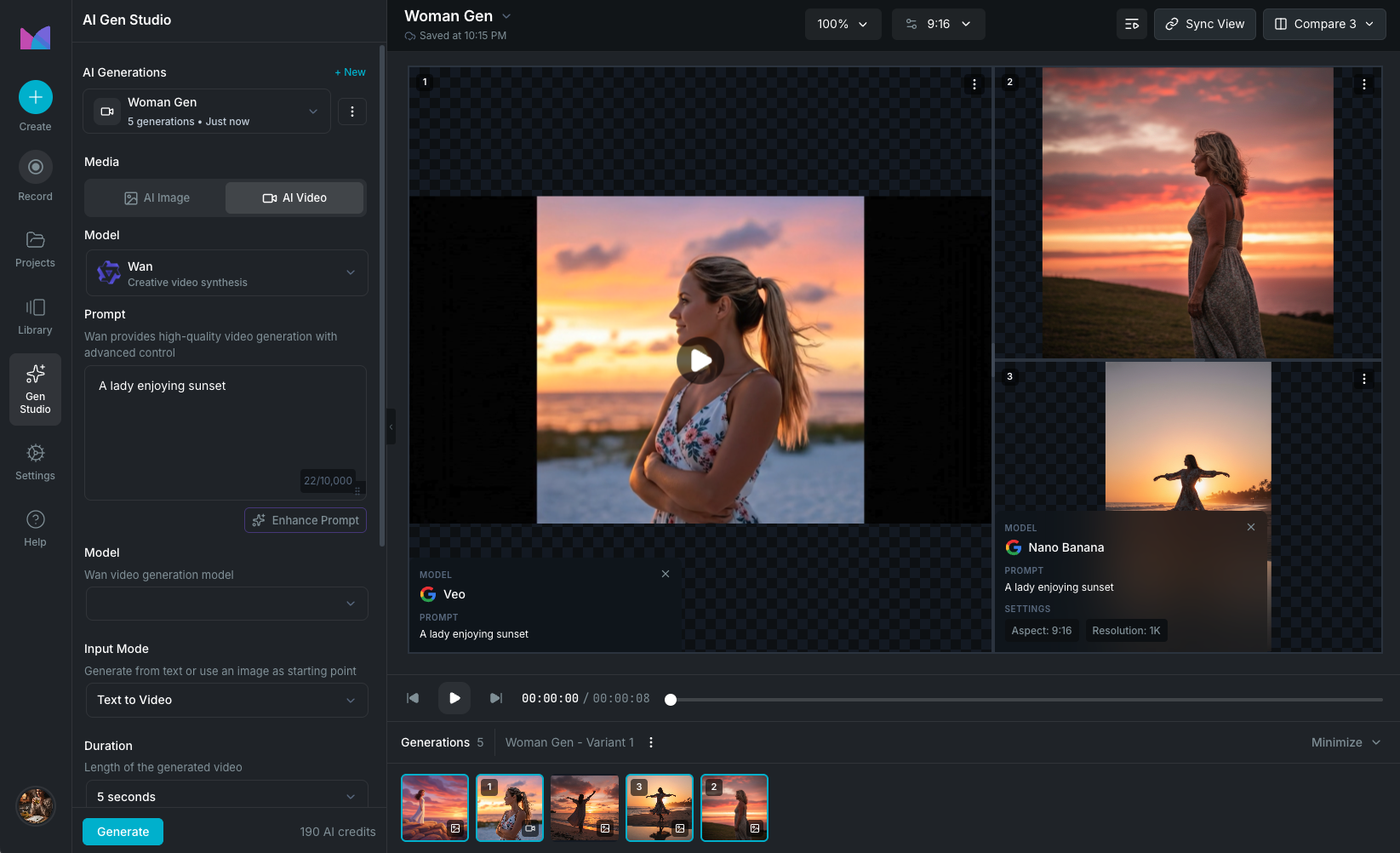
  • AI Image and Video Generation: create visuals from text prompts directly from the editor sidebar.
  • AI Video Extend: generate additional script, voiceover, and scenes to extend your video without leaving the editor.
  • Edit by Text: transcribe audio clips automatically, then edit the transcript to revoice, correct, or translate audio.
  • Voice Swap: replace a speaker's voice with a different human-sounding AI voice.
  • Voice Enhancement: improve audio quality with AI noise reduction and clarity.
  • Translate Audio: translate and dub voiceover into other languages with AI speech synthesis.
  • Visual Improvement: enhance image and video quality, upscale resolution, or apply AI-driven corrections.
  • Subtitle Generation: auto-generate subtitles from audio using AI transcription, and translate them into multiple languages.
  • How to Generate Social Media Clips: AI analyzes your video and automatically generates short-form clips optimized for social platforms.

Guided project creation

When you create a project with Generate with AI, Wayaframe walks you through a step-by-step flow:

  • Script: AI generates a complete script from a prompt, structured for your chosen video type and niche. You can also paste your own.
  • Voice: AI converts the script into natural-sounding voiceover using text-to-speech. You can also import your own audio or record directly.
  • Scene Director: AI generates images or video clips for each scene based on the script. You can review, swap, regenerate, or replace any scene with your own media.

Library

You can also use AI tools from the Library to generate assets before starting a project:

  • Script: generate scripts from prompts with AI, tailored to your video type and niche.
  • Voiceover: convert scripts into voiceover audio using AI text-to-speech.
  • AI Generate: create images and video clips from text prompts, with comparison mode and model controls.

AI-generated assets are saved to your library and can be reused across multiple projects.

Choosing your starting point

There's no single way to use AI in Wayaframe. Pick the path that fits how you work:

  • Guided flow: create a project with Generate with AI and follow the step-by-step flow from prompt to finished draft. Best when you're building a video from scratch and want structure fast.
  • Inside the editor: start with a blank project and generate whatever you need as you go. Scripts, voiceovers, visuals, and scenes are all available on demand from the editor workspace.
  • Library first: generate scripts, voiceovers, and visuals in the Library individually, then pull them into a project when you're ready. Best when you want to experiment before adding anything to a project.

All three paths lead to the same editor, and you can mix them at any point.

AI credits

Most AI features in Wayaframe use AI credits. Each generation (scripts, voiceovers, images, videos, translations) consumes credits from your account balance. Credit usage varies depending on the type and complexity of the generation. AI features show an estimated credit cost before you confirm, so there are no surprises. Voice Swap and Voice Enhancement do not use credits. See Subscription & Billing for details on plans and credit allowances.

Wayaframe Help Center