Skip to content

Last updated on April 21, 2026

Understanding Effects and Layering

Wayaframe separates visual treatments into three layers that work together: effects for stylized overlays like glow, glitch, and particles, filters for instant color looks from a library of professionally crafted presets, and color grading for precise manual control over brightness, contrast, saturation, HSL channels, and curves. Each layer is independent, stackable, and animatable.

Effects and Filters overview

Visual effects

Effects are animated overlays you add from the Effects panel in the sidebar. They sit on the timeline as their own clips and render on top of your content. With 118+ effects across 16 categories (motion, light, glitch, sparkle, distortion, weather, particles, and more), you can add everything from subtle glow to dramatic glitch transitions.

Each effect has its own customizable parameters and an intensity slider. See Applying Visual Effects.

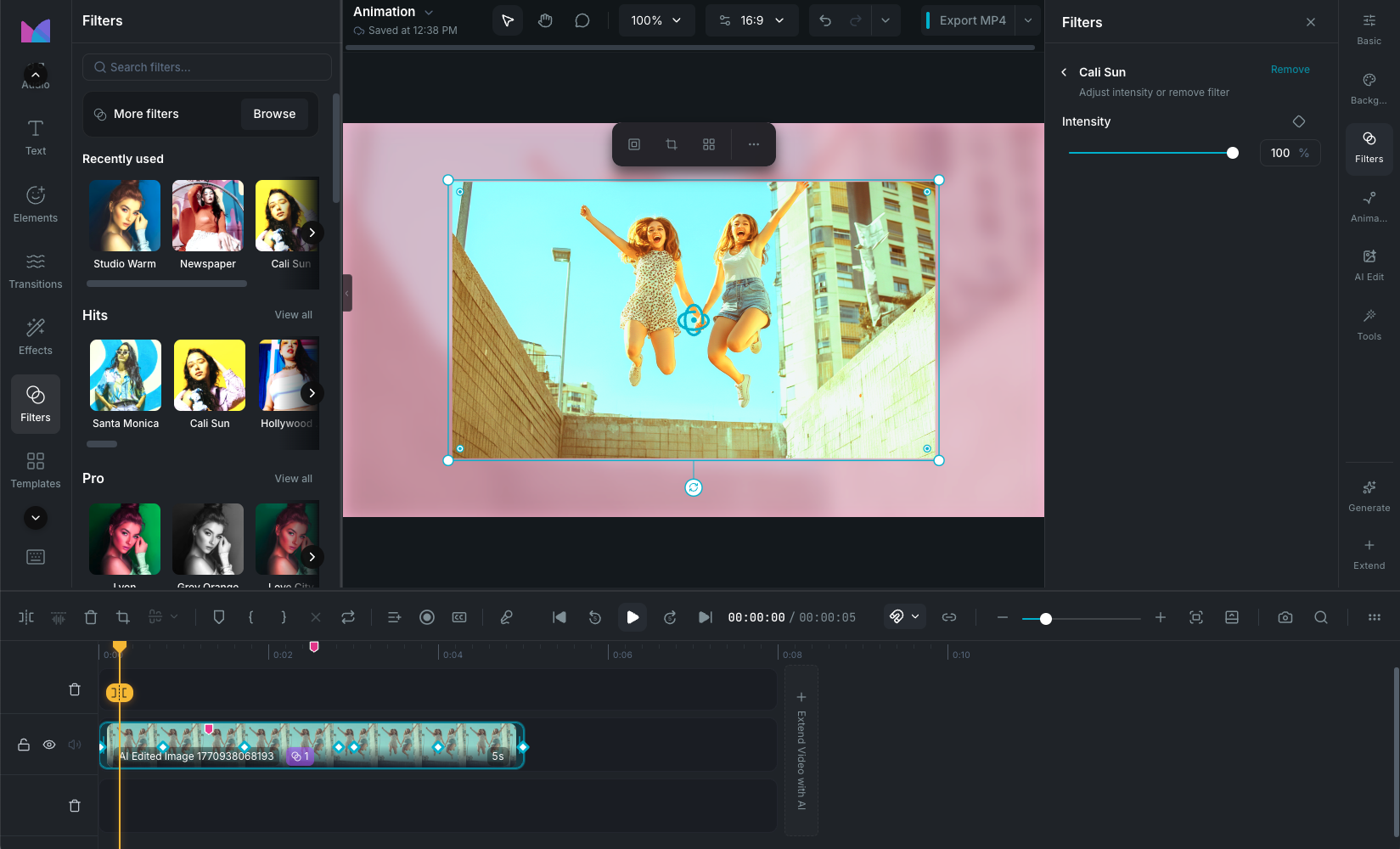
Filters

Filters apply instant color looks to your clips using 95+ professionally crafted presets across 12 categories (cinematic, portrait, retro, night, food, mono, and more). Hover to preview, click to apply, and adjust intensity from 0 to 100%. Multiple filters can be stacked on a single clip, each with independent intensity.

See Applying Filters to Your Video.

Color grading

For precise manual control beyond filters, Wayaframe includes a full color grading system with 12 basic adjustments (brightness, contrast, saturation, temperature, vignette, grain, and more), HSL channel targeting for 8 color ranges, and an interactive curves editor with RGB and per-channel control plus 8 presets.

See Adjusting Colors and Grading.

Chroma key / green screen

Remove solid-color backgrounds from video and image clips with real-time color keying. See Removing Green Screen Backgrounds.

Audio waveform effects

Add audio-reactive visual elements to the canvas that respond to your audio in real time. See Adding Audio Waveform Visualizers.

Wayaframe Help Center