Skip to content

Last updated on April 25, 2026

Managing Your Albums

Albums are the main workspace in Tunedance. Each album holds the music tracks and soundtracks you generate, along with cover art, playback controls, and download options.

Create an Album

From the album library, click New Album, enter a name, and click Create. The album workspace opens immediately.

Creating a new album

Browse the Album Library

The album library is your home screen in Tunedance. From here you can search, sort, and manage all of your albums.

Search

Use the search field at the top to filter albums by name.

Sort

Click the sort menu to change the order:

  • Last Modified (default)
  • Date Created
  • Name A-Z
  • Name Z-A

Album card actions

Right-click an album card or open its menu to access:

  • Change image to upload new cover art
  • Remove image to clear the current cover
  • Rename to change the album name
  • Delete to permanently remove the album and all of its music tracks, soundtracks, and generated artwork

Open an Album

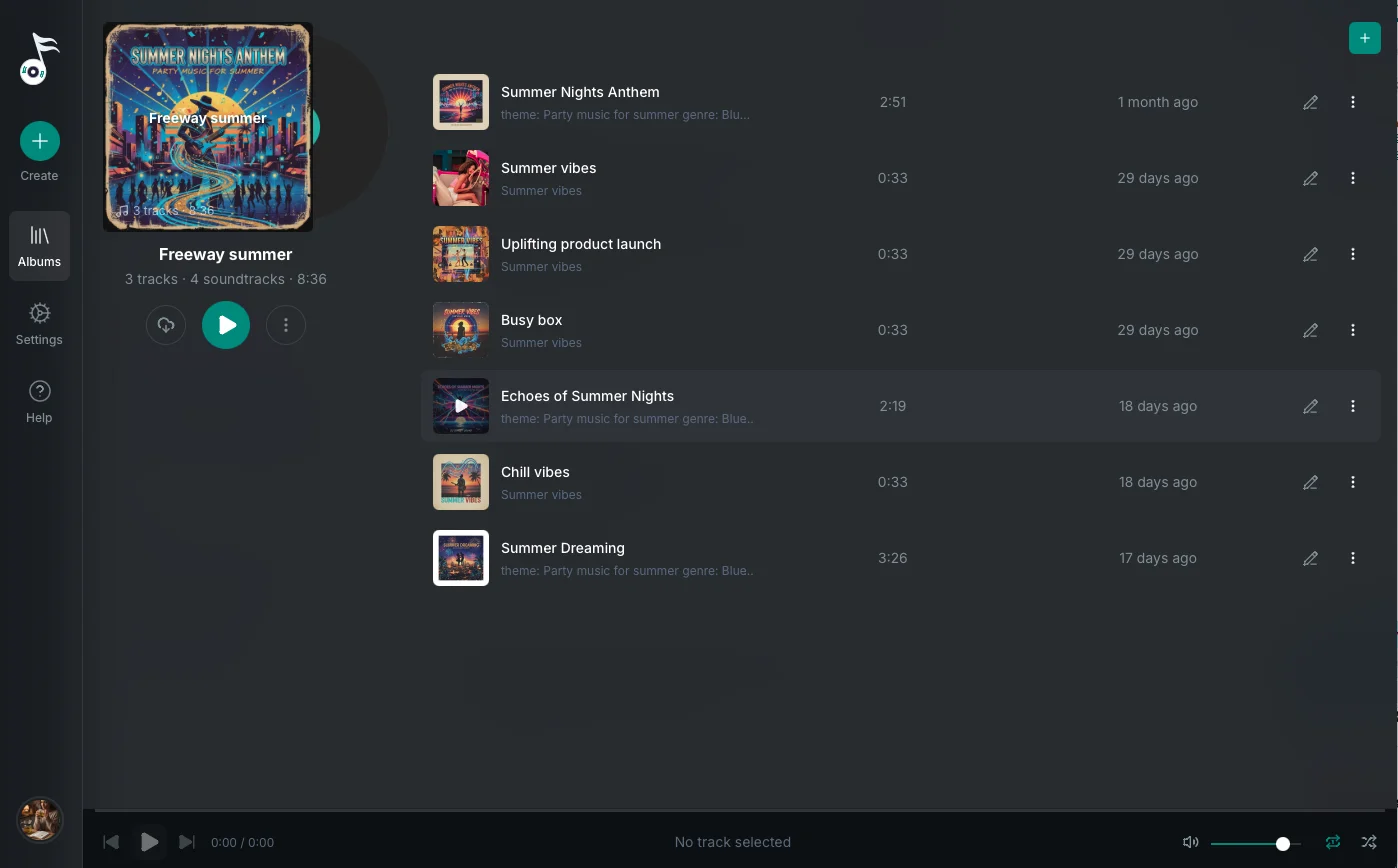
Click an album card to open the album workspace. The workspace has two areas:

  • The album detail panel on the left, showing cover art, track counts, total duration, and album actions
  • The track list on the right, showing all music and soundtrack tracks in the album

Cover Art

Albums can use a custom image or a generated gradient. To set cover art, choose Change image from the album menu and select an image from your computer. Supported formats are PNG, JPG, JPEG, WebP, GIF, BMP, and SVG.

When you generate a music track, Tunedance automatically creates album art if the album does not already have a cover image.

Each track can also have its own artwork, separate from the album cover. When a music track is generated, Tunedance automatically creates artwork using details from the song title, topic, lyrics, and style.

Album Actions

From the album detail panel, you can:

  • Play All to start playback of every track in the album
  • Download the album as a ZIP archive (the album must have at least one track)
  • Change image or Remove image for cover art
  • Rename the album
  • Delete the album and all of its tracks, soundtracks, and generated artwork (requires confirmation)

Track List

The track list shows all music and soundtrack tracks in the album. Each track row shows the cover art, name, and duration.

Click New Track at the top of the track list and choose New Music or New Soundtrack to start a creation flow.

Track Actions

Open the more-actions menu on any track row to access:

  • Play the track
  • Edit to reopen the music or soundtrack workspace for that track
  • Rename the track
  • Download the audio file to your computer
  • Export to Wayaframe to send the track directly to a Wayaframe project
  • Copy lyrics to copy the lyrics to your clipboard (music tracks only)
  • Change image or Remove image for track artwork
  • Delete the track (requires confirmation)

Audio Player

Click a track to start playback, or use Play All to play the entire album. The audio player bar at the bottom of the app includes playback controls, a seekable progress bar, volume control, repeat mode, and shuffle. Repeat and shuffle preferences are saved between sessions.

Wayaframe Help Center