Skip to content

Last updated on April 21, 2026

How to Import Media Files

This article covers how to bring media into Wayaframe: uploading files, importing from URLs, browsing stock sources, and the formats and size limits supported.

Import methods

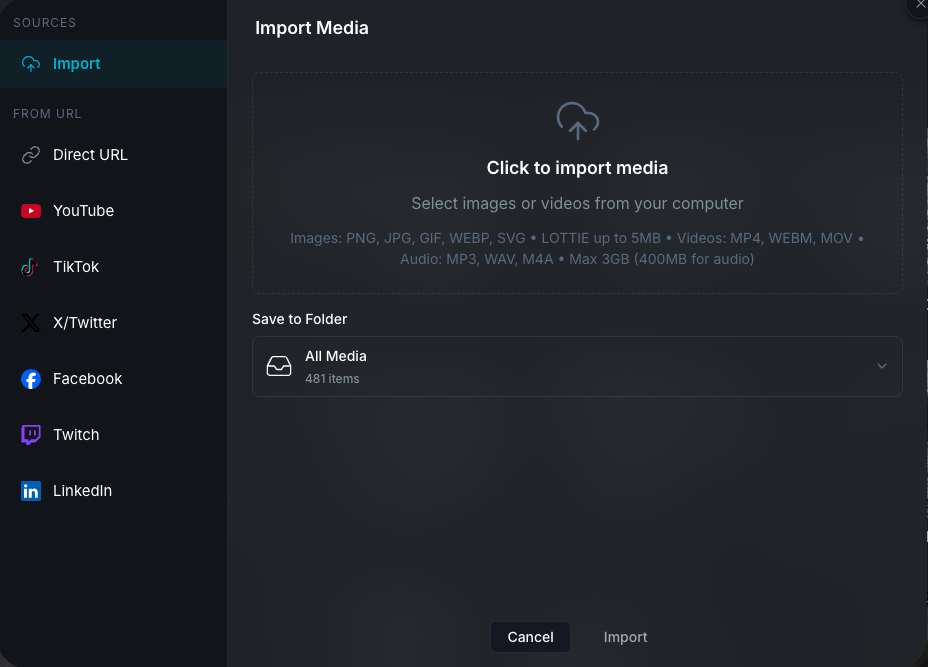
Click Import Media in the Library header to open the upload modal. From here you can add media using any of these methods:

Import media modal

Direct upload

  • Drag and drop files directly onto the Library or onto the upload modal dropzone.
  • File picker to browse and select files from your computer via the upload modal.
  • Multiple file selection is supported. Thumbnails preview as files are queued.

You can select a destination folder before uploading, or leave it at All Media to add files to the root of your Library.

URL import

Import media from a direct URL or from supported platforms:

  • Direct URL: any publicly accessible link to an image, video, or audio file in a supported format.
  • YouTube: video extraction.
  • Vimeo: video extraction.
  • TikTok: video extraction.
  • X / Twitter: video extraction.
  • Facebook: video extraction.
  • Twitch: stream and video extraction.
  • Rumble: video extraction.
  • LinkedIn: video extraction.

Direct URLs support all media types (images, videos, and audio). Platform imports (YouTube, TikTok, etc.) extract video and convert it to MP4.

URL imports automatically extract media information (title, duration, dimensions) before downloading. You can select a destination folder, track download progress with percentage and speed indicators, and cancel in-progress downloads.

Supported formats

Images

PNG, JPG, JPEG, GIF, WebP, SVG, and Lottie (.lottie) animations.

Videos

MP4, WebM, MOV, AVI, and Matroska (MKV).

Audio

MP3, WAV, M4A, AAC, OGG, and FLAC.

File size limits

TypeMaximum size
Images30 MB
Videos3 GB
Audio400 MB
Lottie animations5 MB

Stock media

Browse and import free stock assets directly from the Library without leaving the app. Open the stock media browser from the AI Generate menu in the Library header and select Stock Media. If you are already in the editor, you can browse and add stock assets directly to your project timeline from the Using the Library Panel or Using the Media Panel.

Pexels

Images and videos. Filter by orientation (portrait, landscape, squarish) and size (small, medium, large for photos; mobile and 4K for videos).

Pixabay

Images and videos. Filter by orientation, image type (photo, illustration, vector), category (20+ options), and sort order (popular, latest). Toggle Editors' Choice to show curated picks only.

Unsplash

Images only. Filter by orientation (portrait, landscape, squarish) and sort by relevance, latest, oldest, or popularity.

Giphy

Animated GIFs. Filter by content rating (G, PG, PG-13, R). Defaults to G-rated results.

Freesound

Music and sound effects. Only available inside the editor's audio panel. Browse by category (Music, SFX) and filter by license type (Commercial, Non-Commercial). See Music and Sound Effects.

All stock sources support search with real-time results, pagination, and preview before importing. Attribution and licensing details are included with each asset.

Media details

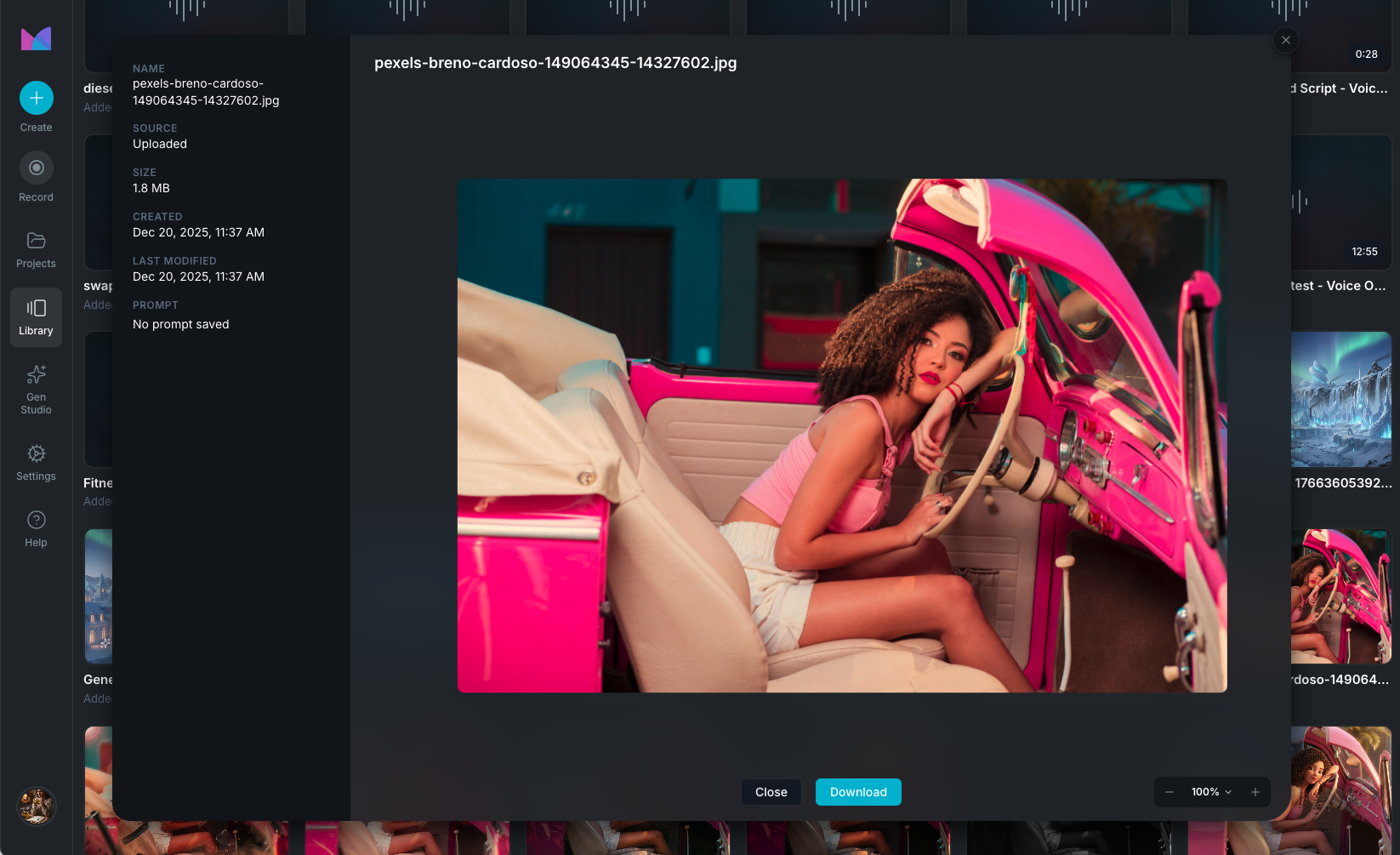
Click any asset in the Library to open the detail view with a full preview and metadata panel.

Media detail view

Preview

  • Images and videos display with zoom controls: zoom in, zoom out, fit to view, and presets at 50%, 100%, and 200%.
  • Videos include play, pause, and seek controls.
  • Audio shows a waveform visualization.

Details

The detail panel shows the following information depending on the asset type:

  • Name and source type (Upload, AI Generated, Rendered, Library, URL Import).
  • File size and date created.
  • Dimensions (width and height) for images and videos.
  • Duration for videos and audio.
  • AI details: for AI-generated assets, shows which model was used and the original prompt you entered. You can copy the prompt to reuse it.
  • Voice provider: for voiceover assets, shows which voice provider was used.

Media actions

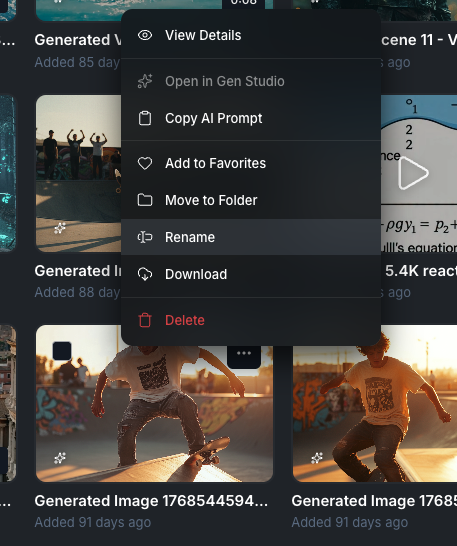
Each asset in the Library includes an action menu accessible from the media card's context menu or from the detail view.

Media action menu
  • View Details: open the full preview and metadata panel. See Media details.
  • Open in AI Gen Studio: reopen the asset in the Using the AI Generation Workspace workspace it was originally generated in. Only available for assets created in AI Gen Studio.
  • Copy AI Prompt: copy the prompt used to generate the asset to your clipboard. Only available for AI-generated assets with a stored prompt.
  • Add to Favorites / Remove from Favorites: toggle quick-access status. Favorited assets appear in the Favorites collection.
  • Move to Folder: move the asset to a folder. Not available for media shared with you from other projects.
  • Rename: change the asset name.
  • Download: save the file to your computer.
  • Delete: permanently remove the asset from the Library.

Bulk operations

Select multiple assets to reveal a bulk-action bar at the bottom of the Library:

  • Select all: select every asset on the current page. Shows an indeterminate state when some items are already selected.
  • Download: download all selected assets.
  • Move to Folder: move all selected assets to a folder.
  • Delete: delete all selected assets. A confirmation prompt is shown before deletion.

The selection count is displayed in the bar. Click the close button or deselect all items to dismiss it.

Wayaframe Help Center