Skip to content

Spreadsheet Import

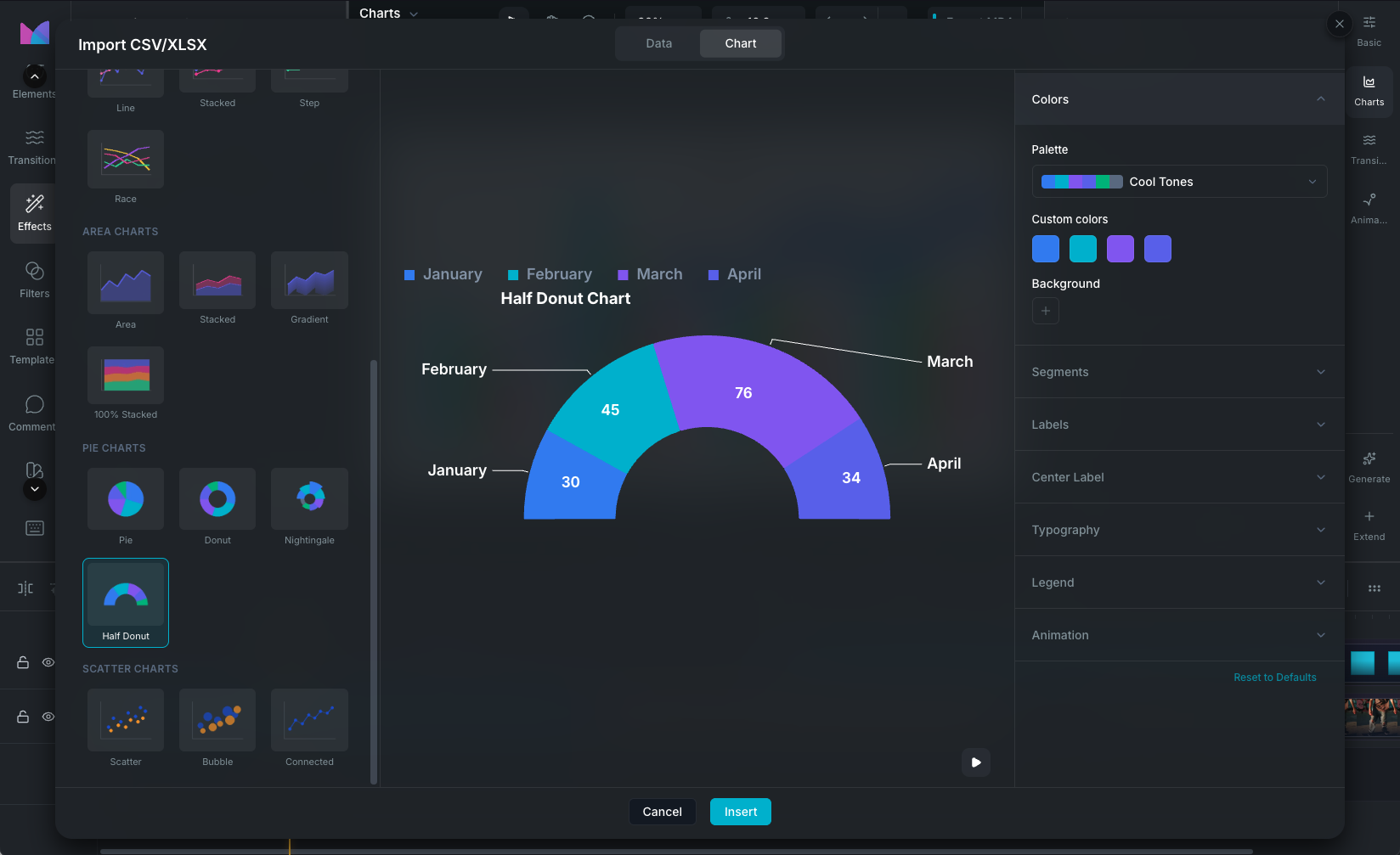
The spreadsheet import modal lets you create a chart directly from your data file. Select a file, preview the data, choose a chart type, and customize the styling before inserting it onto the timeline.

Spreadsheet import modal

Supported file types

  • CSV (comma-separated values)
  • TSV (tab-separated values)
  • XLSX (Excel workbook)
  • XLS (legacy Excel format)

How to open

  • From the project menu in the editor, select Import Spreadsheet.
  • Drag a CSV, TSV, XLSX, or XLS file directly onto the timeline.

The import modal

The modal has three areas:

Left panel: file and chart type

  • File name: displays the name of the imported file.
  • Sheet selector: if the workbook has multiple sheets, choose which one to use.
  • Chart type: select the chart family (Bar, Line, Area, Pie, Scatter) and the specific type within it. This determines how your data is mapped to the visualization.

Middle panel: data and chart preview

Two tabs let you switch between viewing your data and previewing the chart:

  • Data tab: shows the parsed spreadsheet in a table with file name, row count, and column count. Headers are auto-detected (rows with mostly non-numeric values are treated as headers). If no headers are found, default column labels are assigned.
  • Chart tab: shows a live preview of the chart with your data and the currently selected chart type. The preview updates as you change settings. Click the play button on the preview to replay the chart's entrance animation.

Right panel: style editor

The full chart style inspector is available directly in the import modal. Customize colors, axes, labels, typography, legend, animation, and all chart-specific settings before inserting. This means you can get the chart looking exactly how you want without needing to insert first and edit after.

Auto-detection

Wayaframe automatically detects:

  • Headers vs data rows: rows with less than 50% numeric values are treated as headers.
  • Column types: each column is classified as number, string, or date based on its content.
  • Column roles: the first non-numeric column is typically assigned as the category, with numeric columns assigned as values.

You can override any of these after insertion from the data table in the property panel.

TIP

If you're preparing a spreadsheet to import, create a chart first with sample data, then export it using the export button in the Data tab. This gives you a properly formatted template that matches the structure the chart system expects. Fill in your own values and re-import.

Inserting the chart

Click Insert to add the chart to the timeline at the playhead position. The chart clip is created with your imported data and all the styling you configured in the modal. From there you can continue editing data, styling, and animation in the property panel.

Wayaframe Help Center