Skip to content

Setting Up Brand Kits

Brand Kit panel

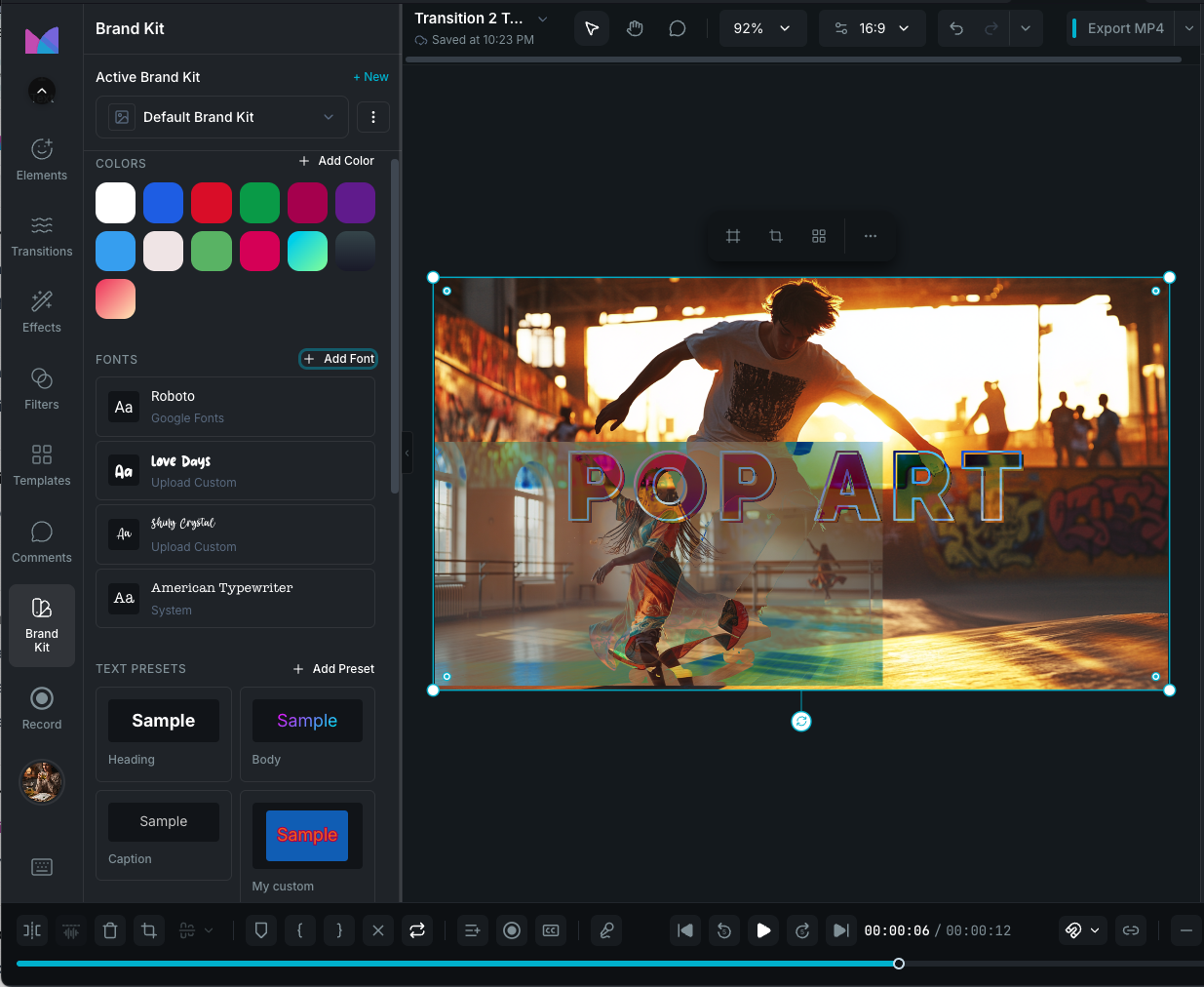
A Brand Kit is a reusable collection of brand assets, including colors, gradients, fonts, logos, subtitle styles, text presets, and voices, that you can apply across any project. Instead of rebuilding your visual identity from scratch every time, you create a Brand Kit once and every project that uses it has instant access to the same colors, fonts, logos, and styling presets.

The Brand Kit panel lives in the editor sidebar and is organized into sections for each asset type. You can create multiple kits for different brands, clients, or content styles, and switch between them at any time.

Creating a Brand Kit

  1. Open the Brand Kit panel in the editor sidebar.
  2. If no kit exists, the panel shows an empty state with a Create Brand Kit button.
  3. Click Create Brand Kit and enter a name (2–120 characters).
  4. The new kit becomes the active kit and its sections are ready to populate.

A default Brand Kit is automatically created with sample colors, fonts, and text presets to help you get started.

Selecting the active kit

The kit selector at the top of the panel shows the name and primary logo of the active kit. Click it to switch between kits. Only one kit is active at a time. The active kit determines which assets are available while editing.

Assigning a kit to a project

When you select a Brand Kit in the editor, it becomes associated with the current project. That means every time you open the project, the correct kit is already active with all its colors, fonts, logos, and presets ready to use.

Renaming and deleting

Click the three-dot menu next to the kit selector to access:

  • Rename: change the kit name.
  • Delete: permanently remove the kit and all its contents. Deletion is confirmed before proceeding. Custom font files associated with the kit are cleaned up automatically.

What a Brand Kit contains

Each Brand Kit stores seven types of assets:

AssetPurpose
ColorsSolid brand colors for quick application to text and shapes
GradientsLinear, radial, or conic gradient presets
FontsSaved fonts from Google Fonts, system fonts, or custom uploads
LogosLogo variants for different contexts (primary, icon, wordmark, light/dark background)
Subtitle StylesComplete subtitle styling presets including word highlighting
Text PresetsReusable text styling for titles, headings, captions, and body text
VoicesSaved TTS voices with provider, language, style, and custom settings

Each asset type has its own section in the Brand Kit panel with dedicated controls for adding, editing, applying, and removing items.

See Brand Kit Assets for detailed documentation on each asset type.

Using Brand Kit assets in the editor

Brand Kit assets are not passive references, they are designed to be applied directly while editing:

  • Click a color, font, or text preset to apply it to the current selection.
  • Drag colors, fonts, logos, or text presets onto clips on the timeline or canvas.
  • Subtitle styles are available in the Subtitle Style picker alongside built-in presets.
  • Voices appear in the How to Choose and Preview AI Voices modal under the Brand Kit section.
  • Logos can be added to the timeline as clips or dragged onto the canvas.

This makes the Brand Kit panel function as a live style system, not just a storage list.

Wayaframe Help Center