Skip to content

How to Export and Render Your Video

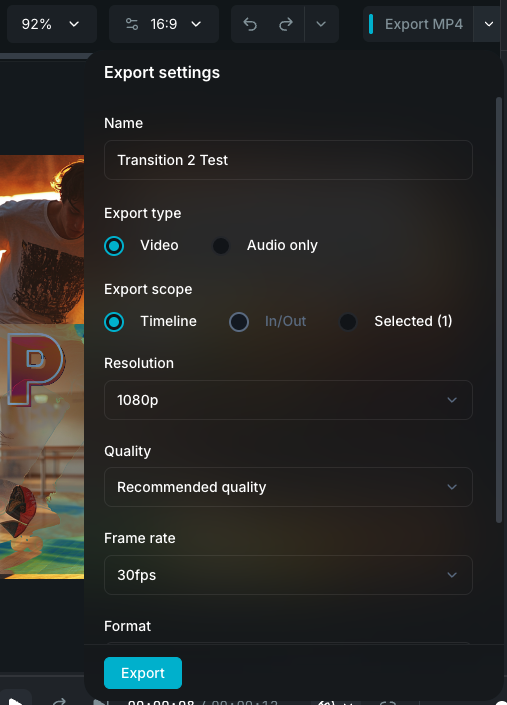
When your edit is ready, render it as a finished video or audio file. The export popover gives you full control over the output format, resolution, quality, and scope.

Export settings

Opening export

Click the Export button in the top-right of the editor header or press +E. The button is a split design: the main button starts the export immediately with your current settings, while the dropdown arrow opens the settings popover.

The main button label updates to show your current format (e.g. "Export MP4", "Export WAV").

Export mode

Choose what type of file to create:

  • Video: renders the timeline as a video file with embedded audio.
  • Audio only: extracts just the audio from the timeline as a standalone audio file.

Export scope

Choose which portion of the timeline to export:

  • Timeline: export everything from start to end.
  • In/Out: export only the content within the playback range you've set with In and Out points.
  • Selection: export only the currently selected clips. Shows the count of selected clips (e.g. "Selected (3)").

In/Out and Selection options are disabled when no playback range or clip selection exists.

Video export settings

Format

  • MP4: the most universal format. Works on all platforms and devices.
  • MOV: QuickTime format, common in Apple workflows.
  • MKV: Matroska container, supports a wide range of codecs.
  • WebM: web-optimized format.
  • GIF: animated GIF, limited to the first 15 seconds.
  • WebP (Animated): animated WebP, limited to the first 15 seconds.

When GIF or WebP is selected, the export button label changes to "Export first 15s" and a warning message is shown.

Resolution

  • 480p: long edge scaled to 854px.
  • 720p: long edge scaled to 1280px.
  • 1080p (default): long edge scaled to 1920px.
  • 2K: long edge scaled to 2048px.
  • 4K: long edge scaled to 3840px.
  • Match project: uses your project's native resolution (shown with dimensions, e.g. "Match project (1080x1920)").

For animated GIF, resolution defaults to 480p. For animated WebP, resolution defaults to 720p.

Quality

  • Fast exporting: lower quality, faster render, smaller file.
  • Recommended (default): balanced quality and file size.
  • High quality: best quality, slower render, larger file.

Frame rate

For standard video formats (MP4, MOV, MKV, WebM):

  • 24 fps, 30 fps (default), 60 fps.

For animated GIF:

  • 12 fps (default), 24 fps, 30 fps, 60 fps.

For animated WebP:

  • 15 fps (default), 24 fps, 30 fps, 60 fps.

Audio export settings

When exporting audio only:

Format

  • MP3: compressed, universally compatible.
  • WAV (Lossless): uncompressed, highest quality.
  • AAC: compressed, good quality at smaller sizes.

Quality

  • Low: 128 kbps at 22,050 Hz.
  • Medium: 192 kbps at 44,100 Hz.
  • High (default): 320 kbps at 48,000 Hz.

Quality selection is hidden when WAV is selected since WAV is always lossless at full quality.

If the timeline has no audio content, a warning is shown and the export button is disabled.

File name and destination

  • File name: defaults to your project title. Enter a custom name if needed.
  • Destination: click the folder button to choose where to save the file. Defaults to your Documents folder. The path display shows the last two folder segments for context.

Warnings

The export popover shows warnings before you start rendering:

  • Subtitle warning: if your subtitles are out of date with the audio, a warning prompts you to regenerate them before exporting.
  • Animated format warning: GIF and WebP exports show a message that only the first 15 seconds will be exported.
  • No audio warning: when exporting audio only from a timeline with no audio content.

Export progress

After starting an export, a progress notification appears in the bottom-right corner showing:

  • Progress bar with percentage.
  • Stage label: Preparing, Rendering, or Finalizing.
  • Cancel button: stop the export at any time during preparation or rendering.

The export popover closes automatically when rendering begins.

Cancelling an export

Click Cancel in the progress notification to stop the export. The status changes to "Cancelling..." while the process stops, then "Export cancelled" once complete. Only one export can run at a time.

Completed exports

When the export finishes:

  • The notification shows "Export complete" with the output file path.
  • Click Show File to open the folder containing the exported file in your file manager.
  • Click the close button to dismiss the notification.

Export errors

If an export fails, the notification shows the error message with two actions:

  • Copy Error: copy the error details to your clipboard for troubleshooting.
  • Report Error: open a feedback form pre-filled with your export settings, project details, and the error message so the team can investigate.

Wayaframe Help Center