Skip to content

Get Help

Wayaframe includes two built-in ways to get help: the Get Help modal for self-service resources and contacting support, and the Feedback & Suggestions modal for reporting bugs and sharing product feedback.

Get Help modal

Open the Get Help modal from the ? icon in the app titlebar or from the Help menu.

Self-service resources

The modal starts with three ways to find answers yourself:

  • Search documentation: type a query to search the documentation site directly.
  • Wayaframe Academy: opens video tutorials and courses.
  • Documentation: opens the full documentation site.

Contact Support

If you still need help, the modal includes a contact form with the following fields:

  • Topic (required): choose from General, Bug, Account, Billing, Feature, or Other.
  • Message (required): describe your issue in up to 500 characters.
  • Attachments (optional): attach up to 5 images or videos, each up to 200 MB. Upload progress is shown in real time.
  • Email (optional): an email address for follow-up. This is pre-filled if you are signed in.

After submitting, you see a confirmation that your message was received.

Feedback & Suggestions modal

Open the Feedback & Suggestions modal from the titlebar menu or by clicking Report on an error message in the app.

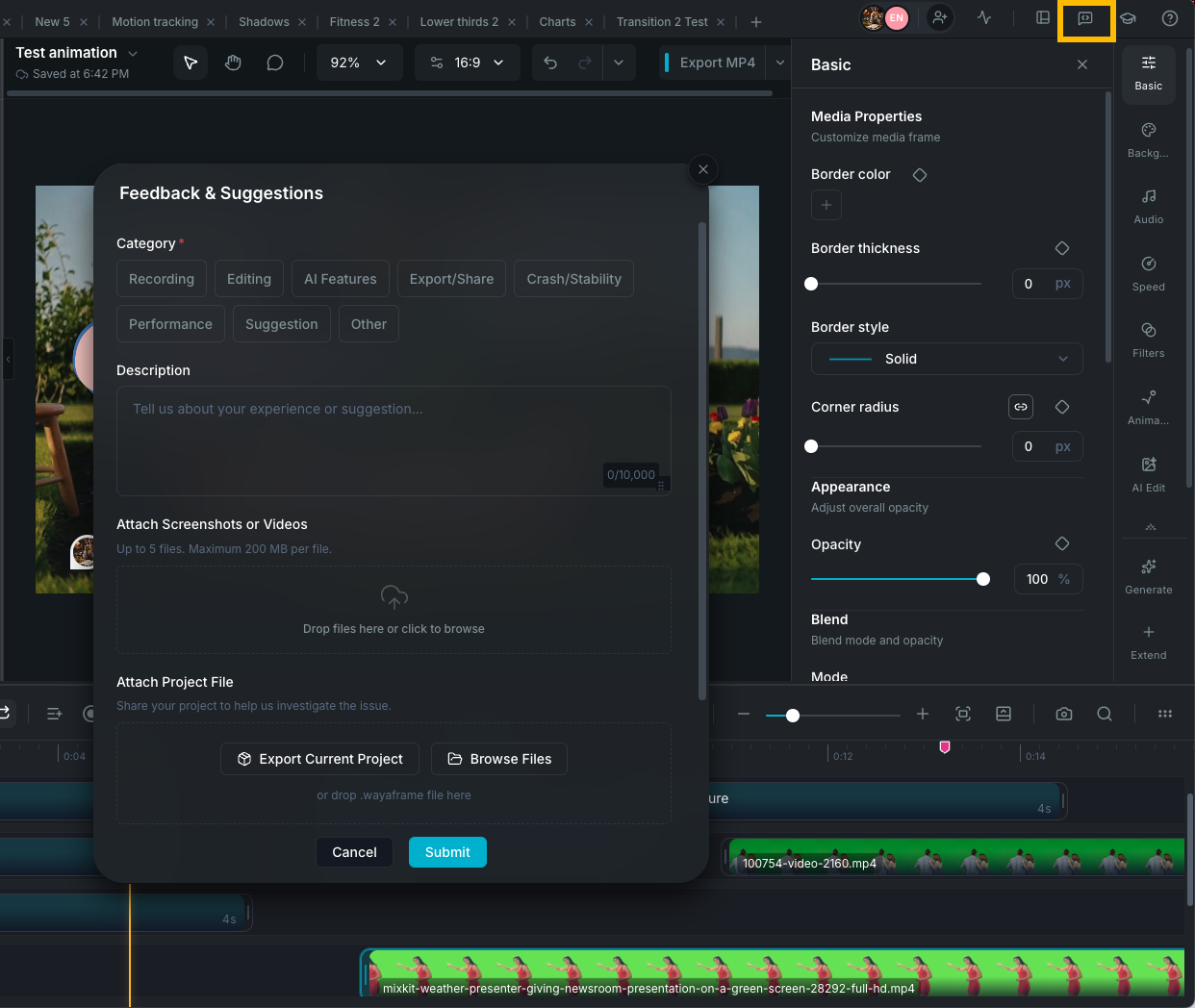
Feedback and Suggestions modal

This modal is designed for detailed bug reports, performance issues, crash reports, and product suggestions.

Categories

Choose the category that best matches your report:

  • Recording
  • Editing
  • AI Features
  • Export & Share
  • Crash & Stability
  • Performance
  • Suggestion
  • Other

What to include

  • Description (required): up to 10,000 characters. Include what happened, what you expected, and steps to reproduce.
  • Screenshots or screen recordings (optional): attach up to 5 files, each up to 200 MB. The uploader shows per-file progress.
  • Project file (optional): attach the project file if the issue is specific to one project. This helps the team reproduce the problem directly.
  • Email: for follow-up. Pre-filled when signed in, or enter one manually.
  • Privacy policy consent: required before submission.

Auto-filled context from export errors

When you click Report on an export error, the feedback modal opens with diagnostic context pre-filled, including the export format, resolution, track and clip counts, platform information, and the error stage (preparing, rendering, or finalizing). You do not need to fill in this information manually.

Tips for faster help

  • Describe the exact action that triggered the problem.
  • Include any visible error message text.
  • Attach a screenshot or short recording when the problem is visual.
  • Mention your operating system (macOS or Windows) and app version.
  • If the issue is project-specific, attach the project file — this is the single most helpful thing you can include.

Wayaframe Help Center