Skip to content

Last updated on April 21, 2026

Shapes

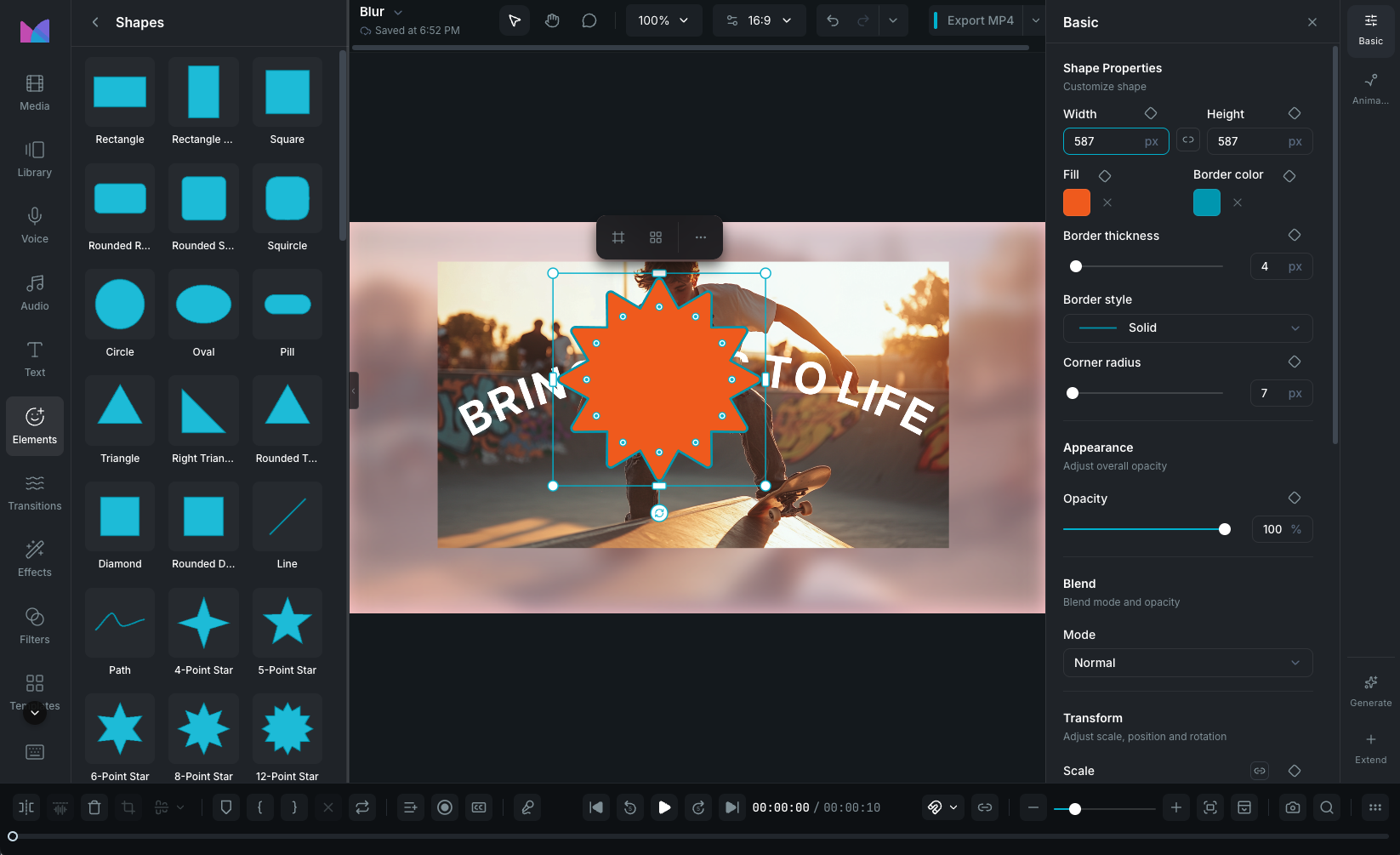
Shapes are vector graphic elements you add to the canvas from the Elements panel in the sidebar. They go far beyond simple decoration: use them as styled callouts, masked overlays, blur windows, arrows, speech bubbles, or fully editable custom vector paths. Every shape supports fill, stroke, gradients, corner radius, shadow, blur, animation, and masking.

Shapes in the Stickers panel

Adding shapes

Open the Elements panel in the sidebar and browse the Shapes category. Click any shape to insert it at the playhead, or drag it onto the canvas. Use the search bar to filter by name.

Available shapes

Wayaframe includes 83 built-in shapes organized by type:

  • Basic: rectangle, square, circle, oval, pill, rounded rectangle, and size variants.
  • Triangles and polygons: triangle, right triangle, diamond, pentagon, hexagon, octagon, parallelogram, trapezoid, rhombus, and rounded variants.
  • Stars: 4, 5, 6, 8, and 12-point stars, starburst.
  • Arrows: right, left, up, down, chevrons, double arrows, and rounded arrow variants.
  • Callouts: speech bubbles (rounded and square), callout box, banner, tag, bookmark, explosion, lightning.
  • Decorative: heart, cross, plus, flower (5/6/8 petals), daisy, gear, asterisk, hexagram, compass rose, pinwheel, sunburst, squircle.
  • Geometric: semicircle, crescent, quarter circle, L-shape, T-shape.
  • Lines and paths: open-path shapes with customizable endpoints.

Fill

Set the shape's fill color. Shapes support three fill types:

  • Solid color: a single flat color.
  • Linear gradient: a gradient that transitions between colors along an angle (0 to 360 degrees). Add multiple color stops and drag them to control the transition.
  • Radial gradient: a gradient that radiates outward from a center point. Adjust the center position and color stops.
  • No fill: set fill to transparent for outline-only shapes.

Fill is keyframeable, including gradient fills.

Stroke

Control the shape's outline:

  • Stroke color: the outline color (solid colors only).
  • Stroke width: outline thickness, 0 to 100px. Keyframeable.
  • Stroke style: choose from solid, dashed, dotted, dash-dot, or long dash.

Endpoint styles

For open-path shapes (lines, arrows, and custom open paths), customize what appears at each end of the line. By default both endpoints share the same style, but you can unlink them to set the start and end independently.

12 endpoint styles are available: none, rounded, dot, ring, square, box, diamond, diamond outline, bar, slash, arrow, and groove. Endpoint size scales automatically with stroke width.

Dimensions and aspect ratio

Set the exact width and height of the shape in pixels. Toggle the aspect ratio lock to keep proportions when adjusting one dimension. Both width and height are keyframeable.

Corner radius

Round the corners of rectangular and polygon shapes:

  • Linked mode: a single slider (0 to 500px) applies the same radius to all four corners.
  • Unlinked mode: set each corner individually (top-left, top-right, bottom-right, bottom-left).

Corner radius is automatically clamped so it never exceeds half the smallest dimension.

Editing shape paths on the canvas

Every shape is built from vector paths that you can edit directly on the canvas. Double-click a shape to enter path edit mode. The shape's outline appears with interactive control points and curve handles.

Control points

The white circles on the path are control points that define the shape's outline.

  • Move a point: click and drag it to a new position.
  • Select multiple points: hold or and click additional points. All selected points move together when dragged.
  • Add a point: double-click anywhere on the path between two existing points to insert a new control point.
  • Toggle smooth/corner: double-click an existing point to switch between smooth curves and sharp corners.

Curve handles

When you select a control point in smooth mode, cyan handles extend from it. These handles control the curvature of the path on either side of the point.

  • Linked handles (default): dragging one handle mirrors the other, keeping the curve smooth through the point.
  • Independent handles: hold while dragging a handle to break the link and adjust each side separately. This lets you create sharp bends in an otherwise smooth curve.

Open and closed paths

Toggle Close Path in the property panel to connect the last point back to the first, creating a filled shape. Open paths are useful for lines, arrows, and strokes.

Exiting path edit mode

Press Escape, click outside the shape, or select a different clip to exit path editing.

Shape blur

Shapes can blur or pixelate the content behind them, making them useful for obscuring sensitive information, creating frosted glass effects, or drawing attention to a specific area.

Enable blur from the Shape Blur section in the Positioning, Scaling, and Rotating Clips panel:

Backdrop blur

Applies a gaussian blur to whatever is visible behind the shape. Adjust the intensity from 0 to 100%.

Pixelate

Pixelates the content behind the shape with a configurable block size. Larger blocks create a more pronounced mosaic effect.

INFO

Shape blur and drop shadow are mutually exclusive. Enabling one disables the other.

Using shapes as masks

Shapes are the foundation of Wayaframe's masking system. You can use any shape to control what's visible in other clips:

Clip mask

Use a shape to crop a single clip to the shape's outline. Select both the shape and the target clip, then right-click and choose Create Mask. The shape's geometry becomes the mask and the shape itself is removed from the timeline. See Clip Mask.

Overlay mask

Turn a shape into a live mask that affects all content on tracks below it. Enable Overlay Mask in the property panel. The shape stays visible on the canvas while simultaneously masking everything beneath it. You can move, resize, animate, and adjust the mask in real time. See Overlay Mask.

Both mask types support Reveal and Hide modes with adjustable feather (edge softness).

Shape animations

Shapes support the same animation system as all other clips:

Stickers

For animated decorative elements like emoji, reactions, icons, and effects, see Stickers.

Wayaframe Help Center