Skip to content

Motion Paths

Motion paths give you complete control over how a clip travels across the screen. Draw the exact route your element should follow directly on the canvas, shape it with curves, and watch it glide along the path automatically. No need to keyframe X and Y position separately.

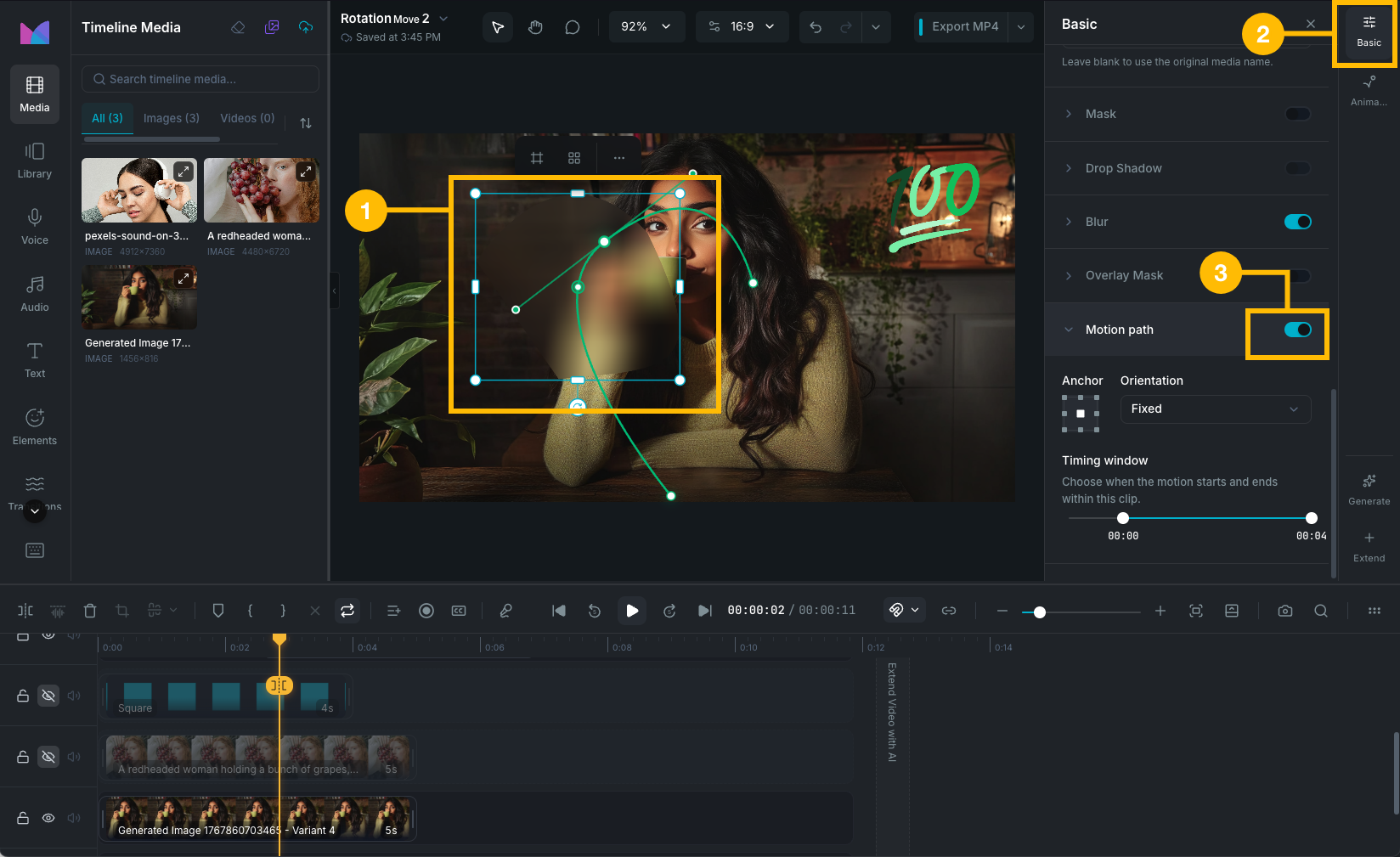
Motion path on canvas

Enabling a motion path

Select a clip (video, image, text, or sticker), then open the Motion Path section in the Positioning, Scaling, and Rotating Clips panel and toggle it on. A default path appears on the canvas with two points forming a short horizontal line from the clip's current position.

When a motion path is active, the Position X/Y controls in the property panel are disabled since position is controlled by the path.

Editing the path on the canvas

The canvas shows the motion path as a green curve with interactive control points.

Control points

White circles on the path define its shape.

  • Move a point: click and drag it to a new position.
  • Add a point: double-click anywhere on the path between two existing points.
  • Delete a point: select a point and press or Backspace to remove it (endpoints cannot be deleted).
  • Toggle smooth/corner: double-click a point to switch between smooth curves and sharp corners.

Curve handles

When you select a control point in smooth mode, handles extend from it controlling the curvature on each side.

  • Linked handles (default): dragging one handle mirrors the other, keeping the curve smooth.
  • Independent handles: hold while dragging to adjust each side separately, creating sharp bends.

Current position indicator

During playback or scrubbing, a marker on the path shows where the clip is at the current playhead position.

Anchor point

The anchor determines which point of the clip follows the path. Choose from a 3x3 grid:

  • Top-left, top-center, top-right
  • Middle-left, center (default), middle-right
  • Bottom-left, bottom-center, bottom-right

For example, setting the anchor to bottom-center means the bottom-center of the clip follows the path, which is useful for elements that should appear to "walk" along it.

Orientation

Controls whether the clip rotates as it follows the path:

  • Fixed (default): the clip maintains its original rotation angle throughout. The element moves along the path but doesn't turn.
  • Along path: the clip rotates to face the direction of movement. Useful for arrows, vehicles, or any element that should point where it's going.

Timing window

The timing window defines when the motion path animation starts and ends within the clip's duration. By default, the motion spans the full clip.

Drag the handles on the timing slider to start the motion later or end it earlier. The minimum window is 500ms.

Motion paths from motion tracking

Motion paths can also be created automatically from Motion Tracking data. When you track a point in a video and attach a follower clip, the follower's motion path is driven by the tracked movement.

Tracked motion paths are displayed as read-only on the canvas (you can't edit their points directly). The source clip and tracked point are shown in the Motion Path section. You can:

  • Open tracking: jump to the motion tracking panel to adjust the source tracking.
  • Detach: disconnect from the tracked source and convert to a manual path that you can edit freely.

Supported clip types

Motion paths work on:

  • Video clips
  • Image clips
  • Text clips
  • Sticker clips

Effect clips do not support motion paths.

Wayaframe Help Center