Skip to content

Working With Text

Wayaframe gives you a complete text system for titles, lower thirds, callouts, captions, and any on-screen copy your video needs. Choose from stylish presets to get a polished look in seconds, or build custom text from scratch with full control over fonts, gradients, strokes, shadows, backgrounds, and character-level animations. Edit text directly on the canvas with inline formatting, convert text to editable vector shapes, or flow it along a custom curved path.

Text panel

Adding text

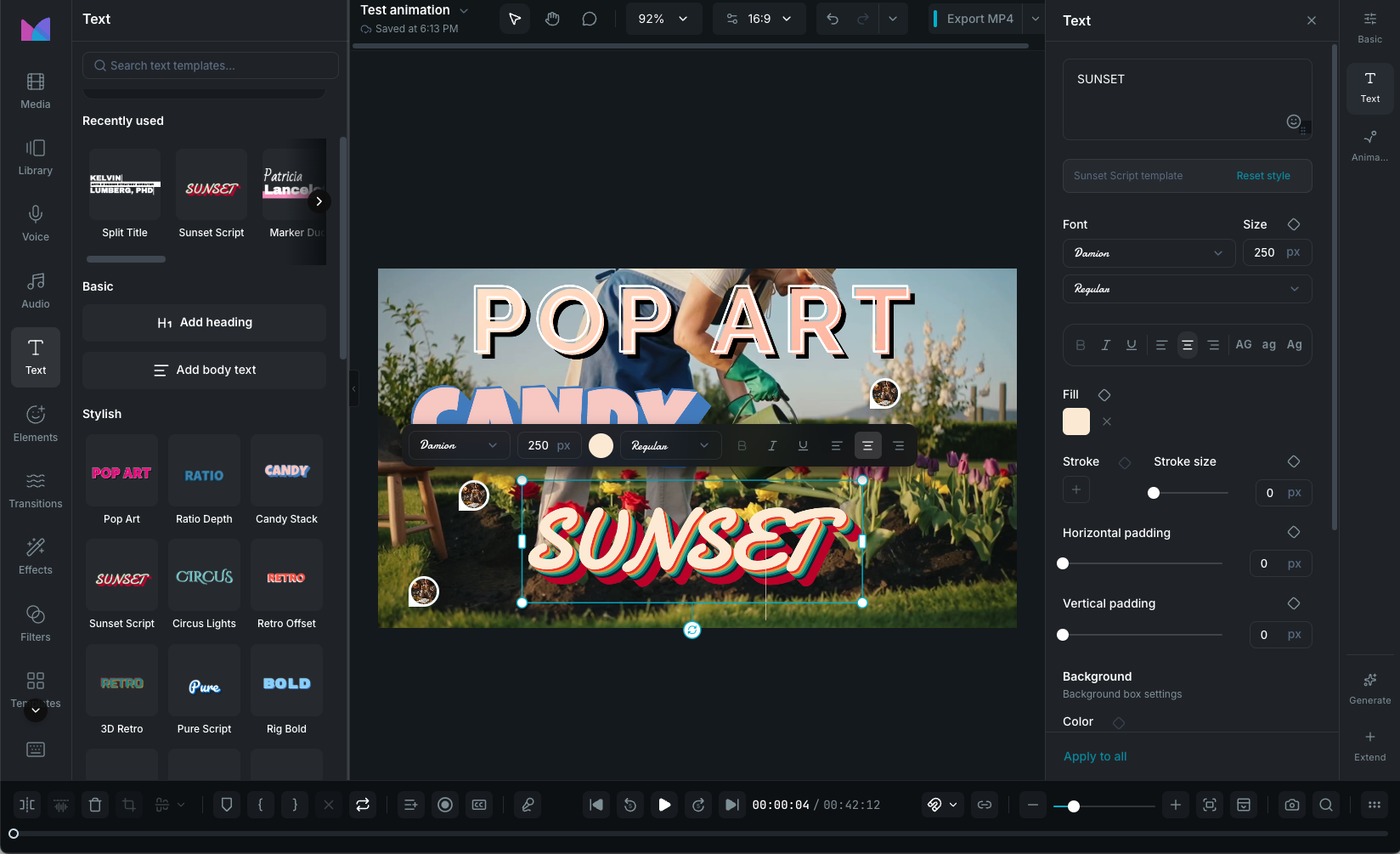
Open the Text panel in the sidebar to browse and add text to your project.

Basic text

Two quick-add options at the top of the panel:

  • Add heading: inserts a large heading text clip.
  • Add body text: inserts a standard body text clip.

Click either button or drag it onto the canvas to place it.

Stylish presets

Below the basic options, 21 themed presets provide ready-to-use styled text with fonts, colors, shadows, and backgrounds already configured:

Pop Art, Ratio Depth, Candy Stack, Sunset Script, Circus Lights, Retro Offset, 3D Retro, Pure Script, Rig Bold, Sweet Title, Aurora Prism, Clay Stamp, Hologlass, Midnight Cutout, Bloom Serif, Wireframe, Game Block, Glitch, Neon Glow, Chrome, and Vapor.

Click any preset to add it at the playhead, or drag it onto the canvas. Use the search bar at the top of the panel to filter presets by name.

Inline editing on the canvas

Double-click a text clip on the canvas to enter inline editing mode. A toolbar appears with quick formatting controls:

  • Font family selector
  • Font size (8 to 200px)
  • Color picker (solid or gradient)
  • Font weight dropdown
  • Bold +B, Italic +I, Underline +U
  • Text alignment (left, center, right)

Press Escape or click outside the text to exit inline editing. Changes are applied immediately.

Text styling

Select a text clip and open the Text tab in the property panel for the full set of styling controls. Most properties support keyframe animation.

Font

  • Font family: choose from a curated set of Google Fonts bundled with the app, your system fonts, or custom fonts uploaded through your Brand Kit.
  • Font size: 8 to 200px. Keyframeable.
  • Font weight: normal, bold, or custom weights depending on the font.
  • Italic: toggle italic style.
  • Underline: toggle underline decoration.

Color

  • Text color: solid color or gradient fill. Keyframeable.

Alignment and transform

  • Text alignment: left, center, or right.
  • Text transform: none, uppercase, lowercase, or capitalize.

Stroke

  • Stroke color: outline color around each character. Supports gradients.
  • Stroke width: 0 to 20px. Keyframeable.

Background box

Toggle the background box on or off. When enabled:

  • Background color: solid or gradient. Keyframeable.
  • Background opacity: 0 to 100%. Keyframeable.
  • Padding X / Y: horizontal and vertical padding, 0 to 200px. Keyframeable.
  • Border radius: 0 to 50px. Keyframeable.

Line height and letter spacing

Expand the Advanced section for:

  • Line height: 0.8 to 1.9 (ratio of font size).
  • Letter spacing: -5 to 25 em units. Keyframeable.

Text shadow

Add one or more shadow layers behind the text with angle, distance, blur, and color controls per layer. See Drop Shadow and Text Shadow .

Text animations

Text clips support dedicated entrance, exit, and loop animations with character-level effects. Wayaframe includes 79 text animation presets across three categories:

Entrance animations

Play when the text clip appears on the timeline. Includes: Typing, Typing Cursor, Pulse, Bounce, Shake, Flicker, Retro-Typer, Slide (4 directions), Zoom, Fade, Spring, Pop-Up, Scatter, Tumble, Spiral, Breathe, Flip (4 directions), Roll, Blur Erase, Anticlockwise, Pop-Down, Float-Up, Blow-Up, Knock, and more.

Exit animations

Play when the text clip ends. Matching exit versions of the entrance animations are available.

Loop animations

Repeat continuously while the text clip is visible. Includes: Pulse, Bounce, Shake, Flicker, Slide, Zoom, Fade, Breathe, Clockwise, Anticlockwise, and more.

Character-level vs line-level

Some animations are character-by-character, where each letter animates individually with a slight delay (e.g. Typing, Spring, Pop-Up, Scatter, Tumble, Spiral, Blow-Up, Knock). Others are wipe animations that reveal or hide the entire text with a sweeping motion (e.g. Wipe Right, Wipe Left, Wipe Down, Wipe Up).

See Animation Presets for more on applying and customizing animations.

Apply style to all text clips

Apply style to all text clips

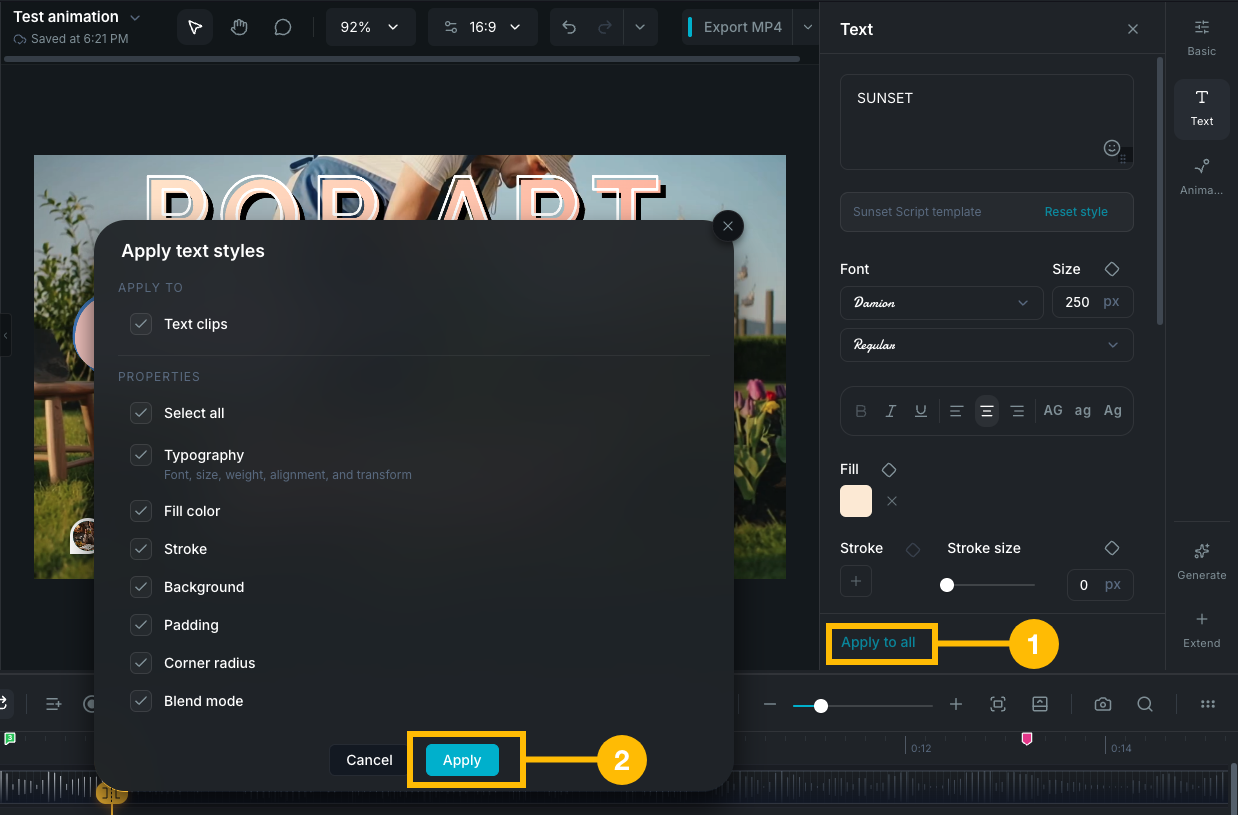
Click Apply to all in the text property panel to apply the current clip's styling to other text in your project. A confirmation dialog lets you choose:

  • What to apply to: text clips, subtitles, or subtitle highlights (with individual checkboxes).
  • Which properties to apply: typography (font, size, weight, alignment), fill color, stroke, background box, padding, border radius, and more. Use Select All or pick individual property groups.

Only unlocked clips are updated. This is useful for maintaining a consistent look across titles, lower thirds, callouts, and subtitles without manually styling each one.

Emoji support

Text clips support emoji. Use the emoji picker in the text editor to insert emoji characters alongside your text.

Brand Kit text presets

Create reusable text presets in your Brand Kit for consistent styling across projects. Brand Kit text presets store a full style configuration (font, size, weight, color, background, padding, border radius, and all text settings).

Manage them from the Brand Kit panel in the sidebar:

  • Add: click Add Preset and configure the style in the modal.
  • Apply: click a preset card to add styled text to the timeline, or apply it to a selected text clip from the preset's menu.
  • Drag: drag a preset card onto the canvas to insert it directly.
  • Edit or Delete: use the menu on each preset card.

Text path

Attach text to a custom path so it flows along a curve or shape. You can animate text movement along the path with direction, looping, and timing controls. See Text Path.

Text to shape

Convert a text clip into editable vector shapes. Each character becomes an independent shape that you can reposition, recolor, animate individually, or use as a mask for other clips. See Text to Shape.

Wayaframe Help Center