Skip to content

Video Editor

The Wayaframe video editor is a full-featured editing workspace with AI generation built in. Compose scenes on the canvas, sequence clips on a multi-track timeline, fine-tune properties with precision controls, generate images and video with AI, apply effects, transitions, and animations, and export production-ready video, all without leaving the editor.

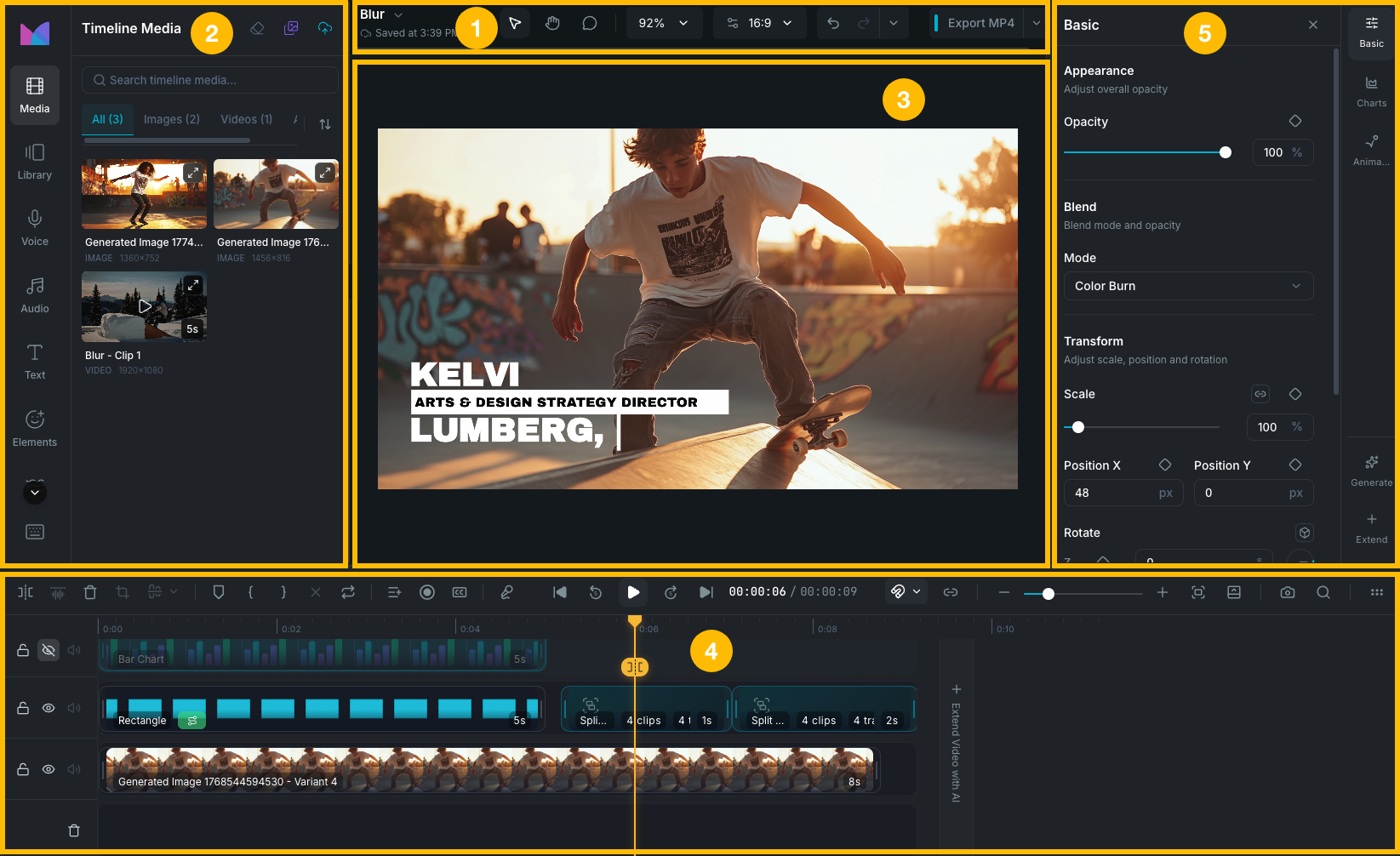
the full video editor workspace

Understanding the workspace

The editor is organized into five main areas:

  1. Header: project menu, editing tools, canvas controls, undo/redo, and export.
  2. Sidebar: a vertical rail of panels for accessing media, text, audio, effects, stickers, transitions, and more.
  3. Canvas: the visual preview where you compose and manipulate elements directly. See Canvas.
  4. Timeline: the sequencing area where you arrange clips on tracks and control timing. See Timeline.
  5. Property panel: contextual settings for the currently selected clip, with tabs that change based on clip type.

These areas work together. Select a clip on the canvas or timeline, adjust its properties in the property panel, and preview the result on the canvas. You can drag the border between the canvas and timeline to give more space to whichever area you need. The sidebar panel width is also resizable by dragging its right edge.

Editor header

The header bar at the top of the editor gives you access to project actions, editing tools, canvas settings, and export.

Project menu

Click the project name in the top left to open the project menu:

  • Export Project: package the project as a portable .wayaframe archive. See Import and Export Project Files.
  • Import Document: import a PDF, PPT, or PPTX file as image clips. See Import Documents.
  • Import Spreadsheet: import CSV or XLSX data to create animated charts. See Spreadsheet Import.
  • Rename Project: change the project title.
  • Reload Project: refresh the project data from the last saved state.
  • Resync from Cloud: pull the latest version from the cloud if the project is shared. See Resync from Cloud.
  • Stop Sharing: remove cloud sharing and revert to a local-only copy. Only shown if you own the project. See Stop Sharing.
  • Delete Project: permanently delete the project. You can choose whether to also delete its media.

Save / sync status

Next to the project name, an icon and label show the current state of your project:

  • All changes saved: your project is up to date. Shown when the project loads with no pending changes.
  • Saved at {time}: your latest changes have been saved, with the timestamp of the last save.
  • Unsaved changes: you have local changes that haven't been saved yet. Wayaframe auto-saves after a brief pause in editing, so this usually clears on its own.
  • Syncing...: your project is syncing with the cloud. For shared projects, this may show more detail like "Pulling cloud version...", "Downloading assets...", or "Finalizing resync...".
  • Sync failed: the cloud sync encountered an error. Click the Resolve button that appears to fix the issue. See Resolve sync issues.

Editing tools

The center of the header contains canvas interaction tools:

  • Move tool V: select and move elements on the canvas.
  • Hand tool H: pan around the canvas without selecting anything.
  • Comment mode: switch to commenting mode to leave feedback directly on the canvas. A badge shows how many unread comments you have. See Comments.

Canvas controls

  • Zoom: control canvas magnification with presets or a slider.
  • Canvas settings: adjust aspect ratio, custom dimensions, background color, and grid. See Canvas for full details.

History and export

  • Undo and Redo buttons for stepping through edit history. Click the History dropdown to see a full list of past actions and jump to any point.
  • Export button to open the export settings and render the final output.

The left sidebar provides a vertical rail of icons, each opening a dedicated panel. Click any icon to open its panel, and click again or click the collapse arrow to close it. The panel width is resizable by dragging its right edge.

PanelDescription
MediaView and manage media currently used in your timeline.
LibraryBrowse your full Library, upload media, access stock assets, and add items to the timeline.
VoiceOpen the Voice Designer to create and manage voiceover clips. See Voice Designer.
AudioBrowse music, sound effects, and AI music. Add audio directly to the timeline. See Audio.
TextAdd and style text elements with presets and custom formatting.
ElementsBrowse and add stickers, shapes, and decorative elements. See Shapes and Stickers.
TransitionsApply transitions between clips on the timeline.
EffectsAdd visual effects to clips.
FiltersApply color filters and adjustments to images and videos. See Effects and Filters.
TemplatesBrowse split-screen and layout templates.
CommentsView and manage canvas comments from collaborators. See Collaboration.
Brand KitAccess and manage your saved brand colors, fonts, logos, and presets.
RecordRecord your screen, camera, or both directly in the editor. See Recording.

At the bottom of the rail, you'll find:

  • Keyboard shortcuts button to open the full shortcuts reference.
  • Profile menu with links to settings, help, billing, and sign out.

Property panel

The property panel shows contextual settings for whatever is currently selected on the canvas or timeline. Its tabs change depending on the type of clip selected.

Common tab types include:

  • Basic: position, size, rotation, opacity, and blending.
  • Background: background color and fill settings.
  • Filters: color filters and adjustments. See Effects and Filters.
  • AI Edit: AI-powered editing tools for images and videos. See Image Generation: Edit panel.
  • Animations: entrance, exit, and looping animations. See Animations.
  • Transitions: transition settings for the selected clip. See Transitions.
  • Text: font, size, color, alignment, and text-specific formatting. See Text.
  • Video Audio: audio controls for video clips.
  • Video Speed: playback speed adjustments. See Speed and Timing.
  • Charts: chart type, data, and styling. See Charts and Data.

At the bottom of the property panel rail, two buttons provide quick access to AI features:

Layout modes

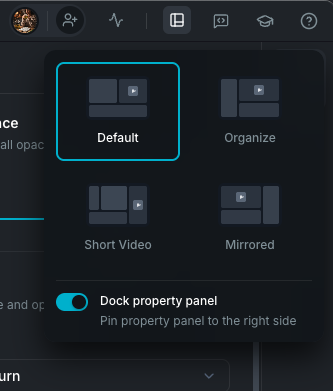
The editor offers four layout presets that rearrange where the canvas, timeline, sidebar, and property panel are positioned. Click the Layout mode button in the top-right title bar to switch between them.

Layout mode selector

Default

Sidebar on the left, canvas on the top right, timeline on the bottom right. The standard layout for most editing work.

Organize

Large sidebar on the left with the canvas and property panel side by side at the top. The timeline stretches full width across the bottom. Best for content organization and managing many tracks.

Short Video

Optimized for vertical and mobile video. The sidebar, property panel, and timeline stack on the left, with the canvas on the right. The property panel is always docked in this layout.

Mirrored

A flipped version of Default: canvas on the left, sidebar on the right. Everything else works the same.

Dock property panel

Toggle Dock property panel to pin the property panel to the right side of the editor. When docked, the property panel is always visible. When undocked, it floats as an overlay that appears when you select a clip. In Short Video layout, the property panel is always docked.

Wayaframe Help Center