Skip to content

Color Adjustment

Color Adjustment gives you precise manual control over the color and tone of your clips. Use it to correct exposure, shift color balance, target specific color ranges, and shape the tonal curve. All adjustments are non-destructive and keyframeable.

Open the Color Adjustment panel from the Filters tab in the property panel when a clip is selected.

Color Adjustment panel

Basic adjustments

The Basic tab provides 12 controls organized into three sections.

Color

All range from -100 to 100. Default: 0.

  • Saturation: increase or decrease color intensity. Negative values desaturate toward grayscale, positive values make colors more vivid.
  • Temperature: shift the overall color balance. Positive values warm the image (more yellow/orange), negative values cool it (more blue).
  • Hue: rotate all colors around the color wheel.

Lightness

All range from -100 to 100. Default: 0.

  • Brightness: adjust the overall lightness of the image.
  • Contrast: expand or compress the tonal range. Positive values increase the difference between lights and darks.
  • Shine: enhance or reduce specular highlights.
  • Highlight: adjust detail in the bright areas of the image.
  • Shadow: lift or deepen the dark areas.

Effects

All range from 0 to 100. Default: 0.

  • Sharpness: increase edge clarity for a crisper look.
  • Vignette: darken the edges of the frame to draw focus to the center.
  • Fade: reduce contrast and lift the blacks for a washed-out, faded look.
  • Grain: add film grain texture for an organic, analog feel.

All controls are keyframeable. You can reset individual sections (Color, Lightness, Effects) or reset everything at once.

HSL

The HSL tab lets you target specific color ranges for precise correction without affecting the rest of the image.

Color wheel

At the top of the HSL tab is a circular color wheel showing all hues around the ring. When you select a color channel, four draggable nodes appear on the wheel representing the channel's hue range:

  • The inner nodes define the core range where the adjustment applies at full strength.
  • The outer nodes define the feathered edges where the adjustment gradually fades in and out.

You can interact with the wheel in three ways:

  • Drag an individual node to reposition it around the wheel, adjusting where the range starts, ends, or feathers.
  • Drag the center line (the segment between the two inner nodes) to move all four nodes together, rotating the entire hue range around the wheel while keeping the relative spacing intact.
  • Drag an outer line segment (between an outer node and its adjacent inner node) to move that pair of nodes together, extending or shrinking the feathered transition on that side without affecting the other side.

This lets you fine-tune exactly which colors are affected. For example, you can narrow the "Red" channel to only target warm reds without touching cooler reds that lean toward magenta.

Color channels

Click a color swatch below the wheel to select a channel. Eight channels are available:

  • Red
  • Orange
  • Yellow
  • Green
  • Cyan
  • Blue
  • Purple
  • Magenta

Per-channel controls

For each channel, adjust three properties:

  • Hue (-180 to 180): shift the color within its range. For example, shift orange toward red or yellow.
  • Saturation (-100 to 100): increase or decrease the colorfulness of that specific range.
  • Lightness (-100 to 100): brighten or darken that color range.

HSL is especially useful for selectively adjusting skin tones, sky colors, foliage, clothing, or any specific color in the frame without a full color shift.

Curves

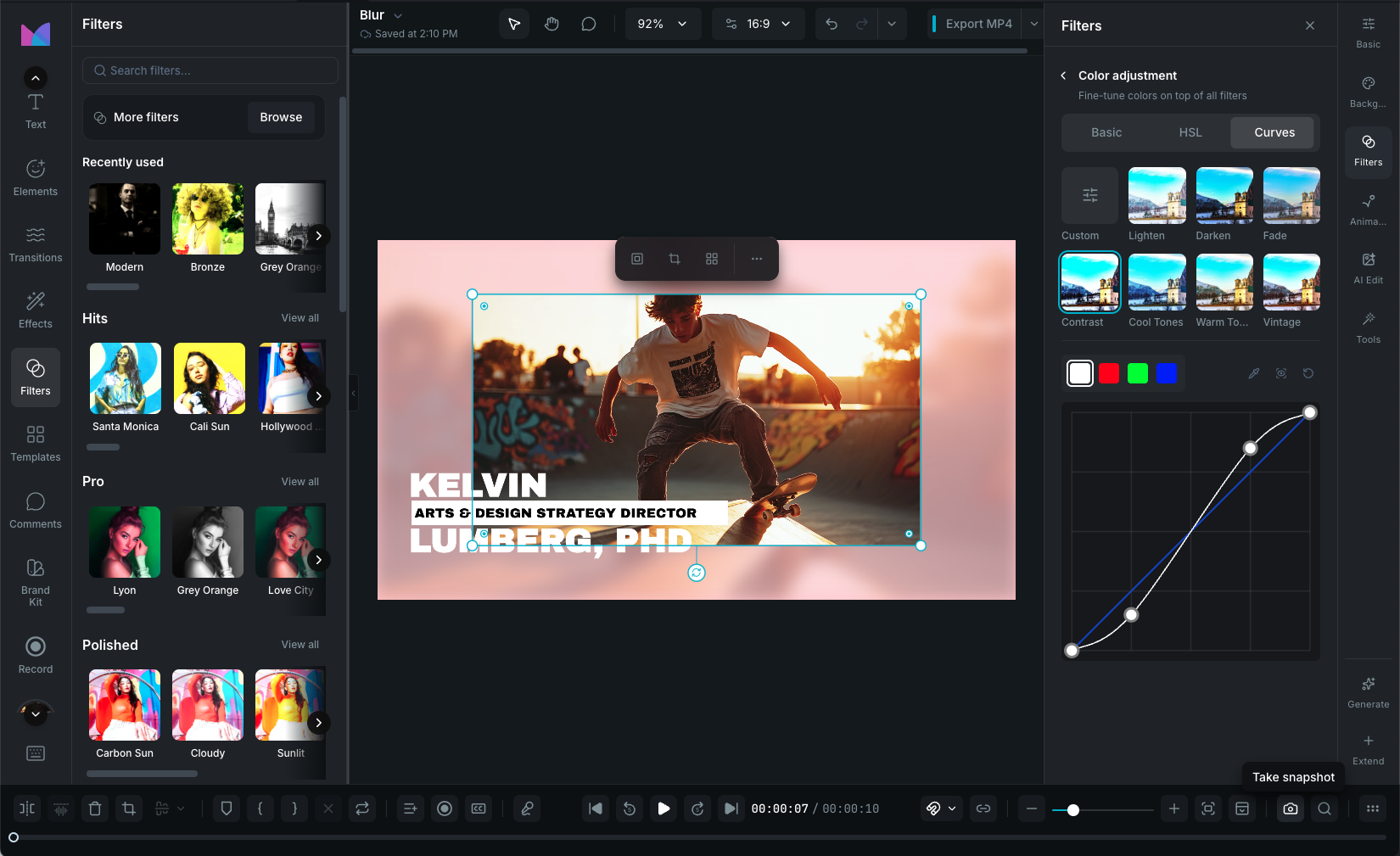
The Curves tab gives you direct control over the tonal response using an interactive graph. Four channels are available:

  • RGB (master): affects overall brightness and contrast across all channels.
  • R (red): adjust the red channel independently.
  • G (green): adjust the green channel independently.
  • B (blue): adjust the blue channel independently.

Using the curves editor

The graph shows input values (original image) on the horizontal axis and output values (adjusted image) on the vertical axis. A straight diagonal line means no adjustment.

  • Add a point: click on the curve to create a new control point.
  • Drag a point: move it up to brighten or down to darken that tonal range.
  • Remove a point: double-click to delete it.
  • Reset: return to the default linear curve.

Curve presets

Eight presets provide quick starting points:

  • Lighten: lifts midtones for a brighter image.
  • Darken: lowers midtones for a darker image.
  • Fade: compresses the dynamic range for a faded, low-contrast look.
  • Contrast: applies an S-curve for punchy contrast.
  • Cool Tones: reduces reds and enhances blues for a cooler feel.
  • Warm Tones: enhances reds and yellows, reduces blues for warmth.
  • Vintage: faded look with a warm color cast.

Select a preset, then customize the curve further if needed.

Reset and disable

  • Reset by section: reset Color, Lightness, or Effects controls independently.
  • Reset all: clear all adjustments (basic, HSL, and curves) at once.
  • Disable: toggle color adjustments off without deleting your settings. Toggle back on to restore them.

Wayaframe Help Center