Skip to content

Last updated on April 29, 2026

Working with Clips

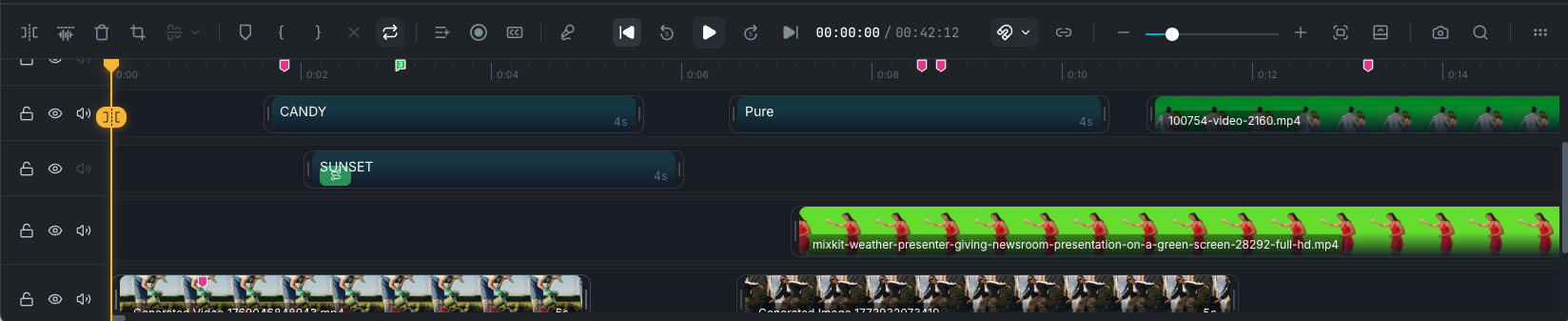
Clips are the individual items you place on the timeline. Every piece of content in your project, whether it is a video, image, audio file, text overlay, shape, sticker, effect, or chart, is a clip. This article covers each clip type, what you can do with it, and what properties are available when you select it.

Editor clips

Common properties

All clips share these properties regardless of type:

  • Start and end time: where the clip appears on the timeline.
  • Enabled / Disabled: toggle visibility and playback without deleting. Disabled clips remain on the timeline but appear faded out and are skipped during playback and export.
  • Locked: prevent accidental edits. A locked clip cannot be moved, resized, or deleted. You can also lock an entire track to protect all clips on it. See Tracks.
  • Name: an optional label for organization.
  • Group: clips can belong to a group for moving and managing together.

Visual properties

Clips that appear on the canvas (everything except audio) also share:

Common actions

These actions are available for most clip types from the right-click menu or keyboard shortcuts:

  • Copy, Cut, Paste, Duplicate: standard clipboard operations.
  • Delete: remove the clip from the timeline.
  • Split: divide a clip at the playhead position into two clips.
  • Trim: drag the start or end edge of a clip on the timeline to shorten or extend it.
  • Move: drag a clip to reposition it on the timeline or between tracks.
  • Enable / Disable: toggle clip visibility.
  • Lock / Unlock: prevent or allow editing.
  • Group / Ungroup: combine clips or break a group apart.
  • Copy Properties / Paste Properties: copy a clip's visual settings (transform, effects, filters) and apply them to another clip.

Video clips

A video clip is a media file (MP4, WebM, MOV, etc.) placed on the timeline. Video clips play back their source footage and can include embedded audio.

Trimming

Video clips can be trimmed by dragging the start or end edge on the timeline. Only the visible portion plays back; the original file is preserved.

Audio

  • Volume: adjust the clip's audio level.
  • Fade in / Fade out: smooth audio transitions at the start and end.
  • Audio Tone preset: apply a preset to shape the tonal quality of the sound.
  • Detach audio: separate the audio from the video into its own clip on a separate track. This lets you trim, move, or replace the audio independently.
  • Voice changer: apply a voice transformation preset with adjustable strength.

Speed

  • Playback rate: speed up or slow down the clip (e.g. 0.5x for slow motion, 2x for fast forward).
  • Preserve pitch: keep the original pitch when changing speed.
  • Speed curves: apply variable speed changes over the duration of the clip for ramp-up/ramp-down effects.

See How to Change Clip Speed and Timing for more.

AI tools

Video clips support several AI-powered tools accessible from the properties panel:

Other actions

  • Crop: reframe the visible area. See Canvas: Crop.
  • Flip: mirror horizontally or vertically.
  • Fill / Fit / Blurred Background: cycle how the video fills its frame. Fill scales to cover the frame, Fit scales to fit within it, and Blurred Background fits the video with a blurred version filling the background.
  • Extract frame: save the current frame as a still image to your library.
  • Freeze frame: hold the current frame for a specified duration.
  • Loop on extend: if the clip extends beyond the source duration, loop the video.

Image clips

An image clip is a static visual (PNG, JPG, SVG, GIF, WebP, Lottie) placed on the timeline with an explicit duration.

Duration

Unlike video clips, images have no inherent duration. Set how long the image appears by dragging the clip edges on the timeline or entering a value in the properties panel.

Fit mode

Control how the image fills its frame using the toolbar above the selected clip. Click the fit mode button to cycle through the three options:

  • Fill: scale to fill the frame, cropping edges if necessary.
  • Fit: scale to fit within the frame, showing the canvas background behind any empty space.
  • Blurred Background: scale to fit within the frame, with a blurred version of the image filling the background behind it.

Smart Motion

Add a slow pan and zoom animation to bring static images to life. See How to Animate Still Images with Smart Motion for full details.

AI tools

Other actions

  • Crop: reframe the visible area. Enable Generative Fill in the crop editor to use AI to fill areas outside the original image when extending the crop frame. See How to Expand and Fill Images with AI.
  • Flip: mirror horizontally or vertically.

Audio clips

An audio clip is a sound file (MP3, WAV, M4A, etc.) on the timeline. Audio clips have no visual presence on the canvas but play back during preview and export.

Properties

  • Volume: adjust the audio level.
  • Fade in / Fade out: smooth transitions.
  • Audio Tone preset: apply a preset to shape the tonal quality of the sound.
  • Playback rate: speed up or slow down.
  • Preserve pitch: maintain original pitch when changing speed.

AI tools

See Working with Audio and How to Mix and Balance Audio for the full audio editing experience.

Text clips

A text clip is a text overlay placed on the canvas with full rich-text styling. Text clips can be titles, lower thirds, captions, or any styled text element.

Text editing

Double-click a text clip on the canvas to edit it inline. You can also edit the content in the properties panel. See Adding and Editing Text for full details.

Styling

The text properties panel provides:

  • Font: choose from available fonts.
  • Size, weight, letter spacing, line height: fine-tune typography.
  • Color: text fill color with opacity.
  • Background: background fill behind the text with color, opacity, padding, and corner radius.
  • Outline: text stroke with color and width.
  • Shadow: text shadow with offset, blur, and color.

Text path

Animate text along a custom curved path. Enable the text path option in the properties panel, then edit the path shape on the canvas. See Animating Text Along a Path.

Text animations

Text clips support dedicated in, out, and loop animations with character-level effects (typewriter, fade per letter, bounce, etc.) in addition to the standard keyframe animations available to all clips. See Using Animation Presets.

Shape and sticker clips

Shape and sticker clips are decorative elements you add from the Elements panel in the sidebar.

Shapes

Shapes are geometric elements (rectangles, circles, triangles, arrows, custom paths, etc.) with editable properties:

  • Fill: solid color or gradient fill.
  • Stroke: border color, width, and style (solid, dashed, dotted).
  • Corner radius: round the corners (per corner for rectangles).
  • Endpoint styles: for line and arrow shapes.

Shapes can also be used as masks for other clips. See How to Mask Clips.

See Shapes for the full catalog and details.

Stickers

Stickers are animated or static decorative elements from the sticker library. Many stickers have customizable color palettes that let you recolor individual parts of the design to match your brand.

See Stickers for browsing and adding stickers.

Effect clips

Effect clips are visual overlays placed on the timeline that add stylized treatments to your composition (glow, grain, light leaks, weather effects, etc.). They render on top of other content and have adjustable intensity and customizable properties.

See Applying Visual Effects.

Chart clips

Chart clips are data visualizations placed on the timeline as animated elements. Wayaframe supports bar, line, area, pie, donut, scatter, bubble, and race chart types, each with its own settings in the property panel for editing data, styling, and animation.

See Visualizing Data with Charts.

Waveform clips

Waveform clips are audio visualization elements that react to your audio in real time. They come in multiple styles (bars, lines, spectrum, glow, etc.) and can be positioned and styled on the canvas.

See Adding Audio Waveform Visualizers.

Group clips

Group clips appear on the timeline when you combine multiple clips into a group. A group displays as a single collapsed bar spanning all its member clips. You can move, trim, rename, duplicate, and save groups to your Library.

Double-click a group clip to open it and edit the individual clips inside. See How to Group and Ungroup Clips.

Wayaframe Help Center