Skip to content

Last updated on June 12, 2026

Managing Your Projects

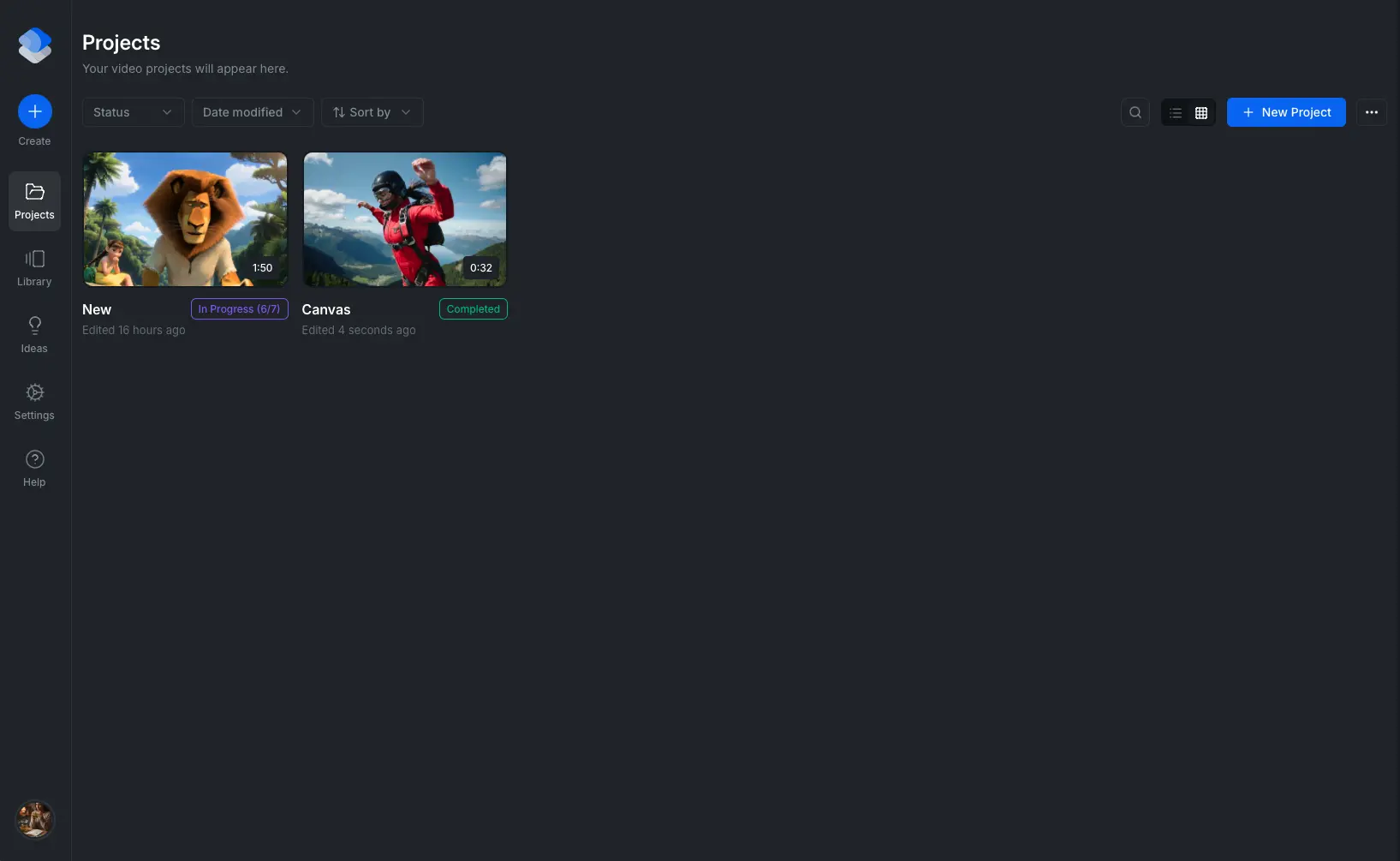
The Projects view is where you create, open, search, import, export, and manage your video projects.

Cenematic projects view

Create a Project

Click Create in the sidebar to open the new project modal.

Project types

Cenematic supports two starting points:

  • Generate with AI: opens the guided creation flow where you define the style, generate a script, add a voiceover, and direct scenes before entering the editor. Use this when you want Cenematic to build the structure and first draft of the video for you.
  • Blank Canvas: opens the editor immediately with an empty timeline. Use this when you already have your own media and want full control from the start.

Project setup fields

When creating a project, configure these fields before continuing:

  • Name: give the project a recognizable title. This is what appears in the project list and at the top of the editor.

  • Resolution: sets the output dimensions of the video. The default is FHD (1920x1080). Presets are grouped by orientation:

    • Horizontal: SD (640x480), HD (1280x720), FHD (1920x1080), 2K (2048x1080), QHD (2560x1440), 4K UHD (3840x2160), 4:3 (1440x1080)
    • Square: 1:1 Small (600x600), 1:1 Large (1080x1080)
    • Vertical: 4:5 Small (600x750), 4:5 Large (1080x1350), 3:4 (1080x1440), 9:16 FHD (1080x1920)

    You can also enter a custom Width and Height (256px to 7680px) and lock the aspect ratio to keep proportions when adjusting one dimension.

  • Background Color: sets the canvas fill behind your content. The default is black. You can change this after the project is created from the canvas settings in the editor header.

  • Brand Kit (optional): links a saved set of brand colors, fonts, logos, and text presets to the project. These assets become available as presets inside the editor. You can change or remove the Brand Kit at any time from the editor sidebar.

What happens after creation

If you choose Generate with AI, Cenematic opens the guided creation flow starting at Video Style.

If you choose Blank Canvas, Cenematic opens the editor directly with an empty timeline at your chosen resolution.

AI-Assisted Creation

If you choose Generate with AI, Cenematic opens a guided workflow that generates the video and the assets it needs. Each step builds on the previous one:

  1. Video Style: set the visual direction, category, and target duration for the video.
  2. Script: describe what the video should say and let AI draft the script, or write your own. The script drives scene structure and voiceover timing.
  3. Voice Designer: generate voiceover audio from the script using AI voices. You can also upload your own audio or skip this step entirely.
  4. Scene Director: turn the script into scenes, generate visuals for each one, swap or regenerate individual scenes, and adjust timing.

After the last step, Cenematic opens the full video editor where you can refine clips, add transitions, overlay text, and prepare the final export.

Script and Voice Designer can be skipped if you prefer to add your own content later. Video Style and Scene Director are required.

Browse and Find Projects

The project list includes a toolbar for narrowing down your work:

  • Search by project name.
  • Status filter: show only Completed or In Progress projects.
  • Date filter: Today, Yesterday, Last 30 Days, Last 90 Days, or Last Year.
  • Sort by: Newest Edited, Oldest Edited, Alphabetical (A-Z), or Alphabetical (Z-A).
  • Layout: switch between grid and list views using the layout toggle in the project header.

Active filters show a count badge. Use Clear All Filters to reset everything at once.

When no projects match the current filters, Cenematic shows a distinct empty state so you can tell whether you need to create something new or just clear filters.

Open a Project

Click any project card to open it. If the project was still in the guided creation flow, it reopens at that stage. If it already reached the editor, it opens directly in the editor.

Cenematic uses project tabs so you can switch between multiple open projects in the same session without losing your place.

Project Actions

Each project card includes a menu with these actions:

  • Edit: open the project in the editor.
  • Rename: update the project title without changing its contents.
  • Duplicate: create a copy of the project. Useful for testing a new direction, creating variants, or making a safe copy before major edits.
  • View Summary: open a read-only overview of the project configuration.
  • Export: save the project as a portable .cen archive.
  • Delete: permanently remove the project.

Bulk actions

Select multiple project cards to reveal a bulk-action popover. From there you can select all projects on the page or delete the selected projects in one step.

Project Summary

Select View Summary from a project card menu to see a read-only overview of how the project was created and configured. This is useful when you want to review a project's setup without opening the editor.

The summary has up to three sections, depending on how the project was created:

Basic

Always shown. Displays the core project properties:

  • Title
  • Aspect ratio (computed from the resolution)
  • Resolution (width x height)
  • Frame rate
  • Background color (with a color swatch preview)
  • Duration

Script

Shown if the project includes a generated or user-provided script. Displays:

  • Source badge indicating whether the script was AI-generated or user-provided.
  • Script text, expandable if the content is long.
  • Original prompt used during AI generation, with a copy button. Only shown for AI-generated scripts.
  • Context tags and emotion tags used to guide the AI generation.

Voice

Shown if the project includes voice output. Displays:

  • Source badge indicating whether the voiceover is AI-generated or an uploaded file.
  • Provider with logo (ElevenLabs, Minimax, or others).
  • Voice name, avatar, and details such as gender, language, and style when available.
  • Audio duration, file size, and format.
  • Count of additional voices if the project uses more than one.

Import and Export Project Files

Cenematic uses the .cen format for portable project archives. Legacy .cenematic archives can still be imported. This lets you move full projects between machines or keep versioned backups.

Import a project

  1. From the project list, click the more options menu next to the Create button.
  2. Select Import Project to open the import modal.
  3. Browse for a .cen file, or drag and drop a .cen or legacy .cenematic archive into the modal.
  4. Review the preview, which shows the project thumbnail, title, media counts, duration, and total file size.
  5. Rename the project title if needed, then confirm the import.

Cenematic extracts all media, tracks, metadata, and brand kit associations from the archive and creates a new project in your list.

If the archive cannot be read, Cenematic keeps you in the import modal and shows an error instead of creating a broken project.

Export a project

  1. Open the menu on a project card and select Export.
  2. Review the export preview, which shows the project thumbnail, title, duration, media counts, and estimated archive size.
  3. If the project has a Brand Kit linked, toggle Include Brand Kit to bundle the kit's logos and brand data into the archive.
  4. Choose a save location on your computer. The file is saved as project-name.cen.

The export packages all media, tracks, and project metadata into a single portable file that can be imported on another machine.

You can also export the project archive from inside the editor by opening the project menu in the editor header and selecting Export .cen.

Drag and Drop Shortcuts

The Projects view supports drag-and-drop shortcuts:

  • Drop a .cen or legacy .cenematic file to start a project import.

Wayaframe Help Center