Skip to content

Last updated on April 21, 2026

Adding Audio Waveform Visualizers

Audio Waveform effects are visual elements on the canvas that react to your audio in real time. As sound plays, the visualization moves, pulses, and changes shape to match the music or voice. Use them for music videos, podcast visualizations, social content, lyric videos, and any project where you want the visuals to move with the soundtrack.

You can position waveforms anywhere on the canvas, stack multiple styles at once, animate them with keyframes, and apply drop shadows and blend modes. Audio Waveform effects

Adding a waveform

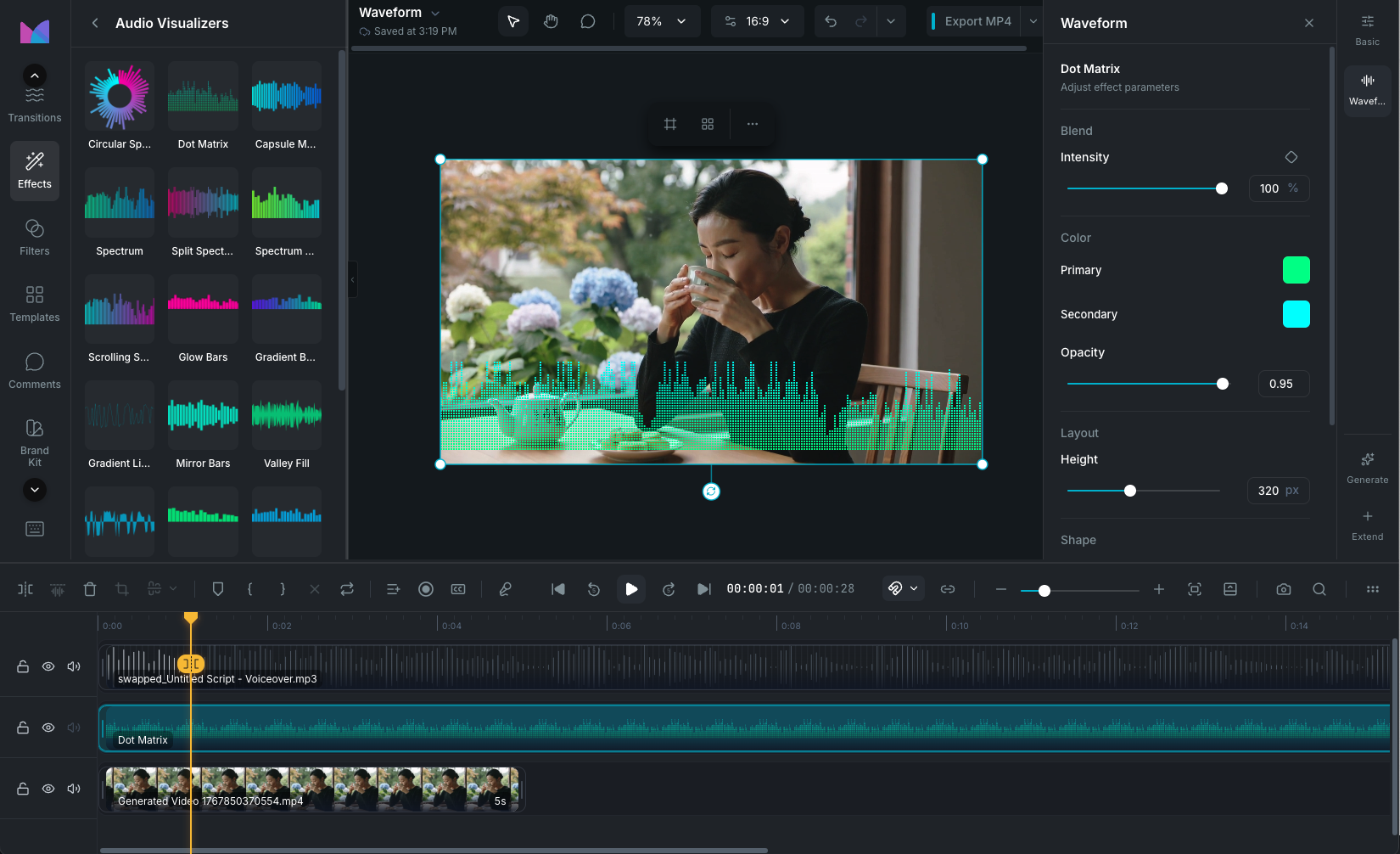
Open the Effects panel in the sidebar and browse the Audio Visualizers category. Click a waveform preset to add it at the playhead, or drag it onto the timeline. The waveform clip appears on an effect track and immediately begins reacting to the audio in your project.

You can add multiple waveform clips at the same time. Each one operates independently with its own style, colors, position, and timing.

Waveform styles

21 waveform styles are available, organized by type:

Lines

  • Clean Line: a sharp, single-line waveform. Simple and minimal.
  • Soft Line: a smooth line with a blur effect for soft edges.
  • Neon Line: a line with a strong glow effect for a neon look.
  • Dash Line: a dashed line pattern with configurable gap spacing.

Bars

  • Flat Bars: flat rectangular bars with sharp corners.
  • Rounded Bars: bars with rounded corners for a softer look.
  • Chunky Bars: wide, thick bars for a bold appearance.
  • Thin Bars: narrow, slender bars for a subtle look.
  • Mirror Bars: bars that extend both up and down from the center, creating a symmetrical visualization.
  • Glow Bars: bars with a glowing light effect.
  • Capsule Mirror: rounded capsule-shaped bars mirrored vertically with dual-color support.

Area fills

  • Fill Area: a filled area under the waveform curve.
  • Valley Fill: a two-color filled area mirrored vertically, creating a valley shape between the primary and secondary colors.

Gradients

  • Gradient Line: a line that transitions between two colors horizontally.
  • Gradient Bars: bars with a horizontal color gradient.

Spectrum

Spectrum styles visualize the frequency content of the audio rather than just volume levels. Low-frequency sounds (bass) appear on one side and high frequencies (treble) on the other.

  • Spectrum: frequency bars with a decay trail that fades over time.
  • Split Spectrum: frequency bars split above and below the center line.
  • Spectrum Bars: vertical frequency bars with adjustable width and spacing.
  • Scrolling Spectrum: a continuously scrolling frequency display.
  • Dot Matrix: a grid of dots where each column represents a frequency range and dot height represents intensity.
  • Circular Spectrum: frequency bars arranged in a radial circle, emanating outward from a center point.

Customizing waveforms

Select a waveform clip to see its controls in the property panel. The available controls vary by style.

Color

  • Primary color: the main color of the visualization. Available on all styles.
  • Secondary color: a second color for gradient, spectrum, and dual-color styles (Valley Fill, Gradient Line/Bars, all Spectrum styles, Circular Spectrum, Dot Matrix, Capsule Mirror).
  • Opacity: overall transparency. Available on select styles.
  • Background color and background opacity: add a colored background behind the waveform.

Shape

Controls that adjust the geometry of the visualization:

  • Thickness (line styles): line weight in pixels.
  • Bar width (bar and spectrum styles): width of each bar.
  • Gap: spacing between bars, dots, or dash segments.
  • Roundness (Rounded Bars, Capsule Mirror): corner radius for rounded bar ends.
  • Mirror (Mirror Bars, Valley Fill, Capsule Mirror): toggle vertical mirroring so the visualization extends both above and below the baseline.
  • Dot size (Dot Matrix): diameter of each dot in the grid.
  • Inner radius (Circular Spectrum): the radius of the empty center, controlling how far from the center the bars start.

Look

Controls that affect the visual treatment:

  • Blur (Soft Line, Gradient Line): gaussian blur applied to the visualization for soft edges.
  • Glow strength (Neon Line, Glow Bars): intensity of the glow effect. Creates a layered light bloom around the visualization.
  • Fill (Fill Area, Valley Fill): toggle area fill under the waveform curve.
  • Spectrum decay (all Spectrum styles): how quickly previous frequency values fade. Lower values create a snappier response, higher values create longer trails.
  • Spectrum scroll (all Spectrum styles): the speed and direction of scrolling animation. Higher values create faster movement.

Layout

  • Height: the vertical size of the visualization. Range varies by style (80 to 520px for most, 200 to 800px for Circular Spectrum).
  • Position anchor: align the waveform to the left, center, or right of the canvas.
  • X / Y offset: fine-tune the position with pixel offsets from the anchor point.

Positioning and transforms

Waveforms can be positioned anywhere on the canvas, not just at the bottom. In addition to the layout controls above, waveform clips support full transforms from the Positioning, Scaling, and Rotating Clips panel:

  • Position: place the waveform at any X/Y coordinate.
  • Scale: resize uniformly or stretch independently on each axis.
  • Rotation: rotate the waveform to any angle, including 3D rotation.
  • Drop shadow: add a shadow behind the waveform with configurable angle, distance, blur, and color.
  • Blend mode: change how the waveform composites with the content below (normal, screen, multiply, overlay, etc.).
  • Opacity: control the overall transparency of the clip.

Audio sensitivity

Two controls affect how the waveform responds to audio:

  • Gain: boost or reduce the audio amplitude before it's visualized. Use this if the waveform is too subtle or too intense for your audio levels.
  • Smoothing: control how much the visualization smooths between audio frames. Lower values create a more responsive, jittery look. Higher values create smoother, flowing motion.

Animation

Waveform clips support keyframe animation on intensity, position, scale, rotation, opacity, and drop shadow properties. This lets you animate the waveform across the canvas, scale it up during a chorus, fade it out during a quiet section, or create any other time-based motion.

Wayaframe Help Center