Skip to content

Last updated on April 21, 2026

Applying Filters to Your Video

Filters apply instant color looks to your clips using professionally crafted presets. Browse the library, hover to preview, click to apply, and adjust the intensity to blend between the original and filtered look.

Filters panel

Browsing filters

The Filters panel in the sidebar includes 95+ presets across 12 categories:

  • Hits: Santa Monica, Cali Sun, Hollywood Lights, Golden Hour, Desert Glow, and more.
  • Pro: Lyon, Grey Orange, Studio Cool, Aurora, Chrome, Slate, Ember, Frost, and more.
  • Polished: Carbon Sun, Sunlit, Pearl Sheen, and more.
  • Landscape: Alpine Lake, Azure Bay, Ocean Air, Summit Blue, and more.
  • Movies: cinematic looks like Bullet Train, Midnight, Golden.
  • Mono: black and white filters including Casablanca, Noir, Platinum.
  • Portrait: Rose Glow, Porcelain, Mocha, and more.
  • Retro: Hippie, 90s, Nostalgia, Tape, Vintage.
  • Night: 2077, Black Gold, Midnight Drive, Electric.
  • Alternative: Mirror Pink, Neon Drift, Amber, and more.
  • Food: Appetite, Artisan Brunch, Citrus Bowl, and more.
  • Film Looks: Cinematic Soft, Teal & Orange.

Use the search bar to filter by name. Recently applied filters appear at the top for quick access.

Applying filters

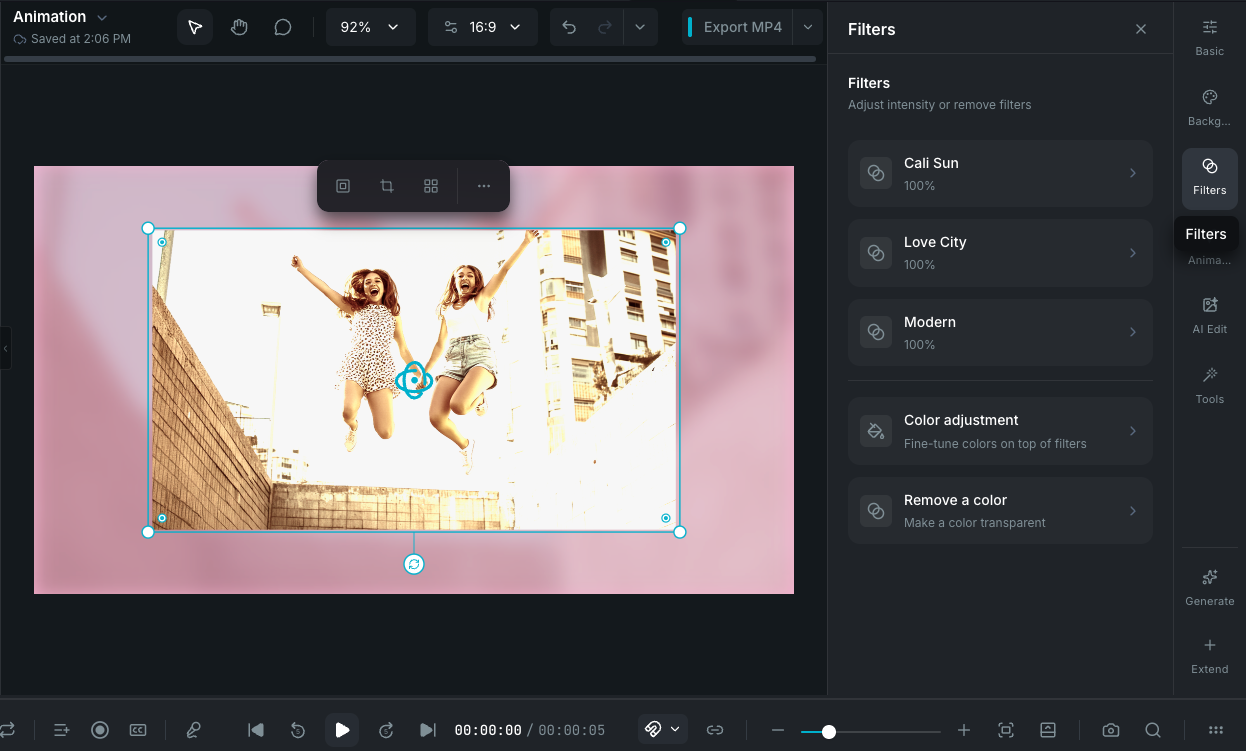
Hover over a filter to preview it on the selected clip in real time. Click to apply. Filters work on video, image, text, and sticker clips.

Filter intensity

Each applied filter has an intensity slider (0 to 100%) so you can blend between the original look and the full filter effect. Intensity is keyframeable for animated color transitions.

Stacking filters

You can apply multiple filters to a single clip. Filters apply in stack order, and each has its own independent intensity control. Remove individual filters from the stack at any time.

Filters and color adjustment

Filters set the general look. For fine-tuning beyond what a preset provides, open Adjusting Colors and Grading from the same panel to manually adjust brightness, contrast, saturation, HSL channels, and curves.

Wayaframe Help Center