Skip to content

Last updated on April 21, 2026

Reviewing and Exporting Social Clips

After generating social clips, this is where you review the results, inspect virality scores, adjust settings, and export clips for your platforms.

Social Clips review grid

Reviewing clips

Generated clips appear in a selectable grid. Each clip card shows:

  • Thumbnail with subtitle preview.
  • Duration badge.
  • Virality score (0-100) with color-coded indicator (green for high, blue for medium, orange for lower).
  • Preview on hover: play the clip directly from the card.

Selecting clips

  • Click the checkbox on a clip card to select or deselect it.
  • Use Select All to toggle all clips at once.
  • The header shows how many clips are selected out of the total.

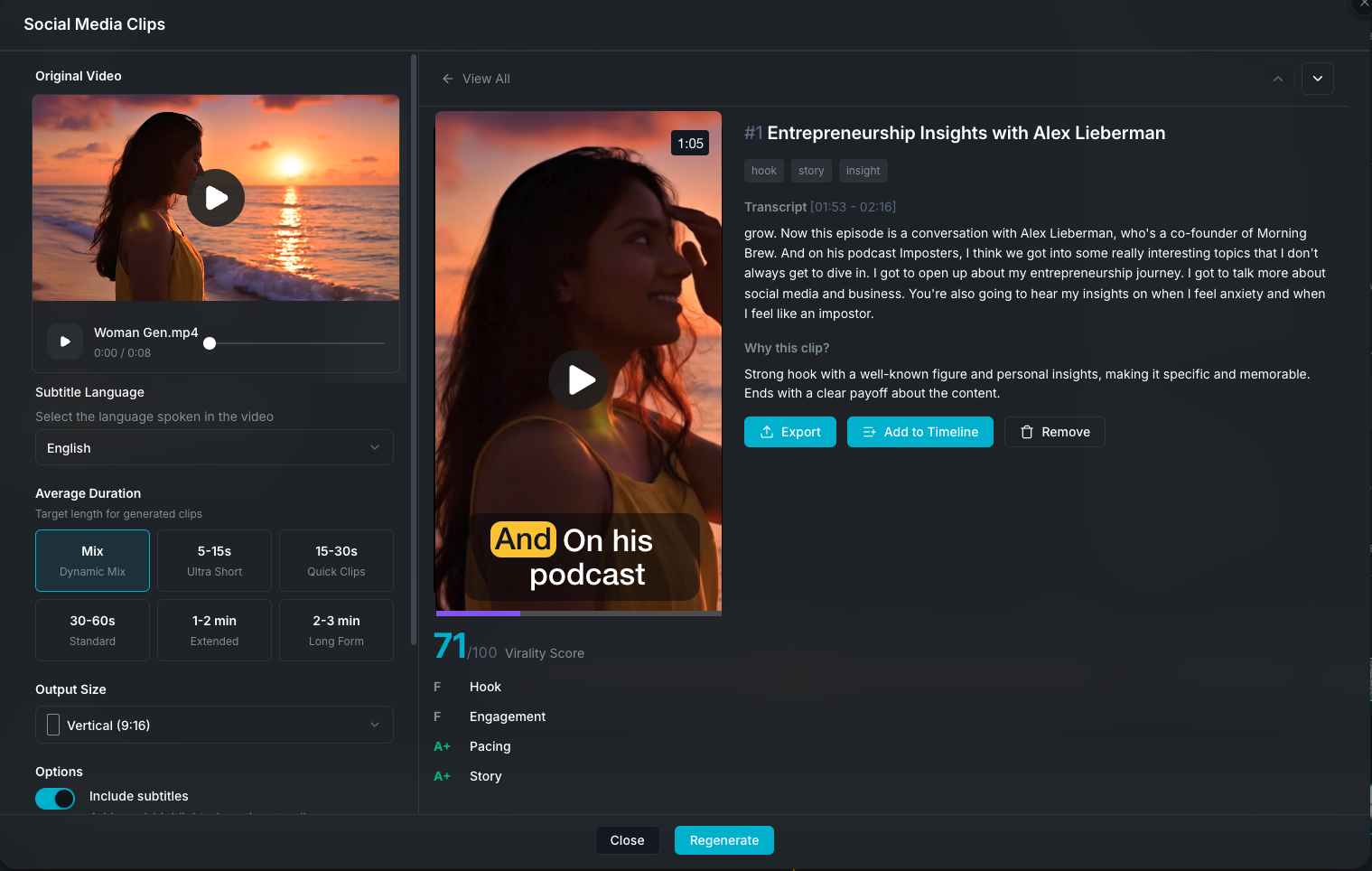
Detail view

Click a clip card to open the detail view with:

  • Large video preview with playback controls, reframing applied, and subtitle overlay.
  • Full transcript of the clip.
  • Virality factors breakdown:
    • Hook: how strong the opening is.
    • Engagement: presence of questions, lists, reveals, and calls to action.
    • Pacing: rhythm and word density.
    • Story: narrative arc from hook to payoff.
  • AI reasoning: an explanation of why this moment was selected.
  • Title and tags: auto-generated by AI.
  • Navigation: previous and next clip buttons to browse through all clips.

Deleting clips

Remove a clip from the list entirely if it's not relevant. This does not affect the source video.

Smart reframing

When the output aspect ratio differs from the source video, Wayaframe uses face detection to intelligently reframe each clip:

  • Face tracking: detects and follows faces across the clip duration, creating smooth pan-and-zoom keyframes.
  • Speaker regions: identifies where each speaker is positioned and crops to keep them in frame.
  • Headroom: automatically adjusts vertical positioning so speakers have natural headroom (more for vertical, less for horizontal).
  • Smooth transitions: easing is applied between keyframes to prevent jarring cuts.
  • Center fallback: if no faces are detected, clips are center-cropped.

The reframing is recalculated when you change the output size, with cached face analysis reused for performance.

Changing settings after generation

You can change the output size, subtitle settings, or multi-shot toggle after clips are generated. Clips update their preview without needing full regeneration. Changing the language or duration mode requires a new generation pass.

Export

Export clips individually or in batch.

Export settings

Configure these options in the left panel:

  • Format: MP4, MOV, MKV, or WebM.
  • Resolution: 720p, 1080p, or 4K.
  • Quality: Standard or High.

Single clip export

Click the download button on a clip card or in the detail view. A save dialog opens with a suggested filename based on the clip's AI-generated title. Choose a save location and the clip is rendered with all reframing, subtitles, and settings applied.

Batch export

Select multiple clips, then click Export. Choose a folder and Wayaframe renders each selected clip to that folder sequentially. Progress shows which clip is currently being exported (e.g. "Exporting 3 of 10"). You can cancel the batch at any time.

Add to timeline

You don't have to export clips immediately. Click Add to Timeline to insert selected clips directly into your project as media clips. From there you have the full power of the editor to:

This is the best path when you want to polish clips further before publishing.

Session persistence

Your Social Clips session is saved automatically. If you close the modal and reopen it for the same video, your previous clips, selections, and settings are restored. Transcription and face analysis results are cached to avoid repeated processing.

Wayaframe Help Center