Skip to content

Last updated on April 29, 2026

How to Expand and Fill Images with AI

Wayaframe includes two AI-powered tools for extending image content: AI Expand for pushing an image beyond its original borders, and Generative Fill for filling empty areas when cropping. Both use AI to generate context-aware content that blends seamlessly with the original image.

AI Expand

AI Expand

AI Expand extends an image outward, generating new content beyond the original edges. This is useful for changing an image's aspect ratio, adding more room around a subject, or reframing a composition without losing any of the original content.

How to access

Select an image clip on the timeline, then open the Tools tab in the property panel and click AI Expand.

Using AI Expand

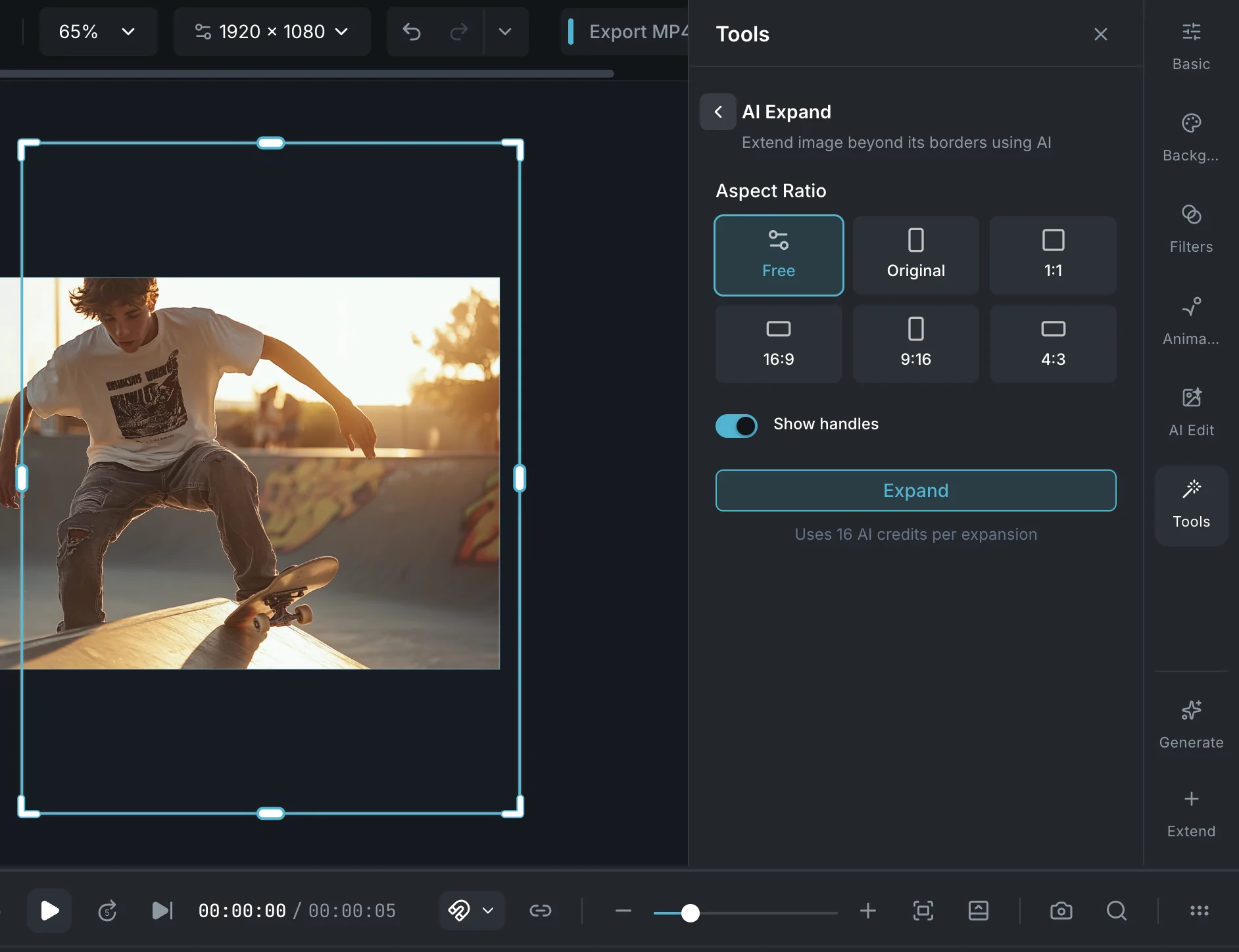
  1. The canvas switches to an expand overlay showing the original image with adjustable bounds around it.
  2. Choose a target Aspect Ratio from the panel: Free, Original, 1:1, 16:9, 9:16, or 4:3.
  3. Drag the handles on the canvas to position and size the expansion area. The area outside the original image is what AI will generate.
  4. Toggle Show handles on or off to control whether the resize handles are visible on the canvas.
  5. Click Expand to generate. The AI fills the new areas with content that matches the surrounding image.

The expanded image replaces the original clip on the timeline. You can undo the expansion to revert to the original at any time.

Credits

AI Expand uses AI credits. The estimated cost is displayed below the Expand button before you confirm. The cost varies based on the output resolution.

Generative Fill (Crop)

Generative Fill is available inside the crop editor. When you extend the crop frame beyond the original image boundaries, Generative Fill uses AI to fill the empty areas instead of leaving them transparent or black.

How to access

  1. Select an image clip on the timeline.
  2. Open the crop editor from the selection toolbar, right-click menu, or timeline context menu.
  3. Drag the crop handles to extend the frame beyond the original image edges.
  4. Enable the Generative Fill toggle in the crop sidebar under Advanced settings.
  5. Click Apply. The AI fills the areas outside the original image with generated content.

When to use Generative Fill vs AI Expand

  • Use Generative Fill when you are already cropping an image and want to fill in the gaps, for example when rotating an image inside the crop frame or changing its aspect ratio.
  • Use AI Expand when your primary goal is to extend the image outward in a specific direction or to a specific aspect ratio, with full control over the expansion area on the canvas.

Both tools use AI credits. The estimated cost is shown before you confirm.

Wayaframe Help Center