Skip to content

Last updated on April 21, 2026

Using Animation Presets

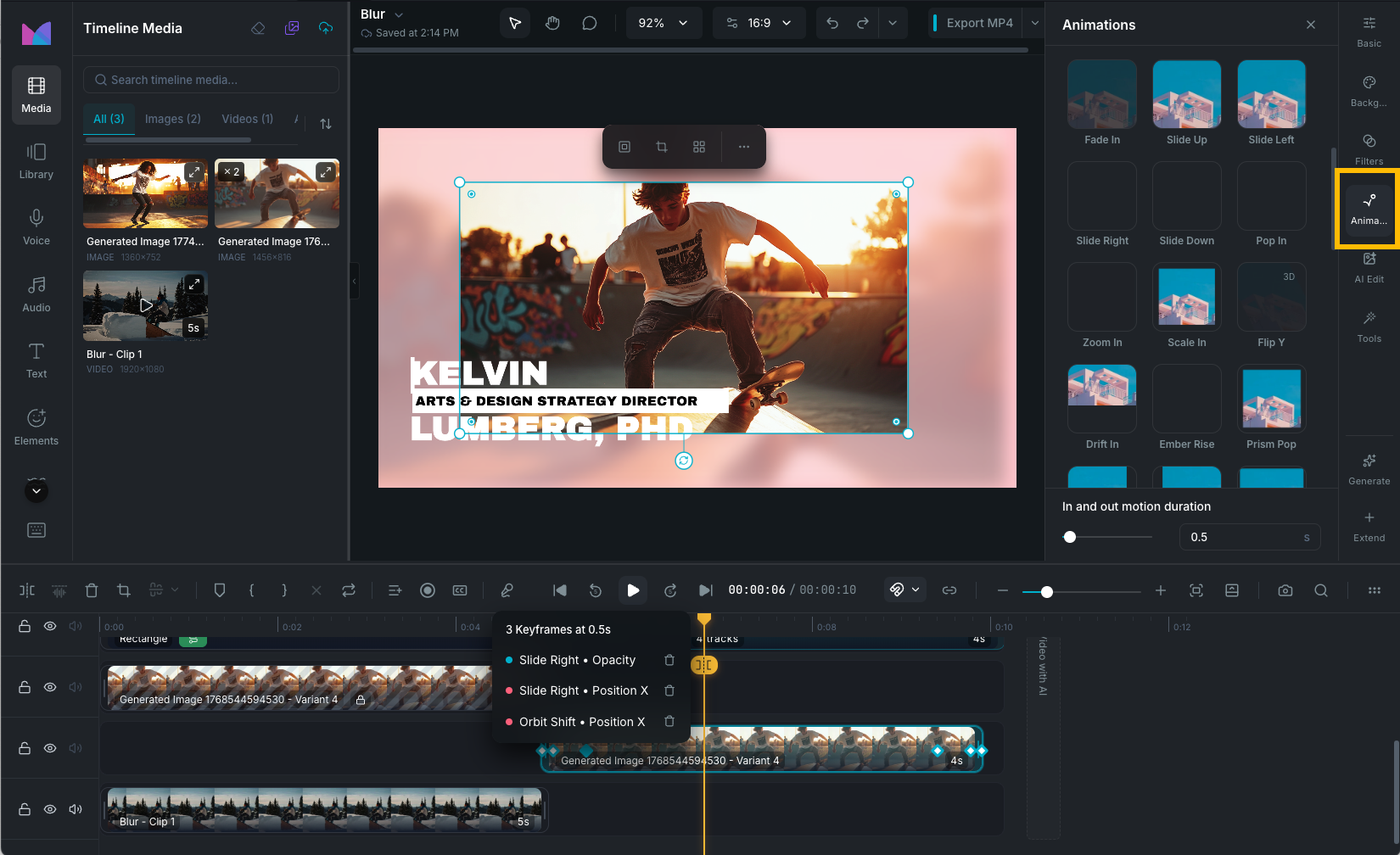
Animation presets let you add motion to any clip with a single click. Wayaframe includes 186 presets covering fades, slides, zooms, spins, bounces, glitches, 3D flips, and text-specific character animations. Each preset has customizable duration, and you can combine multiple animations on the same clip.

Animation presets panel

Accessing animations

Select a clip on the canvas or timeline, then open the Animations tab in the property panel. The panel shows preset cards organized by category, each with an animated preview.

Clip animations

These 107 presets are available on all visual clip types (video, image, sticker, text, effect, chart). They are organized into three categories:

In (entrance)

Play when the clip appears on the timeline. Use them for content that needs a visual introduction.

Examples: Fade In, Slide Up, Slide Left, Slide Right, Slide Down, Pop In, Zoom In, Scale In, Drift In, Ember Rise, Prism Pop, Bounce Drop, Spin In, Flip X, Swing In, Pinch In, Stretch In, and many more.

Out (exit)

Play when the clip ends. Use them for smooth departures, dissolves, or dramatic exits.

Examples: Fade Out, Slide Away, Zoom Out, Scale Out, Melt Away, Drift Out, Spin Out, Fall Away, Collapse, Slide Spin, Pop Out, Shake Out, and many more.

Combo (loop)

Play continuously for the duration of the clip. Use them for pulsing, floating, breathing, or any content that needs constant motion.

Examples: Pulse Loop, Bounce, Wobble, Heartbeat, Sway, Jelly, Breathe, Float Drift, Pendulum, Spin Slow, Glitch Loop, Nod, Bloom Loop, and many more.

3D animations

Some clip presets use 3D rotation, perspective, or depth effects and are marked with a 3D label:

  • Flip Y, Flip X: full 3D flip rotations.
  • Perspective Swing: swinging motion with perspective distortion.

3D animations automatically enable 3D transforms on the clip.

Text animations

Text clips have access to 79 additional presets that are exclusive to text. These animate at the character or line level, creating effects that aren't possible with standard clip animations.

Text animations appear in their own section of the Animations tab when a text clip is selected. They use the same three categories (In, Out, Combo).

Character-by-character

Each letter animates individually with a slight delay between characters, creating a sequential reveal:

  • Typing, Typing Cursor: typewriter-style appearance with optional blinking cursor.
  • Retro Typer: retro terminal-style typing.
  • Spring, Pop Up, Pop Down: characters spring or pop into place.
  • Scatter, Tumble, Spiral: characters arrive from scattered, tumbling, or spiraling positions.
  • Blow Up, Knock, Float Up: dramatic character entrances.

Wipe

Text is revealed or hidden with a directional sweep across the entire line:

  • Wipe Right, Wipe Left, Wipe Down, Wipe Up (in and out variants).

Standard text motion

Full-clip motion applied to the text as a whole:

  • Fade, Slide (4 directions), Zoom, Bounce, Shake, Flicker, Pulse, Breathe, Flip (4 directions), Roll, Blur Erase, Clockwise, Anticlockwise, and more.

Using both animation types on text

Text clips can have text animations and clip animations at the same time. For example, a text clip can have a character-by-character typing entrance (text animation) plus a scale-up effect (clip animation) running together.

Applying an animation

Click any preset card to apply it to the selected clip.

Combining animations

You can apply entrance, exit, and loop animations to the same clip simultaneously. For example, a clip can fade in, pulse while visible, and slide out when it ends. Each animation operates independently.

Duration

Each animation has a configurable duration:

  • Entrance and exit animations: set the duration from the slider in the animation panel. The animation plays for this fixed time at the start or end of the clip.
  • Loop animations: span the full duration of the clip and repeat continuously.

Removing an animation

Click None at the top of the preset list to clear the animation for that category. You can also clear all animations at once from the panel.

Converting to custom keyframes

If you want more control, click Convert to Editable to transform a preset into custom keyframe tracks. This unlocks full editing of every keyframe, value, and easing curve in the graph editor. Once converted, you cannot revert back to the original preset.

Wayaframe Help Center