Skip to content

Last updated on April 21, 2026

How to Share a Project with Your Team

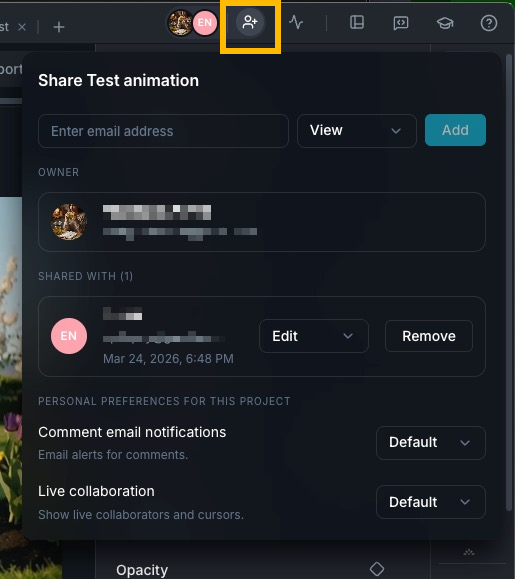
Share panel

Sharing a project gives other people access to view, comment on, or edit your work. The project owner controls all access through the Share panel, and collaborators accept invitations through a browser link or the desktop app.

Inviting collaborators

Open a project in the editor and click the Share button in the title bar to open the Share panel. To invite someone:

  1. Enter the collaborator's email address.
  2. Choose a permission level from the dropdown: View, Comment, or Edit.
  3. Click Add.

The collaborator receives an email invitation with a link to accept.

Permission levels

  • View: can open and watch the project but cannot make changes or leave comments.
  • Comment: can view the project and leave comments, but cannot edit the timeline, clips, or settings.
  • Edit: full access to modify the project, including editing clips, adding media, changing settings, and leaving comments.

INFO

An active subscription is required to share projects. Each project supports up to 50 collaborators.

Accepting an invitation

Your collaborator receives an email with a link to the shared project. Clicking the link automatically tries to open the project in the Wayaframe desktop app. If the desktop app is not installed, they can click Continue in browser to open the project in the web app, or download the Wayaframe app.

Once opened, the project appears in their Projects view and they can access it with the permissions you assigned.

Managing collaborators

The Share panel lists every person who has access to the project. The project owner can manage access from this panel at any time.

Change permissions

Click the permission dropdown next to any collaborator to change their access level. The change takes effect immediately. If a collaborator is currently online and their permission is downgraded, their session updates to reflect the new level.

Remove a collaborator

Click Remove next to a collaborator to revoke their access. Removed collaborators are disconnected from the project and can no longer open it. Pending invitations can also be removed before they are accepted.

Pending invitations

Invitations that have not been accepted yet appear in a separate Pending invites section in the Share panel. Each entry shows the email address, a "Pending" badge, and when the invite was sent.

Invitations expire after 30 days. If an invite expires, the owner can remove it and send a new one.

Collaboration preferences

Your account has default collaboration preferences that apply to all shared projects. You can configure these in Settings under Collaboration Defaults:

  • Comment email notifications: receive email notifications when new comments are posted.
  • Live collaboration: show or hide live collaborator presence and cursors in the editor.

Each shared project can override these defaults. At the bottom of the Share panel, the Personal Preferences section lets you set each preference to Default (use your account setting), On, or Off for that specific project. These overrides apply only to you, not to other collaborators. Turning off live collaboration hides the presence layer but does not remove your access to the project.

Project sync

Shared projects sync automatically between collaborators. When you make changes, they are uploaded to the cloud and pushed to other collaborators in real time. When someone else makes changes, they appear in your editor automatically.

Sync status

The sync status appears next to the project name in the editor header. During normal operation, syncing happens in the background without any action needed.

Resolve sync issues

When a sync fails, a Sync failed status appears in the editor header. Click Resolve to open the sync issue modal.

The modal explains what went wrong. Common causes include:

  • Another collaborator made newer changes while you were editing.
  • A version conflict between your local project and the cloud.
  • Some project assets failed to upload.

You have two options:

  • Retry Sync: attempts to upload your local changes to the cloud again. Use this if the failure was temporary (for example, a network issue).
  • Use Cloud Version: discards your local changes since the last successful sync and pulls the latest cloud version. A progress modal shows the download and apply stages.

WARNING

Pulling from the cloud replaces local changes since the last successful sync. If you have important unsaved edits, try Retry Sync first.

Resync from Cloud

If a shared project gets out of sync or you want to make sure you have the latest version, open the project menu inside the editor and select Resync from Cloud.

A progress modal appears with three stages:

  1. Fetching the latest project data from the cloud.
  2. Updating project assets and media references.
  3. Applying the cloud version to your local project.

Resync replaces your local project data with the cloud version. Any local changes that have not been synced will be lost. You can close the modal while the resync continues in the background.

This option is available to anyone with access to the shared project, not just the owner. It is disabled if the project has no active cloud backup or a resync is already in progress.

Stop sharing

To permanently remove cloud sharing, open the project menu and select Stop sharing, revert to local. This option is only available to the project owner.

A confirmation dialog explains what will happen:

  • Your local project and local media files stay on this device.
  • Online collaborators are disconnected immediately.
  • Other users lose the project and its downloaded shared media when they next open the app.

Click Stop sharing to confirm. Wayaframe deletes the cloud copy, revokes all collaborator access, and clears all sync state. Your local project remains intact and becomes a local-only project. This action cannot be undone.

Wayaframe Help Center