Skip to content

Last updated on April 21, 2026

Controlling Easing and Timing

Easing controls the rhythm of an animation: how it speeds up, slows down, bounces, or snaps between keyframes. Instead of moving at a constant speed (linear), easing lets you create natural, organic motion that feels polished and intentional.

How easing works

Each keyframe has an easing curve that defines how the value transitions to the next keyframe. The curve shapes the acceleration: a gentle start and fast finish (ease in), a fast start and gentle landing (ease out), or anything in between.

Easing presets

Easing presets

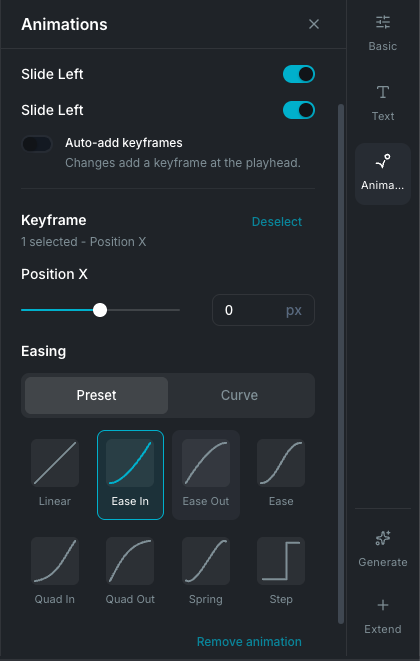
Wayaframe includes 15 easing presets across three categories. Select a preset from the Easing section in the property panel when a keyframe is selected. For more control, open the graph editor and adjust the curve handles directly.

Basic

  • Linear: constant speed from start to finish. No acceleration or deceleration.
  • Ease In: starts slow and accelerates toward the end. Good for objects leaving a resting position.
  • Ease Out: starts fast and decelerates toward the end. Good for objects arriving at a destination.
  • Ease (In-Out): slow at both ends with speed in the middle. The most natural-feeling motion for most animations.
  • Quad In: stronger ease-in curve with a more pronounced slow start.
  • Quad Out: stronger ease-out curve with a more pronounced gentle landing.
  • Spring: elastic motion that overshoots the target and bounces back. Creates a playful, energetic feel.
  • Step: instant jump from one value to the next with no transition. Useful for on/off states or frame-by-frame animation.

Advanced

  • Quad Ease: symmetrical quadratic curve, smooth and balanced.
  • Cubic In: stronger ease-in with a cubic acceleration curve.
  • Cubic Out: stronger ease-out with a cubic deceleration curve.
  • Cubic Ease: symmetrical cubic curve with a pronounced middle speed.

Elastic

  • Rebound In: overshoots backward before accelerating forward. Creates a wind-up effect.
  • Rebound Out: overshoots past the target before settling back. Creates a bounce-on-arrival effect.
  • Rebound Ease: overshoots at both ends. Creates a dramatic, energetic transition.

Custom bezier curves

For easing that doesn't match any preset, create a custom curve using the bezier editor.

Opening the curve editor

In the Easing section, switch from the Preset tab to the Curve tab. The editor shows an interactive graph representing the easing curve.

Editing the curve

The graph shows time on the horizontal axis and progress on the vertical axis. A straight diagonal line is linear (constant speed). Drag the control handles to reshape the curve:

  • Drag a handle to adjust the acceleration at that end of the curve.
  • Handles above the top create overshoot effects (the value temporarily exceeds the target).
  • Handles below the bottom create anticipation effects (the value temporarily moves backward).

The curve updates in real time on the canvas as you edit.

Graph editor

Graph editor

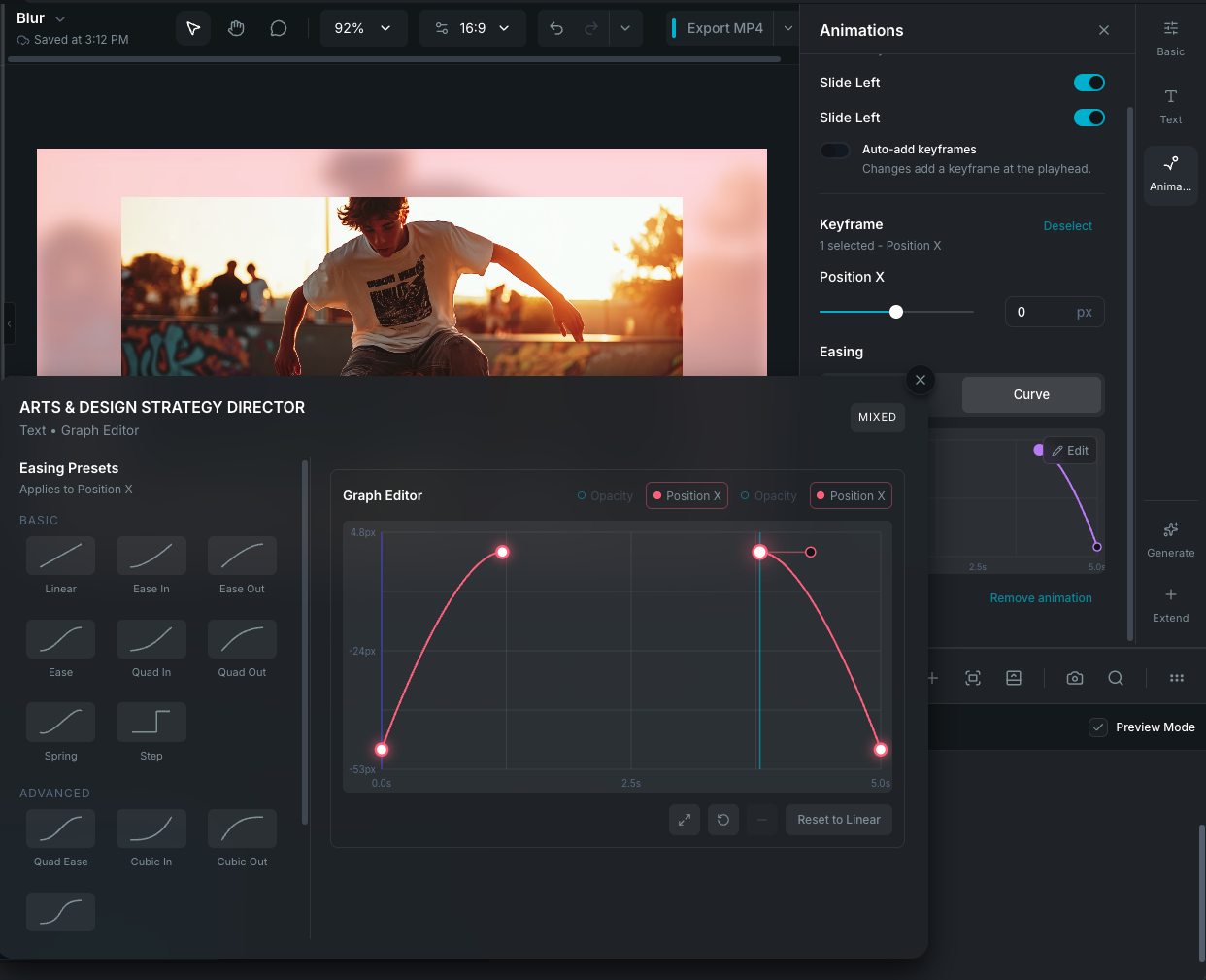
The graph editor gives you visual control over animation curves. It plots property values over time on an interactive graph, showing the exact shape of each animation.

Opening the graph editor

Click Edit in the animation curve preview in the property panel to expand the graph view.

What the graph shows

  • Horizontal axis: time (progress through the clip).
  • Vertical axis: property value.
  • Curve lines: colored by property, showing the interpolated path between keyframes.
  • Keyframe points: draggable circles on the curve.
  • Curve handles: control the shape of the curve between keyframes.
  • Playhead: vertical line showing the current time position.
  • Grid lines: reference grid for values and time.

Editing in the graph

  • Drag a point up or down to change its value, or left/right to change its timing.
  • Double-click the curve to add a new keyframe at that position.
  • Select a point to see its curve handles. Drag handles to adjust the easing between keyframes.
  • Hold while dragging a handle to break the tangent link and adjust each side independently.
  • Double-click a point to toggle between smooth and corner modes.

Graph actions

  • Fit to keyframes: zoom the view to show all keyframes.
  • Reset animation: clear all keyframes and return to default.
  • Delete selected: remove selected keyframe points.
  • Property toggles: show or hide individual properties on the graph.

Per-keyframe easing

Easing is set per keyframe, not per animation. This means each segment between two keyframes can have a different easing curve. For example, an element could ease out of its starting position, move linearly through the middle, and spring into its final position.

To change the easing for a keyframe, select it on the timeline or in the graph editor, then choose a preset or edit the bezier curve.

Animation timing

Entrance and exit timing

Using Animation Presets with entrance (In) or exit (Out) types are anchored to the start or end of the clip. Their duration is set independently from the clip length:

  • Entrance animations: play for the set duration starting from the beginning of the clip.
  • Exit animations: play for the set duration ending at the end of the clip.

Loop timing

Loop/combo animations span the full clip duration and repeat continuously. Their speed is tied to the clip length: longer clips mean slower cycles unless you adjust the duration.

Keyframe timing

For custom keyframe animations, timing is fully manual. Each keyframe sits at a specific progress point (0 to 1, representing start to end of the clip). You control exactly when each value change happens by positioning keyframes on the timeline or in the graph editor.

Wayaframe Help Center