Skip to content

Last updated on April 29, 2026

How to Achieve Character Consistency

Current AI image and video models generate short, isolated outputs. A single video generation might produce 5 to 15 seconds of footage, but most video productions require minutes of content. That means stitching together many separate generations, and because each generation is independent, the same person can look completely different from one clip to the next. Hair color shifts, facial features change, outfits swap without reason. Without deliberate effort, characters will not match across scenes.

This article covers how Wayaframe solves this problem. You get two levels of control: manual reference images for quick, one-off consistency, and the full AI Characters system for projects where a character appears repeatedly across scripts and scenes.

Using reference images for basic consistency

The simplest way to keep a character looking the same is to feed the AI model an image of that character every time you generate. Instead of relying on the model to imagine a face from a text description alone, you give it a visual anchor.

Why image-to-video beats text-to-video for consistency

Text-to-video models must figure out what every person looks like from scratch on every generation. Even with a detailed prompt, the model interprets facial features, hair, and body differently each time. Image-to-video models receive a visual starting point, so they preserve the look you already established.

The practical workflow is:

  1. Generate a hero image first. Use an image model (FLUX, Ideogram, Seedream, GPT Image, Nano Banana, Recraft, or others) to create a single image of your character that you are happy with.
  2. Use that image as a reference when generating new scenes. For each new scene, generate a new image of the character in that scene's context while providing your hero image as a reference input. Once you are happy with the scene image, generate a video in image-to-video mode using the image as the first or start frame, so the video model animates from your approved image rather than inventing a new face.
  3. Iterate on images, not videos. Image generations are faster, cheaper, and give you more control. For each scene, get the look right in a still image first, then convert that approved image to video. This minimizes the number of video generations you need and avoids spending credits tweaking video prompts to fix facial features.

Where to provide reference images

Reference images can be provided in several places across Wayaframe.

Generate panel (inside the video editor)

  1. Open the Generate panel from the editor's right sidebar.
  2. Choose an image model that supports reference or input images (most do). See How to Generate AI Images for which models accept references.
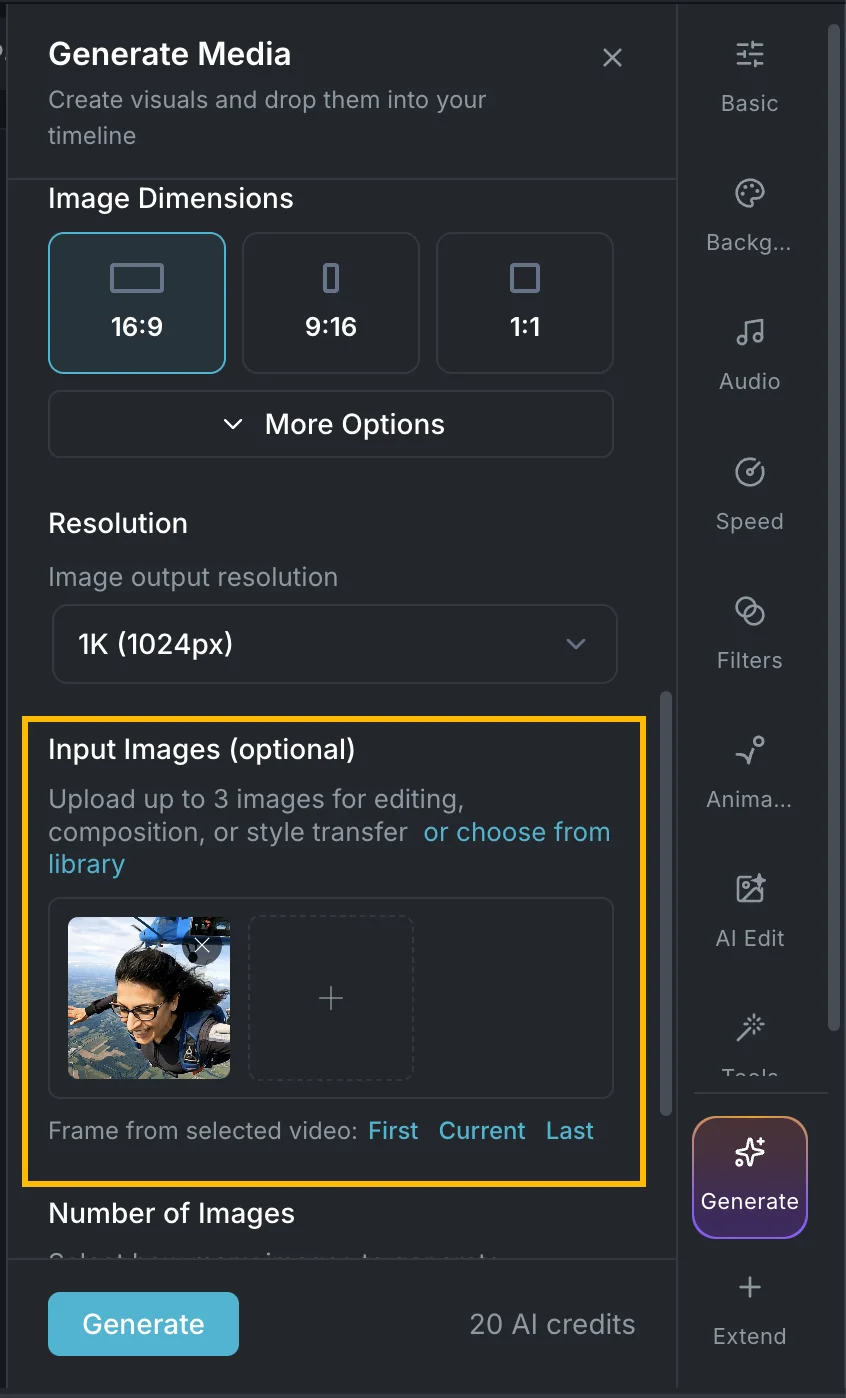
  3. Upload your reference image in the reference/input image field. Some models accept multiple reference images, so you can provide several angles or expressions of the same character for stronger consistency.
  4. Enter a prompt describing the scene. The model uses your reference image to maintain the character's appearance.

If you have an image or video clip selected on the timeline, Wayaframe automatically offers it as a reference. For video clips, you can choose the first frame, last frame, or the frame at the current playhead position.

Using a reference image in the Generate panel

Edit panel (inside the video editor)

  1. Select a clip on the timeline.
  2. Open the Edit panel from the inspector.
  3. The selected clip is automatically used as the editing source. Describe the changes you want while the model preserves the character's appearance from the source image.

AI Gen Studio

In the AI Generation Workspace, you can generate multiple variations and then reuse any result as a reference for the next generation:

  1. Generate an image you like.
  2. Click it in the generation timeline at the bottom of the workspace.
  3. Use it as the reference input for your next generation, either by uploading it to the reference field or by selecting it from recent generations.

This lets you iterate on a character's look across multiple generations without leaving the workspace.

Scene Director and Storyboard

The Scene Director has built-in support for carrying visuals forward between scenes:

  • Upload your own reference images to any scene's generation settings.
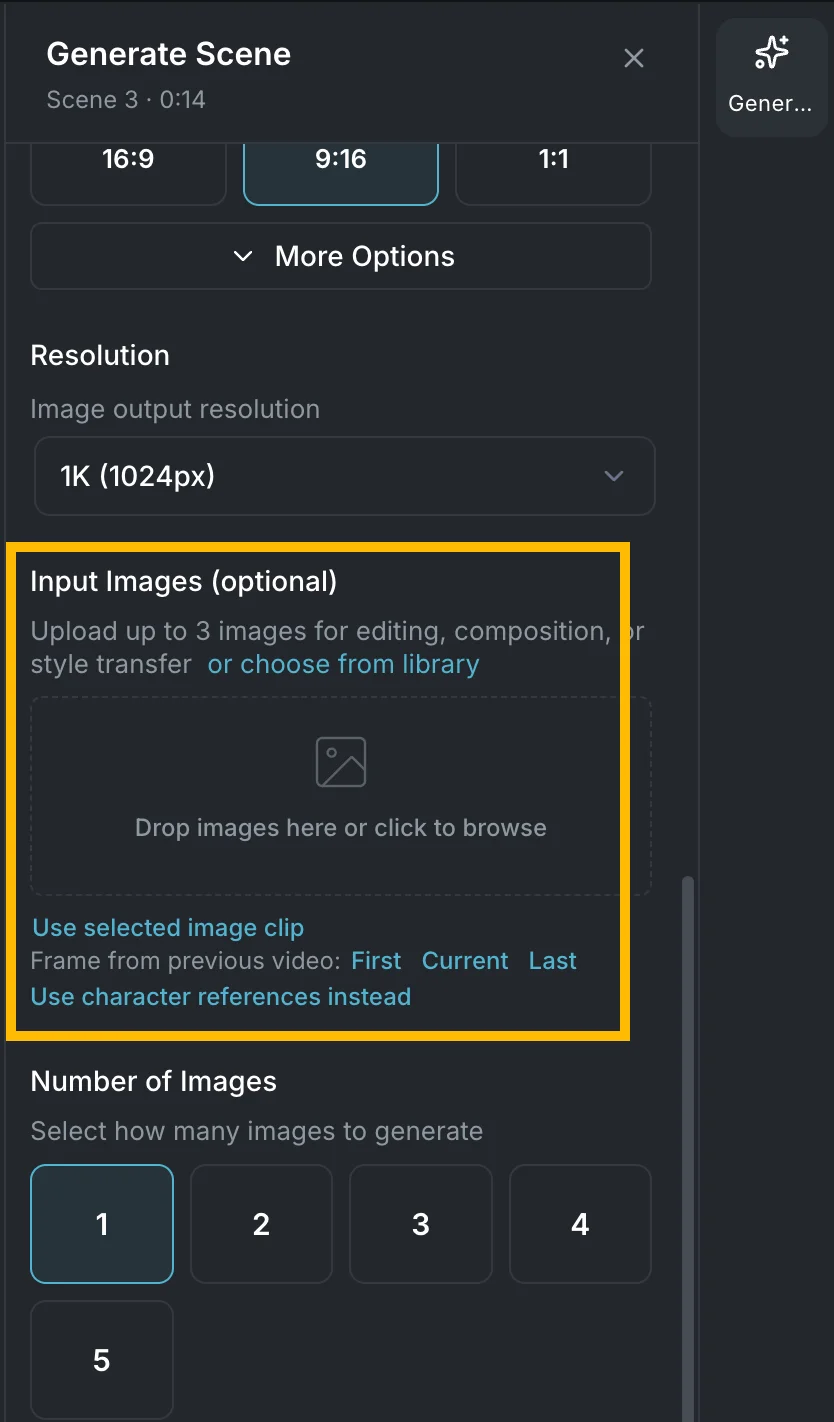
  • Use frames from the previous scene to continue the next one. The Scene Director makes it easy to grab the output of one scene and feed it as the starting frame for the next, keeping your character's appearance consistent across the storyboard.
  • All scene placeholders accept images, so you can upload approved character images before generating.

In the Scene Director, you can also capture a frame from any clip to use as a reference. Select a video clip and the Scene Director will offer the current frame (at the playhead position), the first frame, or the last frame as input. This helps you keep scenes flowing by using the end of one clip as the starting point for the next.

Using previous scene frames as reference in Scene Director

Using AI Characters

AI Characters take consistency from a manual process to an automated one. Instead of uploading reference images by hand each time, you create a character profile once and then mention it by name in any prompt. Wayaframe automatically handles the reference images, identity description, visual style, and voice assignment throughout your entire project.

Why create an AI Character

  • Visual consistency across generations. The character's facial features, hair, body type, and style are described in a structured profile that gets injected into every prompt where you mention them.
  • Reference images travel with the character. Upload reference photos once. Every generation that mentions the character automatically receives those images as model input (within each model's reference image limits).
  • Script awareness. When you generate a script, mentioned characters and their descriptions are passed to the AI so dialogue and scene descriptions stay true to the character.
  • Scene prompt grounding. Scene descriptions generated from your script automatically include character identity details and @handles, so the visual generation step knows exactly who appears in each scene.

Creating an AI Character

Open the Library and click AI Generate in the header, then select AI Characters to access the character editor.

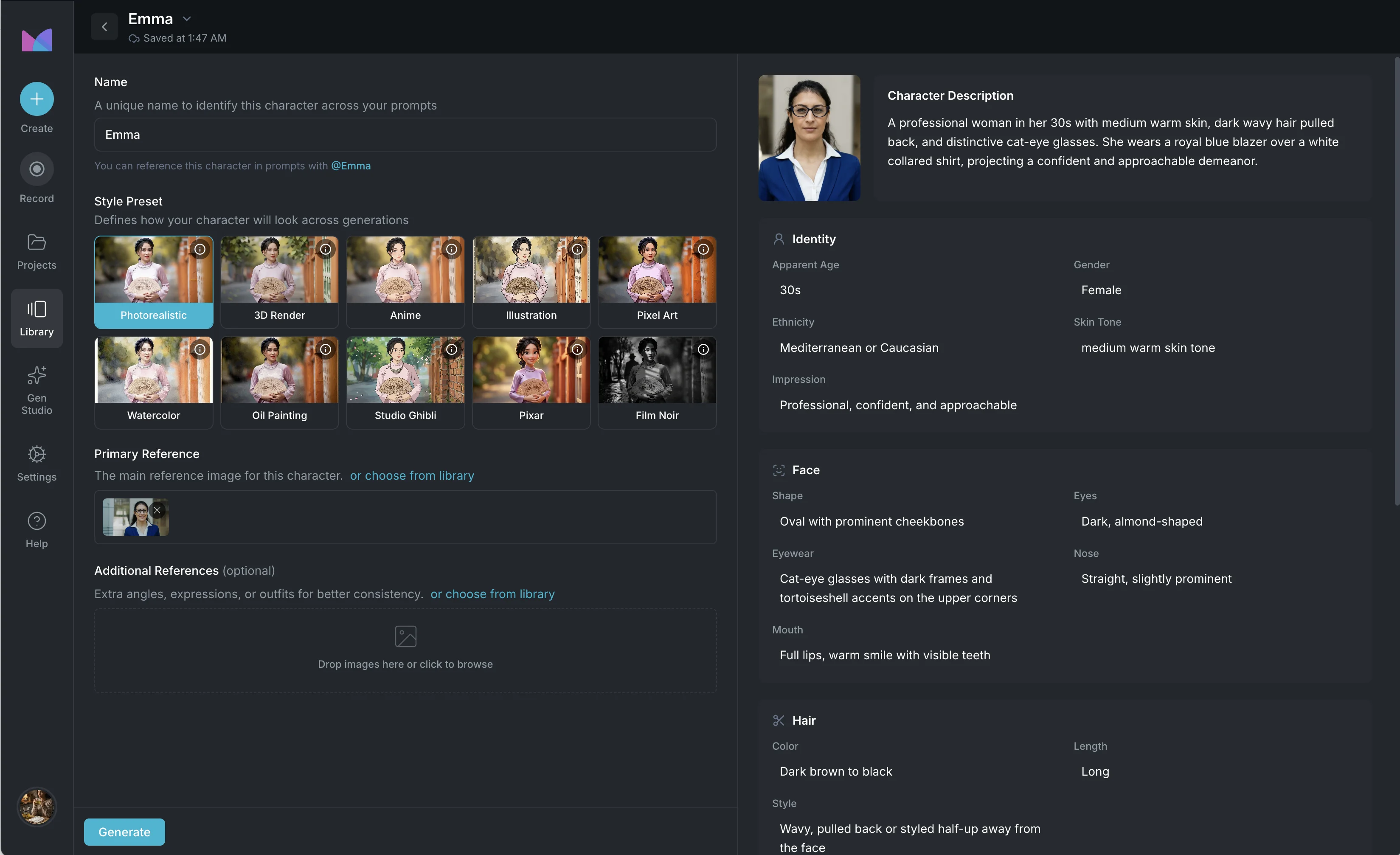
AI Character editor

Name and handle

Enter a name for your character. This becomes the character's @handle used to mention them in prompts (for example, @Mia). The name must be unique across your characters.

Visual style preset

Choose a style preset that defines how the character is rendered. There are 10 presets available:

  • Photorealistic — true-to-life rendering
  • 3D Render — clean CGI look
  • Anime — Japanese animation style
  • Illustration — hand-drawn digital art
  • Pixel Art — retro pixel style
  • Watercolor — soft painted look
  • Oil Painting — textured fine art
  • Studio Ghibli — Ghibli-inspired aesthetic
  • Pixar — 3D animation style
  • Film Noir — high-contrast black and white

The style preset is preserved per character. When multiple characters appear in the same prompt with different presets, each character maintains their own style independently.

Reference images

Upload a primary reference image that represents your character's definitive look.

You can also upload up to 6 additional reference images to show different angles, expressions, or outfits. These give the AI more context about how the character looks from different perspectives.

AI-powered character analysis

After uploading reference images and choosing a style, click the Generate button at the bottom of the left panel. Wayaframe uses AI to analyze your reference images and build a complete character profile. It detects and fills in the character's apparent age, gender, ethnicity, skin tone, face shape, eye color and shape, nose, mouth, hair color, length and style, body build, height impression, posture, default outfit, and overall impression. It also generates a written description and suggests tags for the character. You can edit any of these fields after generation to fine-tune details the AI may have missed or interpreted differently.

Structured description

The right panel displays the character's structured profile, organized into sections:

Identity — apparent age, gender presentation, ethnicity or ancestry, skin tone, and overall impression.

Face — face shape, eyes, eyewear, nose, mouth, and distinguishing features.

Hair — color, length, and style.

Body and Posture — build, height impression, and posture.

Wardrobe — default outfit and recurring accessories.

Each field is editable inline. Click any value to modify it. These details are injected into generation prompts to maintain the character's stable identity across all outputs.

Consistency rules

At the bottom of the structured description, you can add custom consistency rules. These are free-text guidelines that get included in every generation prompt for this character. Use them for specific instructions that don't fit into the structured fields:

  • "Always wears a silver pendant necklace"
  • "Has a small scar above the left eyebrow"
  • "Never smiles with teeth"
  • "Tattoo of a compass on the right forearm"

Add up to 6 rules for each character. They are prioritized in the prompt assembly so they are preserved even when the prompt budget is tight.

Mentioning characters in prompts

Once you have created an AI Character, mention them in any generation prompt using the @ symbol followed by the character name.

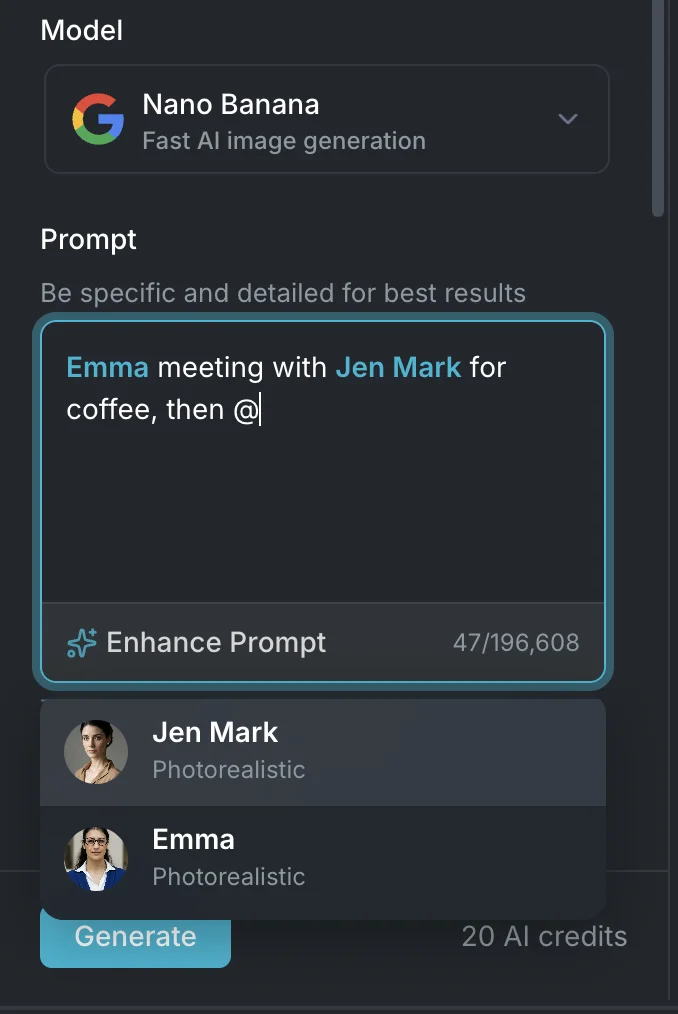
Mentioning AI Characters in a prompt with the @ dropdown

Where @mentions work

@mentions are available in most prompt input fields across the app:

  • Generate panel — mention characters when generating images or videos in the editor.
  • Edit panel — mention characters when editing existing clips with AI.
  • AI Gen Studio — mention characters in the Library's generation workspace.
  • Scene Director — mention characters in scene prompts to generate scene images and videos with consistent characters.
  • Script generation — mention characters in your video idea prompt so the AI incorporates them into your script.
  • Voice Designer — mention characters when generating voiceovers. The character's name is spoken naturally in the generated audio.
  • Prompt Enhancer — mention characters when improving your prompt. The enhancer preserves character references while refining the rest of the prompt.

How @mentions work

  1. In any prompt input field, type @ to trigger the character mention dropdown.
  2. A list of your AI Characters appears, showing each character's thumbnail and style preset.
  3. Select a character or continue typing to filter the list.
  4. The character name is inserted as a styled mention token in the prompt.

For example:

@Mia taking an early morning run through the park, listening to music with earbuds in

When you generate with this prompt, Wayaframe automatically:

  • Injects the character's structured identity description into the prompt
  • Attaches the character's reference images to the generation request (within the model's reference image limits)
  • Preserves the character's visual style preset
  • Applies any consistency rules

Mixing multiple characters

You can mention multiple characters in the same prompt:

@Mia and @Jake sitting across from each other at a coffee shop, deep in conversation

Each character's identity, reference images, and style are included independently. Wayaframe keeps each character's visual style separate and instructs the model not to merge or average styles across characters. Up to 8 characters can be referenced in a single generation.

Prompt budget and character context

Each AI model has a maximum prompt length. When you mention characters, Wayaframe reserves space in the prompt budget for character identity blocks. The system automatically manages this by:

  • Reserving up to 1,500 characters for character context
  • Compressing character descriptions into compact, medium, or full detail levels depending on the available budget
  • Prioritizing stable identity facts (face, hair, age, distinguishing features) and consistency rules over less critical details
  • Reducing the user prompt space proportionally so the total stays within model limits

You don't need to manage this manually. The prompt input shows the remaining character count, which already accounts for character context space.

How characters flow through your project

AI Characters are not just for image and video generation. They integrate with every stage of Wayaframe's guided project creation flow.

Script generation

When you generate a script, mention your characters in the video idea prompt:

A day in the life of @Mia, a freelance photographer exploring Tokyo for the first time

The script generator receives the character's full context: name, description, and structured summary. The generated script uses the character by name consistently throughout, and dialogue and scene descriptions stay true to the character.

Scene generation

When your script generates scene descriptions, mentioned AI Characters are embedded into each scene prompt. The system:

  • Identifies which characters appear in each scene based on the script
  • Includes their @handles in scene prompts so visual generation models receive the character identity
  • Preserves character details: face, hair, age, body, distinguishing features

How model settings forms handle characters

When you mention a character in a prompt and open the model settings for image or video generation, the reference image section changes to reflect the character's references:

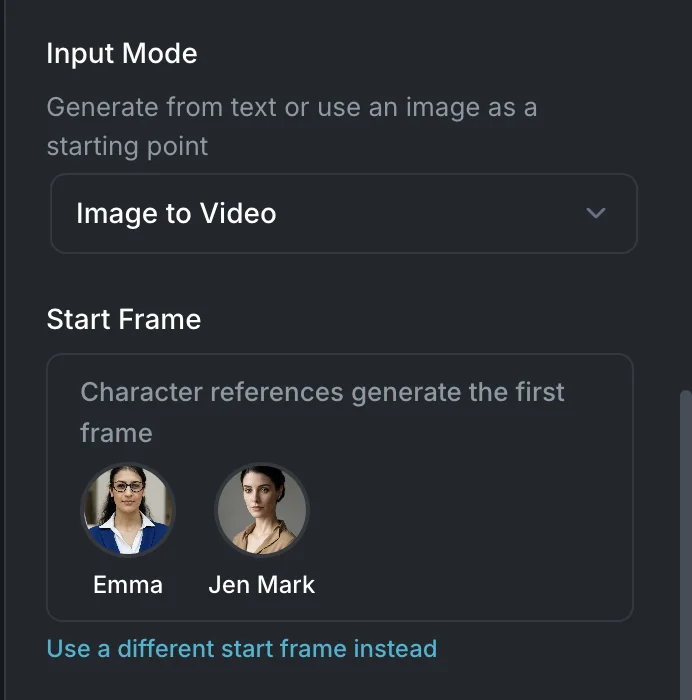
  • A Character References card appears showing the avatars and names of all mentioned characters.
  • The character's reference images are automatically attached to the generation request. You don't need to upload them manually.
  • If a model has a reference image limit (for example, Ideogram supports 3 character references, FLUX.2 supports 10), Wayaframe shows a warning when the number of character references exceeds the limit and indicates how many will be dropped.
  • You can click Use different reference to switch back to manual reference image uploads if needed.

For video generation with characters, Wayaframe can automatically generate a start frame image using the character's references before creating the video. This happens when:

  • A character is mentioned in the video prompt
  • Character references are enabled
  • No start frame has been manually provided

The start frame is generated as a still image first, then passed to the video model as the input frame, combining the character reference workflow with the image-to-video consistency approach.

Character references in model settings

Wayaframe Help Center