Skip to content

Last updated on April 21, 2026

Applying Visual Effects

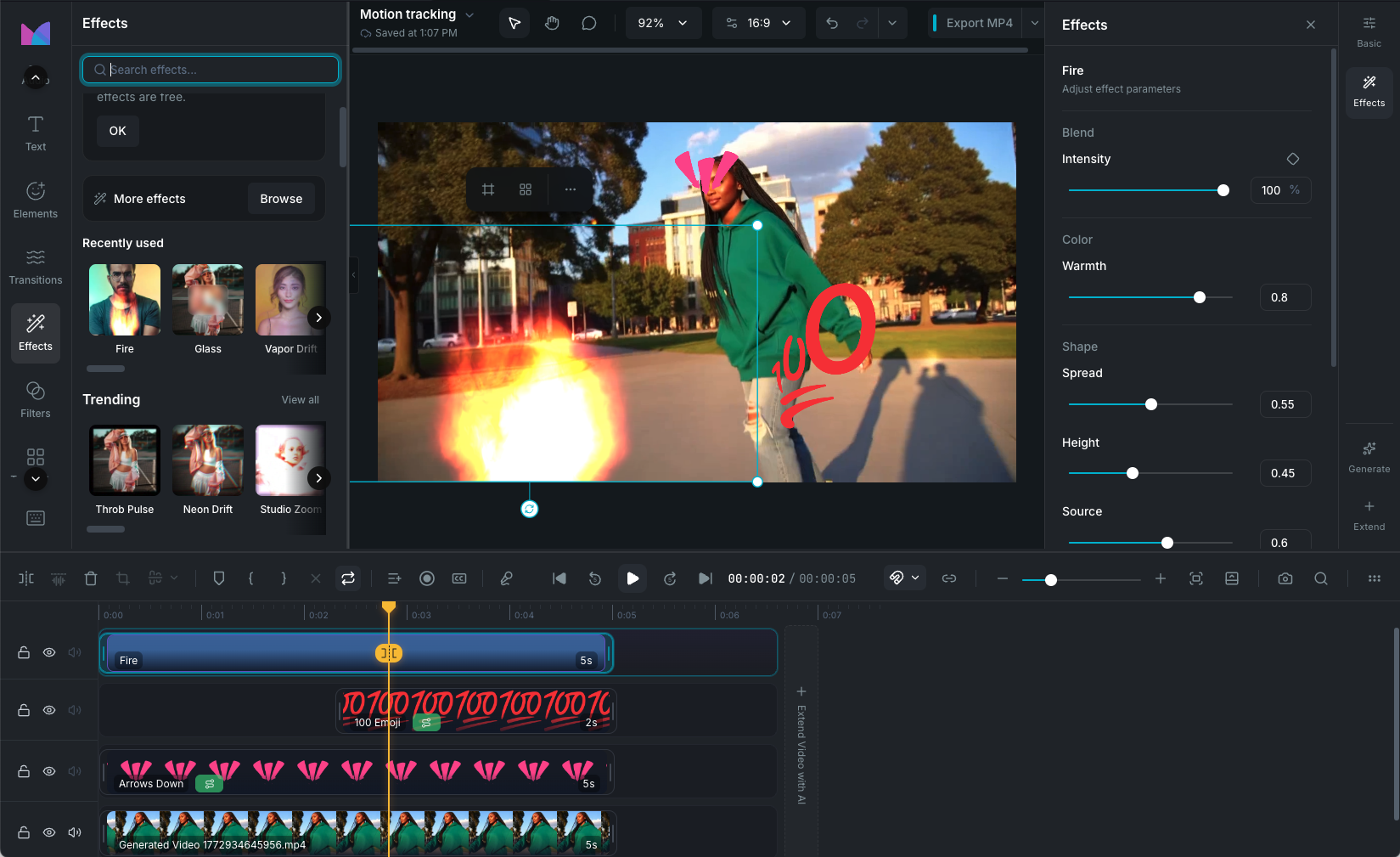
Effects add dynamic visual treatments to your video. From subtle light leaks to dramatic glitch transitions, each effect sits on the timeline as its own clip so you can position, time, and customize it independently. Browse 118+ effects across 16 categories from the Effects panel in the sidebar.

Visual effects panel

Browsing effects

The Effects panel organizes 118+ effects across 16 categories:

  • Trending, Hits: popular and featured effects.
  • Intro & Outro: wipes, reveals, iris circles, curtain reveals, and transition-style effects.
  • Motion: zoom, pulse, shake, and movement effects.
  • Light: bursts, flash washes, bokeh, light rays, and horizon glow.
  • Retro: VHS, vintage film, and nostalgic looks.
  • Glitch: shift, dispersion, rift, fluid, and stutter effects.
  • Sparkle: glow, dream, starlight, crush, orbit, and sparkler effects.
  • Distortion: zoom blur, tilt shift, lens flare, pixel sort, and ripples.
  • Screen, Split: screen effects and split-screen treatments.
  • Interface: UI-style overlays.
  • Graffiti: graffiti and street-style overlays.
  • Celebrate, Party: confetti, fireworks, and celebration effects.
  • Weather: rain, snow, fog, lightning, fire, and smoke overlays.

Use the search bar to filter by name, or click the quick filter tags (blur, retro, shake, zoom, distortion, sparkle, split, glow, party, glitch, screen, glass) to narrow results. Recently used effects appear at the top for quick access.

Adding effects

Click an effect to add it at the playhead, or drag it onto the timeline. Each effect becomes its own clip that you can position, resize, and time independently. Multiple effects can be stacked on the same area of the timeline.

Customizing effects

Select an effect clip to see its controls in the property panel:

  • Intensity: 0 to 100%, controls how strongly the effect is applied. Keyframeable.
  • Effect-specific parameters: each effect has its own set of controls (sliders, color pickers, toggles, dropdowns) for fine-tuning the look. For example, a pulse effect has amplitude and frequency controls, a glitch effect has pattern and intensity options.
  • Reset: restore all parameters to the effect's defaults.

Wayaframe Help Center