Skip to content

Last updated on April 21, 2026

How to Create and Edit Charts

Charts in the editor

Finding charts

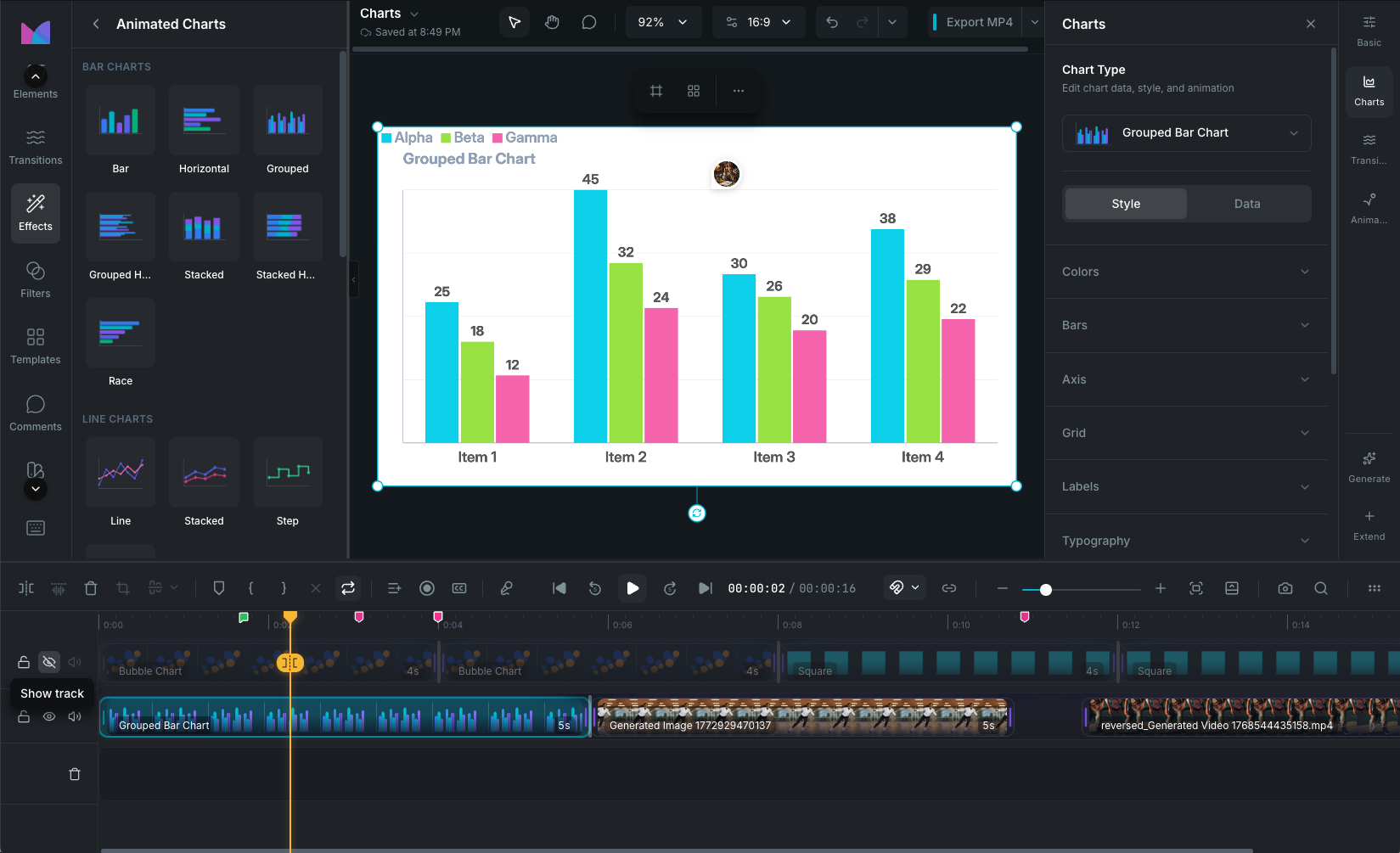
Open the Effects panel in the sidebar and scroll to the Animated Charts section. Charts are organized into categories with thumbnail previews of available chart types.

  • Search: type to filter charts by name.
  • Browse categories: click a category to see all chart types in that group.

Adding a chart to the timeline

  • Click a chart preset to insert it at the playhead position.
  • Drag and drop a preset from the sidebar onto a specific position on the timeline.

The chart is added as a clip with sample data already filled in. Replace the sample data with your own in the data table.

Choosing the right chart type

Bar charts

Best for comparing values across categories. Use grouped bars to compare multiple series side by side, stacked bars to show both individual and total values, and bar race to animate rankings over time.

Line charts

Best for showing trends over time. Use stacked lines for cumulative totals, step lines when values change at discrete points, and line race to animate growth over time.

Area charts

Best for emphasizing volume. Use stacked areas for part-to-whole composition over time, gradient areas for a polished style, and percent areas for proportional comparisons.

Pie and donut charts

Best for part-to-whole breakdowns. Use donut for a center label, half donut for a compact layout, and nightingale (rose) for polar area comparisons.

Scatter charts

Best for showing relationships between variables. Use bubble when a third variable (size) adds meaning, and connected scatter to show a path through the data.

Changing chart type

After creating a chart, switch to a different type from the properties panel. Click the chart type dropdown and select a new type. Wayaframe automatically remaps your data to fit the new chart structure. Data is preserved wherever possible, with columns added or removed as needed.

Editing data

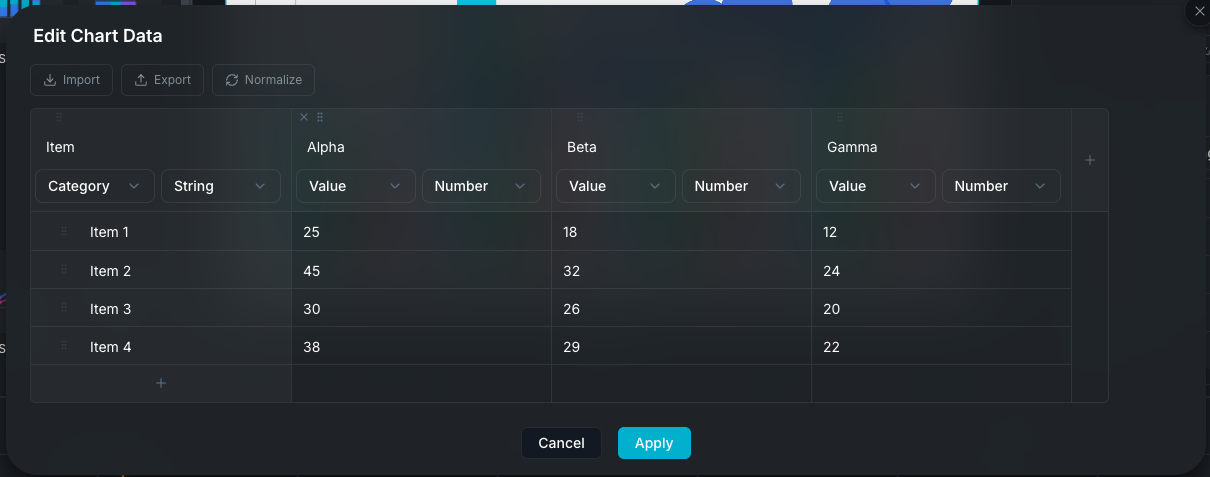
Select a chart clip to open the Data tab in the property panel. The data table shows your chart's values in an editable grid.

Chart data table

Data table

  • Edit cells: click any cell to edit its value inline.
  • Add rows: click the + button to add a new row.
  • Add columns: click the + button at the right to add a new value column.
  • Delete rows and columns: click the X button on any row or column header. At least one row and one column are required.
  • Reorder: drag rows or columns by their handle to rearrange them.
  • Resize columns: drag the right edge of a column header to adjust width.
  • Column roles: set each column's role (category, value, size, or series) from the dropdown in the column header. This tells the chart how to interpret the data.
  • Column types: set data type (number, string, or date) per column.
  • Expanded view: click the expand button to open the data table in a larger modal for easier editing.
  • Normalize: click the refresh button to restructure the data for the current chart type.

Import and export data

You can also load data into a chart from the Data tab:

  • Import: click the import button to load data from a CSV, XLSX, or XLS file. The new data replaces the current table. Headers and column types are auto-detected.
  • Export: download the current data as CSV or XLSX from the dropdown.

TIP

If you're preparing a spreadsheet to import, export the sample data first using the export button. This gives you a properly formatted template that matches the structure the chart system expects. Fill in your own values and re-import.

For creating a chart from a spreadsheet in one step, see Importing Spreadsheet Data into a Chart.

Colors

Expand the Colors section in the Style tab to control the chart's color scheme.

Color palettes

Click the palette selector to open a grid of available palettes. 20 built-in palettes are included: Default, Vivid, Bold, Ocean, Earth, Neon, Pastel, Sunset, Contrast, Slate, Tropical, Berry, Citrus, Nordic, Retro, Forest, Candy, Corporate, Warm Tones, and Cool Tones.

You can also create your own palettes by clicking + New in the palette dropdown. Custom palettes appear above the presets and can be edited at any time by hovering and clicking the pencil icon.

Custom series colors

After selecting a palette, you can override individual series or segment colors. Each series shows a color swatch below the palette selector. Click any swatch to open the color picker and choose a solid color or gradient.

Background

Set an optional background color or gradient behind the chart. Leave it empty for a transparent background.

Bar chart styling

  • Bar width: 10% to 100% of available space.
  • Corner radius: round bar corners individually or uniformly.
  • Border: width and color.
  • Fill opacity: 0% to 100%.
  • Sort data: none, ascending, or descending.
  • Animation direction: controls the order bars animate in. Options depend on orientation: left-to-right/right-to-left for vertical bars, top-to-bottom/bottom-to-top for horizontal bars, plus center and random for both.

Line chart styling

  • Stroke width: 0 to 20px.
  • Smoothing: 0% to 100% (Bezier interpolation).
  • Line style: solid, dashed, or dotted.
  • Show points: toggle data point markers.
  • Point style: circle, square, diamond, or triangle.
  • Point size: 10 to 100px.
  • Step position (step line only): before, after, or middle.

Area chart styling

  • Fill style: solid or gradient.
  • Fill opacity: 5% to 100%.
  • Stroke width: 0 to 20px.
  • Smoothing: 0% to 100%.
  • Show points: toggle with configurable style and size.

Pie and donut styling

  • Segment gap: 0 to 100px between slices.
  • Corner radius (donut, half donut, nightingale): round segment edges (0-100%).
  • Inner radius (donut, half donut, nightingale): size of the center hole (10-85%).
  • Start angle: 0 to 360 degrees.
  • Explode offset: pull segments outward for emphasis.
  • Minimum angle: floor size for tiny segments.
  • Segment sorting: none, ascending, or descending.
  • Stroke: color and width.
  • Fill opacity: 0% to 100%.
  • Rose mode (nightingale only): compare by radius or area.
  • Center label (donut, half donut, nightingale): display a title and value inside the center hole with custom font, size, and color.
  • Segment names: show or hide with placement (auto, inside, outside, callout).

Scatter chart styling

  • Point shape (scatter only): circle, square, diamond, or triangle.
  • Point size (scatter only): 10 to 100px.
  • Point opacity: 10% to 100%.
  • Outline: toggle with width and color.
  • Bubble min/max radius (bubble only): minimum radius (2-16px) and maximum radius (16-200px) to control the size range.
  • Trend line (scatter and bubble only): toggle with type (linear, polynomial, exponential, logarithmic), color, width, and dash style.
  • Connected scatter lines (connected scatter only): line width, style, color, and show points toggle.

Axes

  • Category axis: show or hide, custom label, rotation (auto, 0, 45, 90 degrees).
  • Value axis: show or hide, custom label, min and max bounds.
  • Axis thickness: 0 to 20px.
  • Axis color: customizable.

Grid

  • Direction: horizontal, vertical, or both.
  • Style: solid, dashed, or dotted.
  • Color and opacity: customizable.

Legend

  • Position: top, bottom, left, or right.
  • Alignment: start, center, or end.
  • Orientation: horizontal or vertical.
  • Marker shape: square, rounded square, or circle.
  • Size and color: customizable.

Value labels

  • Show or hide: toggle data values on chart elements.
  • Placement: auto, above, below, inside, outside, callout, and more.
  • Format: auto, number, percent, currency, or custom.
  • Prefix and suffix: text before or after values (e.g. "$", "%").
  • Decimal places: control precision.

Typography

Three text styles control all chart text:

  • Title style: font family, size (8-48px), color, bold, italic, alignment, and text transform.
  • Value style: font family, size (8-24px), color, bold, italic, and text transform.
  • Label style: font family, size (8-24px), color, bold, italic, and text transform.

Background and title

  • Background: solid color or gradient behind the chart. Leave empty for transparent.
  • Title: optional text displayed above the chart, using title text styling.

Animation

Charts animate automatically when they appear on the timeline.

  • Duration: 150ms to 30 seconds (up to 60 seconds for race charts). Default: 1.2 seconds.
  • Stagger: delay between series so they animate in sequence.
  • Easing: linear, ease in, ease out, ease in-out, or ease out-back.
  • Energy: low, medium, or high intensity.

Race chart animation

Race charts have additional controls:

  • Auto reorder (Bar Race): bars automatically sort by value as the animation progresses, creating the racing effect.
  • Draw style (Line Race): controls how lines appear during the race (draw along, grow up, fade in, points first).

Wayaframe Help Center