Skip to content

AI Gen Studio

AI Gen Studio is the Library's dedicated workspace for AI image and video generation. It gives you a full creative environment for generating, comparing, reviewing, and exporting visuals, all before committing anything to a project timeline.

To open AI Gen Studio, click AI Gen Studio in the app's main sidebar. You can also access it from the AI Generate button in the Library header, which opens a menu with quick links to Generate Image, Generate Video Clip, Image to Video, and more. For details on available models, parameters, and editing capabilities, see Image Generation and Video Generation.

Workspace layout

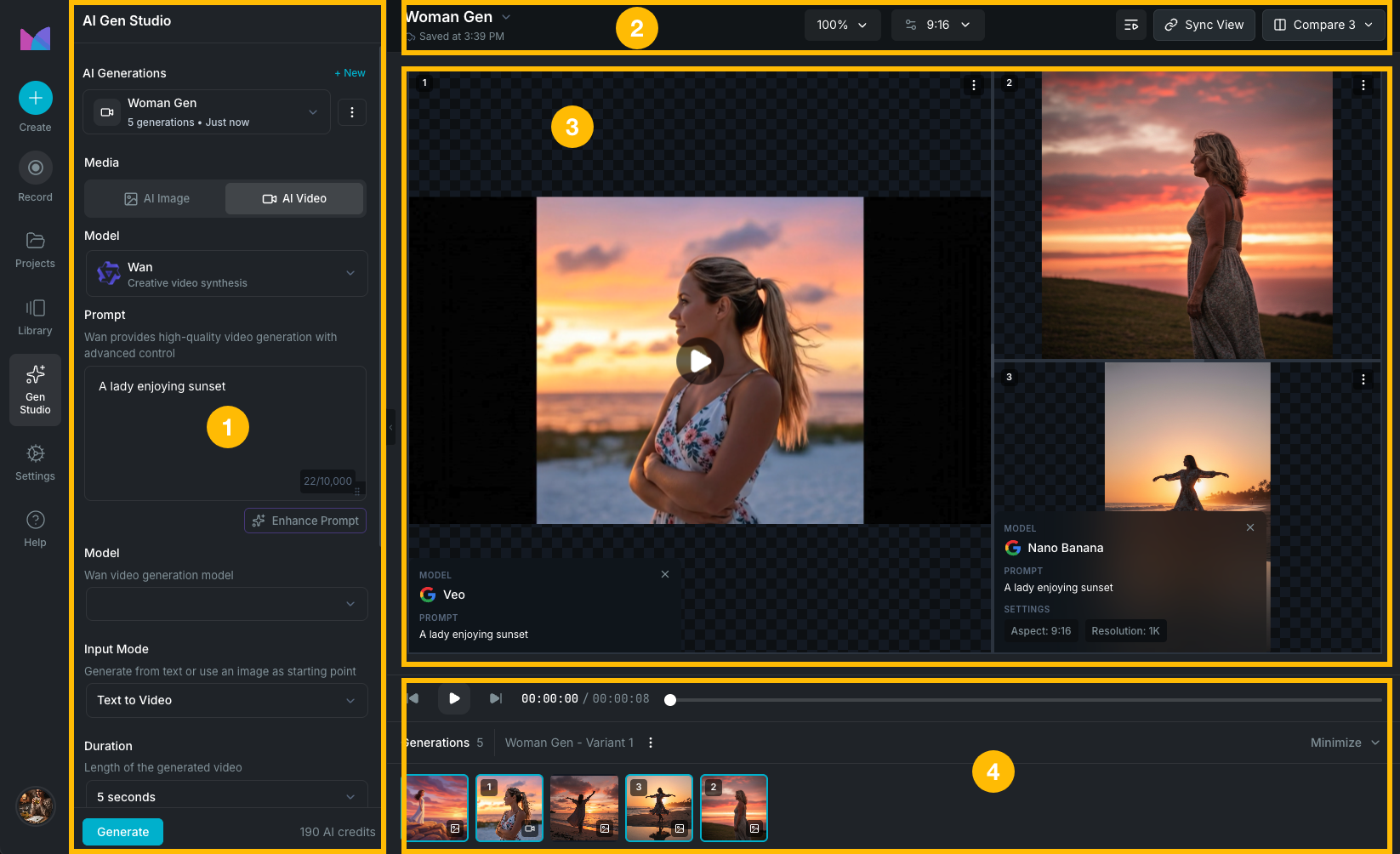
The workspace is organized into four areas:

AI Gen Studio workspace

  1. Sidebar (left, collapsible): project selector, generation status indicator, model and settings form, and a generate button with real-time credit cost estimates.
  2. Header (top): project title and menu, zoom controls, aspect ratio selector, comparison mode toggle, and export button.
  3. Canvas (center): preview area for the current generation. Supports zoom and pan. Generated videos play directly here with full playback controls.
  4. Generation timeline (bottom): expandable footer showing thumbnails of all past generations. Click any thumbnail to load it on the canvas.

Generation sessions

AI Gen Studio organizes your generation work into separate sessions. Each session has its own generation history, settings, and canvas state. These are independent from your video projects.

  • Create: click New in the session selector to start fresh.
  • Switch: use the dropdown in the sidebar to move between sessions.
  • Rename: open the title dropdown in the header and select Rename.
  • Delete: open the title dropdown and select Delete.

Mode switching

Use the mode selector in the sidebar to switch between Image and Video generation. Switching modes updates the available models and settings. You can generate both image and video content within the same project.

Canvas

The canvas displays your current generation on a checkerboard background.

  • Zoom: use the header dropdown to zoom between 10% and 500%, or choose presets like Fit, Fill, or 100%. You can also zoom with the mouse scroll wheel.
  • Pan: click and drag with the middle mouse button to pan around the canvas.
  • Video playback: generated videos play directly on the canvas with play/pause, skip forward/back, seek bar, and timecode display.

Comparison mode

Compare multiple generations side by side to evaluate results before choosing one.

Activating comparison mode

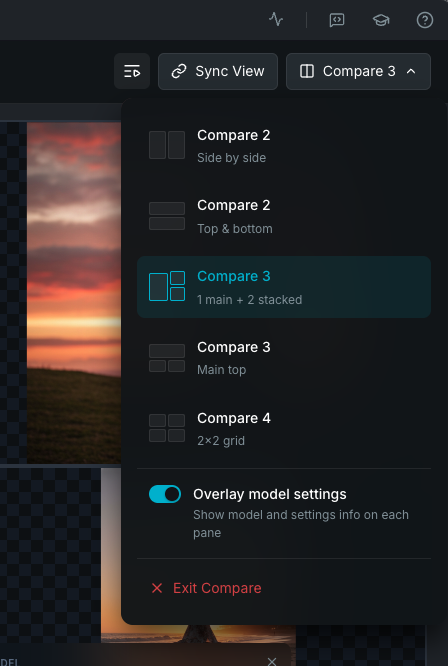
Click the Compare button in the header. Choose a layout from the dropdown:

  • Compare 2: Side by side.
  • Compare 2: Top & bottom.
  • Compare 3: 1 main + 2 stacked.
  • Compare 3: Main top.
  • Compare 4: 2×2 grid.

Toggle Overlay model settings to show model and settings info on each pane. Click Exit Compare to return to single view.

Comparison mode layouts

Working with panes

  • Click a pane to select it as the active generation target.
  • Drag generations from the timeline into any pane to swap them.
  • Drag the resize handle between panes to adjust the split ratio.
  • Toggle Overlay to show generation metadata (model, prompt) on each pane.

Synced playback

When comparing video generations, toggle Sync View to synchronize zoom, pan, and video playback time across all panes. This makes it easy to compare the same moment across different models or settings.

Generation timeline

Every generation is saved to the timeline at the bottom of the workspace. Click any thumbnail to load it on the canvas.

Actions per generation

Generation context menu

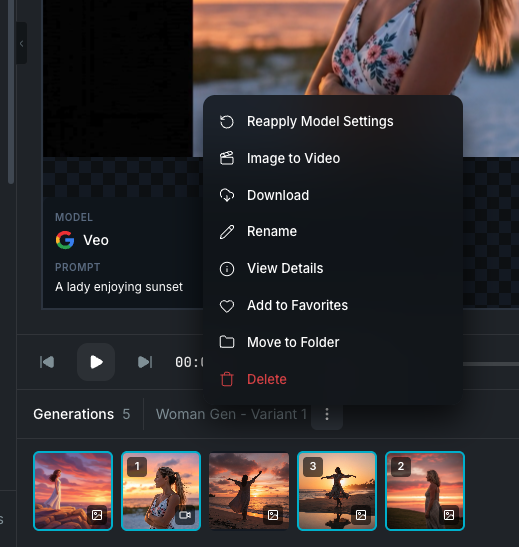
Right-click a generation or open its context menu to access:

  • Reapply Model Settings: regenerate using the same prompt, model, and settings.
  • Image to Video: convert an image generation into a video clip by selecting a video model. See Image to video.
  • Download: save the image or video file to your computer.
  • Rename: change the generation name.
  • View Details: see the full generation metadata including prompt, model, aspect ratio, and timestamps.
  • Add to Favorites: mark for quick access.
  • Move to Folder: organize the generation into a library folder.
  • Delete: remove the generation.

Export to Video Editor

Send your generations to the editor to build a video project from them.

Export to Video Editor modal
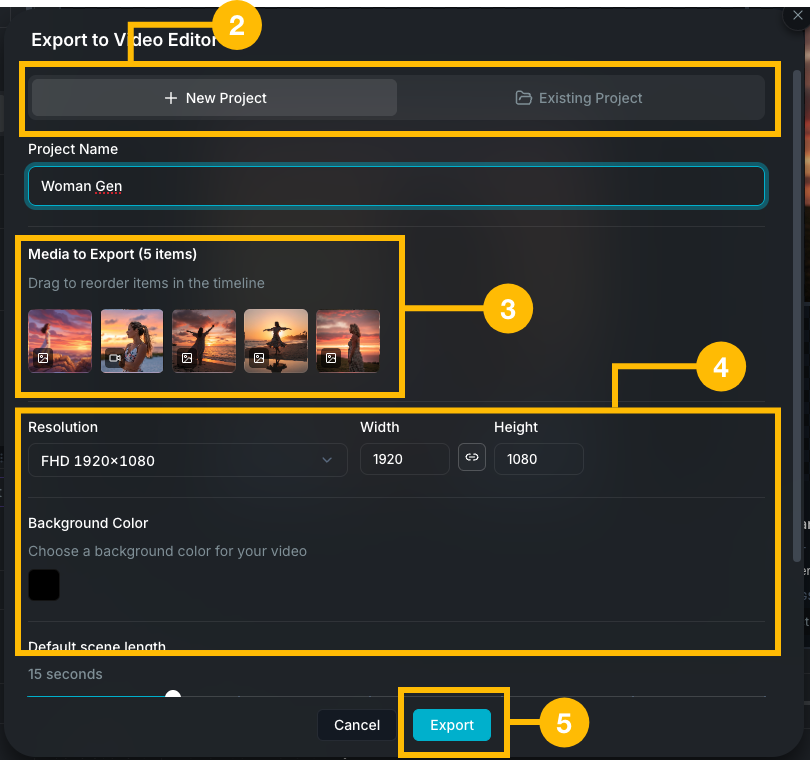
  1. Click the Export button in the header to open the Export to Video Editor modal.
  2. Choose a destination:
    • New Project: enter a project name and configure the project setup fields below.
    • Existing Project: select from a list of your current projects. The generations are added to the existing timeline.
  3. Review the Media to Export section, which shows thumbnails of all selected generations. Drag to reorder them, as this determines their order on the timeline.
  4. For new projects, configure the following (see Project setup fields for full details):
    • Resolution: choose a preset or set a custom width and height.
    • Background Color: set the canvas fill.
    • Default scene length: set how long each exported image stays on screen (slider control).
  5. Click Export. Wayaframe creates the project (or updates the existing one) and opens it in the editor with your generations placed on the timeline.

Wayaframe Documentation