Skip to content

Motion Tracking

Motion Tracking lets you follow a point of movement in a video and attach other elements to it. Place a tracker on a face, logo, object, or any high-contrast feature, and Wayaframe analyzes each frame to record how it moves. Then attach text, stickers, images, or other clips as followers, and they move along with the tracked point automatically.

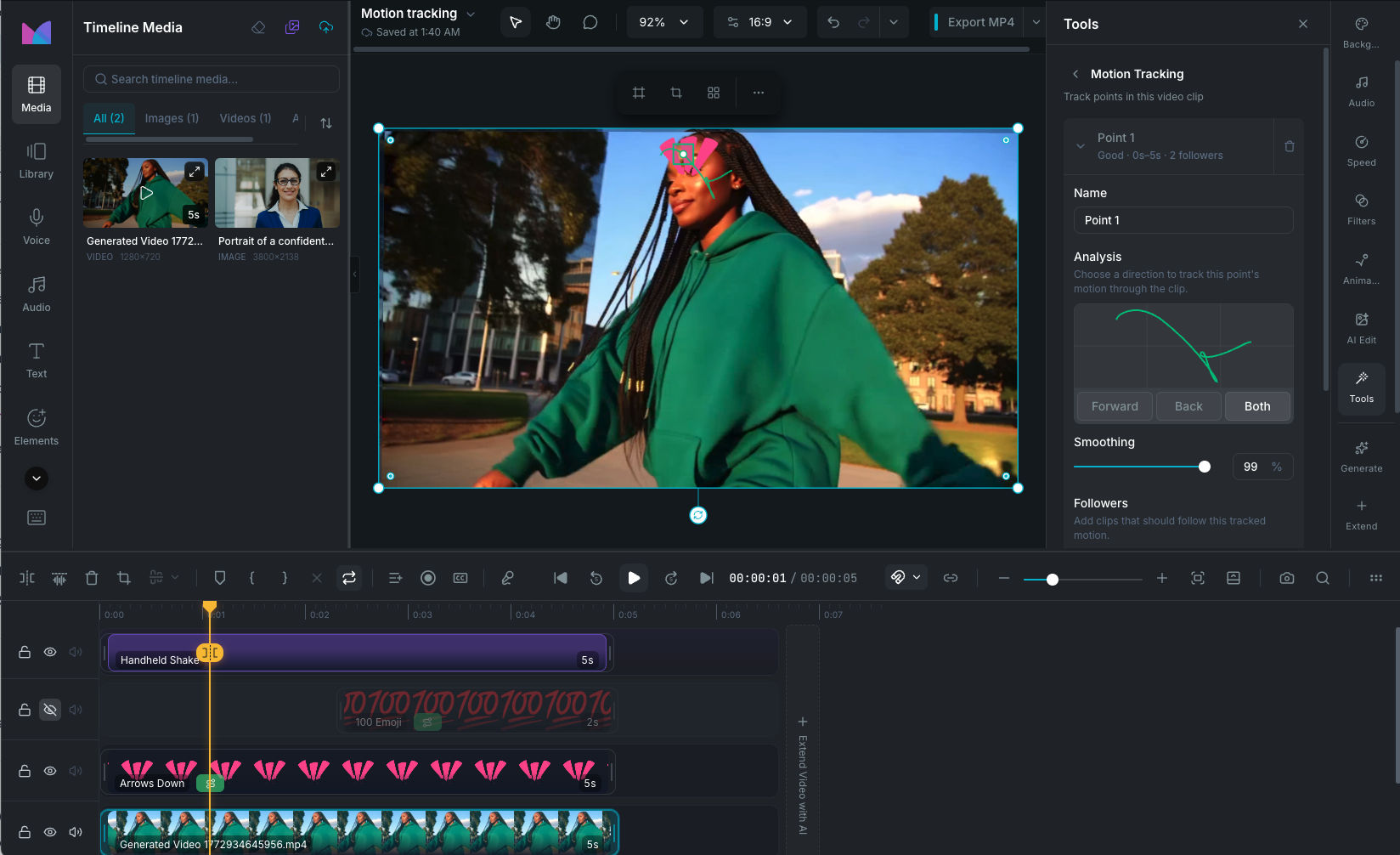
Motion Tracking panel

Opening Motion Tracking

Select a video clip on the timeline, then open the Tools tab in the property panel and click Motion Tracking. The Motion Tracking panel opens with controls for managing track points.

Motion Tracking is only available on video clips. If the track is locked, unlock it first to access the feature.

Adding a track point

Click Add track point in the Motion Tracking panel. A tracker appears on the canvas as a green box. Drag it to position it over a high-contrast feature you want to track, such as a face, logo, corner, or distinct object edge.

You can add multiple track points to a single video clip. Each point tracks independently and can have its own set of follower clips.

Tracker and search regions

Each track point has two regions:

  • Tracker region (inner box): the specific feature the algorithm will follow. A smaller region works best on distinct, high-contrast features.
  • Search region (outer area): the surrounding area where the algorithm looks for the feature in each frame. Defaults to twice the tracker size.

Position the tracker region precisely over the feature you want to follow. The search region adjusts automatically.

Running the analysis

Once your track point is positioned, choose a tracking direction:

  • Forward: track from the current playhead position to the end of the clip.
  • Backward: track from the current playhead position to the beginning.
  • Both: track in both directions from the current position. This is the most common option.

Click the direction button to start. A "Tracking..." indicator appears with a Cancel button if you need to stop.

Tracking status

After analysis, each track point shows one of these statuses:

  • Good: tracking succeeded with high confidence. The point is ready to use.
  • Needs review: tracking completed but with lower confidence. Check the results visually and consider repositioning the tracker on a more distinct feature.
  • Failed: the algorithm could not track the feature. Reposition the tracker on a higher-contrast area and try again.
  • Idle: no tracking has been performed yet.

Reviewing results

Motion path on canvas

When a track point has been analyzed, the canvas shows a green path line tracing the point's trajectory through the video. Play the clip or scrub through the timeline to see the tracker follow the motion.

Analysis graph

The Motion Tracking panel includes a graph showing the tracked motion over time. This helps you spot frames where tracking confidence drops or where the tracker may have lost the target.

Smoothing

The Smoothing slider (0 to 100%, default 18%) controls how much the tracked path is smoothed. Smoothing removes jitter and camera shake from the raw tracking data, producing more natural-looking motion. Changes update in real time on both the canvas and any attached followers.

Attaching follower clips

Once a track point is analyzed, attach other clips to follow its motion:

  1. Expand the track point in the panel.
  2. Click Add follower clip.
  3. Search for and select the clip you want to attach.

The follower clip's position is now driven by the tracked motion. As the tracked point moves through the video, the follower moves with it.

Supported follower clip types

  • Video clips
  • Image clips
  • Text clips
  • Sticker clips

Effect clips, waveform clips, chart clips, and audio clips cannot be followers.

Editing followers

Each attached follower shows two controls:

  • Route icon: opens the motion path settings for the follower, where you can adjust the anchor point, orientation (fixed or along path), and timing.
  • Remove (X): detaches the follower from the tracked point.

Refining and retracking

If the results aren't accurate:

  • Move the tracker: drag it to a better position on the canvas. This clears the existing samples and sets the status to "Needs review". You must re-track to get updated results.
  • Adjust smoothing: increase smoothing to reduce jitter or decrease it for more precise motion.
  • Re-track in a different direction: cancel and choose a different direction to track a specific section of the clip.

Removing a track point

Click the trash icon next to a track point to delete it. This also removes the motion paths from all its follower clips.

Tips for best results

  • Choose high-contrast features with clear edges, such as corners, logos, or distinct color boundaries.
  • Avoid tracking areas that change appearance significantly (e.g. rotating objects with varying sides visible).
  • Use a smaller tracker region for more precise tracking.
  • Apply smoothing to reduce camera shake or handheld jitter.
  • Check the analysis graph to identify where confidence drops, and consider retracking from a corrected position.

No credits required

Motion Tracking runs locally on your device and does not use AI credits.

Wayaframe Documentation