Skip to content

Scene Director

The Scene Director is the visual planning step in the guided project creation flow. After writing a script and generating voiceover audio, the Scene Director takes over for the visual layer. You see every scene laid out with its prompt, duration, and generated media, and you can generate, replace, reorder, and fine-tune each scene before moving to the editor.

The Scene Director has two view modes, Storyboard and Timeline, each designed for a different type of work. You can switch between them at any time from the header toolbar.

Storyboard view

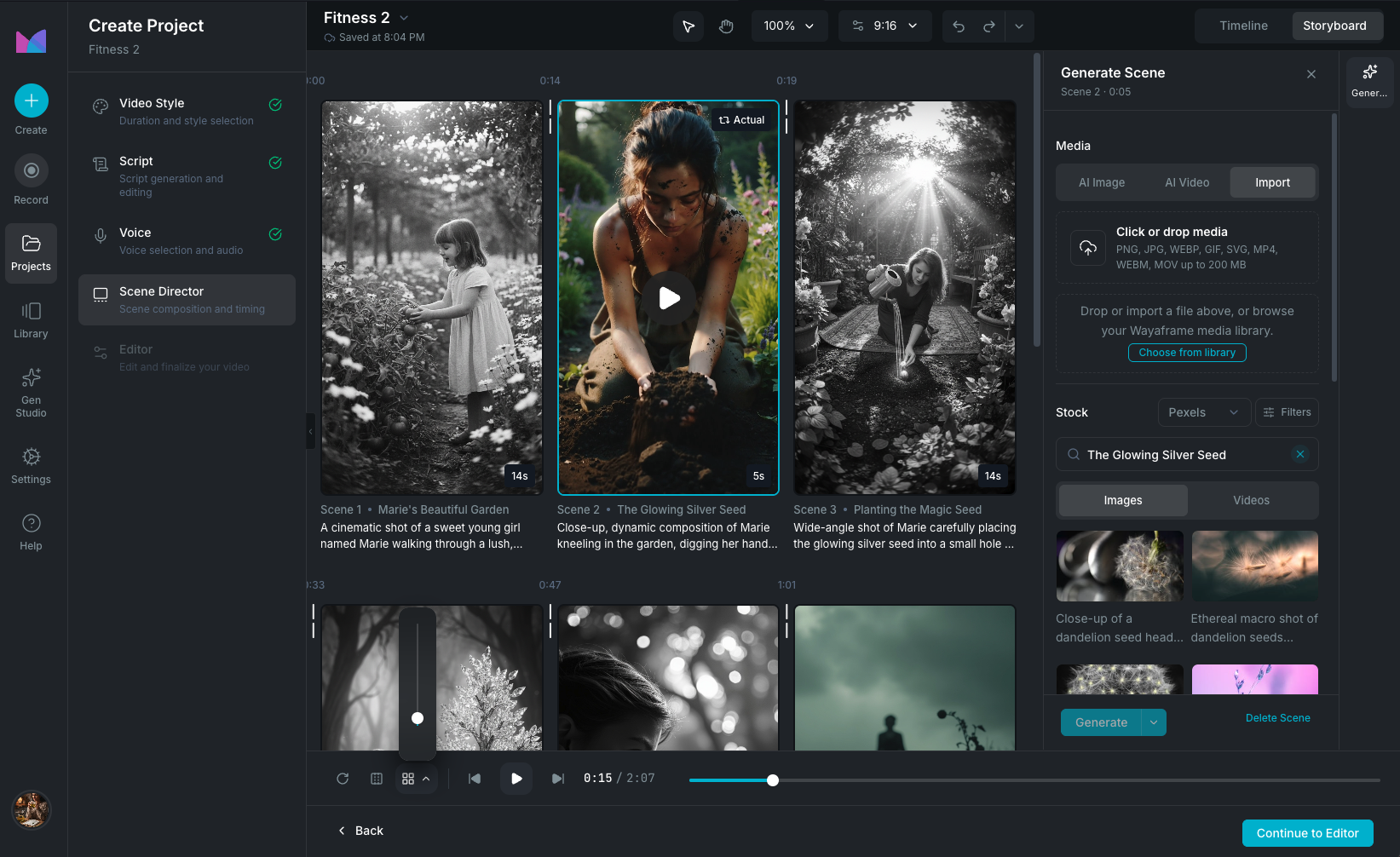
The Storyboard view displays scenes as thumbnails in a grid layout. This is the best view for getting a high-level overview of your project, reordering scenes, and quickly generating or replacing visuals.

Storyboard view

Scene thumbnails

Each scene shows:

  • A media preview (generated image, video, or placeholder).
  • The scene prompt.
  • The scene duration.
  • A processing spinner when generation is in progress.
  • Image variant indicators when multiple generations exist.
  • A play button overlay for video scenes.

Reordering scenes

Drag cards to reorder them. The timing of each scene is preserved during reordering, so rearranging scenes does not change their individual durations.

Adjusting duration

Drag the boundary between two cards to shift time from one scene to the next. The minimum scene duration is 1 second.

Adding and removing scenes

  • Click the insert button between any two cards to create a new scene at that position. The new scene splits time from the adjacent scenes.
  • Use the add scene button after the last scene to append a new one.
  • Right-click a scene or use the three-dot menu to delete it. Its duration is redistributed to neighboring scenes.

Thumbnail size

Use the thumbnail size control in the playback bar to adjust thumbnail size from compact to large. The storyboard supports 1 to 6 columns depending on the size.

Context menu

Right-click any scene thumbnail for quick actions:

  • Generate: open the Scene Settings panel to generate or regenerate the scene.
  • Upload: import media from your computer.
  • Library: select media from your library.
  • Insert Scene: add a new scene before or after this one.
  • Delete: remove the scene.

Timeline view

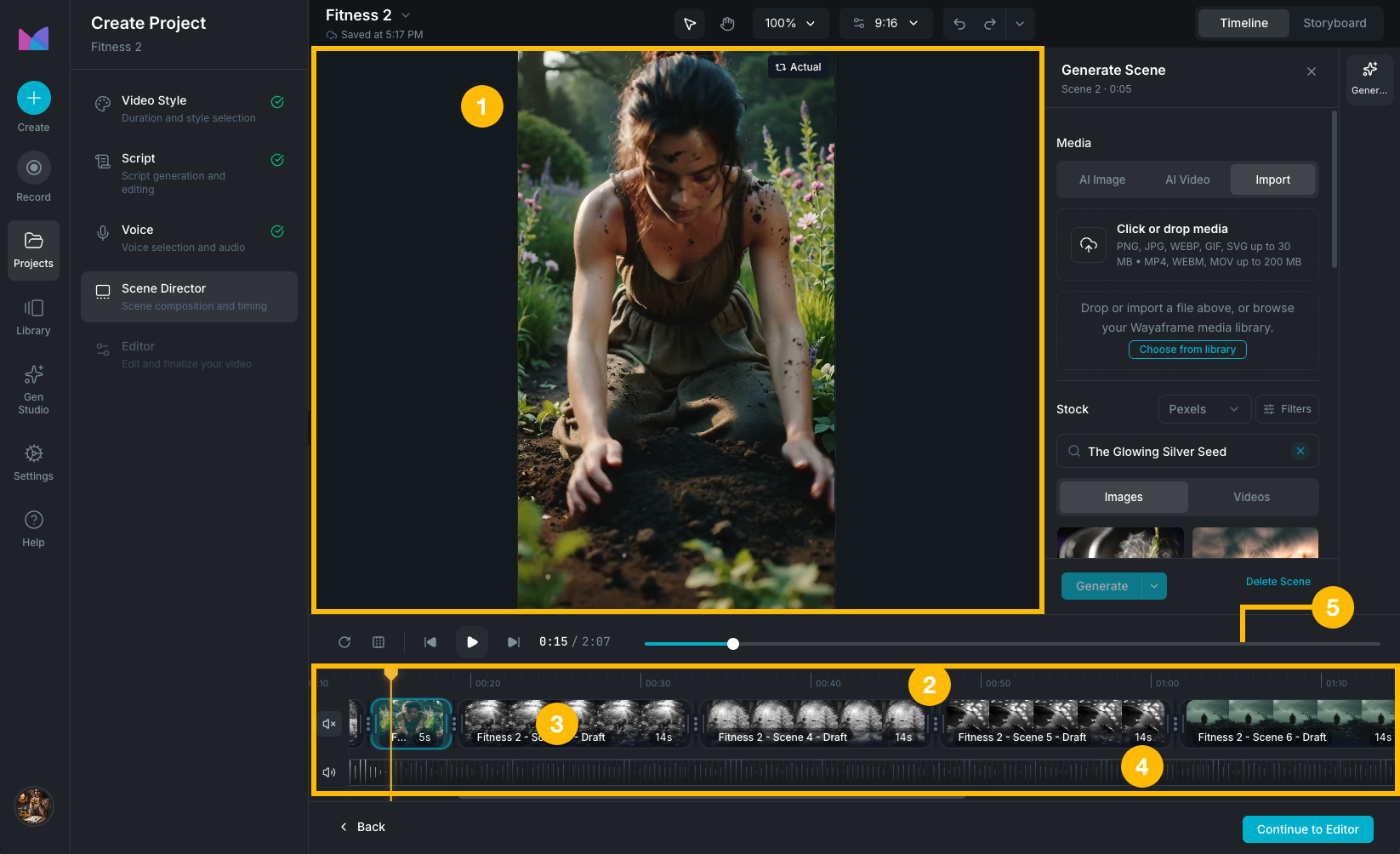
The Timeline view presents scenes as blocks on a horizontal timeline with separate media and audio tracks. This is the best view for precise timing adjustments, audio synchronization, and playback preview.

Timeline view

  1. Canvas preview (top): displays the full-resolution media for the scene at the current playhead position. Supports zoom (10% to 500%), pan, and background color customization.
  2. Timeline ruler: time ruler showing timestamps. Click or drag on the ruler to scrub through the project.
  3. Media track: each scene appears as a block with a thumbnail preview and duration. Drag the start or end handle of a block to resize it. The adjacent block adjusts automatically to fill the space.
  4. Audio track: the voiceover waveform from the Voice Designer step. Shows how scene timing aligns with the narration. You can mute the audio and video tracks independently.
  5. Playhead: shows the current playback position. Moves in real time during playback and can be dragged to any point on the timeline.

Playback

The playback bar appears at the bottom of both views and provides:

  • Play / Pause: start or stop playback from the current position.
  • Time display: current time and total duration.
  • Regenerate All: open the bulk generation modal.
  • Scene Interval: set the default duration for each scene (e.g. 3 seconds, 5 seconds, 10 seconds). When you apply a new interval, all existing scenes are resized to match, evenly distributing the total project duration across the number of scenes. This is useful when you want uniform pacing or need to quickly restructure scene timing after adding or removing scenes.

During playback, the audio and visuals are synchronized. Each scene's media displays for its designated duration while the voiceover plays. If the voiceover ends before the visuals, playback continues with the remaining scenes in silence.

Scene Settings

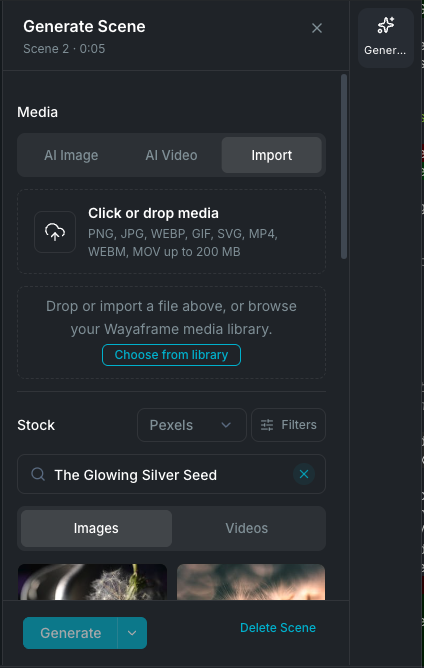
Clicking a scene opens the Scene Settings panel. This is where you control generation settings for each scene. By default, the panel is docked to the right side of the workspace. To undock it and use it as a floating overlay, open the Layout dropdown in the titlebar and toggle off Dock Property Panel.

Scene Settings panel

Mode selection

Each scene can be set to one of three modes:

  • Image: generate a still image using an AI image model.
  • Video: generate a video clip using an AI video model.
  • Upload: import media from your computer or library instead of generating.

When switching modes, the Scene Director caches the previous model and settings so you can switch back without losing your configuration.

Model selection

Choose from all available image or video generation models. The model selector shows the same models available in the Image Generation and Video Generation workflows.

Prompt editing

Each scene gets an AI-generated prompt based on your script. During the scene breakdown step, Wayaframe analyzes the script and creates a detailed visual description for each scene, including composition, lighting, and subject direction. The generated prompts differ depending on whether the default scene type is set to image or video (see AI Models). These prompts are starting points. You can tweak them, completely rewrite them, or replace them with your own descriptions. The Prompt Enhancer is also available here to improve prompts with enhancements like lighting, style, camera angles, and more.

Model settings

Below the prompt, model-specific settings are available (aspect ratio, guidance scale, negative prompt, etc.). These vary by model and match the settings described in the Image Generation and Video Generation articles.

Generation

Click Generate to create media for the selected scene. The Scene Settings panel shows:

  • A processing indicator while generation is in progress.
  • The result with variant selection when multiple images are generated.
  • Error messages if generation fails, including content policy notifications.
  • The estimated credit cost before you confirm.

You can also use Draft generation for a quick, lower-cost preview before committing to a full generation.

Image variants

When a generation produces multiple images, the Scene Settings panel shows variant thumbnails. Click any variant to select it as the scene's media. You can switch between variants at any time.

Draft vs actual preview

If a scene has both a draft and an actual generation, you can toggle between the two previews to compare them. The toggle appears on the scene thumbnail and in the Scene Settings panel.

Delete scene

The Scene Settings panel includes a delete button to remove the selected scene.

Adding media

Beyond AI generation, you can bring in your own media through several methods:

  • Upload: import files directly from your computer via the Scene Settings panel or context menu.
  • Library: browse and select media from your Library.
  • Drag and drop: drop files directly onto the canvas in timeline view.
  • Stock media: preview and use stock footage from integrated stock providers.

When importing video files, the Scene Director automatically detects the video duration and adjusts the scene block timing to match.

Bulk generation

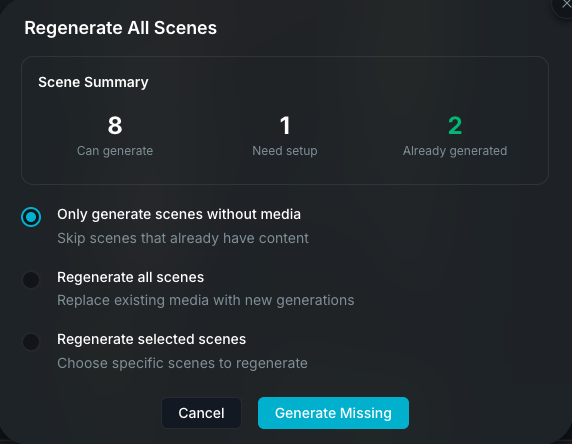
The Regenerate All button opens a modal for generating multiple scenes at once.

Bulk generation modal

Three modes are available:

  1. Skip existing: only generate scenes that don't have media yet.
  2. Regenerate all: regenerate every scene regardless of existing media.
  3. Regenerate selected: choose specific scenes to regenerate with checkboxes.

Before generating, the modal lists all your scenes with their thumbnails and prompts so you can review what will be generated. Any scenes missing a prompt are flagged so you can fix them first. Once you start, a progress counter tracks how many scenes have completed. If any scenes fail (for example, due to a content policy), you can see the error for each one and retry individually.

Auto-draft generation

When you build or rebuild voiceover audio in the Voice Designer, the Scene Director can automatically generate draft visuals for all scenes that have prompts but no media. This gives you a quick visual preview of the entire project without manually generating each scene. This feature is controlled by the Auto-generate draft scene visuals toggle in AI Models settings, where you can also choose the default visual style for drafts.

Resolution and canvas settings

The header toolbar includes controls for:

  • Resolution: set the canvas aspect ratio and dimensions for all scenes.
  • Background color: choose a background color for composition reference.
  • Zoom: adjust the canvas zoom level (10% to 500%) with keyboard shortcuts and presets.
  • Tool switching: toggle between select and hand (pan) tools.

Undo and redo

The Scene Director maintains a full undo/redo history. Every change to scenes (reordering, duration changes, media changes, prompt edits) is recorded. The undo/redo buttons in the header show a preview of what will change. History persists across the session so you can undo changes even after switching views or closing and reopening the Scene Settings panel.

Once your scenes are arranged and generated, continue to the video editor where the Scene Director's output becomes the starting point for detailed editing on the timeline.

Wayaframe Documentation