Skip to content

Voice Enhancement

Voice Enhancement uses AI-powered noise reduction to clean up your audio. It removes background noise like fans, air conditioning, and ambient hum, sharpens speech clarity, and reduces distracting sounds like mouth clicks and breaths. Use it on podcast recordings, interview footage, voiceovers recorded in untreated rooms, or any audio where background noise competes with the speaker.

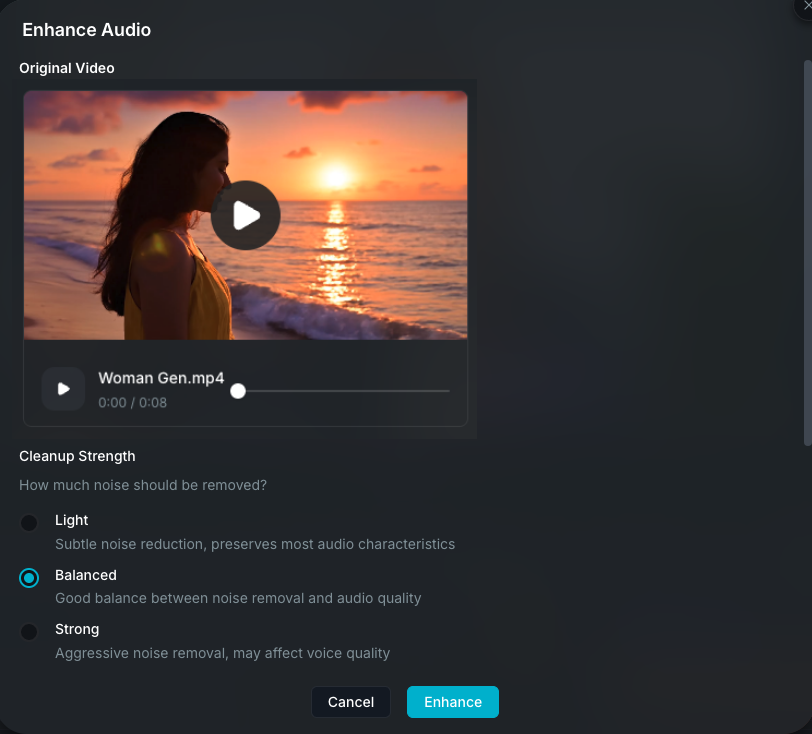
Voice Enhancement modal

Opening Voice Enhancement

Select a video or audio clip on the timeline, then open the Tools tab in the property panel and click Voice Enhance.

Voice Enhancement works with:

  • Audio clips: enhanced directly.
  • Video clips with audio: the audio is extracted, enhanced, and combined back with the video automatically.

Enhancement settings

Cleanup strength

Choose how aggressively noise is removed:

  • Light: subtle noise reduction that preserves most of the original audio characteristics. Best for recordings with mild background noise.
  • Balanced (default): a good mix of noise removal and audio quality. Works well for most recordings.
  • Strong: aggressive noise removal for very noisy environments. May slightly affect voice quality.

Natural blend

A slider from 0 to 100 that controls the balance between the original and processed audio:

  • More Natural (lower values): keeps more of the original character and ambient feel.
  • Cleaner (higher values): applies more of the AI processing for a cleaner result.

The default is 70.

Auto volume match

Prevents the voice from getting quieter after enhancement. When enabled (default), Wayaframe normalizes the output volume to match the original level.

Smart cleanup

When enabled (default), Wayaframe analyzes the audio and automatically skips processing if it detects the audio is already clean. This saves time and avoids introducing unnecessary processing artifacts to audio that doesn't need enhancement.

Remove hum

Fixes electrical hum caused by AC power interference (50/60 Hz). When enabled (default), Wayaframe auto-detects the hum frequency and removes it along with its harmonics.

Voice enhancements

Expand the Enhance Voice section for additional controls:

  • Voice Focus: reduces background sounds while keeping the voice prominent. Useful for recordings with ambient noise like air conditioning or traffic.
  • Reduce Mouth Sounds: softens breaths, lip clicks, and other mouth noises that can be distracting in close-mic recordings.
  • Clarity Boost: makes speech more intelligible by boosting presence and clarity frequencies. Helpful for muffled or distant-sounding recordings.

Enhancing audio

After configuring your settings, click Enhance to start processing. A spinner shows while the audio is being processed. Processing time depends on the audio length and your computer's performance.

Once complete, the modal shows both versions side by side:

  • Original: your unmodified audio or video with playback controls.
  • Enhanced: the processed result with the same playback controls.

Play each version to compare. If you want to adjust the settings, change them and click Retry to generate a new version.

Saving

Click Save to apply the enhanced audio to your clip. Wayaframe creates a new version of the media while preserving the original internally, so you can always revert.

For video clips, the enhanced audio is automatically combined with the original video.

Reverting to original

To undo an enhancement, select the clip and click Revert to original in the Tools tab of the property panel. The clip returns to its original unmodified audio.

No credits required

Voice Enhancement runs entirely on your device using a bundled AI model. It does not use AI credits and has no usage limits.

Wayaframe Documentation