Skip to content

Canvas

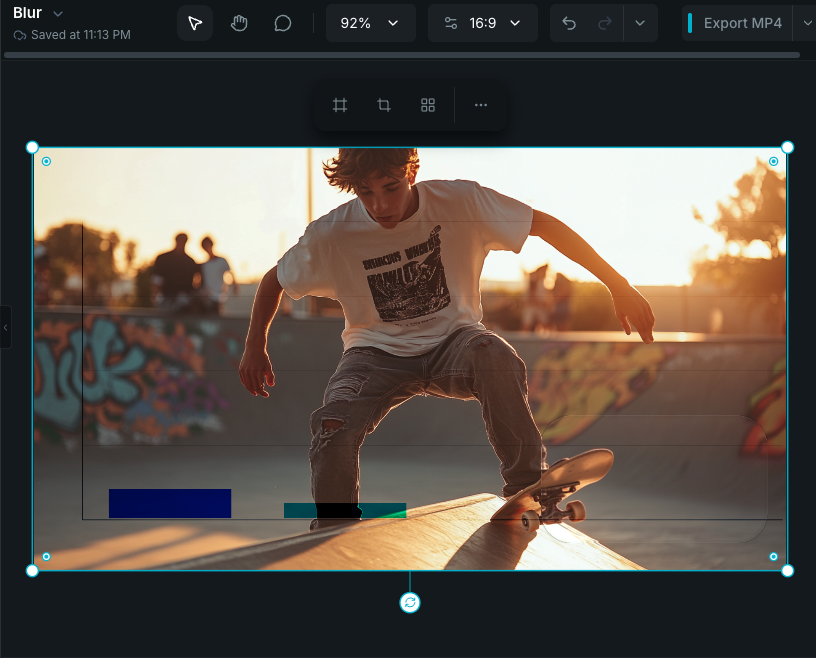
The canvas is the main visual editing surface in Wayaframe. It shows the current frame of your project at the playhead position and lets you select, move, resize, rotate, crop, and align elements directly in the composition.

Editor canvas

Zoom

Control how much of the canvas you see:

  • Scroll wheel: hold Ctrl (Windows) or Cmd (Mac) and scroll to zoom in or out, centered on your cursor position.
  • Pinch gesture: pinch on a trackpad to zoom smoothly.
  • Zoom dropdown: click the zoom level in the header to access presets like Fit, Fill, 50%, 100%, and 200%. See Editor Basics for all header controls.

Fit scales the canvas so the full composition fits within the visible area. This is the default when you open a project.

Pan and scroll

Move around the canvas when zoomed in:

  • Hand tool: press and hold Space to temporarily switch to the hand tool, then click and drag to pan. Release Space to return to the select tool.
  • Scroll: use scroll gestures to pan the canvas when zoomed beyond the visible area.

You can also switch to the hand tool permanently from the toolbar in the editor header.

Canvas settings

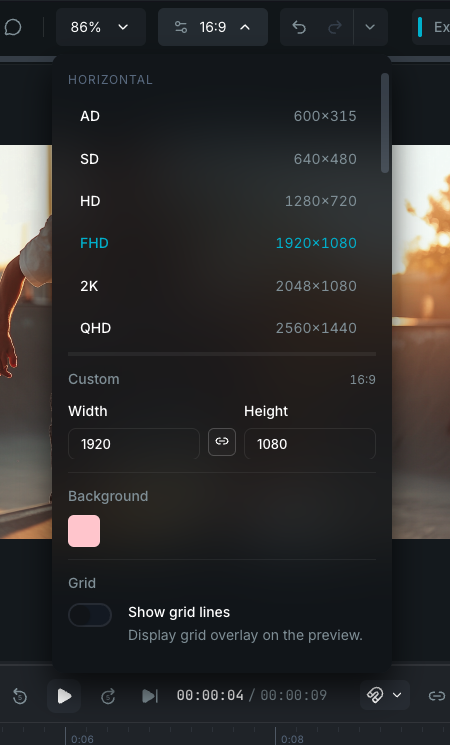
Click the aspect ratio label in the header to open the canvas settings dropdown.

Canvas settings dropdown

Resolution

Choose from preset aspect ratios (16:9, 4:3, 1:1, 9:16, and more) or enter custom width and height values. Toggle the lock icon to link or unlink the aspect ratio when adjusting dimensions.

Background color

Set the canvas background color using the color picker. This is the fill color behind all your clips and is visible in the final export wherever no media covers the frame.

Grid

Toggle the grid overlay on or off. When enabled, choose from three grid sizes:

  • Small
  • Medium
  • Large

The grid helps you align elements visually. Grid lines appear as a subtle overlay on the canvas.

Snap tolerance

Adjust how close an element needs to be to a snap target before it snaps into place. See Snapping for full details on snap behavior and guides.

Selecting elements

Click any visible element on the canvas to select it. A selection box with handles appears around it.

  • Single select: click an element.
  • Multi-select: hold Shift and click additional elements to add them to the selection.
  • Drag select: click and drag on empty canvas space to draw a selection box. All elements within the box are selected.
  • Deselect: click empty space on the canvas to deselect everything.

Moving elements

Drag a selected element to reposition it on the canvas. Snap guides appear when the element aligns with other elements or the canvas edges/center.

  • Arrow keys: nudge the selection by 1 pixel at a time.
  • Shift + Arrow keys: nudge by 10 pixels at a time.
  • Axis lock: start dragging, then hold Shift to constrain movement to horizontal or vertical only.

For precise positioning by entering exact values, use the Clip Properties panel.

Resizing

Drag any of the corner or edge handles on the selection box to resize.

  • Corner handles: resize from a corner. By default, the aspect ratio is preserved. Hold Shift to resize freely without preserving proportions.
  • Edge handles: available on text and shape elements. Drag left/right edges to adjust width, or top/bottom edges to adjust height.

For exact dimensions, enter values directly in the Clip Properties panel. The aspect ratio lock can also be toggled there.

Rotating

Drag the rotation handle (the circular icon below the selection box) to rotate the selected element. Rotation snaps to common angles (0, 45, 90, 135, 180, etc.) when near a snap point. Hold Shift to disable rotation snapping. For an exact angle, enter it in the Clip Properties panel.

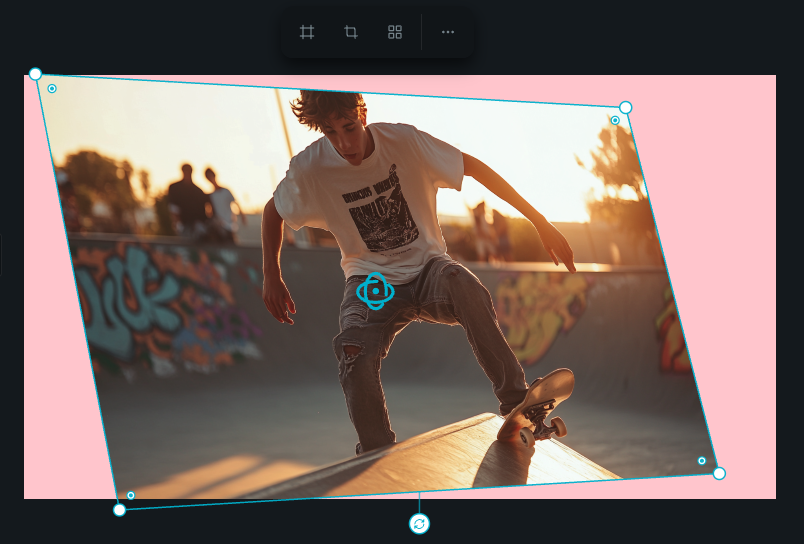
3D rotation control

When 3D rotation is enabled on a clip, a dual-ring control appears at the center of the element on the canvas. The control provides direct drag controls for rotating the clip in 3D space:

  • Vertical ring: drag up or down to rotate around the X axis (tilt forward/backward). The cursor changes to a vertical resize arrow when hovering this ring.
  • Horizontal ring: drag left or right to rotate around the Y axis (tilt left/right). The cursor changes to a horizontal resize arrow when hovering this ring.
3D rotation control

The control highlights whichever ring your cursor is closest to, dimming the other. Drag on the highlighted ring to rotate along that axis. The rotation values update in real time in the Basic Properties panel, where you can also enter exact angles.

Z rotation (standard 2D rotation) is controlled by the rotation handle below the selection box, not the 3D control.

Corner radius

Images, videos, and shapes (rectangles, polygons) show small radius handles near the corners. Drag a radius handle to round the corners.

Alignment and distribution

For a single clip, use the Position dropdown in the selection toolbar above the clip to snap it to a canvas position (top-left, top-right, center, bottom-left, bottom-right, etc.).

For multiple clips, use the Alignment tool in the playback toolbar below the timeline. It provides:

  • Horizontal alignment: align left, center, or right edges.
  • Vertical alignment: align top, middle, or bottom edges.
  • Distribution: space three or more clips evenly, horizontally or vertically.

Flip

Flip the selected element horizontally or vertically. Available from the selection toolbar or the right-click context menu.

Selection toolbar

When an element is selected, a floating toolbar appears near the selection box with quick actions.

Selection toolbar

Available actions depend on the selected element type:

  • Fill / Fit: toggle how media fills its frame (non-text elements).
  • Crop: open the crop editor for the selected clip.
  • Position: alignment options for positioning the element on the canvas.
  • Duplicate: create a copy of the selected element (text clips).
  • More: additional actions like flip, replace, extract frame, and motion tracking.

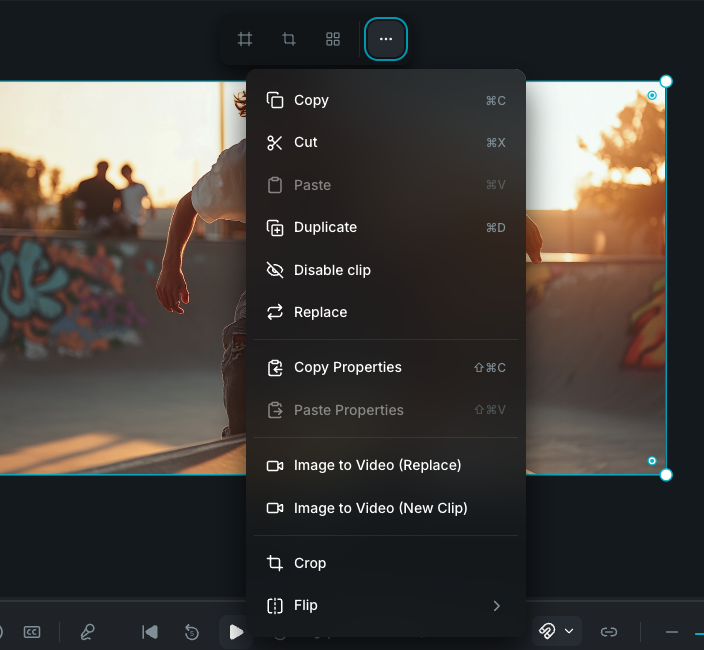
Right-click context menu

Right-click any element on the canvas or on empty space for context-sensitive actions.

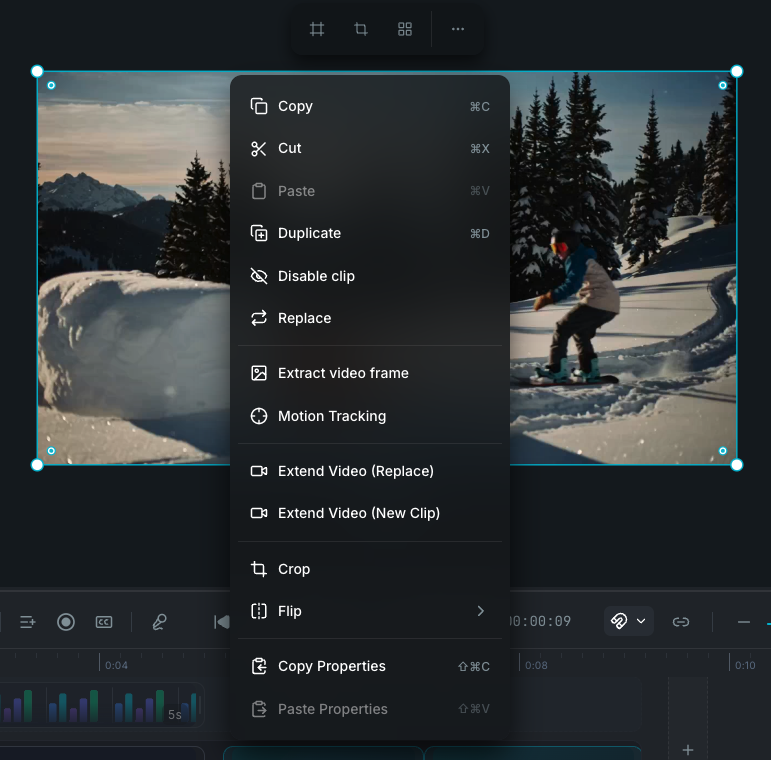
Canvas context menu

Clip actions

  • Copy, Cut, Paste, Duplicate: standard clipboard operations.
  • Enable / Disable: toggle clip visibility without deleting it.
  • Group / Ungroup: combine selected clips into a group or break a group apart.
  • Replace Media: swap the clip's media with a different file from your library.
  • Extract Frame: save the current frame as a still image.
  • Freeze Frame: hold the current frame for a duration on the timeline.
  • Crop: open the crop editor.
  • Flip: flip horizontally or vertically.
  • Motion Tracking: apply motion tracking to the clip.
  • Image to Video: send a still image to video generation.
  • Video Extend: extend a video clip with AI-generated continuation.
  • Copy Properties / Paste Properties: copy visual properties (transforms, effects, filters) and apply them to another clip.
  • Create Mask from Shape: convert a shape element into a mask for another clip.

Canvas actions

Right-clicking empty canvas space shows:

  • Paste: paste previously copied clips.
  • Add Comment: place a comment at the clicked position (when collaboration is active).

Crop

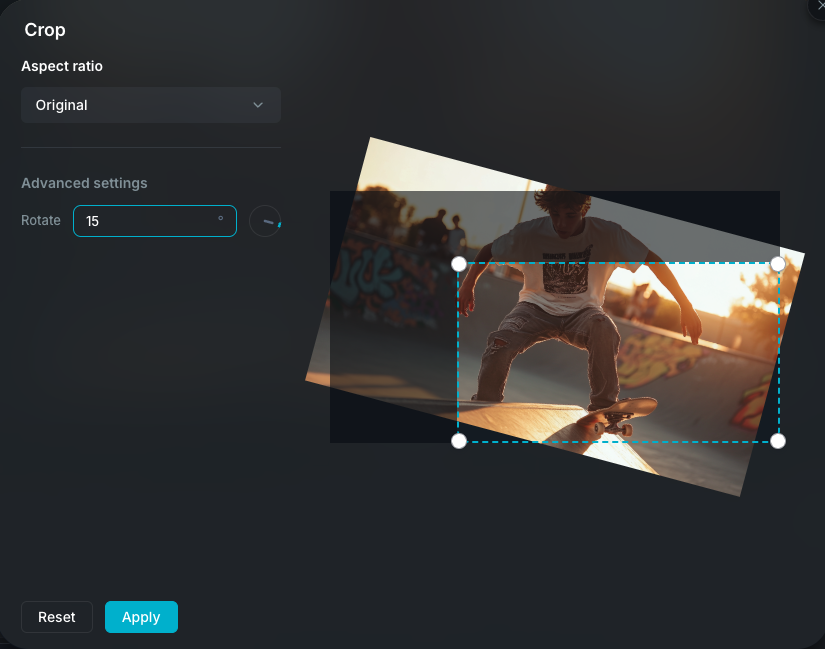
Crop editor

Open the crop editor from the selection toolbar or right-click menu. The crop editor lets you:

  • Drag crop handles to frame a portion of the media.
  • Rotate the media within the crop frame.
  • Lock or unlock the crop aspect ratio.

Click Save to apply the crop or Cancel to discard changes. The original media is preserved and the crop can be adjusted or removed at any time.

Inline text editing

Double-click a text element on the canvas to enter inline editing mode. A text toolbar appears with controls for font, size, weight, color, alignment, and more. Your changes preview live on the canvas as you type. Click outside the text element or press Escape to exit inline editing. See Working With Text for full details.

Motion paths

When a clip has a motion path enabled, the canvas displays the path as a curve with control points. Drag points to reposition them, drag curve handles to adjust the curve shape, and double-click the path to add new points. Motion paths work on media, image, text, and sticker clips. Paths created by Motion Tracking are displayed as read-only. See Motion Paths for full details.

Playback preview

The canvas always shows the composition at the current playhead position. During playback, the canvas updates in real time, rendering all visible clips with their transforms, effects, filters, and masks applied. The canvas is a live preview of what the final export will look like at any given frame.

Wayaframe Documentation