Skip to content

Speed & Timing

Speed controls let you change how fast or slow a video or audio clip plays. You can apply a uniform speed change across the entire clip, or use speed curves to create dynamic speed ramps that vary over the clip's duration. Speed controls are available in the properties panel when a video or audio clip is selected.

The Speed tab has two modes: Normal for uniform speed, and Curve for speed ramping.

Normal mode

Normal mode applies a single, uniform speed to the entire clip.

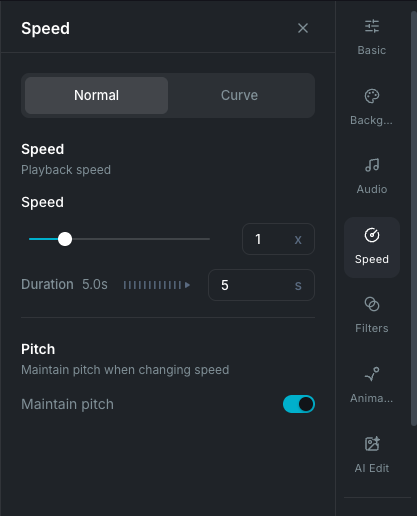
Speed normal mode

Speed slider

Drag the slider or enter a value to set the playback rate from 0.25x (quarter speed) to 4x (four times faster). The default is 1x (original speed).

  • Values below 1x create slow motion.
  • Values above 1x create fast motion.

Duration

The duration display shows the original clip duration and the adjusted duration after the speed change. You can also type a specific duration in seconds, and Wayaframe calculates the required speed automatically.

For example, if a 10-second clip is set to 2x speed, the adjusted duration is 5 seconds. If you type "20" in the duration field, the speed is set to 0.5x.

Maintain pitch

When enabled (the default), the audio pitch stays natural regardless of speed changes. A voice at 2x speed still sounds like the same person, just speaking faster. When disabled, pitch shifts with speed: faster playback raises the pitch, slower playback lowers it.

Curve mode

Curve mode lets you create speed ramps where the speed changes dynamically throughout the clip. Instead of one speed for the entire clip, you define control points at different positions, and Wayaframe interpolates smoothly between them using Bezier curves.

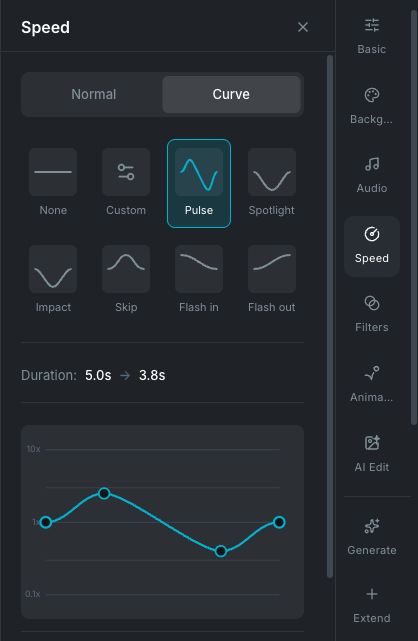
Speed curve editor

Speed curve graph

The graph shows time on the horizontal axis (left to right) and speed on the vertical axis (bottom to top, logarithmic scale from 0.1x to 10x). A curve line shows how speed changes over the clip's duration.

  • Drag a control point up or down to change the speed at that position.
  • Drag a control point left or right to change when the speed change happens.
  • Drag the Curve handles on a selected point to adjust the curve shape between points.
  • Click on the curve to add a new control point.
  • Double-click a control point to delete it. The first and last points cannot be deleted.
  • Reset button (rotate icon) restores the curve to its default state.

Speed presets

Choose from built-in speed curve presets for common effects:

  • Pulse: rhythmic speed changes for dynamic cuts. Speeds up in the first half and slows down in the second.
  • Spotlight: slow motion in the middle of the clip for emphasis, with normal speed at the start and end.
  • Impact: dramatic slow-down in the middle, more pronounced than Spotlight.
  • Skip: quick speed burst in the middle, creating a jump-cut feel.
  • Flash In: starts fast and eases down to normal speed.
  • Flash Out: starts at normal speed and accelerates toward the end.

Click a preset to apply it. You can then customize the curve further by dragging control points and handles.

Duration with curves

When a speed curve is applied, the duration display shows the adjusted total duration based on the curve's average speed. The clip on the timeline is resized to match.

While audio is being processed for a speed ramp, a "Ramping..." indicator appears until the audio is ready for preview.

Freeze frame

Freeze frame holds a single frame from the video for a specified duration, pausing the action while the timeline continues.

Adding a freeze frame

Move the playhead to the frame you want to freeze, then right-click the video clip and select Freeze Frame. A hatched region appears on the clip in the timeline at the playhead position, labeled "Frozen."

Adjusting duration

Drag the left or right edge of the hatched freeze region on the timeline to extend or shorten how long the frame is held. The freeze region snaps to nearby targets when snapping is enabled.

Multiple freeze regions

A clip can have multiple freeze regions. Move the playhead to a different position and add another freeze frame. Regions cannot overlap.

Removing a freeze frame

Right-click the clip and select Remove Freeze Frame to delete all freeze regions from the clip.

Freeze frames work alongside speed changes. If a clip has both a speed curve and freeze regions, the freeze pauses at the specified points within the speed-adjusted timeline.

How speed affects the timeline

When you change a clip's speed, the clip's duration on the timeline adjusts automatically:

  • Faster speed makes the clip shorter on the timeline (less time to play the same content).
  • Slower speed makes the clip longer (more time to play the same content).
  • Speed curves adjust the total duration based on the curve's integrated speed profile.

Adjacent clips are not moved. If a speed change makes a clip shorter, a gap may appear. If it makes a clip longer, it may overlap with the next clip.

Wayaframe Documentation