Skip to content

Audio Mixer

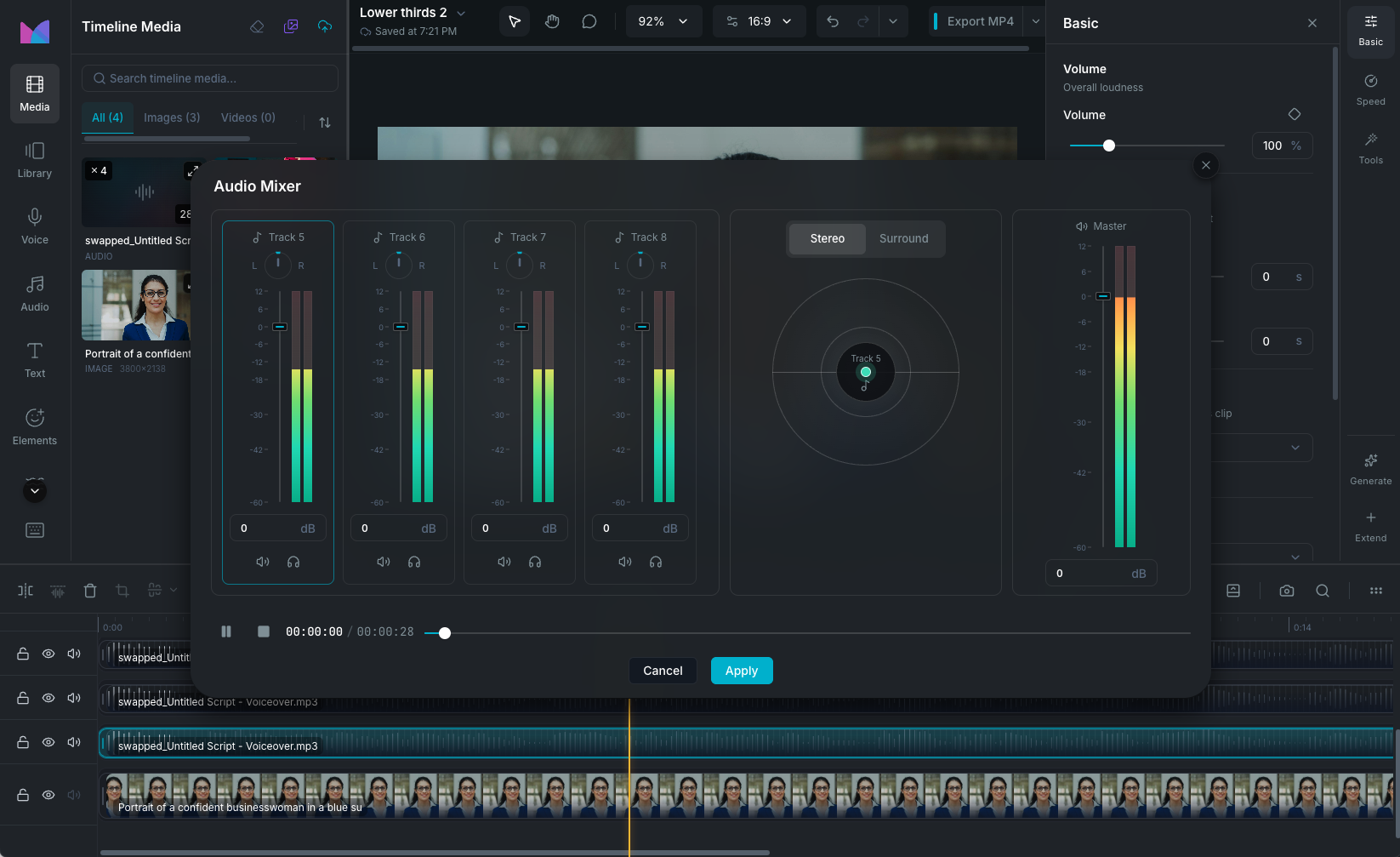
The Audio Mixer gives you a dedicated workspace for balancing and mixing the audio across all tracks in your project. Instead of adjusting one clip at a time, the mixer shows every audio-capable track as a channel strip with volume faders, pan controls, meters, mute, solo, and a master output, all in one view.

Audio Mixer

Opening the mixer

Click the Audio Mixer button in the timeline toolbar. The mixer opens as a modal with its own playback controls so you can listen and adjust in real time.

Mixer layout

The mixer is organized into three sections:

  1. Channels (left): a scrollable row of channel strips, one per track that contains audio. Each strip has its own volume fader, pan dial, level meters, mute, and solo buttons.
  2. Spatial stage (center): a visual positioning area for placing audio in stereo or surround space. The selected track's position is shown as a draggable dot.
  3. Master (right): the master output channel with its own volume fader and level meters. This controls the final output level after all tracks are mixed.

Channel strips

Each track with audio content gets its own channel strip. Tracks without audio are not shown.

Volume fader

Drag the fader up or down to adjust the track's volume. The scale runs from -60 dB (silence) to +12 dB (boost). The dB value is displayed below the fader and can also be typed directly for precise control.

The fader has reference marks at common levels: +12, +6, 0, -6, -12, -18, -30, -42, and -60 dB. A level of 0 dB means the track plays at its original volume with no gain change.

Level meters

Two vertical bars next to the fader show the real-time audio level for the left and right stereo channels. The meters update every frame during playback with a color gradient from green (healthy levels) through yellow to red (clipping). When playback is stopped, the meters show a static level based on the track's gain setting.

Pan dial

The rotation dial at the top of each channel strip controls stereo panning. Turn it left to shift the audio toward the left speaker, right toward the right speaker, or leave it centered for equal balance. The dial snaps to common positions (hard left, 45 left, center, 45 right, hard right) for quick positioning.

Mute

Click the mute button to silence a track. The track's audio is excluded from the mix but its clips remain on the timeline. Click again to unmute. Muting a track also clears its solo state.

Solo

Click the solo button to hear only that track. All other non-soloed tracks are silenced. You can solo multiple tracks at once to hear a subset of the mix. Soloing a track also clears its mute state.

Master output

The master channel on the right side controls the final output volume after all individual tracks are mixed together. It has its own fader (-60 dB to +12 dB) and stereo level meters. Use the master to adjust overall loudness without changing the balance between tracks.

Stereo and surround modes

The mixer supports two spatial audio modes, selectable from the toggle above the spatial stage:

Stereo mode

The default mode. Each track has a simple left-right pan control. The spatial stage shows the selected track's pan position on a horizontal axis. Use stereo panning to separate elements in the mix, like placing narration center and music slightly to one side.

Surround mode

Places audio in a 2D sound field. Instead of just left-right panning, you can position each track anywhere in a circular stage representing front, back, left, and right. Click and drag the track's dot on the stage to move it. Use surround mode for immersive projects, cinematic scenes, or any content where you want sound to come from specific directions around the listener.

Playback controls

The mixer includes its own transport controls at the bottom so you can preview audio changes without closing the mixer:

  • Play / Pause: start or stop playback.
  • Stop: pause and reset to the beginning.
  • Timecode: shows the current position and total duration.
  • Scrubber: drag to seek to any point in the project.

Changes to volume, pan, mute, and solo are heard immediately during playback.

Applying and reverting changes

When you make changes in the mixer, they take effect immediately for preview. Click Apply to commit all changes to the project with a single history entry. Click Cancel or close the modal to revert all mixer changes to the state they were in when you opened it.

All mixer changes support undo and redo after applying.

Mixer vs clip controls

Audio MixerClip Properties
ScopeAll tracks at onceOne clip at a time
VolumePer-track faders (-60 to +12 dB)Per-clip slider (0 to 400%)
PanPer-track dialPer-clip (via mixer)
Mute / SoloPer-trackPer-clip mute only
Audio Tone presets / Voice effectsNot in mixerPer-clip presets (see Working With Audio)
Fade in / outNot in mixerPer-clip duration (see Working With Audio)
SpatialStereo and surround modesNot available
Master outputYesNo
Best forBalancing the overall mixAdjusting individual clips

Wayaframe Documentation