Skip to content

Edit By Text

Edit By Text lets you edit video and audio by working with the spoken transcript instead of trimming clips on the timeline. Wayaframe transcribes the audio with AI, then shows every word with precise timing. Select words in the transcript and cut, mute, revoice, or adjust them. Your changes sync back to the timeline automatically.

This is especially powerful for interview edits, podcast cleanup, voiceover corrections, and any project where the spoken word drives the edit.

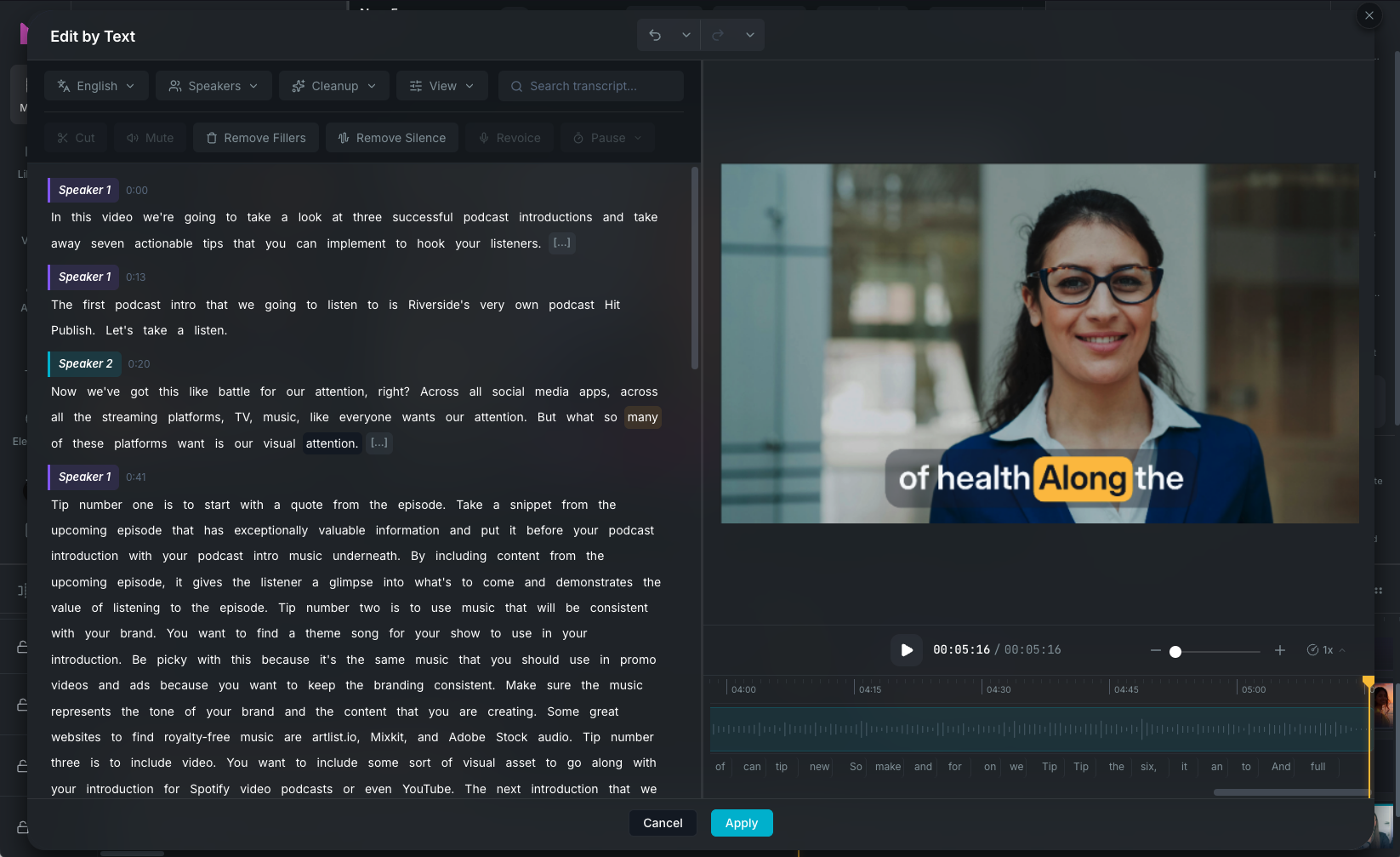
Edit By Text workspace

Opening Edit By Text

Select a video or audio clip, then open the Tools tab in the property panel and click Edit By Text. Wayaframe extracts the audio (for video clips) and generates a transcript with word-level timestamps.

The transcription supports 99+ languages. You can select the spoken language manually or let Wayaframe auto-detect it.

The workspace

The Edit By Text modal is split into two resizable panels:

Left panel: transcript editor

The transcript is displayed as selectable, editable text organized by speaker segments. Each word is individually clickable and shows its timing. Above the transcript, a toolbar provides language selection, speaker filters, and cleanup tools.

Right panel: preview and timeline

A video or audio preview shows your clip with edits applied in real time. Below it, a timeline displays every word as a block, with visual indicators for cuts, mutes, and revoiced sections. Playback controls and a zoom slider sit beneath the preview.

Drag the divider between the two panels to resize them.

A floating toolbar appears above selected words with quick actions for cutting, muting, revoicing, and filler toggling.

Selecting text

Click any word in the transcript to select it. For longer selections, click and drag across the text you want, or click the first word and +Click the last word. Selections can span across speaker segments.

Selected text is highlighted in the transcript and on the timeline below. A floating toolbar appears above the selection with quick actions.

Cutting text

Select the text you want to remove and click Cut in the floating toolbar that appears above your selection. You can also use the Cut button in the main toolbar at the top.

To restore cut text, select it again and click Cut to toggle it back.

Three edit modes control what happens when you cut:

  • Ripple (default): clips shift forward to close the gap, tightening the edit.
  • Leave Gaps: the gap is left as silence, preserving the overall timing.
  • Mute Only: the audio is silenced but the video stays in place.

To change the edit mode, click the View button in the toolbar and choose from the Edit Mode options. When using Ripple, a Ripple All Tracks checkbox lets you choose whether the shift applies to just the current track or all tracks on the timeline.

Muting text

Select the text you want to silence and click Mute in the floating toolbar or the main toolbar. The audio for the selected section is silenced while the video continues playing normally.

Muted text appears faded and italicized with a wavy strikethrough in the transcript so you can see what's been silenced at a glance. To unmute, select the muted text and click Mute again to toggle it back.

This is useful when you want to remove speech without affecting the video timing or creating jump cuts.

Filler word detection and removal

Edit By Text can automatically detect filler words like "um", "uh", "like", "you know", and "okay". Detection works two ways:

Dictionary-based detection

A built-in dictionary of common filler patterns per language identifies obvious fillers. You can customize the dictionary to add or remove words.

AI-powered detection

For context-sensitive fillers (words like "like" or "so" that are only fillers in certain contexts), Wayaframe uses AI to analyze surrounding sentences and determine whether each instance is a filler or meaningful speech.

Working with fillers

  • Detect fillers: click the Cleanup button in the toolbar to open the cleanup panel, then click Detect Fillers to run AI detection across the transcript.
  • Add custom fillers: in the same cleanup panel, type a word into the Add filler word field and click the plus button. Added words are detected throughout the transcript.
  • View fillers: detected fillers are highlighted in the transcript when filler visibility is enabled in the display settings.
  • Toggle filler on a word: select a word and click the Filler button in the floating toolbar to manually mark or unmark it as a filler.
  • Remove all fillers: click Remove Fillers in the main toolbar to cut all detected fillers from the transcript in one action.

Silence detection and removal

Wayaframe can detect silent gaps between words in the transcript and help you tighten pacing by removing them.

Detecting silence

Click the Cleanup button in the toolbar to open the cleanup panel, then click Detect Silence. Wayaframe scans the transcript for gaps longer than the minimum duration and marks them as [...] in the transcript.

Two sliders in the cleanup panel let you fine-tune detection:

  • Ignore pauses shorter than: set the minimum gap duration before it's flagged (0.2 to 2 seconds).
  • Leave a pause around cuts: set how much padding to preserve around each silence cut (0 to 0.4 seconds) so natural breathing pauses aren't completely removed.

Working with silence markers

Click any [...] marker in the transcript to see options for that specific gap:

  • Remove: cut the silence to close the gap.
  • Mute: silence the gap without removing time.
  • Keep: mark the gap as intentional so it is excluded from bulk removal.

You can also use Remove Silence in the main toolbar to cut all detected silence gaps at once.

Inline text correction

Click any word in the transcript to edit it directly. The word becomes editable inline. Press Enter to confirm or Escape to cancel.

Text corrections update the transcript but do not change the audio. To update the audio to match corrected text, use revoicing.

Revoicing

Revoicing replaces the audio for selected words with new speech. Select the words you want to replace and click Revoice in the floating toolbar to open the revoice modal.

Record new audio

Record replacement speech directly from your microphone:

  1. Click the mic button to start recording.
  2. While recording, click Pause to pause or Stop to finish. A duration counter shows how long you've recorded.
  3. After stopping, click Play to preview the recording, or Re-record to start over.
  4. Click Use Revoice to apply the recorded audio to the selected text.

Text-to-speech

Generate replacement speech from text using an AI voice:

  1. The selected text is pre-filled in the text field. Edit it if you want the revoiced audio to say something different.
  2. Click Select Voice to open voice selection and choose a voice. Voices are available from ElevenLabs, Minimax, and your cloned voices. Once selected, the voice name and avatar are shown with a Change button.
  3. Click the Revoice button to generate the audio. A progress ring shows while generating.
  4. After generation, click the button again to preview the result.
  5. Click Use Revoice to apply the generated audio to the selected text.

The generated audio is automatically time-stretched to fit the original word timing if the durations differ.

Revoiced text is highlighted with a teal background in the transcript so you can see which sections have been replaced.

Reverting a revoice

To restore the original audio, select the revoiced text and click Revoice in the floating toolbar to reopen the revoice modal. Click Revert to Original in the bottom-left of the modal. The revoiced audio is removed and the original speech is restored.

Inserting pauses

Select the text where you want to add a pause, then click the Pause button (timer icon) in the main toolbar. A dropdown appears with preset durations (200ms, 500ms, 1s, 1.5s, 2s, 3s) or you can enter a custom value in milliseconds.

The pause is inserted after the selected text and appears as a [pause 0.5s] token in the transcript (showing the duration). Multiple pauses at the same position are merged together. Pauses extend the clip's duration by the specified amount.

Speakers

When your audio has multiple speakers, Wayaframe detects them automatically during transcription and labels each segment by speaker.

Click the Speakers button in the toolbar to open the speakers dropdown. From here you can:

  • Rename speakers: click any speaker name in the dropdown and type a new name to replace the default "Speaker 1", "Speaker 2" labels.
  • Filter by speaker: use the checkboxes next to each speaker to show or hide their segments in the transcript. Use the All Speakers checkbox at the top to toggle everyone at once.
  • Identify speakers visually: each speaker is assigned a unique color. Segments in the transcript are tinted and bordered with their speaker's color for easy identification.

Use the search bar to find words across the transcript. Matches are highlighted in both the transcript and the timeline. Navigate between matches with next/previous buttons. The playhead syncs to the current match position.

Confidence indicators

Each transcribed word has a confidence score from the AI transcription. Low-confidence words are highlighted so you can spot and correct potential transcription errors. Toggle this on or off from the View button in the toolbar under the display settings.

Display settings

The toolbar includes toggles for customizing what's visible in the transcript:

  • Show fillers: highlight detected filler words.
  • Show confidence: display transcription confidence indicators.
  • Show silence markers: display [...] markers for detected gaps.
  • Show deletions: show or hide cut words in the transcript.
  • Show timestamps: display word-level timing alongside the transcript.

Undo and redo

All edits are tracked with full undo and redo support. The header shows undo/redo buttons with a history dropdown that lets you jump to any past action. Related edits (like deleting all fillers) are grouped as a single undo step. Up to 200 actions are stored.

Applying changes

When you're satisfied with your edits, click Apply to sync all changes back to the timeline:

  • Cut edits trim or split the clip, removing the deleted sections.
  • Mute edits silence the audio in the affected time ranges.
  • Revoice edits create a new audio clip on a separate track with the replacement speech, while muting the original underneath.
  • Pause edits extend silence at the specified positions.
  • Text corrections update the transcript metadata.

Click Cancel to discard all changes and close the modal without affecting the timeline.

Your Edit By Text session is saved automatically. If you close the modal and reopen it for the same clip, your previous edits and transcript are restored.

Wayaframe Documentation