Skip to content

Timeline

The timeline is the sequencing backbone of the editor. Every clip, track, marker, and timing decision lives here. You arrange content in time, control playback, trim and split clips, and structure the entire video from the timeline.

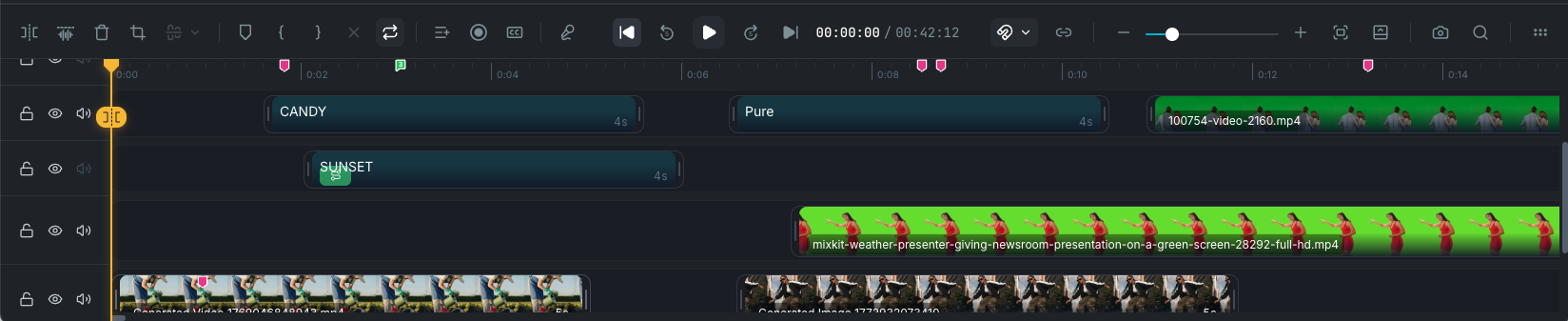
the editor timeline

Playback controls

The center of the timeline toolbar contains the playback controls:

  • Skip to start: jump the playhead to the beginning of the timeline.
  • Rewind 5s: move the playhead back 5 seconds.
  • Play / Pause Space: toggle playback.
  • Forward 5s: move the playhead forward 5 seconds.
  • Skip to end: jump the playhead to the end of the timeline.

The timecode display next to the transport controls shows the current playhead position and total duration in HH:MM:SS / HH:MM:SS format.

Playhead

The playhead is the vertical line on the timeline that marks the current position in time. The canvas always shows whatever frame the playhead is on.

Scrubbing

Click and drag on the timeline ruler to scrub through the video. You can also click anywhere on the ruler to jump the playhead to that position.

Keyboard navigation

  • Arrow keys: step the playhead by 200ms.
  • + : step the playhead by 1 second.
  • Home: jump to the start.
  • End: jump to the end.

The playhead snaps to clip edges, markers, and other snap targets when snapping is enabled.

Playback range

You can define a playback range to loop or limit playback to a specific section of the timeline. The range appears as a shaded region on the ruler with draggable handles at each end.

  • Set In I: mark where the range starts.
  • Set Out O: mark where the range ends.
  • Clear Range +X: remove both in and out points.
  • Loop Range L: toggle looping within the range during playback.

The playback range is also used when exporting. You can choose to export only the content within the in/out range. See Export Settings.

Timeline toolbar

The toolbar runs along the top of the timeline and contains the fixed playback controls in the center and a set of customizable tool buttons on the left and right.

Available tools

The toolbar includes the following tools:

  • Split +B: split the selected clip at the playhead.
  • Detach Audio ++D: separate the audio from a video clip into its own track.
  • Delete : delete the selected clip.
  • Crop: open the crop tool for the selected clip. See Canvas.
  • Align: alignment options for selected clips.
  • Add Marker M: add a marker at the playhead position. See Markers.
  • Set In I / Set Out O / Clear Range +X / Loop Range L: playback range controls.
  • Add Track: add a new track to the timeline. See Tracks.
  • Record: start a screen or camera recording. See Recording.
  • Subtitles: open the subtitle manager. See Subtitles.
  • Audio Mixer: open the audio mixer panel. See Audio Mixer.
  • Snapping +S: toggle snapping and configure snap settings. See Snapping.
  • Ripple Edit +R: toggle ripple editing mode. See Ripple editing.
  • Zoom: zoom the timeline in and out.
  • Fullscreen: toggle fullscreen preview.
  • Timeline Visibility: show or hide tracks.
  • Take Snapshot: capture the current canvas frame as an image. See Take snapshot.
  • Search Timeline: search across all clips and content. See Timeline search.

Tracks

Tracks are the horizontal rows on the timeline where clips are placed. Each track holds one type of content (video, audio, image, text, effect) or can accept mixed content. Tracks stack visually on the canvas: content on higher tracks appears in front of content on lower tracks.

Track header controls

Each track header on the left side of the timeline includes:

  • Lock / Unlock: prevent or allow edits to clips on the track. Locked tracks cannot be modified.
  • Show / Hide: toggle the track's visibility on the canvas. Hidden tracks still play audio.
  • Mute / Unmute: silence audio output from the track.
  • Delete: remove an empty track.

Track context menu

Right-click a track header for these options:

  • Lock / Unlock Track
  • Select All Clips on Track
  • Show / Hide Track
  • Hide All Other Tracks
  • Show All Tracks
  • Mute / Unmute Track
  • Add Track Above
  • Add Track Below
  • Move Track to Top ++]
  • Move Track Up +]
  • Move Track Down +[
  • Move Track to Bottom ++[
  • Delete Track

Clips

Clips are the individual items on the timeline: video segments, images, audio files, text elements, effects, stickers, charts, waveforms, and groups. Each clip has a start time, duration, and sits on a specific track.

Adding clips

Add media to the timeline from the Library Panel, Media Panel, or by dragging files directly from your computer onto the timeline. You can also drag and drop PDFs, presentations, and spreadsheets.

You can also generate new assets with AI directly from the editor:

Selecting clips

  • Click a clip to select it. This clears any previous selection.
  • +Click to add or remove individual clips from the current selection without clearing it.
  • +Click to select a range of clips on the same track between the previously selected clip and the one you click.
  • Drag select: click and drag on an empty area of the timeline to draw a selection box. Any clips that overlap the box are selected. Hold while dragging to add to the current selection instead of replacing it.
  • Select all on track: right-click an empty area on a track and choose Select All on Track, or use the same option from the track header context menu.
  • Select all: +A to select every clip across all visible tracks.
  • Deselect: click an empty area on the timeline to clear the selection.

Most clip actions (split, delete, duplicate, group, copy/paste) work on the entire selection when multiple clips are selected.

Trimming

Drag the left or right edge of a clip to trim its start or end point. The clip's content is not deleted, only hidden, so you can always re-extend it later.

Splitting

Position the playhead where you want to cut, then press +B or click Split in the toolbar. The clip is divided into two independent clips at the playhead position. You can also split all selected clips at once.

Moving

Drag a clip to reposition it in time or move it to a different track. Clips snap to nearby edges when snapping is enabled.

Clip actions

Right-click a clip for the full context menu:

  • Split +B
  • Delete
  • Ripple Delete +
  • Copy +C / Cut +X / Paste +V
  • Duplicate +D
  • Enable / Disable: toggle clip visibility without deleting.
  • Group +G: group selected clips. See Grouping.
  • Replace: swap the clip's media with a different asset.
  • Extract Video Frame: capture the current frame as a still image.
  • Freeze Frame / Remove Freeze: hold a single frame for a set duration.
  • Motion Tracking: track an object's movement in a video clip.
  • Crop: open the crop editor.
  • Flip: flip horizontally +H or vertically +V.
  • Detach Audio ++D: separate audio into its own track.
  • Create Mask: add a mask to the clip. See Masking.
  • Copy Properties ++C / Paste Properties ++V: copy and apply visual settings between clips.
  • Stitch +S / Unstitch ++S: join or separate adjacent clips.

For full details on clip types, properties, and behavior, see Clips.

Snapping

Snapping helps you align clips, the playhead, and other elements precisely. Toggle snapping with +S or from the Snapping dropdown in the toolbar. You can configure which snap targets are active (playhead, clip edges, markers, keyframes, and more) and adjust the snap tolerance. See Snapping for full details.

Ripple editing

When ripple editing is enabled (+R), deleting or trimming a clip automatically shifts all clips that follow it on the same track to close the gap. This keeps your edit tight without manually repositioning clips after every change.

  • Ripple Delete +: delete a clip and close the gap in one step, even without ripple mode enabled.

Stitching

Stitching links adjacent media clips together so they behave as a continuous segment on the timeline. This is useful when you've split a video and want to rejoin the pieces, or when you want adjacent clips from the same source to move and trim as one.

How to stitch and unstitch

  • Stitch +S: link the two clips at the nearest boundary to the playhead.
  • Unstitch ++S: break the link at the nearest stitched boundary.

Both actions are also available from the clip right-click menu and the timeline toolbar.

Requirements

Two clips can be stitched when:

  • Both are media clips (video or audio from imported files).
  • Both are on the same track.
  • Both use the same source media file.
  • They are directly adjacent on the timeline (no gap between them).
  • Neither the clips nor the track are locked.

Stitched clip behavior

  • Trimming: trimming the edge of a stitched group affects the entire group. As you trim, clips at the edge are progressively shortened.
  • Selection: selecting any clip in a stitched group automatically selects the entire group.
  • Splitting: splitting at the exact boundary between two stitched clips unstitches them instead of creating a new split. Splitting within a stitched clip breaks the stitch relationship.
  • Deleting: deleting a clip in a stitched group breaks the chain. The remaining clips are not automatically re-linked.
  • Transitions: any transitions between clips are removed when they are stitched, since the join should be seamless.

Chains

You can stitch more than two clips together in a chain. Each clip links to its left and right neighbors, forming a sequence that behaves as one continuous segment.

Markers

Markers are labeled points on the timeline for bookmarking, annotation, and navigation. Wayaframe has two types of markers:

Timeline markers

Timeline markers sit on the ruler at the top of the timeline and mark a fixed point in time. They stay in place regardless of what happens to clips around them.

To add a timeline marker, press M when no clip is selected, or right-click the timeline ruler and select Add Marker Here. The marker is placed at the current playhead position.

Clip markers

Clip markers are attached to a specific clip and appear directly on the clip itself. They move with the clip when you reposition it, and their position is relative to the clip's start, not the overall timeline.

To add a clip marker, select a single clip, position the playhead within it, and press M. The toolbar button label changes to Add clip marker when a clip is selected and the playhead is within it.

Editing markers

Both marker types share the same editing features. Double-click a marker or right-click it and select Edit Marker to open the marker editor. From here you can:

  • Set a label (up to 80 characters).
  • Add a comment (up to 500 characters).
  • Choose a color from 9 options: primary, red, orange, yellow, green, cyan, blue, purple, and magenta.

Repositioning markers

Drag any marker to move it. Timeline markers can be dragged to any position on the ruler. Clip markers can be dragged within their parent clip's boundaries.

Navigating markers

Navigate through all markers (both timeline and clip) in chronological order:

  • Previous marker: +
  • Next marker: +

Deleting markers

Right-click a marker to delete it, or right-click the ruler and select Delete All Markers to clear them all.

Open timeline search from the toolbar or with +F to find content across your entire edit.

Search works across clip names, media names, text and subtitle content, effect types, and groups. Results show thumbnails, clip type, track location, and timestamps. Click a result to jump to that clip on the timeline.

Comments

When collaborating on a shared project, comments appear as badges on the timeline ruler. Each badge shows how many comments exist at that point in time, with distinct styling for unread and resolved comments.

Click a comment badge to open the comment thread. See Comments for full details on commenting.

Clip previews

The timeline shows visual previews on clips to help you identify content at a glance:

  • Video clips display thumbnail frames across their duration.
  • Audio clips show waveform visualizations.
  • Image clips show the image thumbnail.
  • Text clips display the text content.

Timeline zoom

Zoom the timeline in and out to see more or less of your edit:

  • Zoom in: ++ (shows more detail, fewer clips visible).
  • Zoom out: +- (shows more clips, less detail).

You can also use the zoom controls in the toolbar.

Resizing the timeline

Drag the top edge of the timeline up or down to make it taller or shorter. A taller timeline gives you more room to see tracks and clips, while a shorter timeline leaves more space for the canvas preview.

Collapsed timeline

When the timeline is collapsed, it is replaced by a compact bar showing only the playback controls and a progress track. Click and drag on the progress bar to scrub. Click the expand button to restore the full timeline.

Take snapshot

Take Snapshot captures the current frame on the canvas as a PNG image and saves it directly to your Library. Click the Take Snapshot button (camera icon) in the toolbar, or add it to the toolbar from the toolbar organizer if it's not visible.

The snapshot is saved at the same resolution as your canvas. After capture, the image appears in your Library and Media Panel, ready to use as a clip on the timeline or export separately.

Customizing the toolbar

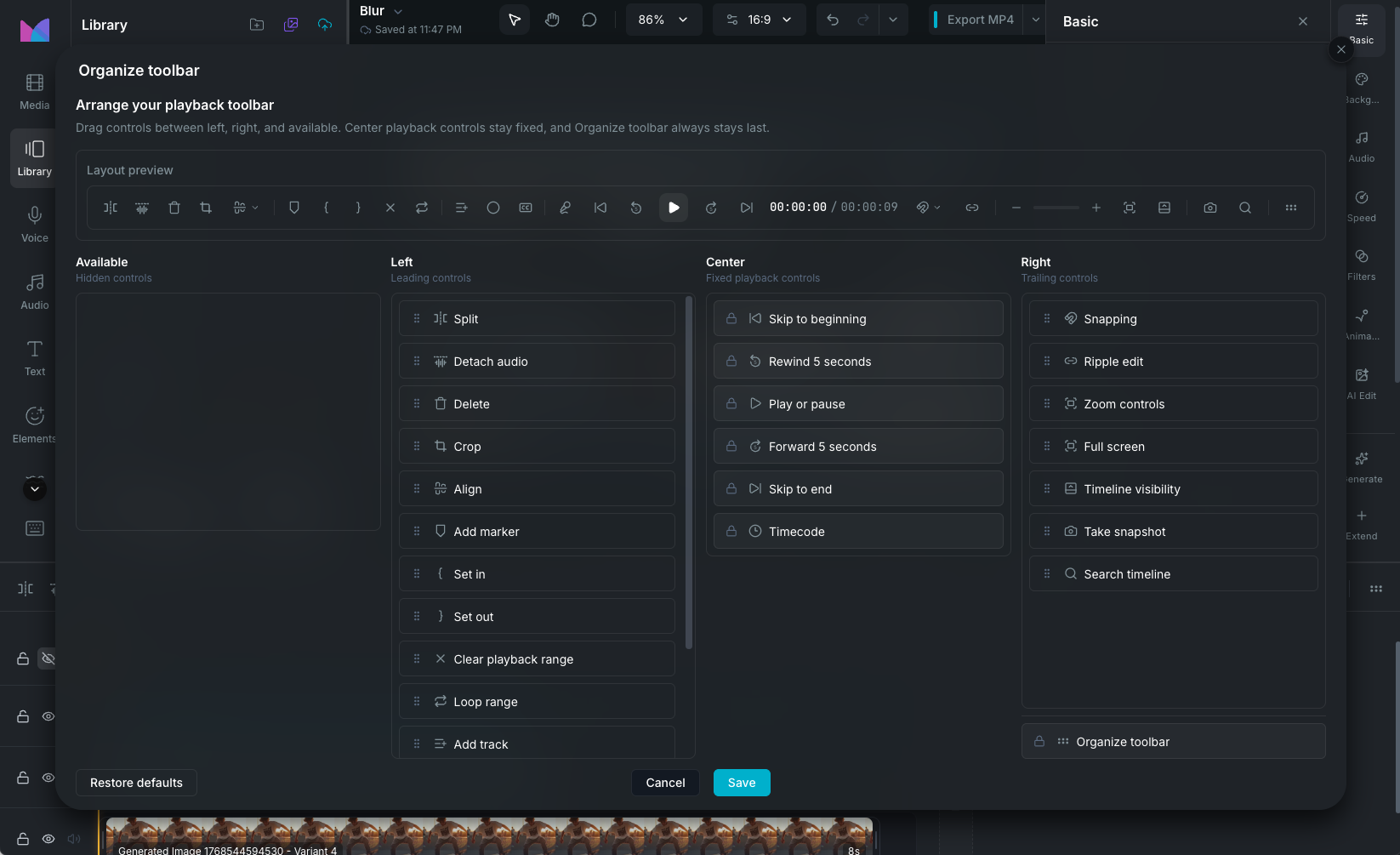
Click the Customize button (grip icon) in the toolbar to open the toolbar organizer modal.

Toolbar organizer modal

The modal displays four columns:

  • Available: tools not currently shown in the toolbar.
  • Left: tools placed on the left side of the toolbar.
  • Center: playback controls (play/pause, skip, timecode). These are fixed and cannot be moved.
  • Right: tools placed on the right side of the toolbar.

Drag tools between the Available, Left, and Right columns to build your preferred layout. A live preview at the top of the modal shows how the toolbar will look. Click Reset to restore the default arrangement, or Save to apply your changes. Your toolbar layout is saved and persists across sessions.

Tools not in the toolbar are still accessible from menus and keyboard shortcuts.

Wayaframe Documentation