Skip to content

AI Voice Swapping & Dubbing

Voice Swap lets you completely transform the voice in any video or audio clip with a single click. Replace a speaker with a natural-sounding AI voice, dub content into a different voice style, or assign unique voices to individual speakers in multi-voice projects. The original speech content and timing are preserved perfectly, so the swapped voice sounds like it was recorded that way from the start.

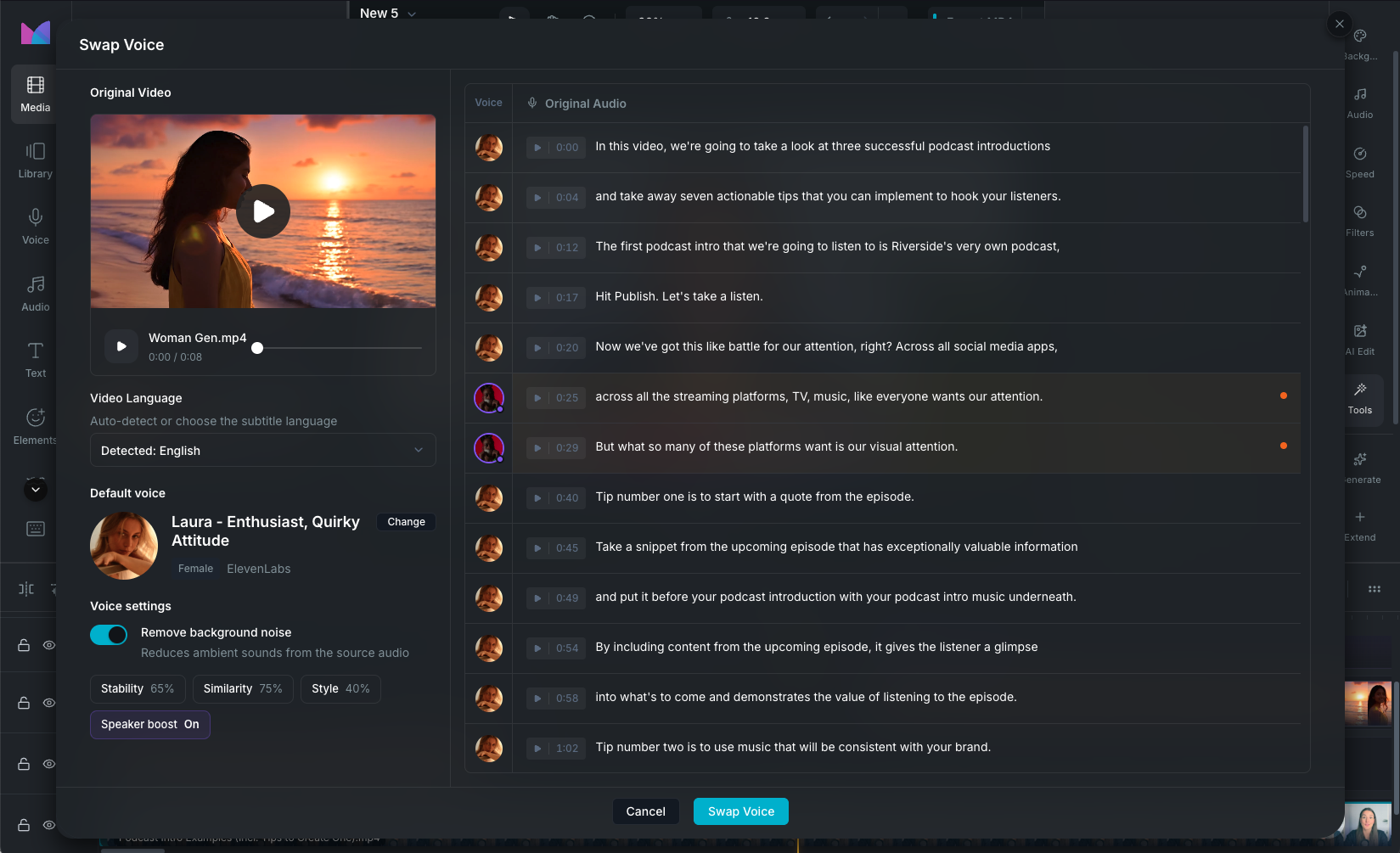
Voice Swap modal

How it works

Voice Swap is a multi-step process:

  1. Transcribe: Wayaframe analyzes the audio and converts speech to text segments with timestamps.
  2. Review: you review the transcription and can edit any segment's text before swapping.
  3. Select a voice: choose the target voice from any supported provider.
  4. Swap: the AI generates new audio in the selected voice, matching the timing of each segment.
  5. Save: the swapped audio replaces the original on the timeline. For video clips, the new audio is automatically combined with the original video.

Opening Voice Swap

Select a video or audio clip on the timeline, then open Voice Swap from one of these locations:

  • The Tools tab in the property panel. Click AI Voice Swap.

Voice Swap works with video clips that have audio, standalone audio clips, and detached audio clips.

Transcription

Click Transcribe to start analyzing the audio.

Language

By default, the language is auto-detected from the audio. You can also select the language manually from the dropdown before transcribing, which can improve accuracy for less common languages or accented speech.

Once detected, the language is shown with a flag indicator (e.g. "Detected: English").

Reviewing the transcript

After transcription, each segment is displayed with its text and time range. You can edit any segment's text before swapping. This is useful for correcting transcription errors or adjusting wording. Changes to the text are reflected in the swapped output.

Choosing a voice

Click Select Voice to open voice selection. From here you can browse, search, filter, and preview voices across all providers.

Supported providers

Voice Swap supports three providers, each with different strengths:

ProviderMethodBest for
ElevenLabsSpeech-to-speech conversionNatural voice cloning, preserving emotion and intonation
MurfVoice changerClean studio-quality voice replacement
MiniMaxText-to-speech synthesisMulti-language support with custom sound effects

You can switch providers at any time from the Voice Swap modal.

Voice sources

All voice sources from the Voice Selection modal are available:

  • Built-in voices: browse the full catalog for each provider.
  • Cloned voices: use your own cloned voices (ElevenLabs and MiniMax).
  • Favorites: voices you've saved for quick access.
  • Brand Kit voices: voices saved to your project's Brand Kit.
  • Recently used: the last voices you selected.

Multi-voice support

You can assign different voices to different segments. For example, use a male voice for one speaker and a female voice for another. Each segment can have its own voice override with independent settings.

Voice settings

Each provider offers controls to fine-tune how the swapped voice sounds, including stability, pitch, speed, and more. The available settings depend on the selected provider. See Voice Settings for the full list of controls per provider.

Processing

After selecting a voice and adjusting settings, click Swap Voice to start processing. A progress indicator shows the current status while Wayaframe generates the new audio. Longer clips may take more time as they are processed in segments.

Previewing the result

Once processing is complete, the modal shows both the original and swapped versions side by side:

  • Original: the unmodified audio or video with playback controls.
  • Swapped: the result with the new voice, highlighted with a green border.

Play each version to compare. If you're not satisfied, adjust the voice settings and click Regenerate to create a new version.

Saving and applying

Click Save to apply the swapped audio to your clip on the timeline. The original media is preserved internally so you can revert at any time.

For video clips, Wayaframe automatically combines the swapped audio with the original video, creating a new version with the replaced voice track.

Reverting to original

To undo a voice swap, select the clip and click Revert to original in the Tools tab of the property panel. The clip returns to its original audio. This option is available any time a clip has been modified by Voice Swap, Voice Enhancement, or Audio Translation.

Credits

Voice Swap uses AI credits. The cost depends on the provider and the audio duration.

Limitations

  • ElevenLabs: maximum audio duration of 15 minutes.
  • Murf: maximum audio duration of 3 minutes.
  • Audio file uploads are limited to 20 MB.
  • Videos without an audio track cannot be voice swapped. Add audio to the clip first.

Wayaframe Documentation