Skip to content

Getting Started

Wayaframe combines AI-assisted video creation with a full editing workspace. This page gets you from first launch to a finished first project without having to learn the entire product up front.

What Wayaframe Is

Wayaframe is built for creators and teams who want to move from idea to exported video in one workflow.

  • Use the desktop app for the main creation and editing experience, including the guided project workflow, timeline editing, recording tools, and exports.
  • Use the web app for account access, billing, app downloads, and browser-based project access when needed.
  • Use the same account across desktop and web so your projects, permissions, and subscription stay in sync.

Before You Begin

Have these ready before you start:

  • A Wayaframe account
  • A stable internet connection for AI generation, syncing, and downloads
  • Free disk space for source media, cached assets, and exports
  • Microphone, camera, or screen-recording permissions if you plan to record inside the app

System Requirements

Review the dedicated System Requirements page before installation if you need a clear setup checklist.

Create Your Account

If you do not already have an account:

  1. Create your account from the Wayaframe sign-up page using your preferred sign-in method.
  2. Verify your email if prompted.
  3. Choose a subscription plan that matches your usage and team size.
  4. Sign in to the desktop app with the same account.

After sign-in, you will land in your main workspace where you can open projects, the asset library, and settings.

Install the App

  1. Download the desktop build for your operating system from the Wayaframe apps page.
  2. Install the app:
    • macOS: open the downloaded .dmg and drag Wayaframe into your Applications folder.
    • Windows: run the installer and follow the on-screen prompts.
  3. Launch the app and sign in with your Wayaframe account.

Your First Project

The fastest way to learn Wayaframe is to complete one short project from start to finish.

Step 1: Create a new project

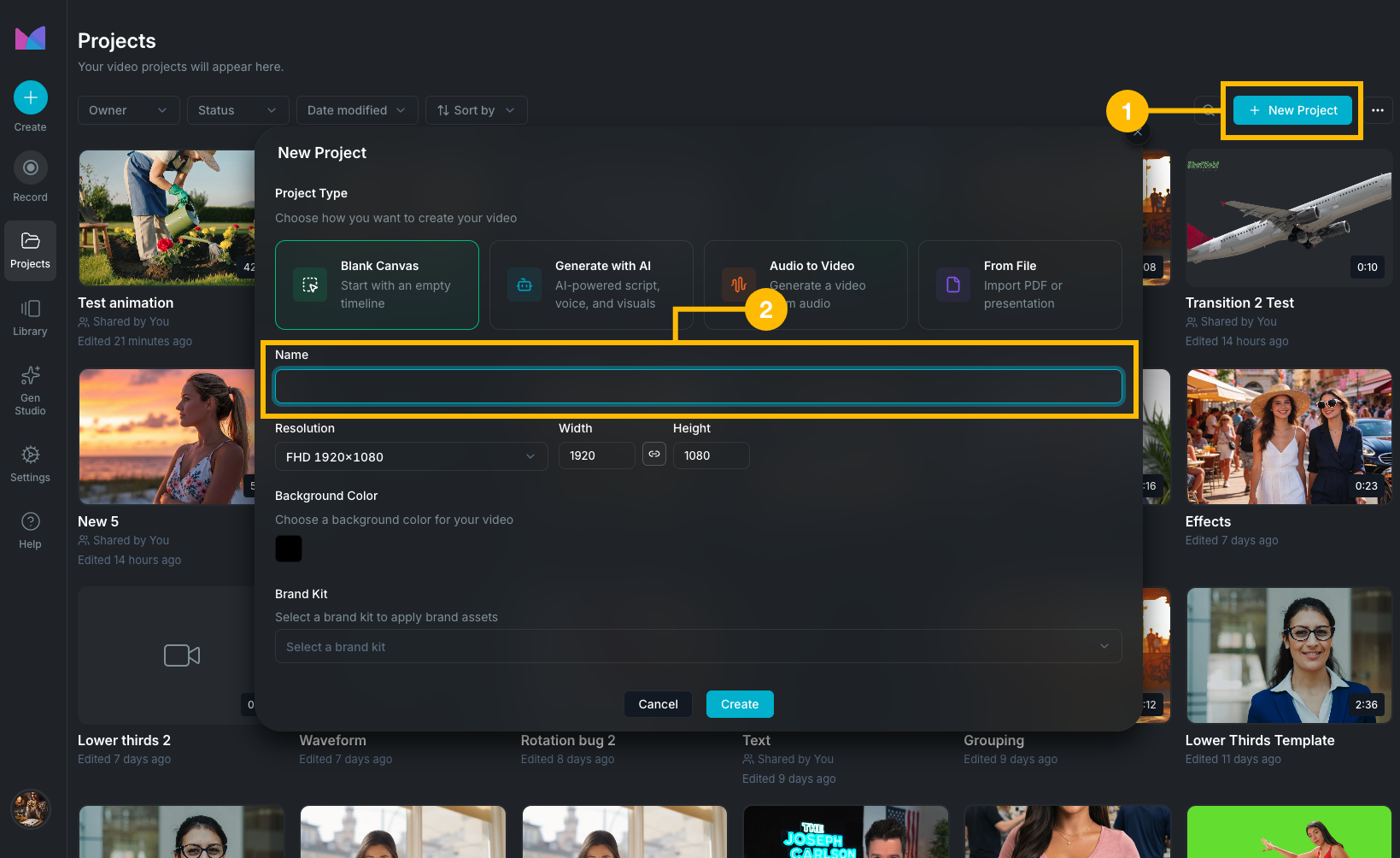
Open Projects, click New Project, and complete the setup in the create-project modal.

In that modal, you will:

  • Choose a Project Type: Blank Canvas, Generate with AI, Audio to Video, or From File
  • Enter a Name
  • Choose a Resolution or set a custom width and height
  • Set a Background Color
  • Optionally select a Brand Kit

If you choose Audio to Video, add an audio file or select one from your library. If you choose From File, import a PDF, PPT, or PPTX file.

the create project screen

Step 2: Move through the guided creation flow

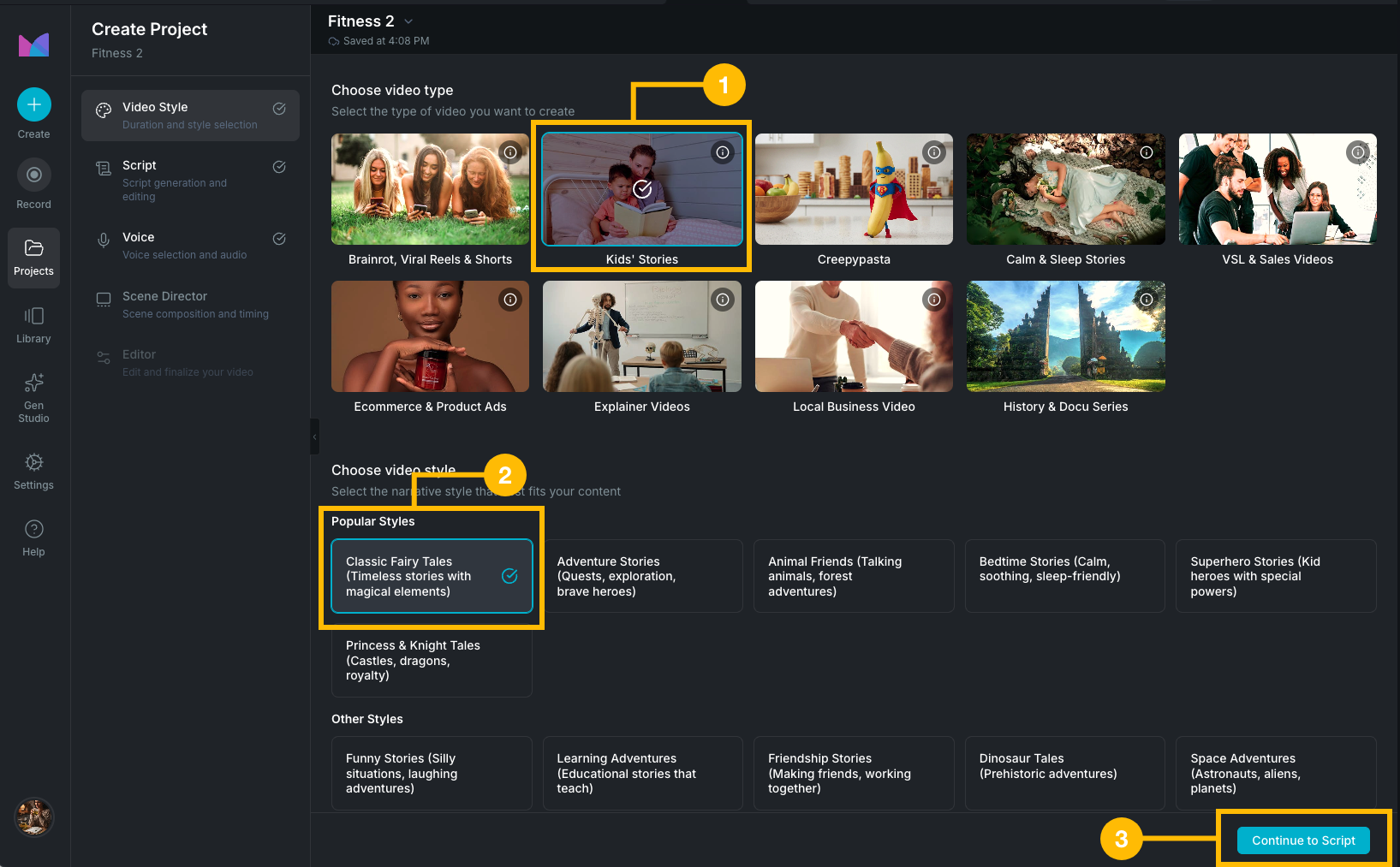
If you choose Generate with AI, Wayaframe walks you step-by-step through generating the video and every asset it needs, including the script, voiceover, visuals, and timing:

  1. Video Style: define the look, direction, and duration.
  2. Script: generate a script with AI or insert your own.
  3. Voice: generate voiceover audio or continue without it.
  4. Scene Director: generate visuals, review scenes, and adjust timing.
  5. Editor: finish the project in the full editing workspace.

You do not have to use every AI step. For example, you can skip script or voice generation and continue with your own content.

If you choose Blank Canvas or From File, Wayaframe opens the editor directly instead of starting the guided AI flow. If you choose Audio to Video, Wayaframe starts from the audio-driven part of the workflow.

the guided creation flow

Step 3: Finish in the editor

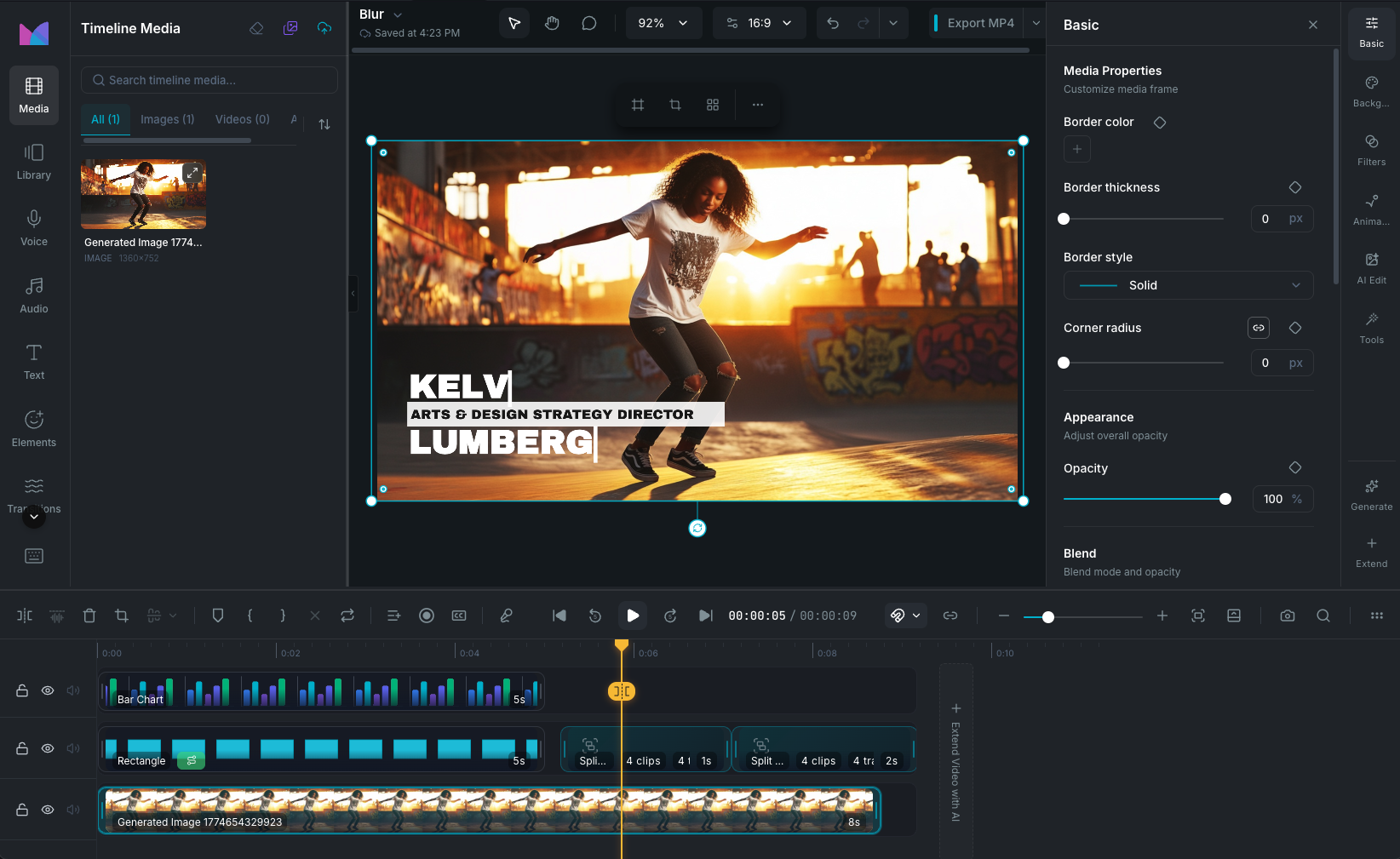
Once you continue to the editor, you can refine the project with more control:

  • Trim and move clips on the timeline
  • Replace or upload media
  • Add text, subtitles, shapes, and stickers
  • Adjust audio and voice timing
  • Apply transitions, filters, and effects
  • Prepare the final export

the editor workspace

Step 4: Export the result

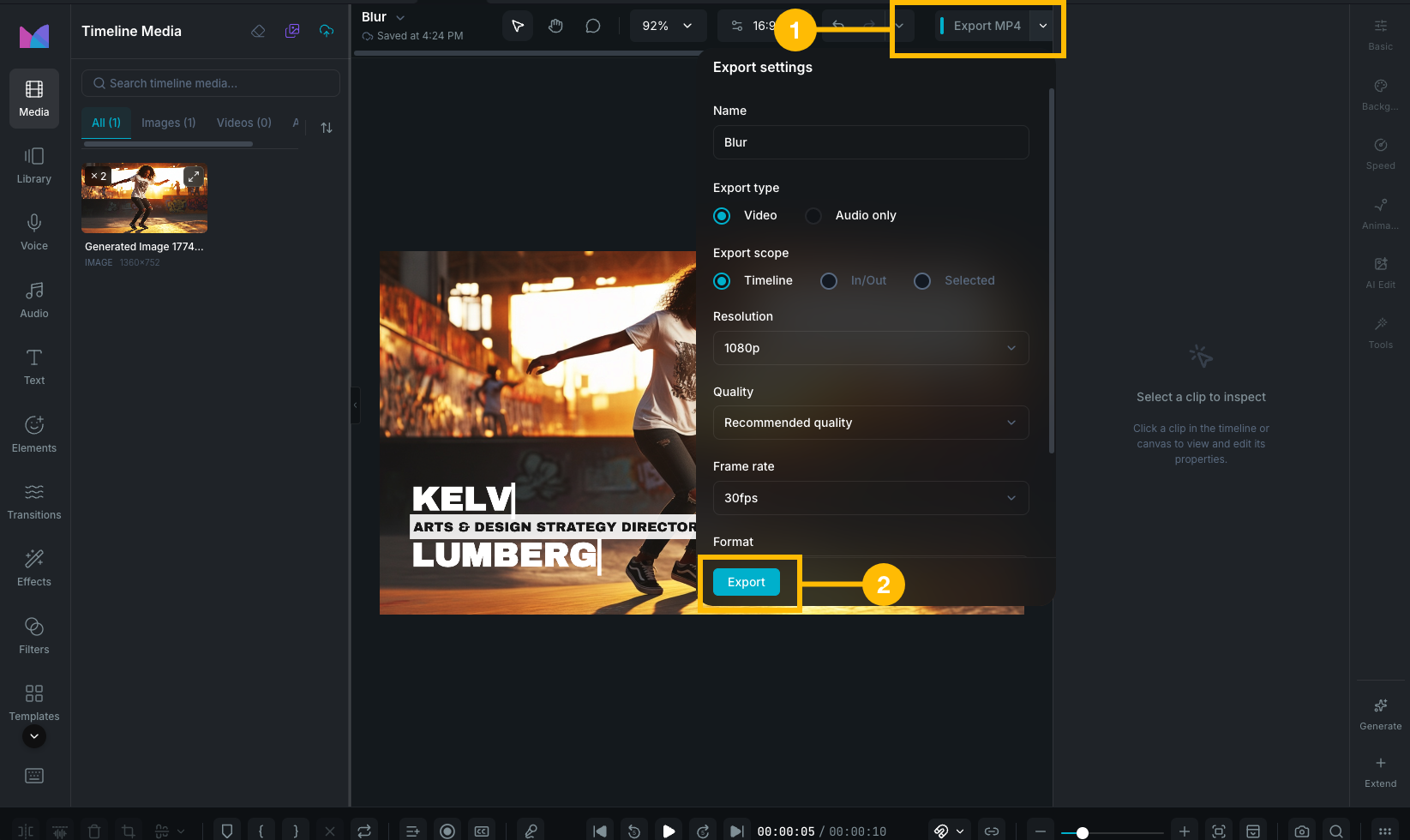
When the project looks right, export it from the editor header. Pick a resolution, format, and the folder where Wayaframe should save the finished video, then start the export. A progress notification stays on screen while it renders. When it finishes, click Show File to open the folder containing your video.

the export flow

Interface Tour

You won't need every part of the app on day one. These are the places you'll spend the most time:

Outside the editor

  • Projects: open, create, rename, and manage your video projects.
  • Library: reuse scripts, voiceovers, and media across projects.
  • Settings: manage your profile, billing, team, and AI model preferences.

Inside the editor

  • Canvas: the visual preview of the current frame.
  • Inspector: fine-tune the selected clip's styling, effects, and timing.
  • Timeline: arrange, trim, and reorder clips across tracks.

If you want the quickest path to a finished result, use this sequence:

  1. Create a short project.
  2. Generate or paste a simple script.
  3. Add voiceover if your project needs narration.
  4. Generate scenes and review them quickly.
  5. Continue to the editor and clean up timing.
  6. Export a draft.

After this page, the next most useful documentation sections to read are:

Wayaframe Documentation