Skip to content

Stickers

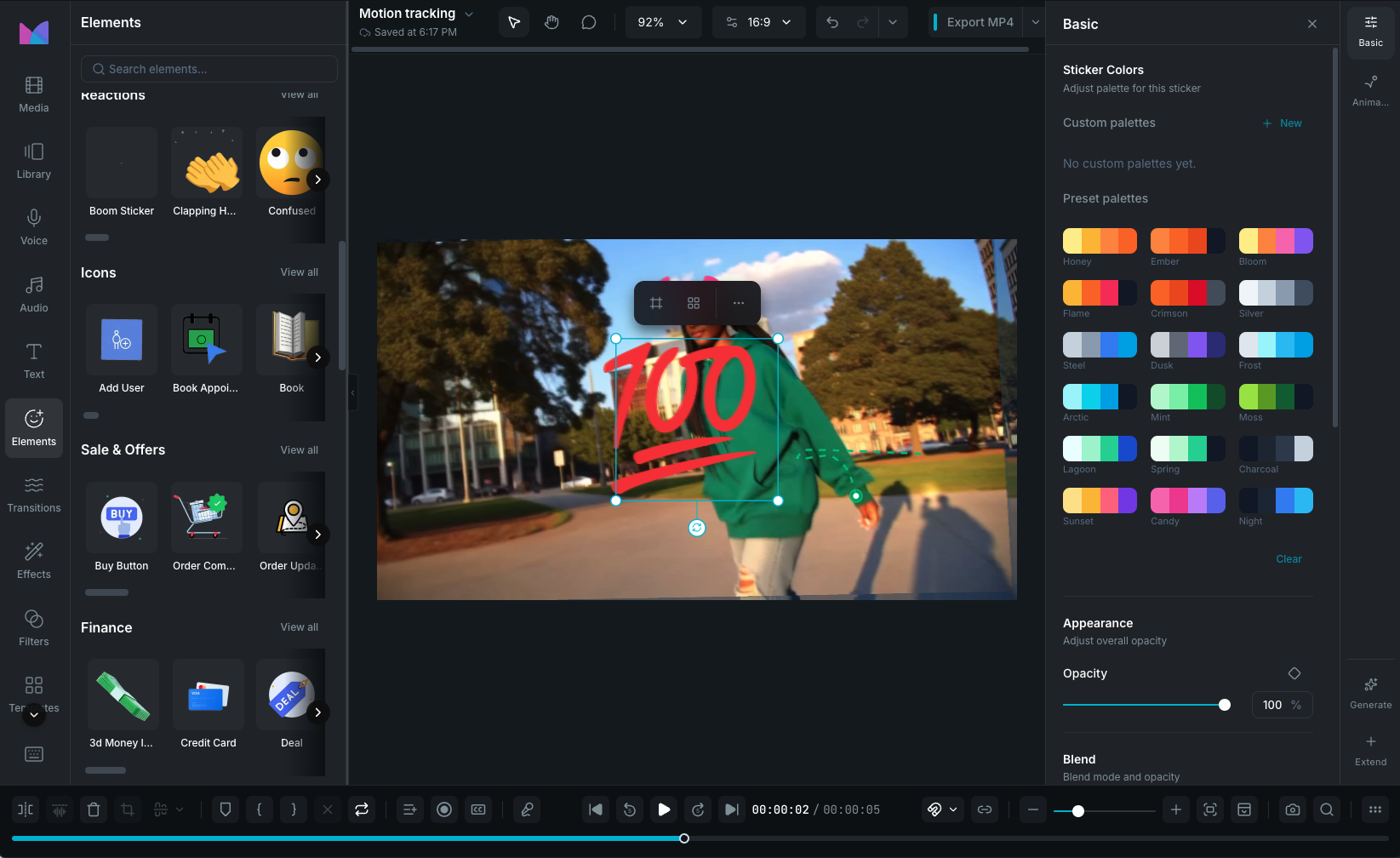
Stickers are animated and decorative elements you add to your video from the Elements panel in the sidebar. They include emoji, reactions, icons, effects, arrows, and more. Most stickers are animated and play automatically on the canvas, and many support customizable color palettes so you can match them to your brand or project style.

Stickers panel

Browsing stickers

Open the Elements panel in the sidebar to browse the sticker library. Stickers are organized into 19 categories:

  • Trending: currently popular stickers.
  • Emoji: emoji-style animations.
  • Shapes: geometric shapes (covered separately in Shapes).
  • Reactions: emotional expressions, clapping, waving, thumbs up.
  • Icons: generic icons and UI elements.
  • Sale & Offers: commercial and promotional stickers.
  • Finance: money, payments, financial concepts.
  • Love: hearts and romantic themes.
  • Achievements: trophies, medals, awards.
  • UI: interface elements, loaders, buttons.
  • Interaction: click, tap, scroll actions.
  • Celebration: parties, fireworks, confetti.
  • Gifts & Tags: presents, labels, tags.
  • Productivity: work, time, ideas, goals.
  • Social: people, social media, networking.
  • Arrows: directional indicators.
  • Effects: visual effects, particles, sparkles.
  • Animals: wildlife and creatures.
  • Travel: vehicles, locations, maps.

Use the search bar at the top to filter stickers by name, category, or tags. Click View All on any category to see every sticker in it.

Recently used

Your most recently inserted stickers appear at the top of the panel for quick access.

Assets Center

The bundled library includes hundreds of stickers, but you can browse thousands more from the Assets Center. Click Browse at the top of the Stickers panel to open it. Search, filter by category, and download stickers directly into your local library. Downloaded stickers appear alongside the built-in ones and are available across all projects.

Adding stickers

  • Click a sticker thumbnail to insert it at the current playhead position on the timeline.
  • Drag a sticker onto the canvas or timeline to place it at a specific position and track.

After insertion, the sticker is automatically selected and the canvas focuses on it. The sticker's duration matches its animation length for Lottie stickers, or defaults to 5 seconds for static stickers.

Importing Lottie animations

You can also import your own .lottie animation files into Wayaframe and use them alongside built-in stickers. Import them from the Library or through Import Media, and they appear in your media library ready to add to the timeline.

Color customization

Many Lottie stickers support color customization through a palette system. When you select a sticker with customizable colors, the property panel shows the available color slots.

Preset palettes

Apply a preset palette to instantly recolor the sticker. 18 built-in palettes are available:

  • Warm (5 variants): warm-toned color combinations.
  • Cool (4 variants): cool-toned color combinations.
  • Forest (4 variants): natural green-toned palettes.
  • Mono: monochrome palette.
  • Sunset, Candy, Night: themed palettes.

Click any preset to apply it. Colors are mapped to slots in order, so the first palette color goes to the first slot, the second to the second, and so on.

Custom palettes

Create your own palettes for consistent styling across stickers:

  1. Click the + button in the color section of the property panel.
  2. Name your palette and pick up to 6 colors.
  3. Click Save. Your custom palette appears alongside the presets.

Edit or delete custom palettes at any time by clicking the pencil icon.

Sticker properties

Select a sticker on the canvas or timeline to see its properties in the property panel:

  • Opacity: 0 to 100%.
  • Blend mode: how the sticker composites with content below.
  • Transform: position, rotation, scale (shared with all clips via Basic Properties).
  • Drop shadow: optional shadow behind the sticker.
  • Filters: color adjustments and visual filters.

Animations

Stickers support multiple layers of animation:

  • Built-in animation: animated stickers play their internal animation automatically for the duration of the clip.
  • Entrance and exit animations: add effects like fade, slide, pop, or bounce when the sticker appears or disappears. See Animation Presets.
  • Loop animations: add a continuous animation that repeats while the sticker is visible.
  • Keyframe animation: animate any property (position, scale, rotation, opacity) over time. See Keyframing.
  • Motion paths: make the sticker follow a custom trajectory. See Motion Paths.

Stickers vs shapes

StickersShapes
FormatAnimated elementsVector paths
ColorsPalette-based with color slotsDirect fill and stroke with gradients
Internal animationYes, plays automaticallyNo
Path editingNoYes, full node editing on canvas
Blur / pixelateNoYes
Overlay maskingNoYes
Endpoint stylesNoYes (for open paths)

For geometric shapes with full styling control, see Shapes.

Wayaframe Documentation