Skip to content

Voice Translation

Voice Translation lets you dub your video or audio into another language with AI. Wayaframe transcribes the original speech, translates the text, and generates natural-sounding audio in the target language, all from a single workflow. The translated audio is automatically timed to match the original, so lip sync and pacing stay aligned.

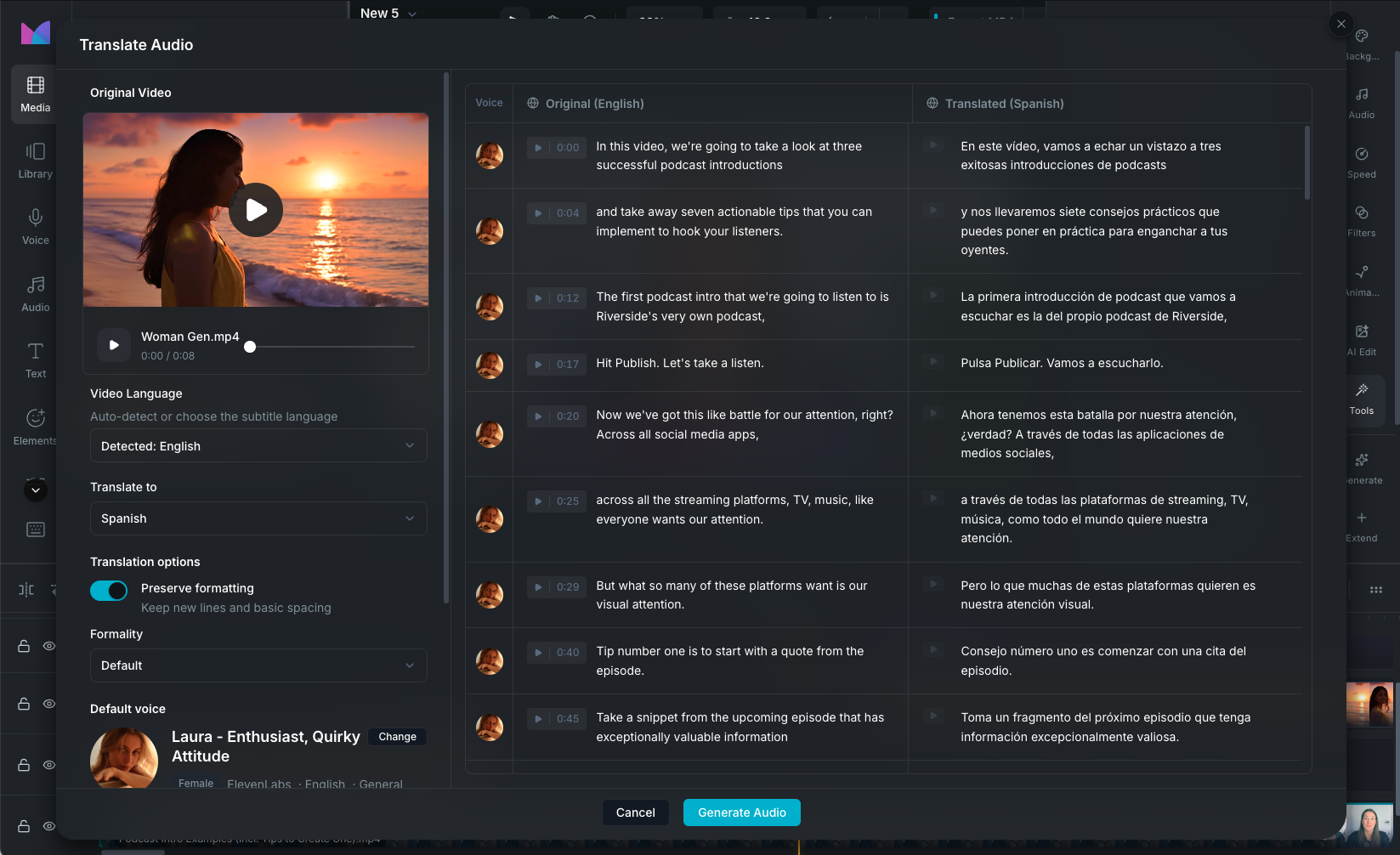
Voice Translation modal

Opening Voice Translation

Select a video or audio clip on the timeline, then open the Tools tab in the property panel and click Translate.

Voice Translation works with:

  • Video clips: the audio is extracted, translated, and combined back with the original video automatically.
  • Audio clips: translated directly.

The workflow

Voice Translation follows a guided multi-step process:

  1. Transcribe: Wayaframe transcribes the original audio using AI speech recognition. If the audio has been transcribed before, the cached result is reused.
  2. Translate: the transcription is translated to your chosen target language.
  3. Edit: review and edit the translated text segment by segment before generating audio.
  4. Generate audio: AI generates spoken audio for each translated segment using your selected voice.
  5. Create video (video clips only): the translated audio is automatically combined with the original video.
  6. Preview, compare, and save: listen to the translated result alongside the original, then save to apply it to your clip on the timeline.

Language selection

Source language

By default, Wayaframe auto-detects the spoken language from the audio. You can also select the source language manually from the dropdown before transcribing, which can improve accuracy.

Target language

Choose the language you want to translate to. 30+ languages are supported, including English, Spanish, French, German, Italian, Portuguese, Dutch, Polish, Russian, Japanese, Chinese, Korean, Arabic, Turkish, Ukrainian, Swedish, Danish, Finnish, Greek, Czech, Romanian, Hungarian, and more.

Choosing a voice

Click Choose Voice to open voice selection and pick the voice that will speak the translated audio. Voices are available from three providers:

  • ElevenLabs: natural-sounding voices with expressive controls.
  • Murf: clean studio-quality voices.
  • MiniMax: strong multi-language support with sound effects.

Each provider has different voice settings you can fine-tune. See Voice Settings for the full list of controls per provider.

Per-segment voice assignment

You can assign a different voice to individual segments. Click the voice avatar next to any segment in the translation table to change the voice or adjust settings for that segment only. This is useful for multi-speaker content where you want different voices for different speakers.

Editing the translation

After translation, the right panel shows a table with two columns: the original text and the translated text for each segment. Click any translated segment to edit it inline. This lets you:

  • Correct translation errors or awkward phrasing.
  • Adapt the wording for the target audience.
  • Adjust sentence length to better fit the original timing.

Edited segments are flagged so you can see which ones you've modified. When you generate audio, only modified segments need to be regenerated.

Audio generation and timing

Click Generate Audio to create the translated speech. Wayaframe processes segments in batches, showing progress as each one completes (e.g. "Generating audio: 3 of 12 segments...").

Each segment's audio is automatically time-stretched to match the duration of the original segment. This keeps the translated speech aligned with the original video timing. Silence gaps between segments are preserved to maintain natural pacing.

Preview

Once generation is complete, the modal shows both versions:

  • Original: the unmodified audio or video with playback controls.
  • Translated: the result in the target language.

Play each to compare. You can also click any segment's timestamp in the table to jump to that point.

If you want to make changes, edit the translated text and click Regenerate to update only the modified segments.

Saving

Click Save to apply the translated audio to your clip on the timeline. Wayaframe creates a new version of the media while preserving the original, so you can always revert.

For video clips, the translated audio is automatically combined with the original video.

Reverting to original

To undo a translation, select the clip and click Revert to original in the Tools tab of the property panel. The clip returns to its original audio.

Resetting a translation

Click Reset Translation in the modal to clear everything and start over. This removes the cached transcription, translation, and generated audio for the current clip.

Background noise removal

Toggle Remove Background Noise in the settings panel to clean up the original audio before translation. This can improve transcription accuracy and voice generation quality for noisy recordings.

Credits

Voice Translation uses AI credits for transcription, text translation, and voice generation. The cost depends on the audio duration, target language, and voice provider.

Wayaframe Documentation