Skip to content

Snapping

Snapping helps you align elements quickly and accurately. When enabled, elements and clips magnetically snap to nearby targets as you move, resize, or trim them. Snapping works on both the preview canvas and the timeline, each with its own set of configurable targets.

Snap settings

Click the magnet icon in the playback toolbar to open the snap settings dropdown. You can also toggle snapping on or off with the keyboard shortcut Shift + S.

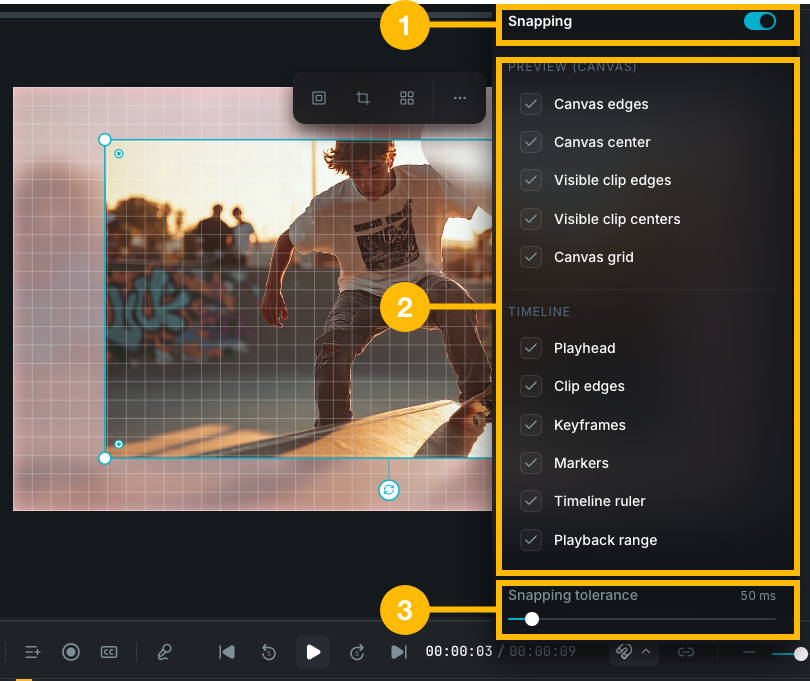
Snap settings dropdown

The dropdown has three sections:

  1. Global toggle: turn all snapping on or off.
  2. Snap targets: individually enable or disable each target for the canvas and timeline.
  3. Snapping tolerance: a slider that controls how close an element needs to be to a target before it snaps.

Preview (Canvas) snapping

When you move or resize elements on the canvas, dashed blue guide lines appear whenever an element aligns with a snap target. These guides disappear as soon as you move away from the snap point.

Canvas edges

Snap to the top, bottom, left, and right edges of the canvas frame. Useful for positioning elements flush against the preview boundary.

Enabled by default.

Canvas center

Snap to the horizontal and vertical center lines of the canvas. A guide line appears when the element's center or edge aligns with the canvas midpoint.

Enabled by default.

Visible clip edges

Snap to the edges of other visible clips on the canvas. This helps you align multiple elements to each other, for example lining up the right edge of one element with the left edge of another.

Enabled by default.

Visible clip centers

Snap to the center point of other visible clips. Useful for centering one element relative to another.

Enabled by default.

Canvas grid

Snap to the grid lines when the grid overlay is enabled. See Canvas Settings to configure the grid. The grid size (small, medium, or large) is set in the canvas settings dropdown.

Disabled by default.

Rotation snapping

When rotating an element, it snaps to common angles (0, 45, 90, 135, 180, 225, 270, 315 degrees) when within range. Hold Shift while rotating to disable rotation snapping and rotate freely to any angle.

Temporarily disabling canvas snapping

Hold Ctrl (Windows) or Cmd (Mac) while dragging to temporarily disable all canvas snapping for that interaction. This lets you position an element precisely without turning snapping off globally.

Timeline snapping

When you move, trim, or split clips on the timeline, snapping aligns them to key positions. A vertical blue guide line with a glow appears at the snap point, along with a label showing what you are snapping to and the time position.

Playhead

Snap clip edges to the current playhead position. This is useful for aligning a clip start or end exactly where you are previewing.

Enabled by default.

Clip edges

Snap to the start and end of other clips on any track. This helps you line up clips across tracks or create precise cuts between adjacent clips.

Enabled by default.

Keyframes

Snap to keyframe positions in the timeline. Useful when you want a clip edge to align with an animation keyframe.

Enabled by default.

Markers

Snap to markers and cue points placed on the timeline. See markers for more on adding and managing markers.

Enabled by default.

Timeline ruler

Snap to the ruler grid at one-second intervals. This gives you a consistent time-based grid for aligning clips.

Enabled by default.

Playback range

Snap to the start and end boundaries of the playback range, if one is set.

Enabled by default.

Snapping tolerance

The tolerance slider controls how close an element or clip needs to be to a snap target before it locks into place. The range is 5 ms to 500 ms, with a default of 50 ms.

  • Lower values (closer to 5 ms) require more precision. Elements only snap when very close to a target.
  • Higher values (closer to 500 ms) make snapping more aggressive. Elements snap from further away.

On the canvas, snapping uses a pixel-based threshold that adjusts with zoom level, so snapping feels consistent regardless of how far you are zoomed in or out.

Tips

  • Press Shift + S to quickly toggle snapping on or off while working.
  • Disable specific snap targets you don't need to reduce visual clutter.
  • Use canvas grid snapping together with canvas center for centered layouts with consistent spacing.
  • Timeline snapping is especially useful when aligning clips across multiple tracks or cutting to the beat with markers.
  • Canvas snapping applies to both moving and resizing. When resizing, the element edge snaps to nearby targets.

Wayaframe Documentation