Skip to content

Voice Selection

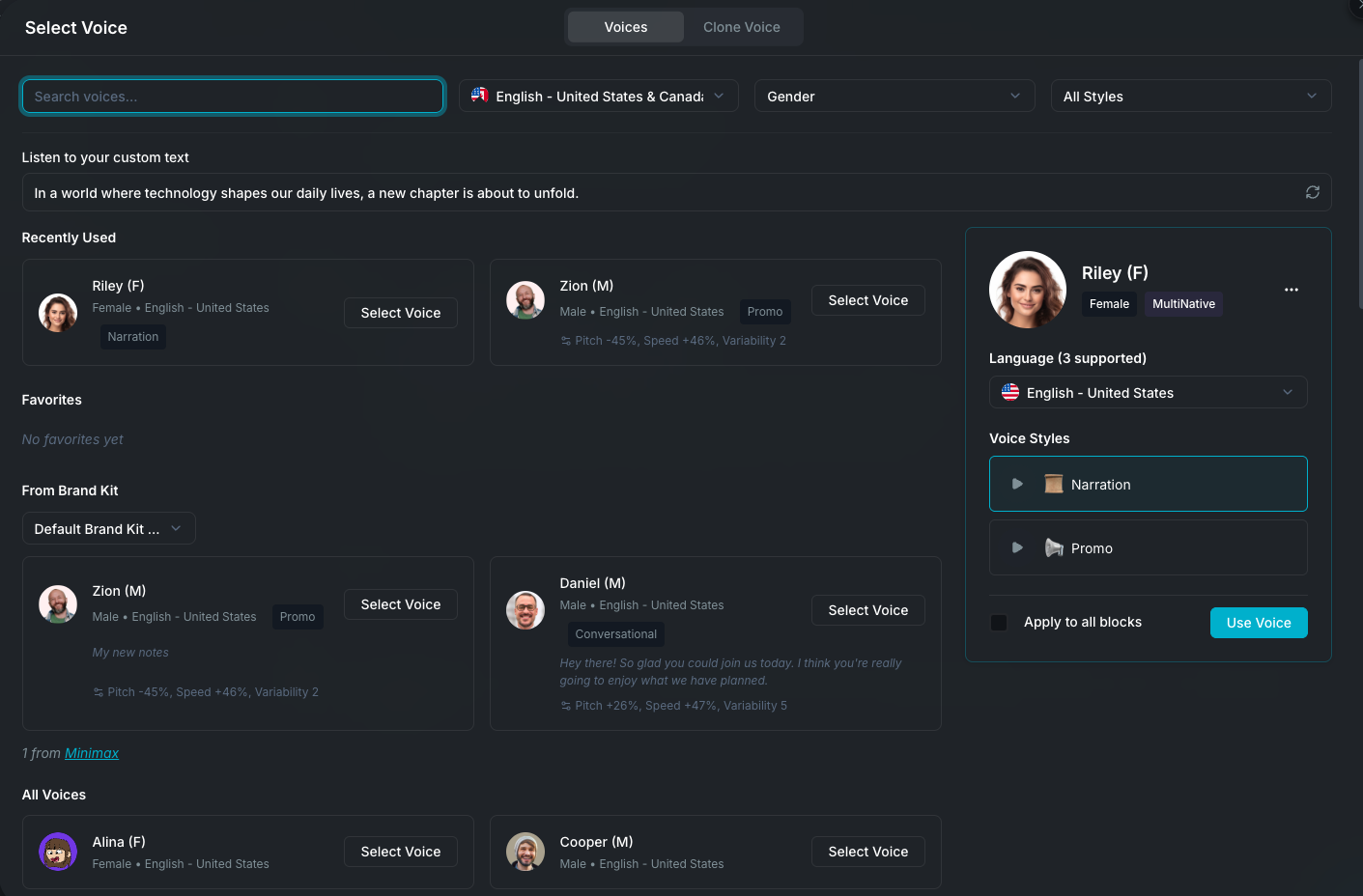
The Voice Selection modal is where you pick the voice for your voiceover. It gives you access to every available voice across all providers, plus your cloned voices, favorites, and recently used voices. You can also clone new voices directly from this modal.

You can open it from the Voice Designer, Voice Swap, Translate Audio, Edit by Text, and from the Brand Kit panel.

Voice selection modal

Browsing voices

The modal has two main tabs:

Voices tab

Voices are organized into sections, shown in this order:

  1. Recently Used: the last 4 voices you used with the current provider.
  2. Favorites: voices you've saved for quick access, with custom names and notes.
  3. Brand Kit Voices: voices linked to the project's Brand Kit, if one is assigned.
  4. All Voices: the full catalog for the selected provider.

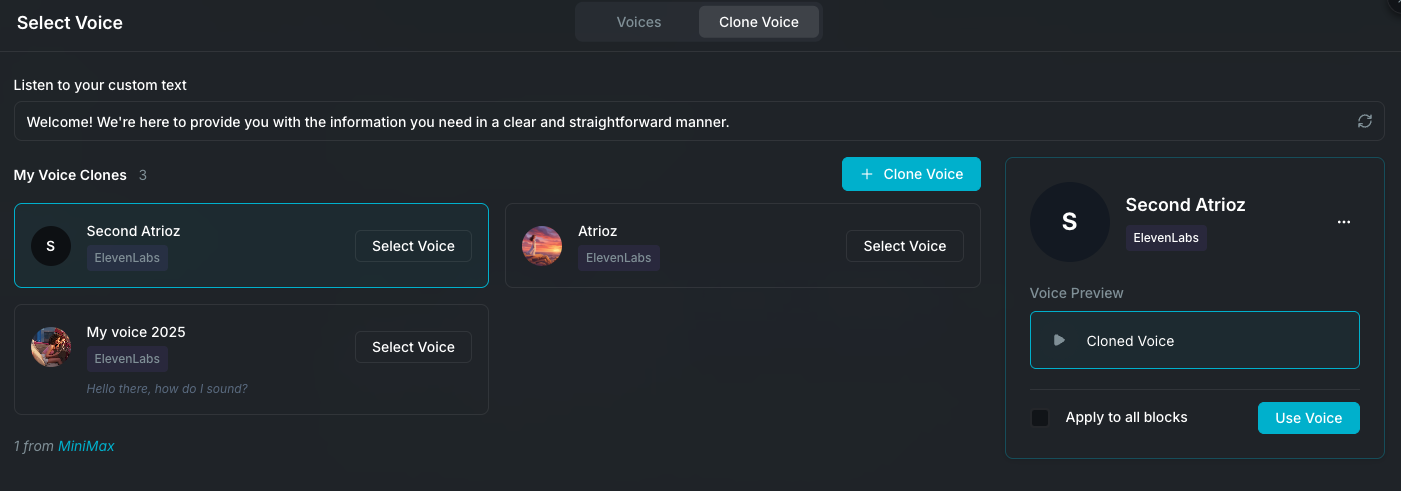
Clones tab

Shows your cloned voices, filtered by provider. Only ElevenLabs and Minimax support cloning.

Searching and filtering

Use the search bar to find voices by name, description, gender, accent, category, style, language, or use case.

Filters vary by provider:

ProviderAvailable filters
MurfCountry/Language, Gender, Style
ElevenLabsAccent, Gender, Category
MinimaxLanguage, Voice Group/Category, Voice Preset

Active filters show a count badge. Use Clear All to reset.

Voice details

Each voice card displays:

  • Avatar image
  • Voice name
  • Gender badge
  • Accent and language
  • Saved style label (if applicable)
  • Custom settings indicator (when settings have been applied)

Voice preview panel

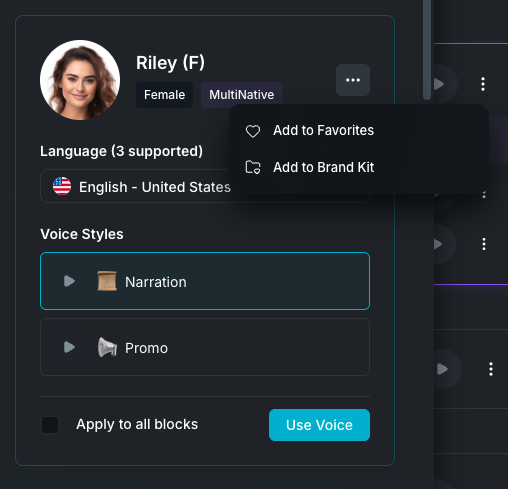
Voice preview panel

When you select a voice, a detailed preview panel appears showing:

  • Voice name, avatar, gender badge, and multi-language badges.
  • Supported languages with a count (e.g. "Language (3 supported)").
  • Voice Styles (e.g. Narration, Promo, Conversational, Calm, Storytelling, Newscast, Documentary, and more). Click the play button next to any style to hear how it sounds. The available styles depend on the voice and language combination. You can also type your own preview text or cycle through preset samples. Custom preview text is saved per language.
  • Apply to all blocks checkbox: when checked, clicking Use Voice applies the selected voice to every block in your voiceover, not just the current one.
  • Use Voice button: confirms your selection and closes the modal.

The three-dot menu on the preview panel gives you two options:

  • Add to Favorites: save the voice with a custom name and note for quick access across all workflows.
  • Add to Brand Kit: save the voice to your project's Brand Kit for consistent use across projects.

Cloning a voice

Voice cloning lets you create an AI voice that sounds like a specific person. Provide a sample recording and Wayaframe builds a reusable voice you can use anywhere in the Voice Designer, just like a built-in voice. This is useful when you want your videos to use your own voice, a team member's voice, or a consistent brand narrator without recording every line manually. Voice cloning is supported by ElevenLabs and Minimax (not Murf).

How to clone

  1. Switch to the Clones tab.
  2. Click Clone a Voice.
  3. Choose an input method:
    • Upload: drag and drop or browse for an audio file (MP3, WAV, or M4A).
    • Record: record directly from your microphone with start, stop, pause, and resume controls.
    • URL: paste a direct link to an audio or video file. If you provide a video URL (e.g. from YouTube), Wayaframe automatically extracts the audio. See Import Media for more on supported links and uploads.
  4. Enter a name and optional description for the cloned voice.
  5. Click Clone. Processing takes a few moments.

Once created, the cloned voice appears in the Clones tab and can be used anywhere a standard voice is used.

Voice cloning workflow

Managing cloned voices

  • Edit: change the name, description, or avatar of a cloned voice.
  • Delete: remove a cloned voice permanently.
  • Preview: listen to the cloned voice with custom text.

Cloned voices are stored per provider. If you clone with ElevenLabs, the voice is only available when ElevenLabs is the active provider.

Wayaframe Documentation