Skip to content

Prompt Enhancer

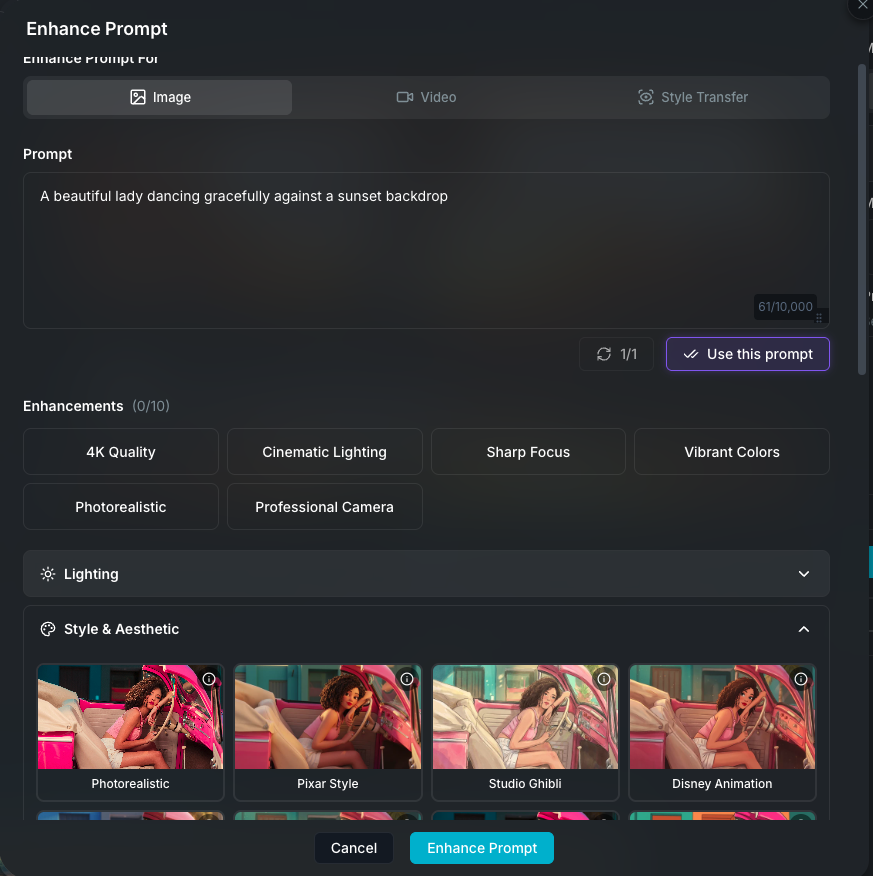
The Prompt Enhancer takes your generation prompt and rewrites it into a richer, more detailed version using AI. Instead of spending time manually describing lighting, camera angles, composition, and style, you select the qualities you want and the enhancer weaves them into your prompt naturally. It works for both image and video generation prompts.

You can access the Prompt Enhancer from any image or video generation form by clicking the Enhance Prompt button next to the prompt input.

Prompt Enhancer modal

How it works

  1. Write your base prompt describing what you want to generate.
  2. Open the Prompt Enhancer.
  3. Select enhancements (lighting, style, camera, composition, etc.).
  4. Optionally upload a reference image for visual inspiration.
  5. Choose how many variations you want (1 to 10).
  6. Click Enhance. The AI returns rewritten versions of your prompt with all selected enhancements incorporated.
  7. Browse the variations, pick one, and click Use this prompt to apply it back to the generation form.

Each variation is a completely different creative take on your original prompt. They share the same enhancements but differ in narrative angle, composition approach, emotional tone, and visual direction.

Enhancement categories

Enhancements are organized into categories. You can select up to 10 enhancements per request from any combination of categories.

Image enhancements

Quick enhancements

One-click options for the most common improvements:

  • 4K Quality
  • Cinematic Lighting
  • Sharp Focus
  • Vibrant Colors
  • Photorealistic
  • Professional Camera

Lighting

Controls the mood and atmosphere through light direction and quality:

  • Natural Lighting, Dramatic Lighting, Golden Hour, Soft Lighting, Studio Lighting, Volumetric Lighting, Rim Lighting, Backlighting, Moody Lighting, Blue Hour

Style and aesthetic

Sets the visual style of the generated image. Many styles show a thumbnail preview so you can see what the style looks like before selecting it:

  • Photorealistic, Pixar Style, Studio Ghibli, Disney Animation, 3D Render, Anime Style, Photorealistic 3D, Cartoon, Watercolor, Artistic, Film Noir, Retro/Vintage, Futuristic, Minimalist, Surreal, Pastel Tones, Monochrome, Oil Painting, Digital Art

Camera and lens

Determines the virtual camera setup and perspective:

  • Wide Angle, Telephoto, Macro Lens, 35mm Lens, 85mm Portrait, Low Angle Shot, High Angle Shot, Bird's Eye View

Composition

Guides how elements are arranged in the frame:

  • Rule of Thirds, Centered Subject, Symmetrical, Leading Lines, Negative Space, Layered Depth, Golden Ratio

Technical effects

Adds specific visual characteristics to the output:

  • Bokeh Effect, Depth of Field, HDR, Film Grain, Lens Flare, Vignette

Video enhancements

Video prompts have additional categories tailored to motion and temporal elements.

Quick enhancements

  • 4K Quality, Cinematic, Smooth Motion, Dynamic Composition, Camera Movement, Character Actions

Camera movement

Describes how the virtual camera moves through the scene:

  • Pan Left, Pan Right, Tilt Up, Tilt Down, Smooth Zoom In, Smooth Zoom Out, Dolly Shot, Tracking Shot, Crane Shot, Steadicam, Handheld, Orbital Rotation

Motion style

Sets the pacing and energy of the video:

  • Dynamic Motion, Slow Motion, Fast Motion, Fluid Movement, Time-lapse, Kinetic Energy, Graceful Flow, Explosive Action

Character actions

Tells the AI how characters should move and behave:

  • Walks Toward Camera, Gestures While Speaking, Turns to Face Camera, Runs, Reaches Out, Looks Around, Waves, Points, Dances, Expressive Gestures

Cinematic style

Visual style presets for video, shown with thumbnail previews:

  • Photorealistic, Pixar Animation, Studio Ghibli Style, Disney Animation, Anime Style, 3D Animated, Film Noir, Epic Cinematic, Documentary Style, Music Video, Blockbuster Action, Dreamlike, Gritty/Realistic, Indie Film, Commercial Style

Composition

  • Layered Depth, Parallax Effect, Z-Axis Movement, Fore/Background Separation, Environmental Storytelling, Dynamic Framing

Lighting

  • Natural Lighting, Cinematic Lighting, Dramatic Lighting, Volumetric Lighting, God Rays, Three-Point Lighting, Silhouette

Reference images

You can upload a reference image to guide the enhancement. The AI uses the reference as visual inspiration for aesthetic direction, not as something to describe. It draws from the reference's composition, lighting, mood, and color palette and incorporates those qualities into the enhanced prompt while staying true to your original subject and intent.

Reference images are optional. When included, the enhanced prompts will reflect the visual tone of the reference without reproducing its content.

Variations

Choose between 1 and 10 variations. Each variation is a distinct creative interpretation of your prompt with the same enhancements applied. For example, given a prompt about "a sunset over the ocean" with Golden Hour and Cinematic Lighting selected, variation one might focus on dramatic cloud formations and warm reflections, while variation two might emphasize silhouetted figures on a shoreline with long shadows.

Use the cycle button in the results view to browse through all generated variations before picking one.

AI model selection

The Prompt Enhancer supports multiple AI providers:

  • Claude (Anthropic)
  • Gemini (Google)
  • OpenAI

You can select which model to use from the model dropdown in the enhancer modal. Different models may produce different creative directions for the same input.

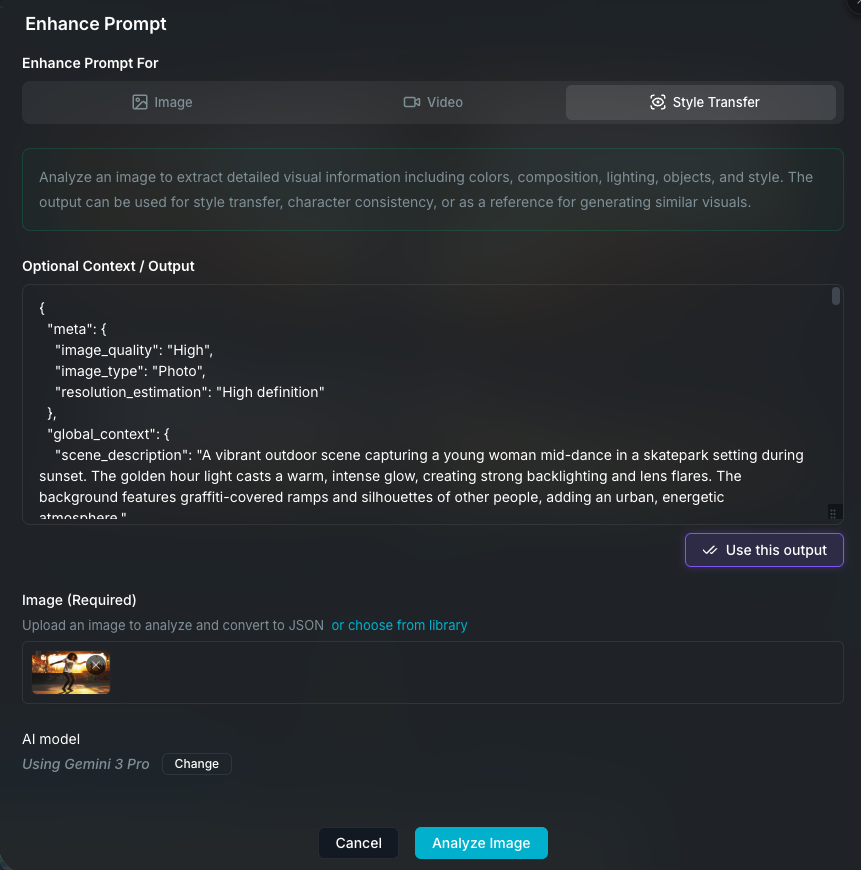
Vision-to-JSON mode (Style Transfer)

Vision-to-JSON style transfer mode

The Prompt Enhancer also includes a Vision-to-JSON mode for analyzing reference images. Instead of enhancing a text prompt, this mode takes an image and outputs a structured JSON breakdown of everything in the scene, including composition, color palette, lighting, objects, spatial relationships, and more. This is mostly used to replicate the style of one image in a different generation. Feed in an image you like, get a structured breakdown of its visual properties, and use that output to guide new generations with the same look and feel.

Saving enhancements

When you use an enhanced prompt, the enhancement selections (categories and keywords) are saved alongside the generation. This means you can return to the Prompt Enhancer later and see which enhancements were applied, making it easy to iterate on the same visual direction or adjust your selections for the next generation.

Credits

Prompt enhancement uses AI credits. The cost depends on:

  • Whether a reference image is included (image analysis costs more)
  • The number of variations requested (more variations cost more)

Wayaframe Documentation