Skip to content

Voice Designer

Wayaframe's Voice Designer turns text into natural-sounding voiceover audio using AI text-to-speech. You choose a voice, adjust how it sounds, add pauses, and generate audio that syncs with your video. Every voiceover can use a different voice, language, and provider.

Project workflow

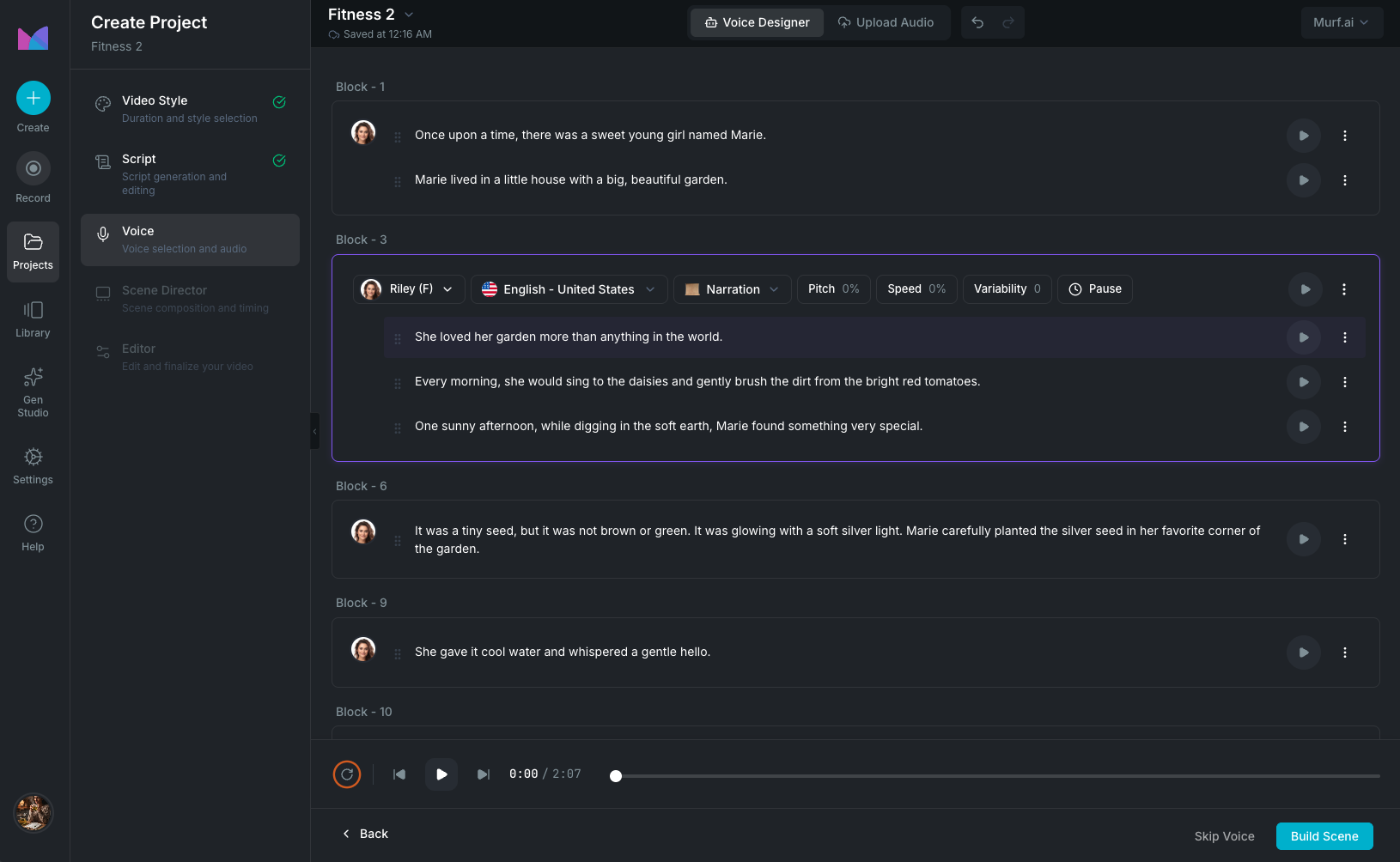
The Voice step in the guided project creation flow. The script from the previous step is already loaded. When the Voice Designer opens, you're prompted to split the script into voice blocks. Generated audio attaches to the project and flows into the Scene Director automatically.

If you go back and change the script after blocks already exist, a resolution modal appears with options to replace all blocks, prepend the new text, append it, or insert it after a specific block.

Project voice step

Splitting your script into blocks

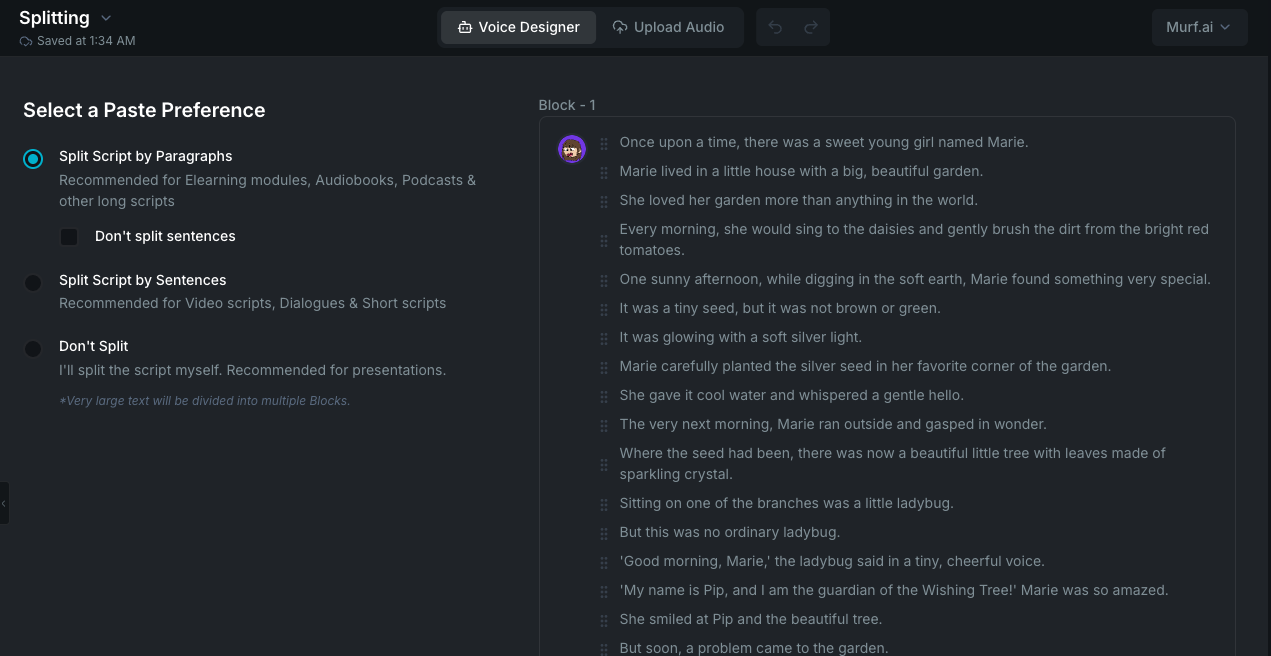
When entering the Voice Designer for the first time (in both the project and library workflows), Wayaframe prompts you to split your script text into voice blocks. This determines how your voiceover is structured before you start generating.

  • Split by paragraphs: each paragraph becomes its own block. You can optionally keep sentences together within each block.
  • Split by sentences: each sentence becomes its own block.
  • No splitting: the entire script goes into a single block.

A live preview shows the resulting blocks before you confirm, so you can see exactly how the text will be divided. Choose the strategy that fits your voiceover. For example, splitting by paragraphs works well when each section needs a different voice or pacing, while no splitting is simpler for short scripts.

After splitting, each block can be assigned its own voice, language, style, and settings independently.

Script splitting strategies

Voice providers

Wayaframe supports three text-to-speech providers. Each provider offers different voices, languages, and tuning controls.

ProviderVoice cloningControls
MurfNot supportedSpeed, Pitch, Variability
ElevenLabsSupportedStability, Similarity Boost, Style Degree, Speaker Boost (toggle)
MinimaxSupportedSpeed, Volume, Pitch, Intensity, Timbre, Sound Effects presets

You can switch providers at any time. Wayaframe remaps your voice settings when switching so you don't lose your tuning.

Choosing a voice

Each block has a voice selector. Click it to open the Voice Selection modal for that block. From there you can browse, search, filter, preview, and pick a voice. You can also access your favorites, recently used voices, Brand Kit voices, and cloned voices. The selected voice applies only to the block you opened it from.

See Voice Selection for the full breakdown of how voice browsing, previewing, cloning, and favorites work.

Voice blocks

The Voice Designer is block-based. Instead of one flat text input, your voiceover is made up of individual blocks that you can manage independently.

Script blocks

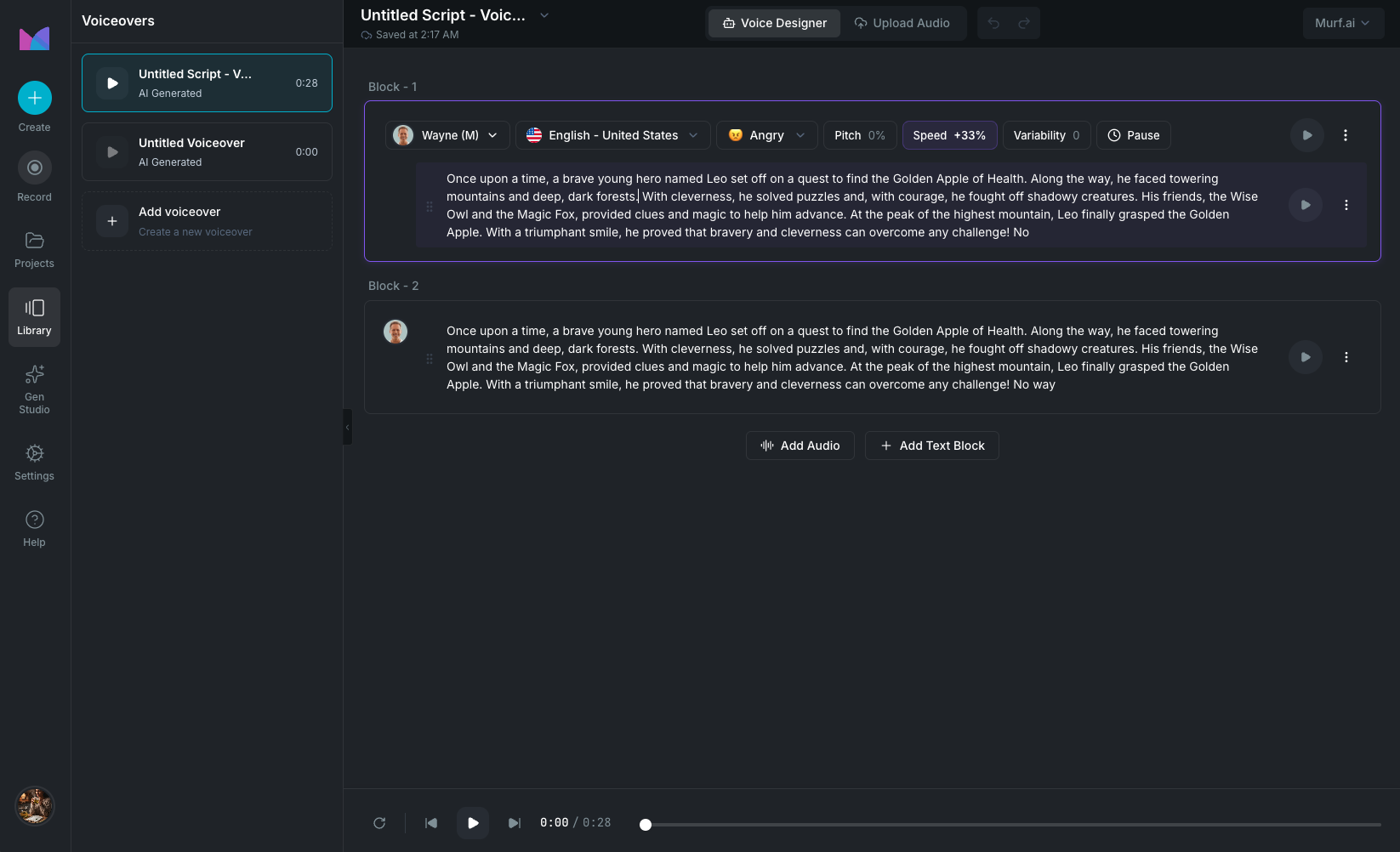
A script block contains text that will be converted to speech. Each block has its own toolbar at the top showing the selected voice, language, style, and voice settings (pitch, speed, variability, etc.), plus a pause button for inserting pauses. Each block can have a custom name (click the block name to rename it inline).

This means a single voiceover can use multiple voices. For example, one block could use a male English voice and the next could use a female Spanish voice.

Script blocks in the Voice Designer

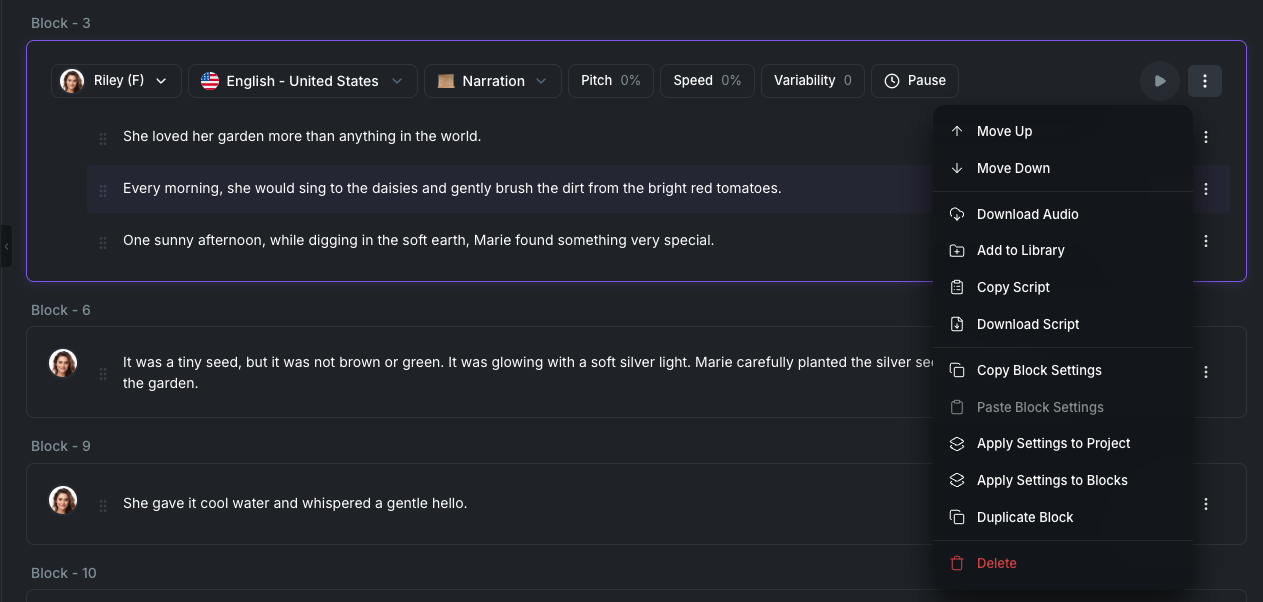
Each script block has an action menu (three-dot icon) with these options:

  • Move Up / Move Down: reorder the block.
  • Download Audio: export the block's generated audio.
  • Add to Library: save the block as a reusable library asset.
  • Copy Script: copy the block's text to clipboard.
  • Download Script: export the block's text as a file.
  • Copy Block Settings: copy the block's voice, style, and settings.
  • Paste Block Settings: apply previously copied settings to this block.
  • Apply Settings to Project: apply this block's voice settings as the default for the entire project.
  • Apply Settings to Blocks: select multiple blocks and apply this block's settings to all of them.
  • Duplicate Block: create a copy with the same text and settings.
  • Delete: remove the block.

Audio blocks

Unlike script blocks which generate speech from text, an audio block lets you bring in your own audio. This is useful when you want to include a pre-recorded narration, an interview clip, a podcast segment, or any audio you've already produced. Each audio block accepts a file from one of three sources:

  • Upload: drag and drop or browse for an MP3, WAV, or M4A file.
  • Library: select an existing audio asset from your media library.
  • Record: record directly from your microphone inside the app, with pause/resume controls and device selection.

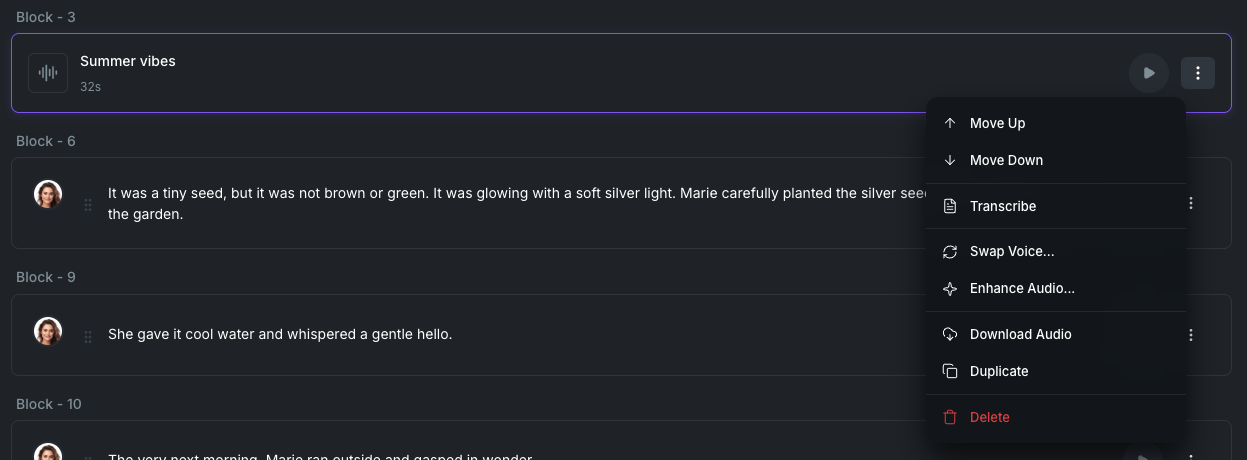
Once added, you can further process the audio using AI tools found in the block's action menu (three-dot icon on the block):

  • Voice Swap: replace the original speaker with a different AI voice.
  • Voice Enhancement: clean up the audio with AI noise reduction and clarity improvement.

Audio blocks in the Voice Designer

You can mix script blocks and audio blocks in the same voiceover. For example, you could have an AI-generated voiceover in one block, your own recorded narration in the next, and an uploaded interview clip after that. When you generate, Wayaframe merges all blocks into a single continuous audio output in the order they appear.

Segments

Each script block is made up of one or more segments. Segments are the individual text units inside a block. They let you break a long block into smaller pieces without creating a new block.

Splitting a segment

Place your cursor at the point where you want to split, then press Enter. Wayaframe creates a new segment after the cursor position with the remaining text. This is useful for isolating a sentence that needs different timing or for inserting a pause at a specific point.

Segment actions

Each segment has its own action menu:

  • Move Up / Move Down: reorder segments within the block.
  • Copy: copy the segment text.
  • Download: download the segment's generated audio.
  • Delete: remove the segment.

Managing blocks

Adding and merging blocks

Between every two blocks, a toolbar appears with three options:

  • Text: insert a new script block at that position.
  • Audio: insert a new audio block (upload, library, or record).
  • Merge: combine the block above and below into a single block. The segments from both blocks are joined together.

The same toolbar appears at the bottom of the last block so you can always add more.

Pasting text

When you paste text into the Voice Designer, a modal appears with the same splitting strategies used when first entering the Voice Designer. A live preview shows how the pasted text will be split before you confirm. The new blocks are inserted at the position where you triggered the paste, so paste from between two blocks to insert there, or from the end to append.

Block action menu

Each block includes a full action menu:

  • Move Up / Move Down: reorder the block.
  • Duplicate: create a copy of the block with the same text and settings.
  • Copy Settings / Paste Settings: copy voice settings from one block and apply them to another.
  • Download Audio / Download Script: export the block's generated audio or text.
  • Add to Library: save the block as a reusable library asset.
  • Transcribe (audio blocks): generate a text transcript from the audio.
  • Voice Swap (audio blocks): replace the speaker voice.
  • Enhance Audio (audio blocks): apply AI noise reduction and clarity.
  • Revert to Original (audio blocks): undo voice swap or enhancement.
  • Delete: remove the block.

Applying settings to multiple blocks

Enter block selection mode to select multiple blocks at once. From the selection popover, you can apply voice settings (voice, style, speed, pitch, and other controls) to all selected blocks in one step. This saves time when you want several blocks to share the same voice configuration without copying and pasting settings one by one.

Adding pauses

Insert pauses between words or sentences to control pacing. Click the pause button in the text editor to insert a pause marker.

Available pause presets: 0.5s, 1s, 1.5s, 2s, and custom durations.

Pause limits vary by provider:

ProviderMinimumMaximum
Murf0.1s5s
ElevenLabs0.1s3s
Minimax0.01s99s

Pauses appear in your text as [pause Xs]. Consecutive pauses are merged automatically.

Voice settings

Each provider exposes different controls for fine-tuning how the voice sounds.

Murf

  • Speed: -50% to +50% (default: 0). Controls how fast the voice speaks.
  • Pitch: -50% to +50% (default: 0). Raises or lowers the vocal tone.
  • Variability: 0 to 5 (default: 0). Adds natural variation and dynamics to the speech. Higher values make the delivery less monotone.

ElevenLabs

  • Stability: 0 to 100% (default: 50%). Higher values produce more consistent, predictable speech. Lower values add expressiveness.
  • Similarity Boost: 0 to 100% (default: 75%). How closely the output matches the original voice sample.
  • Style Degree: 0 to 100% (default: 0%). How much the voice leans into the selected style.
  • Speaker Boost: on/off toggle (default: off). Enhances speaker clarity at the cost of slightly higher latency.

Minimax

  • Speed: 0.5x to 2x (default: 1x).
  • Volume: 0.5x to 2x (default: 1x).
  • Pitch: -12 to +12 semitones (default: 0).
  • Intensity: -1 to +1 (default: 0). Controls the energy level of the delivery.
  • Timbre: -1 to +1 (default: 0). Adjusts the tonal quality of the voice.
  • Sound Effects: preset audio effects applied to the output.

Generating audio

Once your text and voice settings are ready, click the Play button in the timeline controls at the bottom to generate and preview the full voiceover. Wayaframe generates audio for each block and combines them in order.

  • A progress indicator shows how many blocks have been generated out of the total.
  • AI credits are consumed per generation.
  • The generated audio is saved to your library.

Regenerating after changes

After the initial generation, a Regenerate button appears in the timeline controls. If you make any changes to the text, voice, or settings, a warning ring lights up around the regenerate button to indicate the audio is out of sync with your current blocks.

Click Regenerate to re-generate the audio with your latest changes. Only the blocks that changed are re-generated. Each regeneration consumes credits separately.

The regenerate button is disabled if any block exceeds the character limit for the selected provider or if a voice hasn't been assigned to a block.

Language support

Wayaframe supports 40+ languages and regional variants, including:

English (US, UK, AU, IN, Scotland), French (France, Canada), German, Spanish (Spain, Mexico), Italian, Portuguese (Brazil), Chinese, Japanese, Korean, Hindi, Indonesian, Dutch, Romanian, Turkish, Tamil, Finnish, Bengali, Polish, Slovak, Tagalog, Croatian, Greek, Vietnamese, Swedish, Danish, Thai, Malay, Czech, Bulgarian, and more.

Language availability varies by provider and voice. The Voice Selection modal shows which languages each voice supports.

Library workflow

You can also create voiceovers from the Library as standalone reusable assets, separate from any project. This is best when you want to prepare voiceover content in advance, experiment with different voices, or build a library of narration assets.

The Library uses the same providers, voice blocks, segments, and editing tools described above. You can link a Library voiceover to a Library script, or type text directly into blocks.

Library voice workspace

Editor workflow

Inside the video editor, the Voice Designer is available in two places:

  • Voice tab in the editor's left sidebar: opens the same voice workspace with blocks, segments, and all the tools described above. Generated voiceovers appear in the Voice tab and can be inserted directly into the project timeline.
  • AI Video Extend: generates additional voiceover as part of extending your video with new scenes.

The editor also offers Edit by Text, Voice Swap, Translate Audio, and Voice Enhancement for working with existing audio clips on the timeline.

Wayaframe Documentation