Skip to content

Basic Properties

The Basic tab in the property panel contains the shared visual properties available on every clip type. This is where you control a clip's appearance, position on the canvas, transform behavior, and how it interacts with content behind it.

Select a clip on the canvas or timeline to open the Basic tab. The available sections change depending on the clip type, but the core properties are the same across all clips.

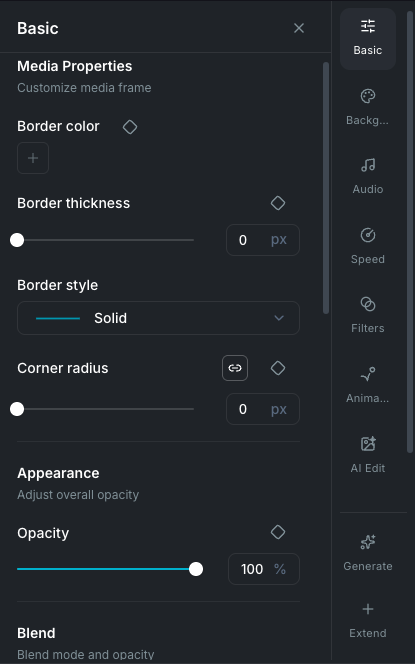
Basic properties panel

Opacity

Controls how transparent or opaque the selected clip is.

  • Range: 0% (fully transparent) to 100% (fully opaque).
  • Keyframeable: yes. You can animate opacity over time. See Keyframing.

Blend mode

Determines how the clip's pixels combine with the content behind it on the canvas.

Available modes:

  • Normal (default)
  • Multiply
  • Screen
  • Overlay
  • Darken
  • Lighten
  • Color Burn
  • Color Dodge
  • Hard Light
  • Soft Light
  • Difference
  • Exclusion

Transform

The Transform section controls position, scale, rotation, and advanced 3D transforms.

Scale

Resize the clip as a percentage of its original size.

  • Range: 5% to 1000%.
  • Linked mode (default): a single slider scales width and height proportionally. Click the link button to unlink.
  • Unlinked mode: separate Scale X and Scale Y sliders for independent horizontal and vertical scaling.
  • Keyframeable: yes. When unlinked, X and Y can be keyframed independently.

Position

Set the clip's location on the canvas in pixels.

  • Position X: horizontal position.
  • Position Y: vertical position.
  • Keyframeable: yes. Disabled when a motion path is active, since the path controls position instead.

You can also position clips by dragging them directly on the canvas.

Rotation

Rotate the clip around its center.

  • Z rotation: the standard 2D rotation, from -180° to +180°. Always available. Includes a rotation dial for visual adjustment.
  • Keyframeable: yes.

3D rotation

Click the 3D button (cube icon) next to the rotation label to enable 3D transforms. A 3D rotation control also appears on the canvas for direct drag-based rotation. This reveals additional controls:

  • Y rotation: rotate around the vertical axis (left/right tilt), -180° to +180°.
  • X rotation: rotate around the horizontal axis (forward/back tilt), -180° to +180°.
  • Keyframeable: yes, each axis independently.

3D rotation is not available on effects.

Perspective

Controls the depth effect when 3D rotation is applied. Only visible when 3D rotation is enabled.

  • Range: 0 to 1000px. Lower values create a stronger perspective distortion; higher values flatten the effect.
  • Requires: at least one of X or Y rotation to be non-zero.
  • Disabled: when Smart Motion is active on the clip.
  • Keyframeable: yes.

Skew

Slant the clip along the X or Y axis. Only visible when 3D rotation is enabled.

  • Skew X: horizontal slant, -45° to +45°.
  • Skew Y: vertical slant, -45° to +45°.
  • Snap angles: snaps to 0°, ±15°, ±30°, ±45° when dragging the dial.
  • Keyframeable: yes, each axis independently.

Clip name

An optional text field to give the clip a custom name. Useful for organizing complex timelines with many clips. The name appears on the clip in the timeline.

Mask

Apply a shape mask to reveal or hide portions of the clip. Choose a mask shape, set the mode (reveal or hide), and adjust the edge blur. See Masking for full details.

Drop shadow and text shadow

Add a shadow behind the clip for depth or emphasis. Text clips show Text shadow controls; all other clips show Drop shadow.

Choose a shadow type to set the overall style, then adjust the settings:

  • Default: an offset shadow cast to one side, for a natural raised look.
  • Soft: a centered, diffused glow around the clip.
  • Tiled: repeated shadow layers stacked at increasing offsets. You can add or remove layers, each with its own settings.
  • Precision: a hard, sharp shadow with no blur for a clean cutout look.

Each type supports these settings (keyframeable):

  • Angle: 0° to 360°, with a rotation dial.
  • Color: any color via the color picker.
  • Distance: how far the shadow is offset, 0 to 300px.
  • Blur: shadow softness, 0 to 200px.
  • Opacity: shadow transparency, 0% to 100%.

INFO

Drop shadow and shape blur are mutually exclusive. Enabling one disables the other.

Border and corner radius

Add a border and rounded corners to image and video clips. Not available on sticker clips.

  • Border color: any color via the color picker, or remove the border entirely. Keyframeable.
  • Border thickness: 0 to 100px. Keyframeable.
  • Border style: Solid, Dashed, Dotted, Dash-dot, or Long dash.
  • Corner radius: 0 to 500px. Link all four corners for a uniform radius, or unlink to set each corner individually (top-left, top-right, bottom-right, bottom-left). Keyframeable.

Shape properties

Additional controls shown for shape clips:

  • Width and Height: set exact dimensions in pixels. An aspect ratio lock keeps proportions when adjusting one dimension. Keyframeable.
  • Corner radius: 0 to 500px. Link all four corners for a uniform radius, or unlink to set each corner individually.
  • Fill color: the shape's fill.
  • Stroke color, stroke width, and stroke style: outline appearance.

Shape blur

Apply a backdrop blur or pixelation effect through the shape. Only available on shapes.

  • Backdrop blur: blurs the content behind the shape, 0% to 100% intensity.
  • Pixelate: pixelates the content behind the shape with a configurable block size (2 to 50px).

Text path

Attach text to a custom path so it flows along a curve or shape. Only available on text clips. You can adjust the path offset, alignment, direction, and animate text movement along the path. See Text Path for full details.

Motion path

Animate a clip's position along a custom path over time. Configure the anchor point, orientation, and timing, or create paths from motion tracking data. When a motion path is active, the Position X/Y inputs are disabled since position is controlled by the path. See Motion Paths for full details.

Keyframing

Most properties in the Basic tab can be animated over time using keyframes. Each keyframeable property shows a diamond icon next to its control:

  • Click the diamond to add a keyframe at the current playhead position, or remove one if it already exists.
  • Use the arrow buttons on either side to jump to the previous or next keyframe for that property.

For full details on keyframe editing, easing, and timing, see Keyframing.

Wayaframe Documentation